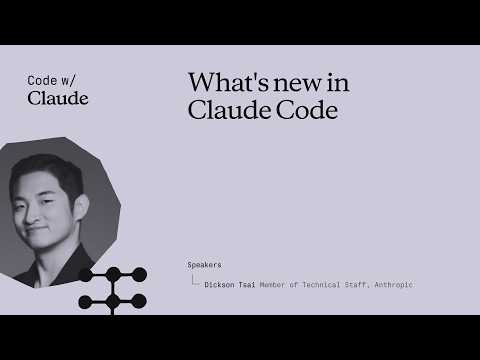
Anthropic Upgrades Claude Code With Autonomous Mode and Git Worktrees
Claude
The addition of safe background automation, project-specific memory, and remote workflows allows the tool to independently handle long-running development tasks without manual developer oversight.
## Background
Published on May 6, 2026, by the Claude channel on YouTube, this video provides a twenty-minute summary of the latest updates to Claude Code. According to the page description, it covers what features have shipped, the core reasons behind building them, and how developers can get started using them.
## TL;DR
The presentation outlines major upgrades to Claude Code focused on developer experience and autonomy, featuring enhancements like a remote control mobile link and a virtualized, flicker-free terminal UI alongside an interactive desktop GUI. It introduces advanced automation features including Auto Mode for independent safety classification, Git Worktrees for isolated parallel development, and Auto Memory to maintain persistent project context. Additionally, the video showcases multi-agent code reviews and automated workflows driven by local loops and remote routines that execute independently on Anthropic's servers.
## Atmosphere & style
The session has a highly technical, fast-paced, and forward-looking energy, led by an insider who frames constant technical iterations into clear, cohesive themes. Watching the live simulations and demonstrations creates a feeling of practical excitement, transforming abstract AI concepts into immediate, smooth productivity tools. The narrative feels supportive and deeply attuned to real-world developer pain points, offering an inspiring look at how engineering workflows are shifting toward intelligent autonomy.
## Key takeaways
- [00:00](https://www.youtube.com/watch?v=IMZa42k6L6M&t=0s) The latest Claude Code updates focus on two core themes: enhancing the developer experience and increasing agent autonomy.
- [01:00](https://www.youtube.com/watch?v=IMZa42k6L6M&t=60s) The new 'remote control' feature generates a web link allowing developers to monitor and interact with active terminal sessions from mobile devices.
- [02:00](https://www.youtube.com/watch?v=IMZa42k6L6M&t=120s) A fullscreen mode with a virtualized scrollback completely eliminates terminal flickering and stabilizes memory usage during large sessions.
- [03:00](https://www.youtube.com/watch?v=IMZa42k6L6M&t=180s) Voice mode enables direct prompt dictation to Claude within the terminal by holding down the spacebar.
- [06:00](https://www.youtube.com/watch?v=IMZa42k6L6M&t=360s) The revamped Claude Code Desktop GUI introduces advanced session organization, split views, and specialized context views like Plan, Diff, and Files.
- [09:00](https://www.youtube.com/watch?v=IMZa42k6L6M&t=540s) An experimental 'pin as chapter' feature generates semantic titles for assistant messages to create a dynamic table of contents for long sessions.
- [10:30](https://www.youtube.com/watch?v=IMZa42k6L6M&t=630s) Auto Mode uses an internal safety classifier to automatically approve safe tool executions without requiring constant human intervention.
- [12:00](https://www.youtube.com/watch?v=IMZa42k6L6M&t=720s) Claude Code optimizes Git Worktrees by allowing developers to declare shared heavy directories like node_modules to enable efficient parallel feature development.
- [14:00](https://www.youtube.com/watch?v=IMZa42k6L6M&t=840s) Claude can autonomously manage its own feature branches using the enter and exit worktree tools.
- [15:00](https://www.youtube.com/watch?v=IMZa42k6L6M&t=900s) Auto Memory maintains a persistent project-level memory.md file to reduce token waste and prevent Claude from starting every session with a blank slate.
- [16:00](https://www.youtube.com/watch?v=IMZa42k6L6M&t=960s) The Auto Memory feature relies heavily on the advanced reasoning and directory-management capabilities of newer models like Claude 3.7 Sonnet.
- [17:00](https://www.youtube.com/watch?v=IMZa42k6L6M&t=1020s) Multi-agent code reviews spin up a team of specialized reviewer agents to catch bugs, cross-verify findings, and minimize review noise.
- [18:00](https://www.youtube.com/watch?v=IMZa42k6L6M&t=1080s) Routines provide a research preview for background automation triggered by cron schedules, GitHub webhooks, or custom API endpoints.
- [20:00](https://www.youtube.com/watch?v=IMZa42k6L6M&t=1200s) The /loop command allows local automation of recurring tasks using Claude's internal cron scheduling tools.
- [21:00](https://www.youtube.com/watch?v=IMZa42k6L6M&t=1260s) A new 'tool search' tool dynamically loads tool definitions to optimize and save context window space.
- [22:00](https://www.youtube.com/watch?v=IMZa42k6L6M&t=1320s) Remote routines execute workflows entirely on Anthropic's servers, allowing automated tasks to run even when the developer's local machine is offline.
- [24:00](https://www.youtube.com/watch?v=IMZa42k6L6M&t=1440s) New enterprise-focused features include vastly improved Windows support, native cloud provider installations, and centralized admin controls.
## Detailed walkthrough
### [00:00](https://www.youtube.com/watch?v=IMZa42k6L6M&t=0s) Enhancing Developer Experience: Remote Control and Flicker-Free Terminal
Dixon Tsai, a member of the technical staff on the Cloud Code team at Anthropic, opens the session by highlighting the rapid pace of their public changelog. To help users make sense of the constant stream of updates, Tsai frames the latest features around two core themes: developer experience—making Cloud Code a nicer environment to spend the workday in—and autonomy, which empowers Claude to handle long-running tasks independently.
Tsai introduces "remote control," a feature designed for developers who want to kick off a task on their local machine and monitor or interact with it on the go. By typing `remote control` in the terminal, Cloud Code generates a web link. Opening this link on a mobile browser or app displays the active terminal session in real time. Tsai demonstrates this live, typing `3 plus 3` on a simulated mobile screen and showing it instantly execute in the terminal. This setup is particularly powerful for long-running sessions that have accumulated context over multiple pull requests, allowing developers to spin up subagents to implement ideas while away from their desks.
Addressing a common pain point for long-time users, Tsai tackles terminal flickering. In older versions, appending text to the existing terminal scrollback could trigger misalignments and jarring repaints. To solve this, the team introduced a fullscreen mode that virtualizes the scrollback. This update guarantees a completely flicker-free output, keeps memory usage flat even during massive sessions, and makes terminal elements interactive and clickable.
- **Remote Control:** Allows developers to seamlessly transition a live development session from a desktop terminal to a mobile device or web browser.
- **Flicker-Free Terminal:** Uses a virtualized scrollback in fullscreen mode to eliminate rendering artifacts and keep memory consumption stable.
- **Voice Mode:** Can be toggled using the `/voice` command, allowing users to hold down the spacebar to dictate prompts directly to Claude.
[05:00](https://www.youtube.com/watch?v=IMZa42k6L6M&t=300s) Interactive Terminal Features and the Revamped Desktop GUI
Tsai demonstrates the new fullscreen terminal UI (activated via the shortcut `2e full screen`) alongside the built-in voice mode. Holding down the spacebar, he prompts Claude to write ten jokes and ten fun facts. As Claude processes the request, the terminal renders the output smoothly without any flickering. Folded tool calls can be expanded with a single click. To showcase virtualized scrolling, Tsai asks Claude to generate ten career tips. While the model is writing, the user can freely scroll up to review previous text; if a new message arrives, a "jump to bottom" button appears to let the user snap back to the active prompt without disrupting their reading flow.
The presentation then shifts to the revamped Cloud Code GUI, which is designed to help developers manage multiple sessions and complex contexts more efficiently. Using the open-source whiteboarding application Excalidraw as a demo project, Tsai shows off the updated Cloud Code Desktop sidebar. The interface now features a pinned section, advanced filtering, and the ability to group sessions by project. Users can also drag and drop sessions to open a split view.
To make the workspace more interactive, the top-right corner of the desktop app now hosts several specialized views. Beyond the standard transcript, developers can open a dedicated "plan" view to highlight steps and leave comments for Claude to resolve later. A "diff" view allows line-by-line commenting, and a "files" view provides a full directory tree for quick manual edits. Tsai also reveals an experimental "pin as chapter" feature. By hovering over an assistant message, developers can generate a semantic title for that point in the transcript, building a dynamic table of contents to easily navigate long sessions.
- **Split View:** Supports drag-and-drop layout customization to manage multiple active sessions side by side.
- **Interactive Context Views:** Includes Plan, Diff, and Files views to let developers comment on code and guide Claude's execution.
- **Table of Contents:** An experimental feature that automatically titles and indexes transcript milestones, spearheaded by Desktop lead Anthony Morris.
[10:00](https://www.youtube.com/watch?v=IMZa42k6L6M&t=600s) Autonomy: Auto Mode and Git Worktrees
To demonstrate the practical results of these GUI features, Tsai runs the Excalidraw development server directly from the built-in terminal on port 3002, showing off a newly added trapezoid drawing tool. He then transitions to the second major theme: autonomy. Tsai explains the frustration of leaving Claude to run a long task, only to return and find it stalled by a single permission prompt or branch conflict. To solve this, Anthropic introduced "Auto Mode," a permissions setting that uses an internal classifier to make safety decisions on the developer's behalf. The classifier evaluates whether an action is destructive or resembles a prompt injection; if it passes these checks, the tool runs automatically without human intervention.
Another major hurdle in autonomous development is preventing parallel agents from stepping on each other's code. Tsai introduces Git Worktrees as his favorite feature for solving this problem. While Git worktrees have existed for a long time, they traditionally suffer from "sharp edges" like duplicating massive directories. Cloud Code smooths this out by allowing developers to declare shared files—such as `node_modules`—in their settings.
Using the Excalidraw project, Tsai demonstrates how to spin up parallel worktrees. He creates one worktree to add a sixth color to the color palette and another to add a border-radius slider. By running `clod` (short for `--worktree`), developers can isolate these tasks completely. Claude can also manage this process autonomously using its own `enter work tree` and `exit work tree` tools, allowing it to decide when to isolate a feature branch and clean up after itself once the work is complete.
- **Auto Mode:** Uses a classifier to automatically approve safe tool executions, blocking only destructive actions or potential prompt injections.
- **Git Worktrees:** Creates isolated environments for parallel feature development while sharing heavy directories like `node_modules` based on user settings.
- **Autonomous Branching:** Claude can independently decide to enter a worktree, implement a feature, and clean up the environment afterward.
[15:00](https://www.youtube.com/watch?v=IMZa42k6L6M&t=900s) Auto Memory, Code Review, and the Power of Routines
Tsai addresses the issue of token waste caused by Claude starting every session with a blank slate. With "Auto Memory," Claude can now accumulate project-specific knowledge over time, such as build commands, debugging insights, and style preferences. It manages this by maintaining a `memory.md` index file inside a dedicated project directory. This index file is automatically included in conversations and can link to deeper files using progressive disclosure. Tsai notes that this feature relies heavily on the advanced reasoning capabilities of newer models like Claude 3.7 Sonnet, which excel at managing directory-based memory.
For code quality, Tsai shares a highly effective multi-phase, multi-agent code review pattern developed internally at Anthropic. By running `/ultra review` or using their GitHub app, developers can deploy a team of specialized reviewer agents to analyze different aspects of a pull request, verify each other's findings, and filter out noise before presenting the final review.
Finally, Tsai introduces "Routines," a research preview feature that automates the generation of development tasks. Instead of waiting for a developer to initiate a prompt, Routines run entirely in the background based on triggers such as cron schedules, GitHub webhooks, or custom API endpoints.
- **Auto Memory:** Automatically maintains a `memory.md` file to store persistent project context, reducing repetitive prompting and token usage.
- **Multi-Agent Code Review:** Spins up parallel reviewer agents to catch complex bugs and verify findings before human review.
- **Routines:** Automates task execution using cron schedules, webhooks, or API endpoints to run agent workflows without manual intervention.
[20:00](https://www.youtube.com/watch?v=IMZa42k6L6M&t=1200s) Local and Remote Automation with Loops and Routines
Tsai demonstrates how to set up automation within a single session using the `/loop` command. He schedules a loop to run every minute and tell a joke, which prompts Claude to use its `cron create` tool to schedule the recurring task. The terminal quickly displays a classic programmer joke: "why do programmers prefer dark mode? Because light attracts bugs." To stop the automation, Tsai simply types `stop the loop`, and Claude maps the natural language command to the correct tool call to delete the schedule. Tsai also highlights the new "tool search" tool, which adds a layer of indirection so Claude can access a vast library of tools without cluttering the active context window.
While local loops require the developer's laptop to remain open, Tsai explains that "remote routines" run entirely on Anthropic's servers. He shares his personal routine, which runs daily to scan open public GitHub issues for the `area plugins` and `area hooks` labels, sorts them by user reactions, and compiles a top-10 digest. This automated report runs reliably in the background, and Tsai suggests that future workflows could automatically ingest these reports and deploy subagents to fix the identified bugs.
Tsai concludes the presentation by highlighting several enterprise-focused features, including significantly improved Windows support, native cloud provider installations, and centralized admin settings. He encourages the audience to follow their public changelog, subscribe to the developer newsletter, and attend the afternoon mainstage Q&A session with Anthropic co-founders Dario Amodei and Daniela Amodei.
- **Local Loops:** Uses the `/loop` command to schedule recurring tasks within an active terminal session.
- **Remote Routines:** Executes scheduled workflows on Anthropic's servers, allowing tasks to run even when the developer's computer is offline.
- **Tool Search:** Optimizes context window usage by searching for and loading tools dynamically rather than keeping all definitions in active memory.
- **Enterprise Features:** Includes robust Windows support, native installer options, and centralized administrative settings for team deployments.
## Notable quotes
> [00:00](https://www.youtube.com/watch?v=IMZa42k6L6M&t=0s) remote control — Dixon Tsai
> [00:00](https://www.youtube.com/watch?v=IMZa42k6L6M&t=0s) 3 plus 3 — Dixon Tsai
> [05:00](https://www.youtube.com/watch?v=IMZa42k6L6M&t=300s) 2e full screen — Dixon Tsai
> [05:00](https://www.youtube.com/watch?v=IMZa42k6L6M&t=300s) jump to bottom
> [05:00](https://www.youtube.com/watch?v=IMZa42k6L6M&t=300s) pin as chapter
> [10:00](https://www.youtube.com/watch?v=IMZa42k6L6M&t=600s) Auto Mode — Dixon Tsai
Anthropic technical staff member Dixon Tsai outlines updates to Claude Code focused on two main priorities: refining the developer experience through responsive terminal and desktop interfaces, and expanding agent autonomy with isolated workspaces, automatic permissions, and background routines.
Flicker-Free Terminal and Cross-Device Mobility (0:00)
To address common interface bottlenecks, Claude Code introduces a fullscreen mode that virtualizes terminal scrollback. This prevents output flickering and misalignment caused by appending continuous text, preserves clickable interface elements, and maintains flat memory consumption during long sessions. A voice mode, activated via the `/voice` command and held spacebar, enables direct dictation.
For distributed and continuous workflows, the new 'remote control' feature allows developers to transition active sessions from desktop terminals to web browsers or mobile devices. Initiated via a terminal command that generates a web link, this mechanism synchronizes live terminal state and allows users to dispatch subagents and monitor long-running, multi-pull-request sessions remotely.
Desktop GUI and Structured Context Management (5:00)
The updated desktop interface targets multi-task organization with a redesigned sidebar featuring project grouping, filtering, and a drag-and-drop split view for simultaneous sessions. To improve visibility during complex tasks, dedicated views in the interface separate execution into distinct stages: a 'plan' view for marking steps and leaving notes, a 'diff' view for line-by-line code review, and a 'files' view for manual directory edits.
To facilitate navigation in extensive sessions, desktop lead Anthony Morris introduced an experimental 'pin as chapter' feature. This tool allows users to generate semantic headings from assistant messages to create a dynamic table of contents across lengthy transcripts.
Autonomy via Auto Mode and Git Worktrees (10:00)
To prevent autonomous tasks from stalling on permission checks, Anthropic implemented 'Auto Mode.' This setting uses an internal classifier to evaluate tool calls, automatically approving safe operations while halting only for destructive actions or potential prompt injections.
To allow multiple agents to work concurrently without conflict, Claude Code integrates Git worktrees. The implementation mitigates traditional storage inefficiencies by letting developers declare shared directories, such as `node_modules`. Claude can manage feature branches autonomously through built-in tools that open an isolated worktree, execute changes, and clean up the environment upon completion.
Persistent Memory, Multi-Agent Review, and Background Automation (15:00)
Claude Code addresses repetitive context setting and token expenditure via 'Auto Memory.' Relying on reasoning models like Claude 3.7 Sonnet, the system maintains a persistent `memory.md` directory index that accumulates build commands, debugging notes, and repository conventions over time. For pull requests, internal workflows deploy `/ultra review`, spinning up parallel agent reviewers to verify findings and filter false positives before manual review.
For ongoing tasks, the system provides both local `/loop` scheduling via cron and server-side 'Routines.' Unlike local loops that require an active machine, Routines run remotely on Anthropic infrastructure triggered by cron schedules, webhooks, or API endpoints. To support growing tool libraries without saturating active context windows, a dynamic 'tool search' indexes and retrieves tool definitions on demand.
Tsai notes that alongside enterprise updates—such as expanded Windows support, native cloud provider packages, and centralized admin policies—future iterations of background routines are expected to move beyond compiling issue reports to autonomously deploying subagents to fix identified bugs.
[0:00] Dixon Tsai: remote control
[0:00] Dixon Tsai: 3 plus 3
[5:00] Dixon Tsai: 2e full screen
[5:00] jump to bottom
[5:00] pin as chapter
[10:00] Dixon Tsai: Auto Mode
[10:00] Dixon Tsai: clod
[10:00] enter work tree
[10:00] exit work tree
[15:00] Dixon Tsai: Auto Memory
[15:00] Dixon Tsai: /ultra review
[15:00] Dixon Tsai: Routines
[20:00] Claude: why do programmers prefer dark mode? Because light attracts bugs.
[20:00] Dixon Tsai: stop the loop
Original transcript
[0:00] please welcome to the stage member of technical staff philanthropic Dixon Tsai. All right. Good morning, everyone. I'm Dixon from the Cloud Code team. I work on plugins and Cloud Code on the web. This session is about what's new in Cloud Code. If you've seen our public changelog recently, you'll know that our team ships a lot. It could be kind of hard to keep up. So today, I want to step back from the changelog and give you the story. How our new features fit together and why we love them. Our new features fall into two themes. There we go. Our new features fall into two themes First developer experience How we making Cloud Code nicer to live in as you spend more of your day with it Second autonomy. How we're enabling Cloud to do more while you're away from your keyboard. Finally, I'll cover how to learn more for everything I don't get to. As daily users of Cloud Code, we're still very invested in the human experience, even as Cloud can handle more long-running tasks on its own. For developer experience, first up is remote control. Remote control lets you start a session on your machine and pick it up on the go. From your phone, you can access the same session, same dev setup. Why not kick off a long-running task and run some errands? We wanted more convenience on our team when building Cloud code, and remote control gives us that. Let me show you how to set up remote control with a demo. Alright, so we are in a new session. Let's just seed it with some content. And now we can enable remote control by typing remote control What you get is a link in Cloud Code on the web so let open that and put these side by side and you can see the content of your terminal online And from you know this can be your mobile browser, this can be your mobile app, you can type 3 plus 3 or something like that, and it'll appear in the terminal. Same dev setup that's running in your terminal, You can also type in your terminal and see it in Cloud Code on the web. So my favorite pattern here is to enable remote control on a long-running session that has accumulated context over multiple PRs. That way, when I'm on the go, I can ask that long-running session to spin up a subagent and get my idea implemented. Back to the slides. Next is flicker-free rendering. Show of hands, how many of you have encountered flickering at some point when using Cloud Code? That's how you know that you're an OG. So we heard from you loud and clear that flickering ruins the terminal experience Our previous approach of appending to the existing terminal scrollback was tricky to get right One misalignment could trigger repainting that would cause the flickering that you see. Now, Cloud Code's terminal UI has fullscreen mode, where we virtualize scrollback. By doing so, we can guarantee flicker-free output. On top of that, we can make elements of quad code in the terminal clickable. And we can keep memory usage flat, even for very long sessions. Our team has switched to this for the most part, and you'll feel the difference immediately if you do as well. Let me show you how to use it in a demo. So, in a new session, I'll expand this. You can enable full screen mode by saying 2e full screen. 2e is short for terminal UI. By the way, did you know that there's a voice mode in Cloud Code? How many of you have used voice mode already? Okay, a fair number of you. You can toggle it on or off by using slash voice. And now you can hold the space bar to say a prompt.
[5:00] So I'll say, write me a file containing 10 jokes and another file containing 10 fun facts. Containing 10, oh, there we go. All right, so as cloud is working, you'll see how smooth the rendering is for full screen mode. Even for very long content, you don't see any rendering artifacts. And one thing you can do is for these tool calls that are folded, you can expand them with a single click. Now let me show you how virtualized scrolling works with another prompt. Create a file containing 10 career tips. Career tips. Okay, there we go. And as it's working, let's say you are scrolling back and reviewing the existing output. We see this jump to bottom here that you can click and our existing prompt does its processing and has alerted us that there's a new message. So it doesn affect your view above the transcript So we can then jump down and see what that new message is This is full screen mode So if you like me and you spend a lot of time in the terminal full screen mode provides you a really smooth intuitive experience. Back to the slides. Some engineers on our team prefer the terminal, but others are increasingly using the cloud code GUI across desktop and web. We've revamped the GUI into a much better experience for managing, one, multiple sessions at once, and two, presenting all of the relevant context you need for the session so that you can work more efficiently. Let's take a look at some of these new features in a demo. This demo is based on Excalibur. So Excalindraw is an open source whiteboarding app and the original experience has three basic shapes, rectangles, diamonds and ellipses. But let's say I wanted to draw trapezoids. Well, I have a Cloud Code Desktop session cooking with this feature. If you haven seen Cloud Code Desktop in a while a lot has changed In the sidebar we have a pinned section and also more advanced filtering and grouping capabilities In fact you can group by your project for example From the sidebar, you can also open up a split view, just like that, with drag and drop. On the top right corner, you can see a lot of views for your session, because the transcript's kind of boring sometimes, right? You can open the plan corresponding to the session. You can even highlight certain parts to leave comments, and all the comments can get aggregated and resolved by Claude later. So in addition to the plan, you can open a diff view and also leave comments on any line. Finally, if you're kind of lost, you can open the files view where you have your entire working directory and you can also make edits really quickly. But what we're betting here is that you're spending more and more of your time with Claude as Claude becomes more capable and all these functionalities are more optional, right? They're not your default experience, they just something you grab onto when you need them Now let me show you this really cool experimental feature So you know that this transcript is really long Now one thing we can do is we can hover over an assistant message and there's a pin as chapter button. You should try to guess what this does. So let me click here and then you can see that above this assistant message we now have a title for this message in the context of this transcript. You can rename this title debug pointer down event. Let's maybe add one more. How about this one? So we'll pin this as a chapter 2 and see what its title is. The title is add missing distance to trapezoid element function. Cool. So we now have two titles. What can we build with this? We can build a table of contents. So now in the top left corner you can jump between different parts of your transcript. You can rename these chapter titles or you can even delete them if you want. So that's an experimental feature and we think that that we can make a lot more on Cloud Code Desktop.
[10:00] It's Anthony Morris, our Cloud Code Desktop lead, No on X, and he'll probably ship it for you tomorrow. So one last thing here is we haven't looked at trapezoids, so let's actually run a server. We can open up the terminal right here, start the server. It's going to run in localhost 3002, and now you can draw trapezoids, and you can even make them orange. All right, let's go back to the slides. So that's for developer experience. Now on to our second theme, autonomy. Each of these next features came from the same place. I'd hand Claude something long running and one small thing, a permission prompt, a branch conflict, a forgotten build command would lead me to wonder, Claude, why'd you do that when I come back to my laptop? The features I'll cover next will give you more confidence that Claude will do what you want when you step away. First feature I'll cover, show of hands. How many of you have become tired of permission prompts? Where you go one one one You can probably start a wave right With your hands Auto mode is a new permissions mode in Cloud Code where Cloud makes permission decisions on your behalf using a classifier So when you have a tool call that would otherwise hit a permission prompt, the classifier will look for two things. One, is the action destructive? And two, does it look like prompt injection? If the classifier determines a tool call it's safe, it just lets it run. If not, then Claude will block the tool call and the agent will have to figure out what to do next. This has saved us a bunch of time at Anthropic and helps us eliminate the number of instances where we thought we started a long-running task just to come back and be like, ugh, a permission prompt. So next is, oops, sorry. Next is Worktrees. Next pain point is how do we work with multiple features without your clods stepping on each other? Work trees are my favorite feature because they've helped me overcome this pain. Git work trees have existed long before clod code where it will create a new branch and it will copy all the files of your repo But there are so many sharp edges and so we taken the time to think about what those edges are and to smooth them out into a friendlier interface for us and for Cloud. So, for instance, we've integrated in Cloud Code settings a field where you can declare the files that should be shared across your work trees, like Node modules. So then, if you wanted to start a new session, you can just use dash dash work tree, and that new session will be accompanied by a new work tree. Or you can ask Claude to create a work tree for you. Let's take a look at this in a demo. So again, our demo is based on Excalibur. In the original experience, you see here, we're going to add two things for our demo. Now, one is we're going to add a new color, and two, we're going to add a slider to help us make these corners more round. So we going to start a work tree by using clod which is short for dash dash work tree So we have a work tree for colors a work tree for border radius and I just gonna write in the prompt right now add a sixth color to stroke slash background And then for this work tree, I'm gonna say add a slider to adjust border radius. Alright, so as these two sessions are cooking their respective features, Let me show you how Claude can create work trees on its own. So, I can say for instance, create a work tree to add a star shape. And so, it's not just dash dash work tree, we've actually given Claude an enter work tree and exit work tree tool so Claude can determine for itself whether it should start implementing a new feature in an isolated environment. So you can see that Claude has created a work tree. I'm being explicit in this demo, but you can put this prompt in your ClaudeMD. You don't have to be as explicit. Claude will know what your intent is. And Claude is polite enough to ask me when to start implementing. I'll actually say just leave the work tree.
[15:00] see that our harness cleans up the work tree for you. So it's very convenient. And that way you can have a long running session that works on many different PRs simultaneously. So let's take a look at our features now. Looks like the colors are ready. So let's run yarn start in the background and tell me the port. The other feature is still working. So this will take a little moment. All right, so this is ready in localhost 3003. And you can see I still have the original experience running on my main checkout of Excalibur. This new experience has the sixth color. So this feature, the agent was working independently on this feature. And then we can see how this other one is doing. It's still working, but I think you get the idea. Work trees are just super convenient for launching multiple agents to work on multiple features Back to the slides Next is auto memory How many of you feel like you spend a lot of tokens on the same things over and over again because you think Cloud Code's working on a blank slate, right? But with auto memory, we now let Cloud accumulate knowledge across your session so you don't have to set it up yourself. You can ask it to remember things like key build commands, debugging insights, and any other project preferences. And Claude will decide what's worth remembering based on whether the information could be useful for a future conversation. In particular, Claude for every project will manage a directory and within the directory is a memory.md file. It's an index file that gets included in your conversation just like claude.md but it's exclusively managed by claude and from this index file it can offer more files to... sorry, it can link to other files in the same directory that have more details So we leverage progressive disclosure much like skills so this feature is very handy it also works for sub so if you have a custom sub agent you can say memory user or memory project to establish a memory directory and this feature wouldn't be possible without recent breakthroughs in model development so compared to opus 4 opus 4.7 and other recent models are more capable of managing its memory as a set of files in a directory. So if you've been following along, Claude's been doing much better at Pokemon because of this capability. Next up is code review. At Anthropic we have discovered a more effective code review pattern that's multi-phase and multi-agent. Spin up a team of reviewers to look at independent aspects of your code, then verify that that the findings are actually worth reporting. This process catches issues that would have otherwise taken you hours or that you would have missed altogether. So you can set up this code review for all of your PRs through our GitHub app or you can try it out manually in cloud code by using slash ultra review So between auto mode work trees auto memory and code review you now have fewer actions to approve more agents safely working in parallel sessions accumulating knowledge over time and teams of Claude reviewing changes all before you yourself have to look at each PR your time is valuable and we should leverage Claude's ability to make the most of your time all right and that brings us to the final feature we're covering today routines routines have shipped in research preview recently and they help you create sessions in Claude code that can trigger without your intervention so we've talked about how we have features that help the agents work more autonomous from idea to PR and now we're automating the idea generation itself, right? The shape of a routine is simple. You configure them once with your prompt, your repo, and relevant connectors, and then you can select a trigger, either a cron schedule, something that runs hourly or daily, a GitHub webhook event, or you can even set up an API endpoint that you can use.
[20:00] for the routine to run. From there, Cloud runs without you. So you can have a routine that triages GitHub issues every day. And then if you enable the Slack connector, you can have it send a digest of those top issues to Slack. Or you can have a routine that gets run every time your e-commerce website earns a sale. You can have Cloud be happy with you as well. So let's see how routines work with a demo. Now, routines are a feature that is very prominent now in the sidebar, but we also introduced slash loop. So let's start a new session. What we can say is slash loop one minute, tell me a joke, for instance. And then I can use my backup side by side. So, you know, split view is kind of nice. So, slash loop can help you set up automation within a single Cloud Code session. So Cloud has a cron create tool similar to the enter work tree tool where it can at its discretion start a scheduled job for you and of course you can always disable this tool in your settings if you don like it so now I've had it scheduled tell me a joke every minute and so there's a joke about why programmers prefer prefer dark mode because light attracts bugs etc etc. So compare this against routines where you can kick off a new routine either locally on your desktop or remotely. I prefer remote because if you set up a routine locally you have to have your laptop open but if you run it remotely our servers will schedule and run these jobs for you. In fact I have my own routine I've been running a lot recently. Let's walk through it. So I have my instructions here are scan the latest open public GitHub issues with the most reacts created since the day before. Look only at the issues with labels and area plugins and area hooks, which I'm responsible for, and respond with a separate list of the top 10 issues sorted by the most reacts. And so it been running for a week now and you can see that every day I get a really nice report of the top issues and I don have to think about prompting Claude to launch these reports And you can imagine we can set up other automation to then ingest these reports, launch subagents to fix them, etc. Let's go back to our jokes. So once we're done, you know, writing jokes, we can say stop the loop. And Claude can interpret your prompt, map it to the proper tool call, and delete it. So you'll also notice that we have a tool search tool now. What tool search does is it adds a layer of indirection between you and the actual tool definition. So now we can offer more tools at once without directly impacting your context. All right. Back to the slides. So we've covered developer experience. We covered autonomy. Now let go through all the other items that I couldn get to in this conversation You can take a picture or you can just get a sense of the overwhelming number of features our team ships every day in particular for those of you Managing cloud code for your team or enterprise we've built some features for you For example we have much better windows support than we've had months before we have cloud provider setup native installation, admin settings management, and plugin features for company-wide harness improvements. As always, you can follow along in our public change log. Beyond the change log, we have a few ways to keep up with what's new. You can follow Claude Devs on X, you can read our weekly What's New Digests in our documentation, or you can subscribe to our developer newsletter. We hope you get a a chance to try at least one of the features that we covered today and let us know what you think. And then for those of you in the room with us, we'll be having a conversation with Dario and Daniela, moderated by Ami, right here on the main stage at 1 p.m. Thank you very much, everyone.