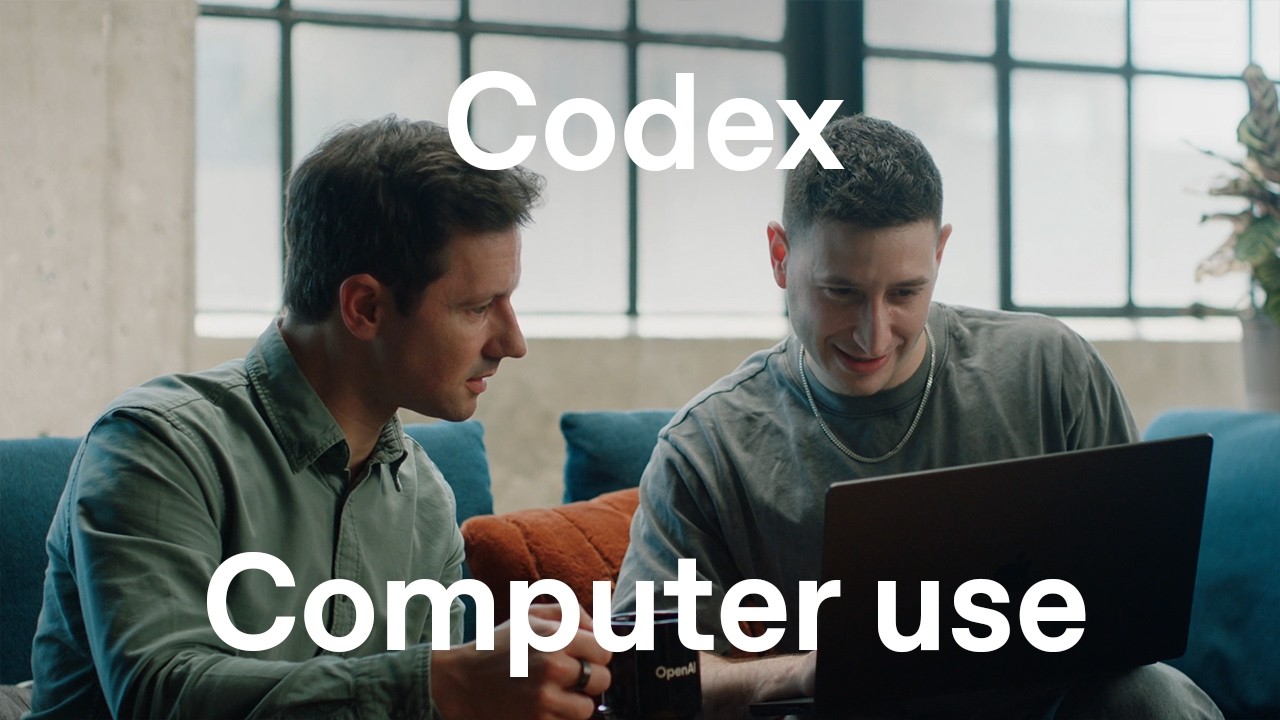
OpenAI Adds Mac Desktop Automation Agent to Codex Software Suite
OpenAI
OpenAI incorporated autonomous computer navigation into its mainstream GPT models to execute multi-app Mac tasks in the background using direct accessibility data.
## Background
Published by OpenAI on YouTube on May 12, 2026, this video features Ari Weinstein presenting the new computer use capabilities in Codex. According to the page description, computer use allows Codex to operate across local applications on a Mac without taking over the user's screen.
## TL;DR
Codex has evolved from a coding agent into a versatile assistant capable of interacting directly with macOS desktop GUIs. Unlike traditional tools, Codex operates in the background with its own virtual cursor, allowing users to multitask unimpeded across single or parallel applications like UTM, Spotify, and Reminders. Under the hood, it combines visual screenshots with Accessibility APIs for high speed and off-screen precision, running on models like Codex Spark. Supported by fine-tuned security that enforces strict app-by-app authorization, computer use is live on macOS with Windows support planned next.
## Atmosphere & style
The presentation is energetic, technical, and forward-looking, driven by a collaborative and enthusiastic dynamic between host Roman and guest Ari Weinstein. The dialogue strikes a balance between polished product presentation and practical engineering excitement, particularly when showcasing real-time automation speed and background multitasking. Fluid, custom cursor animations add a touch of playful polish, making the complex underlying AI integration feel smooth, safe, and surprisingly natural to watch.
## Key takeaways
- [00:00](https://www.youtube.com/watch?v=D_FCYsshMI4&t=0s) Codex has evolved from a dedicated coding and terminal agent into a general-purpose teammate capable of operating local desktop GUIs.
- [00:00](https://www.youtube.com/watch?v=D_FCYsshMI4&t=0s) Initial setup uses a guided macOS authorization flow requiring just two quick drags to grant computer access.
- [00:34](https://www.youtube.com/watch?v=D_FCYsshMI4&t=34s) Users can directly target local installed applications inside Codex by typing '@' and selecting from an auto-populated list.
- [00:34](https://www.youtube.com/watch?v=D_FCYsshMI4&t=34s) Codex runs tasks non-interruptively in the background with independent virtual cursors, allowing users to continue working without losing screen control.
- [03:41](https://www.youtube.com/watch?v=D_FCYsshMI4&t=221s) The system can orchestrate multi-app workflows concurrently, spawning separate cursors across programs like Spotify and Reminders.
- [03:41](https://www.youtube.com/watch?v=D_FCYsshMI4&t=221s) Cursor movements feature custom fluid motion design and directional rotation physics to provide transparent visual feedback on agent activity.
- [05:14](https://www.youtube.com/watch?v=D_FCYsshMI4&t=314s) Codex pairs visual screenshot analysis with system Accessibility APIs to parse structural metadata and elements even when scrolled off-screen.
- [05:14](https://www.youtube.com/watch?v=D_FCYsshMI4&t=314s) By incorporating structural metadata, Codex can run on fast text models like Codex Spark, executing UI actions faster than human operation.
- [08:35](https://www.youtube.com/watch?v=D_FCYsshMI4&t=515s) Computer use capabilities are built directly into mainstream GPT models rather than relying on specialized, fine-tuned models.
- [08:35](https://www.youtube.com/watch?v=D_FCYsshMI4&t=515s) Safety is managed through granular app-by-app permissions and isolated sandboxing rather than broad system-wide desktop control.
- [08:35](https://www.youtube.com/watch?v=D_FCYsshMI4&t=515s) Computer use is currently available on macOS, with Windows support planned for the near future.
## Detailed walkthrough
### [00:00](https://www.youtube.com/watch?v=D_FCYsshMI4&t=0s) Introduction to Computer Use in Codex
Roman introduces Codex, noting how it has rapidly evolved from a dedicated coding agent into a full-fledged teammate capable of handling virtually any computer task. A massive part of this shift is "computer use," which moves Codex beyond isolated code files and command-line tools straight into local desktop applications. Roman welcomes Ari Weinstein, who has been leading efforts on this front, to explain how computer use works and why it marks such a fundamental evolution.
Ari shares his excitement, explaining that while Codex previously could run terminal commands and write code, the vast majority of software on a person's computer relies on a Graphical User Interface (GUI). Traditionally, humans interact with GUIs visually by moving a mouse, clicking, and typing. With the new capabilities, Codex can perform these exact visual and input actions across any application on a computer, turning it into a versatile general-purpose assistant.
The duo highlights how seamless the onboarding process is designed to be for new users:
- The initial setup starts with a permission window titled "Enable Codex Computer Use."
- Clicking "Allow" smooths the transition by animating the panel directly into macOS System Settings.
- Visual prompts instruct the user on how to drag the application into the access list.
- After standard system authorization, the entire setup completes in just two quick drags, allowing Codex to immediately begin executing tasks.
---
[00:34](https://www.youtube.com/watch?v=D_FCYsshMI4&t=34s) Running Local Tasks and Non-Interruptive Background Execution
Ari demonstrates a practical real-world scenario: setting up a new virtual machine to test software on older macOS releases. Normally, creating a virtual machine in an app like UTM requires tedious manual labor—clicking through multiple setup panes and executing the macOS Setup Assistant. With computer use, Ari simply opens Codex, types `@`, picks UTM from the auto-populated list of local installed applications, and prompts: *"Make a new Mac VM in UTM."*
As Codex gets to work, a dedicated virtual cursor flies onto the screen. Unlike conventional computer use tools that hijack the main display, Codex’s execution operates independently in the background. Roman and Ari emphasize that every other computer use implementation they have seen completely takes over the screen, preventing the user from doing anything else while the agent works. Codex allows the user to continue working in parallel while it runs the setup process—like downloading macOS—uninterrupted.
- **App Integration:** Typing `@` inside Codex exposes a dropdown menu of all installed local apps for instant targeted prompting.
- **Background Multitasking:** Codex operates its own distinct cursor, allowing users to keep working in other windows simultaneously.
- **Workflow Savings:** Automates multi-step, click-heavy workflows like downloading operating systems and stepping through install assistants.
---
[03:41](https://www.youtube.com/watch?v=D_FCYsshMI4&t=221s) Parallel Multi-App Workflows and Custom Motion Design
The versatility of Codex extends beyond single applications; it can orchestrate tasks across multiple programs concurrently. Ari prompts Codex to *"focus play some good music for work for me in Spotify"* and simultaneously tells it to *"add a reminder in the Reminders app tonight to look through my tax documents."* Codex spawns multiple independent cursors, simultaneously firing up music playback in Spotify while creating entries inside Apple Reminders.
Beyond raw utility, the team focused heavily on user experience and visual polish. To prevent the background automation from feeling abrupt or opaque, they designed fluid, organic cursor paths:
- The cursor motion follows natural, custom curves rather than robotic straight lines.
- Motion physics include "whimsical" directional turns where the arrow icon rotates toward its trajectory, making it appear as though it is "swimming across your screen."
- Clear visual feedback helps users instantly grasp what the agent is doing in each open window without interrupting their mental flow.
---
[05:14](https://www.youtube.com/watch?v=D_FCYsshMI4&t=314s) Multimodal Vision Combined with Accessibility APIs
Discussing the technical architecture under the hood, Roman and Ari explore how Codex perceives computer screens. Historically, computer use models relied exclusively on visual screenshots, using multimodal models to analyze pixel coordinates and click targets. While effective, screenshots miss deeper software metadata. Codex combines visual screenshot analysis with direct parsing of system Accessibility APIs to form a far richer understanding of the UI.
By harvesting textual and structural metadata from the accessibility tree, Codex gains unique performance advantages:
- **Off-screen Perception:** It can read UI elements, text, and buttons that are scrolled out of view without needing to scroll first.
- **Precise Role Understanding:** It accurately identifies button functions, form fields, and dropdown hierarchies, drastically boosting action accuracy.
- **Non-Multimodal Support:** Because it doesn't strictly depend on image parsing for every step, it can run on super-fast text models like Codex Spark.
- **Speed:** Running on models like Spark allows Codex to execute inputs and navigate software literally faster than a human operator can type or click.
Ari illustrates this speed by prompting Spark in Messages: *"Remind Roman in Messages to try computer use for debugging apps."* In a flash, Spark opens Messages, navigates to the chat, types out the note, and sends it instantly in the background.
---
[08:35](https://www.youtube.com/watch?v=D_FCYsshMI4&t=515s) Model Architecture, Future Roadmap, and App-by-App Permissions
Ari reflects on OpenAI's research trajectory. Previously, standalone products like Operator and ChatGPT Agent required specialized, dedicated fine-tuned models for computer use. OpenAI's research team successfully folded these capabilities directly into mainstream GPT models. Consequently, Codex uses the exact same core models available through the standard API, simplifying internal workflows and granting general models robust OS navigation skills. Looking forward, Ari anticipates computer use models becoming 2x, 5x, or 10x faster than humans, making them indispensable for everyday computing tasks.
Addressing safety concerns around giving an AI control over a desktop, Ari outlines the strict sandboxing approach built into the platform:
- **Explicit App Authorization:** Codex cannot access the broad OS by default; it asks for explicit permission the first time it attempts to open any application.
- **Isolated App Scopes:** Granting access to one productivity tool (e.g., Xcode or Numbers) does not give Codex access or visibility into sensitive apps (e.g., banking apps or private notes).
- **No System-Wide Mirroring:** Codex does not stream the entire desktop or read unpermitted local files, establishing a trustworthy security boundary.
Wrapping up, Ari shares his favorite personal use cases, such as delegating financial tracking updates in Apple Numbers directly to Codex. Roman closes by emphasizing that computer use completes the final piece of the Codex ecosystem alongside local file access and online plugins. Computer use is available on macOS today, with Windows support arriving soon.
## Notable quotes
> [00:00](https://www.youtube.com/watch?v=D_FCYsshMI4&t=0s) Enable Codex Computer Use
> [00:34](https://www.youtube.com/watch?v=D_FCYsshMI4&t=34s) Make a new Mac VM in UTM.
> [03:41](https://www.youtube.com/watch?v=D_FCYsshMI4&t=221s) focus play some good music for work for me in Spotify
> [03:41](https://www.youtube.com/watch?v=D_FCYsshMI4&t=221s) add a reminder in the Reminders app tonight to look through my tax documents.
> [03:41](https://www.youtube.com/watch?v=D_FCYsshMI4&t=221s) swimming across your screen
> [05:14](https://www.youtube.com/watch?v=D_FCYsshMI4&t=314s) Remind Roman in Messages to try computer use for debugging apps.
## Mentioned
Codex, Roman, Ari Weinstein, macOS, macOS System Settings, UTM, macOS Setup Assistant, Spotify, Apple Reminders, Messages, Codex Spark, OpenAI, Operator, ChatGPT Agent, GPT, Xcode, Numbers, Apple Numbers, Windows
OpenAI has expanded Codex from a coding assistant into a general desktop agent through computer use capabilities that interact directly with graphical user interfaces. According to Roman and Ari Weinstein, the system performs actions across local desktop applications in the background using dedicated virtual cursors rather than hijacking the user's primary screen.
Non-Interruptive Background Execution and Parallel Workflows (0:34)
Unlike conventional computer use implementations that seize control of the display and halt user activity, Codex operates an independent virtual cursor in the background. Users invoke applications by typing '@' to select from an auto-populated list of local software, enabling Codex to independently run multi-step, click-intensive processes. In a demonstration, the agent configured a virtual machine in UTM by navigating setup panes and downloading macOS while the user continued working in other windows uninterrupted.
The architecture also coordinates multi-application workflows concurrently. When prompted to start music in Spotify and log a tax document reminder in Apple Reminders, Codex deployed multiple cursors to execute both tasks in parallel. To provide clear visual context without causing mental disruption, the team implemented custom cursor motion physics featuring fluid paths and directional tilting rather than abrupt, linear movements.
Hybrid Perception via Vision and Accessibility APIs (5:14)
Codex moves beyond standard computer use models that rely strictly on screenshot analysis and pixel coordinates by pairing visual inspection with operating system Accessibility APIs. Extracting structural metadata from the accessibility tree allows the agent to identify UI elements, input fields, and button roles with higher precision, while also reading content scrolled off-screen without requiring manual navigation.
Because accessibility parsing reduces the need for continuous visual image processing on every step, Codex can run on high-speed text models like Codex Spark. Demonstrating this capability, Spark opened Apple Messages, located a target conversation, and sent a debugging prompt faster than a human operator could type and click.
Granular App-by-App Permissions and Isolation (8:35)
To mitigate security risks tied to granting an AI autonomous desktop access, Codex enforces isolated, application-specific permissions rather than system-wide control. Setup requires a guided two-step authorization within macOS System Settings, after which Codex must prompt for explicit approval the first time it accesses any specific program.
Granting access to an individual productivity tool, such as Apple Numbers or Xcode, does not expose other applications or sensitive personal data like banking software. Codex does not mirror or stream the broader desktop, restricting its observation and execution boundaries solely to the explicitly permitted app environments.
Core Model Integration and Platform Roadmap (8:35)
OpenAI merged computer use capabilities directly into mainstream GPT models accessible via the standard API, eliminating the need for specialized fine-tuned models like those previously deployed in Operator and ChatGPT Agent. Looking forward, Ari Weinstein projects that computer use models will eventually execute workflows 2x to 10x faster than humans, transforming routine personal computing.
Roman stated that computer use completes Codex's functional scope alongside local file handling and web plugins, with current availability on macOS and planned support for Windows. However, realizing long-term adoption depends on maintaining robust security isolation while scaling speed and reliability across diverse third-party applications.
精炼阅读摘要
OpenAI团队成员Roman与Ari Weinstein介绍了Codex的“计算机使用”(Computer Use)功能,标志着Codex从纯代码与终端工具扩展为可操作本地桌面图形界面(GUI)的通用助手。该技术通过结合视觉截图与系统辅助功能API、采用无干扰后台光标以及应用级沙盒授权,在主流GPT核心模型上实现了高效率的桌面多任务协同。
独立光标与无干扰后台多任务协同 (0:34)
传统的桌面AI代理在执行操作时通常会完全劫持屏幕与主输入设备,导致用户在自动化运行期间无法正常操作电脑。Codex引入了独立的虚拟光标设计,使其能够在后台静默运行而不干扰用户在前台的正常工作。在具体交互中,用户在Codex中键入“@”符号即可调出本地已安装应用的下拉列表并发起定向指令。例如,在自动化配置UTM虚拟机的场景中,用户输入“Make a new Mac VM in UTM”后,Codex会自动在后台完成多步骤设置面板跳转、操作系统下载和引导安装流程,期间用户仍可不受阻碍地处理其他任务。
此外,Codex具备在多个本地应用间并行协同操作的能力。在测试演示中,操作者同时下达在Spotify中播放专注音乐以及在Apple Reminders中创建查阅税务文件提醒的两项指令,Codex能够生成多个独立光标分别在对应窗口中并行处理任务。为了避免后台自动化操作造成视觉突兀或干扰用户心流,开发团队为其设计了拟物化的平滑运动轨迹:光标沿着有机曲线移动,且箭头图标会根据移动轨迹自然旋转方向,直观清晰地向用户呈现后台执行状态。
视觉与辅助功能API融合的双重感知架构 (5:14)
在感知底层技术上,传统的计算机使用方案通常仅依赖多模态模型对屏幕截图的像素坐标进行识别分析,容易丢失底层软件元数据并出现定位偏差。Codex采用了多模态视觉截图与操作系统辅助功能(Accessibility)API解析相结合的混合架构。通过直接读取系统辅助功能树(Accessibility Tree)中的文本信息、控件层次与结构化元数据,Codex能够获取更加丰富的界面理解能力。
该混合感知架构带来了关键的性能突破:首先,Codex可以直接读取当前视窗之外、尚未滚屏可见的UI元素与文本,无需预先执行滚屏操作;其次,系统能精准判断控件类型、表单域和下拉菜单的层级关系,显著提高了交互动作的准确率。更为重要的是,由于摆脱了每一步必须依赖图像渲染解析的限制,该系统可以由极速纯文本模型(如Codex Spark)驱动。Ari Weinstein指出,这种模式使得Codex在软件内的导航、点击与文本输入速度能够超越人类操作的物理极限。在现场演示中,Codex Spark几乎瞬间在后台打开Messages应用、检索到指定聊天并发送了调试提醒。
通用模型统一与应用级沙盒权限隔离 (8:35)
在模型技术演进方面,OpenAI此前开发的独立产品(如Operator与ChatGPT Agent)需要使用专门微调的模型来执行计算机控制任务。Codex团队则成功将该能力直接合并至主流通用GPT基础模型中,使开发者与用户能够借助标准API直接调用同等水平的桌面导航与控制能力。对于未来的技术演进,Ari Weinstein预测,计算机使用模型的执行速度未来将达到人类操作速度的2倍、5倍乃至10倍,从而使其成为日常计算的核心工具。
针对AI控制本地桌面引发的安全与隐私担忧,Codex放弃了截取整个屏幕桌面流或获取全局系统权限的做法,转而采用严格的应用级沙盒授权机制。在初次配置时,用户只需在系统设置中完成简单的两次拖拽授权;此后,Codex默认无权随意访问整机环境,只有在其首次尝试调用某个新应用时,才会向用户弹出显式权限申请。获得单一生产力工具(如Xcode或Numbers)的授权并不会使Codex拥有对敏感软件(如银行应用或私人备忘录)的读取与操作权限,以此构建清晰可靠的安全边界。
计算机使用功能目前已在macOS平台正式上线,Windows平台的支持工作仍在进行中。该功能与本地文件访问及在线插件共同构成了Codex的工作流闭环,但其长期可靠性以及在更多异构桌面环境与复杂企业软件中的适应能力仍有待后续实际检验。
Detailed notes — zh
## Background
本视频由 OpenAI 官方频道于 2026 年 6 月 3 日发布在 YouTube 平台。页面简介说明,Codex 的计算机操作(Computer use)能力让其能够在不接管用户 Mac 屏幕的前提下跨本地应用协同工作,Ari Weinstein 详细探讨了当 Agent 能够自主点击、输入并在后台持续运行时所带来的深远改变。
## TL;DR
视频深入展示了 Codex 计算机操作(Computer use)功能的底层原理与实际工作流。与以往彻底劫持用户屏幕的方案不同,Codex 拥有专用的独立后台光标,结合 macOS 无障碍树(Accessibility)与视觉截图双通道感知,甚至能依托 Codex Spark 超轻量模型实现超越人类手速的自动化操作。系统引入了逐个应用授权(App-by-app permissions)的安全隔离机制,彻底打通了本地原生应用与 Web 应用生态,让自动化真正融入复杂多任务与日常数据维护中。
## Atmosphere & style
整场对话洋溢着极客工程特有的从容与兴奋感,主持人 Roman 与嘉宾 Ari Weinstein 之间的交流节奏紧凑、默契十足,充满了对产品细节的打磨热情。演示过程中独立光标在屏幕上如游弋般的贝塞尔曲线轨迹极具视觉冲击力,既展现出前沿 AI 技术的灵动与优雅,又通过扎实的安全设计化解了失控的焦虑,带给观众一种亲眼见证未来人机协作新范式的震撼体验。
## Bulletin
- [00:00](https://www.youtube.com/watch?v=D_FCYsshMI4&t=0s) OpenAI 在 Codex 中正式推出计算机操作(Computer Use)功能,首发支持 macOS 并筹备适配 Windows,使 AI 从单纯编写代码跨越到可直接操控本地 GUI 应用的通用协作者。
- [05:14](https://www.youtube.com/watch?v=D_FCYsshMI4&t=314s) 架构上摆脱了单一截图依赖,采用操作系统底层无障碍树(Accessibility API)与视觉截图融合的双通道方案,并支持非纯视觉的极速模型 Codex Spark 实现超快执行。
- [02:06](https://www.youtube.com/watch?v=D_FCYsshMI4&t=126s) 区别于市面上劫持全屏的方案,Codex 具备独立渲染的 Agent 光标,可在后台静默执行多应用并发任务,完全不打扰用户前台的正常工作。
- [08:35](https://www.youtube.com/watch?v=D_FCYsshMI4&t=515s) 安全方面引入逐个应用单独授权机制(App-by-app permissions),Codex 仅能在用户明确许可的窗口内交互,彻底隔离未授权的敏感应用与全局桌面。
## Key takeaways
- [00:00](https://www.youtube.com/watch?v=D_FCYsshMI4&t=0s) Codex 的定位从代码 Agent 演进为通用队友,计算机操作能力补齐了模拟人类通过视觉、鼠标与键盘操作图形界面的关键拼图。
- [01:08](https://www.youtube.com/watch?v=D_FCYsshMI4&t=68s) 初次启用仅需两次简单的拖拽操作与系统密码确认,即可完成 macOS 辅助功能授权,降低了使用门槛。
- [02:06](https://www.youtube.com/watch?v=D_FCYsshMI4&t=126s) Codex 拥有专属于自身的独立光标,能够在后台自动配置 UTM 虚拟机等繁琐任务,而不抢占用户的鼠标焦点或打断前台专注。
- [03:40](https://www.youtube.com/watch?v=D_FCYsshMI4&t=220s) 支持跨多应用并发自动化,例如在后台同时驱动 Spotify 播放音乐并在系统提醒事项中创建日程。
- [03:40](https://www.youtube.com/watch?v=D_FCYsshMI4&t=220s) 交互设计采用了灵动的贝塞尔曲线轨迹,光标箭头会根据运动速度矢量动态调整朝向,使操作意图自然可视。
- [05:14](https://www.youtube.com/watch?v=D_FCYsshMI4&t=314s) 系统底层结合了无障碍语义树(Accessibility API),可直接读取离屏隐藏元素并提供精准结构化语义,摆脱了单纯依赖截图定位的局限。
- [05:14](https://www.youtube.com/watch?v=D_FCYsshMI4&t=314s) 结构化无障碍数据的引入使得轻量级模型 Codex Spark 可以免除繁重的多模态视觉处理,展现出超越人类极限的极速操控。
- [07:11](https://www.youtube.com/watch?v=D_FCYsshMI4&t=431s) OpenAI 已将计算机操作能力直接沉淀整合至通用主力 GPT 模型中,取代了早期原型依赖专用微调模型的做法。
- [07:11](https://www.youtube.com/watch?v=D_FCYsshMI4&t=431s) 团队的长远愿景是将计算机操作速度推进至人类手工操作的 2 到 10 倍,使其成为核心效率基础设施。
- [08:35](https://www.youtube.com/watch?v=D_FCYsshMI4&t=515s) 推行细粒度的逐个应用授权机制(App-by-app permissions),首次调用应用须主动确认,杜绝了全屏幕粗暴串流与数据越权风险。
- [09:41](https://www.youtube.com/watch?v=D_FCYsshMI4&t=581s) 在实际日常场景中,Ari 借助 Codex 自动维护 Numbers 财务电子表格,彻底替代了手动核对录入的枯燥工作。
- [09:41](https://www.youtube.com/watch?v=D_FCYsshMI4&t=581s) 计算机操作与文件系统接口、云端插件共同构成了完整的端到端工作流闭环,打破了 Web 应用与原生桌面软件之间的壁垒。
- [10:44](https://www.youtube.com/watch?v=D_FCYsshMI4&t=644s) 该功能现已面向 Mac 平台正式上线,针对复杂的多应用反复切换场景表现出色,Windows 版本支持目前正在筹备中。
## Detailed walkthrough
### [00:00](https://www.youtube.com/watch?v=D_FCYsshMI4&t=0s) 从代码助手到通用队友:Codex 计算机操作(Computer Use)的诞生
视频一开始,主持人 Roman 宣布录制正式启动。他指出,Codex 正在经历深刻的定位蜕变——它不再仅仅是一个编写代码的 Agent,而是演进成了能够协同处理任何日常任务的全能队友。促成这一飞跃的关键核心正是“计算机操作”(Computer Use)。这项能力让 Codex 突破了单纯操作本地文件与命令行工具的局限,真正切入到用户在本地应用中进行的大量现实工作。为此,Roman 邀请了长期深耕该领域的团队成员 Ari Weinstein 共同探讨背后的机制与思考。
面对 Roman 关于“为何要做计算机操作”的提问,Ari 展现出了极高的热情。他解释称,Codex 此前已经具备了极强的本地环境执行力,可以运行终端命令、编写并调试代码,进而解决各种工程难题;然而,用户电脑中绝大多数日常软件采用的都是图形用户界面(GUI)。人类在使用这些软件时,本质上是通过视觉观察、移动鼠标指针、点击按钮以及敲击键盘来完成交互的。现在,Codex 补全了这块拼图,获得了与人类完全相同的交互手段。这意味着它理论上可以操作电脑上的任意一款软件,将自动化的范围从纯脚本环境拓展至广泛的视窗生态。
### [01:08](https://www.youtube.com/watch?v=D_FCYsshMI4&t=68s) 极简引导:两步拖拽即可完成 macOS 权限授权
Roman 提到,这套功能给他留下最深刻印象的点之一在于新用户引导(Onboarding)的极简体验,让想要尝试尝鲜的用户几乎感受不到认知负担。Ari 随即在屏幕上演示了初次启用 Computer Use 的授权流程。当用户首次触发该功能时,系统会弹出权限请求窗口,明确提示“启用 Codex 计算机操作”(Enable Codex computer use)。
一旦用户点击“允许”(Allow),界面并不会出现枯燥冗长的文字说明,而是直接以平滑的动态过渡效果,引导用户的视线对准 macOS 的系统设置面板。系统会直观提示用户如何将 Codex 图标拖拽到系统辅助功能与控制权限列表中。由于这涉及修改底层的系统偏好设置,用户仅需完成两次简单的拖拽操作并输入系统密码授权,整个配置流程便宣告完成,Codex 随即无缝接管并开始自动执行任务。
### [02:06](https://www.youtube.com/watch?v=D_FCYsshMI4&t=126s) 独立光标与后台运行:自动化 UTM 虚拟机创建
在实际应用演示环节,Ari 挑选了一个自己日常频繁遇到且繁琐的场景:在旧版 macOS 系统中测试软件。通常情况下,他会使用自己非常喜爱的虚拟机工具 UTM,但手动配置一台虚拟机的流程极为繁复——需要经历多步点击向导,并在创建后一步步跑完系统的初始设置助理(Setup Assistant)。这恰恰是 Computer Use 大显身手的绝佳案例。
在 Codex 输入框中,Ari 仅需输入 `@` 符号,系统便会自动索引并列出电脑中安装的本地应用。他选中应用并下发指令:“在 UTM 中新建一个 Mac 虚拟机”("Make a new Mac VM in UTM")。Codex 接收到请求后立即在后台启动 UTM。此时屏幕上出现了一个极为惊艳的细节:专属于 Codex 的独立光标划入窗口并开始精准点击。Ari 与 Roman 强调,市面上以往几乎所有的 Computer Use 实现都会彻底“劫持”用户的整台电脑屏幕,导致用户在 Agent 工作期间无法进行任何操作;而 Codex 拥有完全独立的操控光标,它在后台操作 UTM 下载 macOS 镜像并进行配置的同时,用户的前台工作完全不会受到任何干扰与中断。
```mermaid
flowchart LR
accTitle: Codex 后台并行操作架构
accDescr: 展示用户前台工作与 Codex 独立光标在后台操作应用的并行流程
subgraph UserSpace["用户前台环境"]
U1["用户前台操作"] --> U2["独立用户鼠标/键盘"]
U2 --> U3["用户专注自己的工作"]
end
subgraph CodexSpace["Codex 后台独立环境"]
C1["Codex 提示词 / 意图解析"] --> C2["独立渲染 Agent 光标"]
C2 --> C3["直接交互本地应用 (如 UTM)"]
C3 --> C4["后台自动完成配置与下载"]
end
```
### [03:40](https://www.youtube.com/watch?v=D_FCYsshMI4&t=220s) 多应用并发与灵动光标设计:Spotify 与提醒事项联动
Roman 随即探讨是否能更进一步,让 Agent 同时并发处理多项计算机操作任务。Ari 当场发起了连续指令:首先让 Codex 在 Spotify 中播放适合工作时专注聆听的优质音乐("play some good music for work for me in Spotify");随后又无缝追加了一条任务,要求在系统的提醒事项应用中添加一条待办项,提醒自己今晚查看税务文件("add a reminder in the reminders app to tonight to look through my tax documents")。
瞬间,用户的 Mac 变成了一个高度协同的自动化多任务环境:Spotify 自动开始流淌出背景音乐,同时提醒事项应用里也由独立的 Agent 光标迅速敲定日程,整台机器由多个后台光标并发驱动。Roman 对光标划过屏幕时的细腻轨迹赞不绝口。Ari 揭秘道,团队在交互体验上倾注了大量巧思,特意为光标设计了自然流畅且略带俏皮(whimsical)的动态贝塞尔曲线——光标移动时会顺应速度矢量调整自身箭头的朝向,在屏幕上呈现出一种类似“在屏幕视窗间游弋”("swimming across your screen")的灵动质感,让用户不仅能赏心悦目地看清 Agent 的意图,更彻底消除了机械式点击的僵硬感。
### [05:14](https://www.youtube.com/watch?v=D_FCYsshMI4&t=314s) 架构创新:无障碍树(Accessibility)结合视觉与极速 Spark 模型
随后,对话切入到了深层底层技术架构。Roman 问及团队是如何将多模态视觉与系统无障碍(Accessibility)框架融合的,并重点提到了轻量极速模型 Spark 的表现。Ari 指出,早期的计算机操作在业内几乎完全依赖屏幕截图(Screenshots),即依靠多模态大模型的视觉识别来定位屏幕像素坐标,然后再执行点击和敲击。这种纯视觉方案不仅开销巨大、延迟较高,而且很容易受遮挡或滚动界面的限制。
OpenAI 团队花费大量精力攻关了操作系统底层的无障碍框架。无障碍树不仅提供了界面元素的层级、角色语义和详尽文本,甚至还能直接读取到当前已滚动出屏幕可视区域之外的元素。将无障碍数据与视觉感知互补后,模型对于控件语义和上下文的理解准确度呈数量级跃升。更关键的突破在于:因为系统有了高保真的结构化文本信息,计算机操作摆脱了对纯多模态视觉处理的重度依赖,得以引入非纯视觉的超轻量模型(如 Codex Spark)。为了验证这一点,Ari 现场切换至 Spark 模型,要求其在“信息”(Messages)应用中向 Roman 发送一条建议他使用 Computer Use 调试应用的文字。指令下达后,Codex Spark 展现出了堪称“超人级”(superhuman)的速度,光标眨眼间穿梭完成界面展开、文本输入与发送,耗时仅数秒,其操作动作甚至超越了最敏捷的人类手速。
```mermaid
flowchart TD
accTitle: 混合式界面感知架构
accDescr: 阐述视觉截图与无障碍结构化数据如何结合以赋能极速模型
subgraph Inputs["界面双通道感知"]
direction LR
A["原生 UI 截图 (Screenshots)"]
B["无障碍语义树 (Accessibility API)"]
end
subgraph Processing["多模态 / 文本解析"]
C["屏幕可视像素定位"]
D["语义结构 / 隐藏离屏元素提取"]
end
subgraph Models["模型分发矩阵"]
E["多模态主力模型 (GPT 系列)"]
F["超轻量极速模型 (Codex Spark)"]
end
A --> C
B --> D
C --> E
D --> E
D --> F
F --> G["超人类速度的直接 UI 执行"]
E --> G
```
### [07:11](https://www.youtube.com/watch?v=D_FCYsshMI4&t=431s) 模型能力整合与超人般(Superhuman)操作速度的未来愿景
Roman 感叹 Ari 将其过往深厚的产品工程经验(从早期项目一路演进)完美注入到了 Codex 之中,并询问 OpenAI 研究团队当前对于 Computer Use 未来的长远蓝图。Ari 透露了一个重大的工程演进细节:此前在开发 Operator 或早期 ChatGPT Agent 等原型产品时,团队不得不为计算机操控单独微调专用模型;然而 OpenAI 的核心研究团队通过技术整合,已经将这些操控计算机的核心能力直接内化沉淀到了主力 GPT 模型中。
这意味着 Codex 目前使用的底层模型与通过 API 公开发布的模型完全同源,外部开发者与内部产品线享有着同样精简的架构体系。展望未来,Ari 认为当前在主流模型和 Spark 上的速度仅仅是一个开端。团队真正的愿景是将 Computer Use 推向超越人类生理极限的“超人类水平”(superhuman)——实现比人类手动操作快 2 倍、5 倍甚至 10 倍的速度。一旦达到这种操作吞吐量,计算机操作将从一项“新奇的功能”彻底跃迁为用户工作与生活中无可替代的核心基础设施。就在 Roman 顺势将话题引向如此强大的操控权限所伴随的安全边界与控制机制时,上半场讨论在关于安全防线的提问中暂告段落。
### [08:35](https://www.youtube.com/watch?v=D_FCYsshMI4&t=515s) 细粒度应用权限:化解 AI 控制电脑的安全焦虑
让 AI 直接接管用户在电脑上的实际操作,天然会带来一种令人不安的失控感,因为这项技术触及的信息面过于宽广。Ari Weinstein 直言,团队深刻意识到让用户感到安心与舒适是推动该技术落地的关键前提,因此在安全机制上投入了大量精力进行深思熟虑的设计。他们的核心解法是将 Computer use 的权限严格限制在用户主动授权的独立应用内:每当 Codex 首次尝试操作某个具体应用时,系统都必须弹出提示征求用户许可;只有获得明确同意后,Codex 才能“看懂”并在该应用内输入文字,而系统内的其他应用对它而言依然完全隐形,无法被窥视或交互。
这种“逐个应用单独授权(App-by-app permissions)”的设计在敏感数据与工作流之间划清了界限。即便用户的电脑中运行着涉及私密信息的窗口,也可以放心地允许 Codex 自由访问代码编辑器、开发工具或日常效率软件,而不用担心敏感信息外泄。主持人对此深表赞同,指出这与市面上粗暴地“实时串流整张桌面”或无脑读取全部文件的方案截然不同;它是完全以任务驱动、逐个应用按需授予最小权限的严谨机制,在帮助用户提升生产力的同时建立起坚实的信任基础。
```mermaid
flowchart TD
accTitle: Codex 应用级权限隔离架构
accDescr: 展示 Codex 仅在获得明确授权的应用中查看并输入,无法访问未授权的敏感应用
subgraph UserControl["用户控制层"]
Req["Codex 首次请求访问应用"] --> Prompt["系统弹出权限许可确认"]
Prompt -->|用户同意| Grant["授权访问"]
Prompt -->|用户拒绝 / 未授权| Deny["拒绝访问 / 隔离"]
end
subgraph AuthorizedApps["已授权工作区"]
Grant --> IDE["开发工具 / 代码编辑器"]
Grant --> Docs["效率软件 / 表格工具"]
IDE -.->|可查看、可键入交互| CodexEngine["Codex Computer Use"]
Docs -.->|可查看、可键入交互| CodexEngine
end
subgraph RestrictedZone["受限与敏感区域"]
Deny --> Sensitive["敏感私人应用 / 聊天记录"]
Deny --> SystemFiles["其他未授权应用与全局桌面"]
CodexEngine x-.-x|完全不可见、禁止跨界| Sensitive
CodexEngine x-.-x|无法全局录屏或读取| SystemFiles
end
```
- **逐个应用隔离(App-by-app)**:Codex 仅能在用户明确允许的应用窗口内识别界面与模拟键鼠,绝不会在后台流式传输整个桌面画面。
- **首次调用拦截**:任何应用在首次被调用前均须经过用户二次确认,杜绝后台静默越权。
- **保护敏感信息**:开发者可安心让 Codex 在编程环境或数据软件中自动化操作,同时完全隔离个人聊天、财务或隐私类软件。
---
### [09:41](https://www.youtube.com/watch?v=D_FCYsshMI4&t=581s) 真实工作流中的“魔法时刻”:从自动化记账到全栈打通
当被问及在日常真实生活中究竟如何使用这项能力、体验过哪些“魔法时刻”时,Ari 分享了自己最真实的痛点场景。他日常需要维护大量用于个人财务追踪的电子表格,过去这些繁琐的更新工作全靠手动录入与核对;而现在,他只需把任务全权托付给 Codex,让它自动打开软件、录入并同步更新数据,“我自己再也不用亲自动手了”。这种将耗时机械的琐事彻底剥离的体验,让他感慨这项工具拥有超乎想象的威力。
两人进一步探讨了这种交互对工作习惯的颠覆。如今每当要开启一项新任务时,无论涉及复杂的软件开发还是电脑上的其他日常杂务,第一反应都是直接向 Codex 求助,因为它所节省的时间成本无可替代。主持人总结道,过去我们已经拥有了本地文件系统接口,也拥有了与各色在线云服务通信的插件,但工作流中始终缺少极其关键的“最后一块拼图”——那就是让 AI 能够像真人一样直接操控本地运行的应用程序。Ari 深有感触地提到,他本人的工作环境非常多样化,既重度依赖 Web 应用,又大量使用 Apple 原生应用(例如他正是用 macOS 自带的 Numbers 来做财务记账),而 Computer use 的出现真正实现了端到端的打通,让各类异构应用与本地生态终于能被 Codex 一网打尽。
- **财务表格全自动更新**:Ari 使用 Codex 自动操作 Numbers 表格进行财务数据追踪,彻底告别手动维护。
- **工作习惯的重塑**:面对无论是编程还是通用任务,开启工作的第一步已经转变为“优先唤起 Codex”。
- **补全关键拼图**:在文件系统(File system)与云端插件(Plugins)的基础上,本地应用控制(Computer use)补齐了跨应用端到端协作的闭环。
---
### [10:44](https://www.youtube.com/watch?v=D_FCYsshMI4&t=644s) 静默后台执行与多平台展望
这项能力的精妙之处不仅在于 Codex 能在屏幕上移动光标,更在于它可以在完全不打断用户专注状态(Flow)的前提下,在后台悄无声息地替你完成真实工作。Ari 和主持人鼓励所有用户拿自己日常最棘手、最头疼的场景去测试它——尤其是那种需要用户在四五个不同应用之间反复来回横跳、动辄吞噬数小时宝贵时间的复杂流程。只有真正上手尝试后,用户才会意识到整个电脑的操作模式已经彻底被颠覆。
- **后台静默运行**:无需用户紧盯屏幕或暂停手头工作,Codex 在后台自主完成繁复的多步骤交互。
- **平台支持现状**:Computer use 即日起正式面向 Mac 用户推出,Windows 版本的支持也已在紧密筹备中,预计很快与广大用户见面。
## Notable quotes
> [01:08](https://www.youtube.com/watch?v=D_FCYsshMI4&t=68s) 启用 Codex 计算机操作 — 系统提示
> [02:06](https://www.youtube.com/watch?v=D_FCYsshMI4&t=126s) 在 UTM 中新建一个 Mac 虚拟机 — Ari Weinstein
> [02:06](https://www.youtube.com/watch?v=D_FCYsshMI4&t=126s) Make a new Mac VM in UTM — Ari Weinstein
> [03:40](https://www.youtube.com/watch?v=D_FCYsshMI4&t=220s) play some good music for work for me in Spotify — Ari Weinstein
> [03:40](https://www.youtube.com/watch?v=D_FCYsshMI4&t=220s) add a reminder in the reminders app to tonight to look through my tax documents — Ari Weinstein
> [03:40](https://www.youtube.com/watch?v=D_FCYsshMI4&t=220s) 在屏幕视窗间游弋 — Ari Weinstein
> [05:14](https://www.youtube.com/watch?v=D_FCYsshMI4&t=314s) 超人级 — Ari Weinstein
> [07:11](https://www.youtube.com/watch?v=D_FCYsshMI4&t=431s) 超人类水平 — Ari Weinstein
> [08:35](https://www.youtube.com/watch?v=D_FCYsshMI4&t=515s) 逐个应用单独授权 — Ari Weinstein
> [09:41](https://www.youtube.com/watch?v=D_FCYsshMI4&t=581s) 我自己再也不用亲自动手了 — Ari Weinstein
> [09:41](https://www.youtube.com/watch?v=D_FCYsshMI4&t=581s) 最后一块拼图 — Roman
## Mentioned
Ari Weinstein, Roman, OpenAI, Codex, Computer Use, Codex Spark, GPT 系列模型, Operator, ChatGPT Agent, macOS, Windows, Apple, UTM, Spotify, Numbers, 提醒事项 (Reminders), 信息 (Messages)
## Video description
Computer use lets Codex work across local apps without taking over your Mac.
Ari Weinstein talks about what changes when agents can click, type, and keep working in the background.
Timestamps
00:34 Why computer use
02:06 Codex works across local apps
03:41 Multiple apps at once
05:14 Screenshots plus accessibility data
08:35 App-by-app permissions
[Source](https://www.youtube.com/watch?v=D_FCYsshMI4)
Source quotes
[1:08] 系统提示: 启用 Codex 计算机操作
[2:06] Ari Weinstein: 在 UTM 中新建一个 Mac 虚拟机
[2:06] Ari Weinstein: Make a new Mac VM in UTM
[3:40] Ari Weinstein: play some good music for work for me in Spotify
[3:40] Ari Weinstein: add a reminder in the reminders app to tonight to look through my tax documents
[3:40] Ari Weinstein: 在屏幕视窗间游弋
[5:14] Ari Weinstein: 超人级
[7:11] Ari Weinstein: 超人类水平
[8:35] Ari Weinstein: 逐个应用单独授权
[9:41] Ari Weinstein: 我自己再也不用亲自动手了
[9:41] Roman: 最后一块拼图
Source quotes
[0:00] Enable Codex Computer Use
[0:34] Make a new Mac VM in UTM.
[3:41] focus play some good music for work for me in Spotify
[3:41] add a reminder in the Reminders app tonight to look through my tax documents.
[3:41] swimming across your screen
[5:14] Remind Roman in Messages to try computer use for debugging apps.
Original transcript
[0:00] And we're rolling both cameras. Picture,
[0:02] marker. It's great. Thank you.
[0:05] >> Hi everyone, Roman here. Codex has
[0:07] quickly evolved from a coding agent into
[0:10] a real teammate, but not just a coding
[0:12] teammate anymore. You can literally use
[0:14] Codex for any tasks and computer use is
[0:17] a big part of that shift. It takes Codex
[0:19] beyond your tools and files and into the
[0:22] real work you do with your local apps.
[0:25] Today I'm joined by Ari who has spent a
[0:27] lot of time thinking about this problem.
[0:29] So, Ari, why computer use? Tell me more
[0:32] about how this works.
[0:33] >> Yeah, I'm so excited about computer use.
[0:36] Codex already had the ability to do so
[0:37] many things on your computer because it
[0:39] could run commands, it could write code,
[0:42] so it can solve all kinds of problems
[0:43] for you. What's new is that there's all
[0:45] this software on your computer that is a
[0:48] graphical user interface. It's sort of
[0:50] something that as a human you use by
[0:52] looking at it, by moving your mouse, by
[0:54] clicking, by typing. And now Codex can
[0:56] do all of that for you also. So, it can
[0:58] use literally any application on your
[1:00] computer, which is so powerful. It's
[1:03] really exciting to get to sort of see
[1:04] this come together and and make
[1:06] something that people can use for so
[1:07] many different things.
[1:08] >> One of the things that I that I found
[1:10] very delightful was the onboarding. So,
[1:12] for people watching this who want to get
[1:13] started with Codex and want to try these
[1:15] like amazing features, the very first
[1:18] onboarding screen is very easy, right?
[1:21] Do you want to show it to us?
[1:22] >> Yeah, I'd love to. Yeah. Let's say this
[1:24] is the first time I'm using computer
[1:25] use. It's going to ask for my permission
[1:27] first.
[1:27] >> Right.
[1:28] >> And so, when it does that, I get this
[1:30] window that says enable Codex computer
[1:31] use. And when I press allow,
[1:34] it animates the panel straight into the
[1:36] settings window, which just helps helps
[1:39] you know where to look and and what
[1:41] you're supposed to do.
[1:41] >> And tells you how to drag it.
[1:43] >> And it tells you how to drag it into the
[1:44] list. And then you have to authorize
[1:46] because you're making changes to your
[1:47] system settings. And now, um I was able
[1:50] to set up the whole thing in two drags.
[1:52] And then now you can see it's going and
[1:53] clicking and and doing the task for me.
[1:56] And it's now
[1:56] >> it's now done.
[1:57] >> Amazing.
[1:57] >> Yeah.
[1:58] >> Cool. So, let's see computer use in
[2:00] action. Um do you have one task on top
[2:02] of your head that you want to show us?
[2:04] >> Yeah, absolutely. So,
[2:06] one thing that I do every so often is I
[2:08] need to test software in older Mac
[2:10] operating systems. And so, for that I
[2:11] use virtual machines, and I have an app
[2:13] I love called UTM, but it's a pain to
[2:16] create a virtual machine. I have to
[2:17] click through a bunch of things. I have
[2:18] to run the Mac OS setup assistant. And
[2:20] so,
[2:20] >> So, it looks like a perfect use case.
[2:21] >> Perfect use case. So, now I can save a
[2:23] whole bunch of time by having the agent
[2:24] do it for me. So, I'm going to go into
[2:26] Code X, and I'm going to say, "Make a
[2:29] new Mac VM in UTM." And so, when I type
[2:32] at, it shows me a list of the apps I
[2:34] have on my computer, and I can run the
[2:36] query, and then it'll actually um start
[2:39] using the the app I selected. So, um in
[2:42] this case, it's going to spin up UTM,
[2:45] and what we can see here is once it
[2:47] starts the app,
[2:50] and once it starts using the app, you'll
[2:51] see the cursor fly in.
[2:53] >> That's awesome.
[2:54] >> It's so cool. What's cool about it is
[2:56] that it's different from my cursor. So,
[2:59] Code X can click around without
[3:01] interrupting what I'm doing on my
[3:03] computer.
[3:03] >> So, you can keep on using your computer
[3:05] while Code X is working in the
[3:07] background.
[3:07] >> Yeah, that's exactly right. You know, a
[3:09] lot of computer use implementations, in
[3:11] fact, every computer use implementation
[3:13] I've ever seen, takes over your entire
[3:15] computer. So, you can't use your
[3:17] computer while the agent is using your
[3:18] apps.
[3:19] >> And now it's already done. It sounds
[3:20] like it's downloading Mac OS.
[3:21] >> It's downloading Mac OS. So, um you
[3:24] know, once Mac OS finishes downloading,
[3:26] it can also complete the next step,
[3:27] which is actually um setting up Mac OS
[3:29] for me. Yeah. Um which saves me so much
[3:31] time.
[3:32] >> Should we like uh try to do another uh
[3:34] of these computer use like tasks in the
[3:36] background? Could you do multiple?
[3:37] >> Absolutely. So,
[3:40] I want to focus play some good music for
[3:43] uh for work for me in in Spotify.
[3:46] So, now the agent's going to start using
[3:48] Spotify. Um but what's super powerful
[3:50] about this is it can actually do things
[3:53] um across multiple applications. It can
[3:55] do multiple curses in multiple apps at
[3:56] the same time. So, I'm going to say
[4:00] add a reminder in the reminders app to
[4:02] tonight to look through my tax
[4:04] documents.
[4:07] >> The music's coming. Music's going in
[4:09] Spotify.
[4:10] >> Starting to add some reminders for me.
[4:13] So, now all of a sudden my Mac is this
[4:14] multitasking environment where I can do
[4:16] >> [music]
[4:16] >> so many things at once and have agents
[4:18] do all the things that I don't want to
[4:19] be spending
[4:19] >> spending my time on. Yeah.
[4:21] Okay, that's that's so cool. Now you
[4:22] have like three apps [music] in the
[4:24] background that Kudex has been driving.
[4:27] And everything you've done with the
[4:29] cursor has been so delightful, too. Like
[4:30] do you want to tell us more about this?
[4:32] >> Yeah, we wanted to make something that
[4:34] felt fun to use, that felt natural. And
[4:36] so, the motion of the cursor is
[4:38] something that is important when you're
[4:40] watching it use your apps. You sort of
[4:42] want to understand what it's doing. And
[4:44] so, we put some effort into finding
[4:45] these
[4:46] curves of motion that feel natural and
[4:48] feel kind of whimsical where the arrow
[4:49] turns in the direction of motion. So, it
[4:51] looks like it's swimming across your
[4:52] screen. It makes it fun to use.
[4:53] >> Yeah, it's really delightful also to
[4:55] like have a better sense and
[4:56] understanding of what the agent is
[4:58] actually doing with every one of these
[4:59] apps.
[5:00] >> Yeah, that's right.
[5:00] >> it. Um one thing that I want to touch on
[5:03] is you can use computer use with a
[5:06] faster model like Spark, right? Tell me
[5:08] more about how you guys start about
[5:10] multimodal and accessibility combined.
[5:12] >> Yeah, we put together some really
[5:14] exciting things with the way that it
[5:17] works with the model and it's just only
[5:18] the beginning of the
[5:20] >> kind of work that we're able to do.
[5:21] >> Historically, computer use has been only
[5:24] something that works with screenshots.
[5:26] It takes advantage of the power of
[5:28] multimodal models, so the model can see
[5:29] the interface and and click and type by
[5:31] coordinate. Um which is is great, but it
[5:35] turns out there's all this hidden
[5:37] information that is possible to extract
[5:40] about the interface of an application
[5:42] through the accessibility framework. And
[5:44] so, we have spent a lot of time figuring
[5:46] out how to make use of this in a way
[5:48] that enhances the model's abilities. We
[5:50] pull a bunch of information that is
[5:52] textual of describing the interface, and
[5:54] the model can use that to see things
[5:56] even that are scrolled off screen. It
[5:58] can understand more deeply the role of
[6:01] each element that's on screen, and so
[6:03] this just makes the model super accurate
[6:05] at performing tasks. And then the other
[6:07] benefit of it, which you were alluding
[6:08] to, is that because it doesn't require
[6:11] images necessarily, we can use
[6:13] non-multimodal models like Codex Spark,
[6:16] which are super fast. And so all of a
[6:17] sudden you have this experience where
[6:18] computer use can, when you use one of
[6:20] those models, use use software even
[6:23] faster than you can.
[6:24] >> That's amazing.
[6:25] >> Do you want to try Do you want to try
[6:26] one of these tasks for instance? Well,
[6:28] like we would switch the model to Spark.
[6:30] >> Yeah, absolutely.
[6:32] I'll line remain in messages to try
[6:36] computer use for debugging apps. And so
[6:39] what we'll see is before computer use
[6:41] was, you know, pretty performant, but
[6:43] now with this with the Spark model it's
[6:45] like super human. It uses the software
[6:47] literally faster than than than a human
[6:50] would.
[6:50] >> see here like open the text
[6:53] uh type the message now to me.
[6:56] And in the second it's sent.
[6:58] That's pretty incredible.
[6:59] >> Pretty sick. So it just did this in the
[7:01] background. I was able to do other
[7:03] things on my computer at the same time
[7:04] and it's super fast.
[7:05] >> And we got it.
[7:06] >> it.
[7:06] >> Very nice.
[7:07] >> Asking me to try computer use with
[7:08] debugging apps.
[7:09] >> It's sick.
[7:09] >> Incredible. You brought so much from
[7:12] your knowledge of Sky into the Codex app
[7:14] now. This is incredible. Um working with
[7:16] the research team now at OpenAI, where
[7:19] do you see the the future uh of computer
[7:21] use?
[7:21] >> Yeah, earlier products like Operator and
[7:23] ChatGPT agent, for those products we
[7:25] used to train dedicated models for
[7:26] computer use. And since then the
[7:28] research team has done this amazing work
[7:30] to actually bring those capabilities
[7:32] into the main GPT models. And so now
[7:35] we're actually building this on Codex on
[7:37] the same models that are available
[7:38] through the API, and everyone one build
[7:40] these amazing computer use capabilities.
[7:41] So that's been um super super nice and
[7:44] also great streamlining for our workflow
[7:45] internally. I think that, you know, it's
[7:47] amazing how fast we've been able to get
[7:49] this to work, um you know, with the main
[7:51] line models and with Spark. Um but, I
[7:53] think we are going to want to get to a
[7:56] place where computer use is superhuman.
[7:59] You know, I think that we can get to a
[8:00] place where computer use can operate a
[8:01] computer 2 5 10 times as fast as a
[8:04] person. And I think that's where it's
[8:06] going to become indispensable. You know,
[8:07] you're going to want to use it um for
[8:10] for so many computing tasks, for really
[8:12] everything you do in your life, and it's
[8:13] going to save you so much time and let
[8:14] you focus on the things that are
[8:15] important. Um and so, I'm I'm really
[8:17] excited about what the road map looks
[8:19] like there.
[8:19] >> One thing I wanted to touch on, maybe
[8:21] that people might be curious about, is
[8:23] like the safety approach to all of this.
[8:25] You know, like you have these amazing
[8:27] capabilities for Codex to now kind of
[8:29] drive some apps on your Mac. How are you
[8:31] guys all thinking about like safety?
[8:33] >> Yeah, it's such a good question. I feel
[8:35] like the this type of technology has the
[8:38] potential to be kind of scary because
[8:40] it's actually taking over, you know, the
[8:42] actions that you would do on your
[8:43] computer, and it has access to so much
[8:45] stuff. So, we feel like it's so
[8:47] important that people feel really
[8:49] comfortable using this technology, and
[8:50] so we've been spending a lot of time
[8:52] thinking about how to do that. One of
[8:53] the things that we've done here is we've
[8:56] made a computer use such that it can
[8:58] only access applications that you allow.
[9:00] Every time Codex goes to use an app for
[9:03] the first time, it asks for your
[9:04] permission. And when you say yes, Codex
[9:06] can see and type into that app, but it
[9:09] can't see or interact with any other app
[9:11] on your computer. So, if you have some
[9:12] stuff that's, you know, maybe a little
[9:14] bit sensitive um in in one of your
[9:16] applications, you can feel very
[9:18] confident knowing that Codex can access
[9:20] your developer applications and your
[9:22] productivity applications without
[9:24] accessing, you know, anything that's
[9:25] that's more sensitive. And so, that just
[9:27] builds a lot of trust, I think, for the
[9:28] user.
[9:28] >> Absolutely. Yeah, that's pretty amazing
[9:30] cuz it's not like streaming your entire
[9:31] desktop or accessing all of your files,
[9:34] anything like that. It's very much like
[9:35] case by case, app by app, as you're
[9:38] trying to be productive, you're giving
[9:39] Codex the permission to do so. I mean,
[9:41] obviously this is a simple task, but now
[9:43] that we've seen the power of kind of
[9:45] computer use, I'm curious like what have
[9:48] you used uh computer use in Codex for?
[9:51] Um what were kind of your magical
[9:53] moments that you've experienced with it?
[9:54] >> Yeah, I have all these spreadsheets that
[9:57] I use for like financial tracking and
[9:59] now I actually ask Codex to update them
[10:01] for me and I don't have to do it myself
[10:02] anymore. Super, super powerful.
[10:05] >> That's incredible. I mean, it's hard to
[10:07] even imagine these days starting a task
[10:09] without Codex.
[10:10] >> Yeah, that's so true. Like nowadays when
[10:12] I want to start something new, whether
[10:14] it's programming or or even something
[10:16] else on my computer, I I feel like I
[10:17] want to turn to Codex first because it
[10:19] saves me so much time.
[10:20] >> And we had the file system, we had the
[10:22] plugins to access all of these services
[10:24] online. It feels like the missing piece
[10:26] was computer use to be able to access
[10:28] the local apps.
[10:29] >> I definitely think so. Especially for
[10:30] me, I use a really wide variety of
[10:32] applications. I use a lot of web
[10:33] applications, I use a lot of Apple
[10:35] native apps. I actually track my
[10:36] spreadsheets in the Numbers app. And so
[10:38] now this just brings all of that online,
[10:40] all of it into a place where Codex can
[10:43] uh can access it end-to-end.
[10:44] >> Pretty incredible. Thanks, Harry.
[10:46] Computer use is one of those
[10:47] capabilities that are hard to fully
[10:49] appreciate until you try it. All of the
[10:52] sudden, your computer works in a whole
[10:53] new way.
[10:54] And it's not just Codex moving around
[10:56] your computer, it's Codex actually doing
[10:58] real work for you in the background
[11:00] without breaking your flow.
[11:02] So try it on your hardest task, maybe
[11:04] the one that has you bouncing around
[11:06] five apps and eats multiple hours of
[11:08] your day. We genuinely can't wait to see
[11:11] what you think.
[11:12] Computer use is available for a Mac
[11:14] today and we cannot wait to bring it to
[11:16] Windows users very soon.
[11:18] Thank you so much, Harry. See you next
[11:19] time.