Xerox Star Replaces Command Lines With Universal Desktop Keys
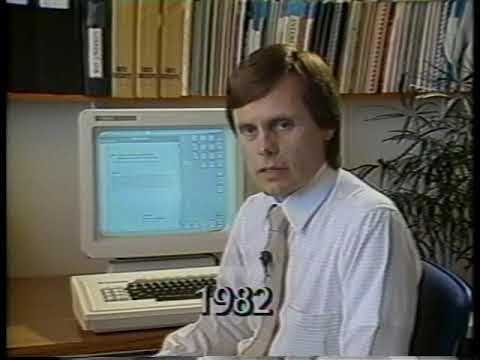
Xerox Star User Interface: An overview — ACM SIGCHI

ACM SIGCHI

By routing local files, remote network servers, and document editing through four generic commands, the Xerox Star eliminates application modes to achieve an interface consistency that remains unsurpassed.

AI-assisted summary of Xerox Star User Interface: An overview — original source. Check the original for full context.

Source published:

Key ideas

  • Released in 1981, the Xerox 8010 Star established foundational GUI paradigms including the desktop metaphor, direct icon manipulation, property and option sheets, and a unified set of generic commands. (0:22)
  • The Star architecture replaced application-specific operations with consistent generic keyboard commands—Delete, Copy, Move, and Show Properties—which execute uniformly across desktop icons, text passages, and complex document objects. (2:13)
  • Document creation is modeled on a physical notepad pattern using reusable desktop archetype 'form pads' that users duplicate rather than relying on abstract blank document wizards. (4:05)
  • Network filing and printing discard traditional syntax and command switches, using spatial window editing across remote Ethernet file servers and drag-and-drop document routing to printer icons that spawn form-based option sheets. (5:33)
  • The Star document architecture incorporates dynamic multi-column layouts, mixed-media objects like charts and equations, and dynamic on-screen virtual keyboards supporting multilingual European scripts and mathematical notation. (8:30)

Detailed notes

## Background Published on YouTube by ACM SIGCHI on February 9, 2021, this video presents a 1982 archival demonstration by Xerox Star designers David Canfield Smith and Charles Irby, later featured in the CHI '90 Technical Video Program and ACM SIGGRAPH Video Review. The presentation documents the revolutionary user interface principles introduced by the 1981 Xerox 8010 Star Office Information System, showcasing the origin of the desktop metaphor, icons, property sheets, and universal commands.

## TL;DR Xerox Star designers David Canfield Smith and Charles Irby guide viewers through the groundbreaking interface and hardware architecture of the 1981 Xerox 8010 Star workstation. The presentation demonstrates how the spatial desktop metaphor and dedicated physical keys—specifically Move, Copy, and Delete—unify workflows across desktop icons, networked file storage servers, laser printers, and text formatting. It covers the creation of documents via archetype form pads, inspectable option and property sheets that eliminate command-line syntax, and a progressive multi-click text selection hierarchy. The walkthrough concludes with rich document layout capabilities, highlighting automatic column reflow, WYSIWYG mathematical equation editing, and dynamic virtual keyboard remapping for multilingual typesetting.

## Atmosphere & style The presentation possesses the quiet, deliberate cadence of a classic corporate engineering demonstration, punctuated by the audible clack of dedicated keyboard keys and the tactile glide of an early mechanical ball mouse. Smith and Irby deliver their explanations with calm, matter-of-fact authority, treating concepts that would permanently redefine modern computing as straightforward, logical common sense. Watching the crisp monochrome bitmapped display render flowing paragraphs, floating property sheets, and complex mathematical notation feels like observing the foundational blueprint of personal computing come alive in real time.

## Bulletin - [00:22](https://www.youtube.com/watch?v=xJzYRgmnJrE&t=22s) Released in 1981, the Xerox 8010 Star established foundational GUI paradigms including the desktop metaphor, direct icon manipulation, property and option sheets, and a unified set of generic commands. - [02:13](https://www.youtube.com/watch?v=xJzYRgmnJrE&t=133s) The Star architecture replaced application-specific operations with consistent generic keyboard commands—Delete, Copy, Move, and Show Properties—which execute uniformly across desktop icons, text passages, and complex document objects. - [04:05](https://www.youtube.com/watch?v=xJzYRgmnJrE&t=245s) Document creation is modeled on a physical notepad pattern using reusable desktop archetype 'form pads' that users duplicate rather than relying on abstract blank document wizards. - [05:33](https://www.youtube.com/watch?v=xJzYRgmnJrE&t=333s) Network filing and printing discard traditional syntax and command switches, using spatial window editing across remote Ethernet file servers and drag-and-drop document routing to printer icons that spawn form-based option sheets. - [08:30](https://www.youtube.com/watch?v=xJzYRgmnJrE&t=510s) The Star document architecture incorporates dynamic multi-column layouts, mixed-media objects like charts and equations, and dynamic on-screen virtual keyboards supporting multilingual European scripts and mathematical notation.

## Key takeaways - [00:22](https://www.youtube.com/watch?v=xJzYRgmnJrE&t=22s) The Xerox 8010 Star introduced the desktop metaphor, graphical icons, direct manipulation, and mouse-driven workflows to personal computing in 1981. - [00:22](https://www.youtube.com/watch?v=xJzYRgmnJrE&t=22s) Workstations operated within an Ethernet local area network to seamlessly pool shared network laser printers and distributed file servers located across different cities. - [00:22](https://www.youtube.com/watch?v=xJzYRgmnJrE&t=22s) The physical interface paired a high-resolution bitmapped display and a two-button rolling ball mouse with a specialized keyboard divided into alphanumeric and dedicated functional clusters. - [02:13](https://www.youtube.com/watch?v=xJzYRgmnJrE&t=133s) Four universal generic commands—Delete, Copy, Move, and Show Properties—maintain identical operational semantics across all application domains. - [04:05](https://www.youtube.com/watch?v=xJzYRgmnJrE&t=245s) The Move command acts as a sweeping transactional primitive, eliminating separate computer utilities by spatially rearranging icons, relocating text, and moving data across remote network servers. - [04:05](https://www.youtube.com/watch?v=xJzYRgmnJrE&t=245s) Document creation is structured around 'form pads'—archetype blank documents that users copy to instantiate fresh, pre-formatted work items. - [05:33](https://www.youtube.com/watch?v=xJzYRgmnJrE&t=333s) Network file systems operate through filing drawer windows representing Ethernet-linked local and remote servers, permitting direct drag-and-drop transfers without requiring unique global file names. - [05:33](https://www.youtube.com/watch?v=xJzYRgmnJrE&t=333s) Printing eliminates conventional print menus or switches, requiring users only to move document icons to a printer icon, which automatically exposes an inspectable option sheet. - [05:33](https://www.youtube.com/watch?v=xJzYRgmnJrE&t=333s) Bitmapped display typography delivers a faithful what-you-see-is-what-you-get (WYSIWYG) preview that closely matches the output produced by network laser printers. - [08:30](https://www.youtube.com/watch?v=xJzYRgmnJrE&t=510s) The system features a progressive multi-click text selection hierarchy, expanding sequentially from character to word, sentence, and full paragraph. - [08:30](https://www.youtube.com/watch?v=xJzYRgmnJrE&t=510s) A dedicated hardware 'Same' key enables users to directly sample typographic styling and paragraph spacing from an existing text block and paint it onto a new selection. - [12:44](https://www.youtube.com/watch?v=xJzYRgmnJrE&t=764s) Property sheets formally differentiate between mutually exclusive choice parameters, such as typeface family or alignment, and independent state parameters like bold and italic. - [14:40](https://www.youtube.com/watch?v=xJzYRgmnJrE&t=880s) Text editing strictly conforms to desktop interaction verbs, allowing users to relocate or duplicate strings using the same Move and Copy hardware keys while text re-justifies in real time. - [15:14](https://www.youtube.com/watch?v=xJzYRgmnJrE&t=914s) On-screen virtual keyboards dynamically remap the physical key array to handle equation editing, mathematical and logic notation, and varied European accented character sets.

## Detailed walkthrough ### [00:22](https://www.youtube.com/watch?v=xJzYRgmnJrE&t=22s) Historical Significance and Hardware Architecture of the Xerox Star

The video opens with a retrospective introduction explaining the profound industry impact of the Xerox 8010 Star Office Information System, which debuted in 1981. The Star introduced pivotal concepts that came to define modern computing: the desktop metaphor, graphical icons representing files and applications, direct manipulation, multimedia document windows, property and option sheets, and a unified set of generic commands. In particular, the system achieved a level of consistency across operations that set a benchmark for the industry: “In some ways, such as its use of the Move, Copy, and Delete functions, Star remains unsurpassed in the consistency of its interface.” The accompanying 1982 archival footage is presented by two of its key designers, David Canfield Smith and Charles Irby.

```mermaid flowchart TD accTitle: Hardware Architecture of the Xerox Star System accDescr: Diagram showing the physical components of the Star workstation connected across the Ethernet local area network to shared network resources.

subgraph Workstation["Xerox 8010 Star Workstation"] Processor["Processor Unit"] Display["Large Bitmapped Display"] Mouse["Two-Button Ball Mouse"] Keyboard["Keyboard (Typing Array + 3 Function Clusters)"] end

subgraph Network["Ethernet Local Area Network"] LAN["Ethernet Bus"] end

subgraph Resources["Shared Network Services"] FileServers["File Servers (Palo Alto & Los Angeles)"] PrintServers["Network Laser Printers"] OtherStars["Other Star Workstations"] end

Workstation <--> LAN LAN <--> Resources ```

David Canfield Smith introduces the Xerox 8010 Star as a new class of computer engineered specifically for office professionals. The physical machine consists of a dedicated processor unit, a large display screen, an ergonomic keyboard, and a mechanical mouse containing a rolling ball underneath that tracks movement across a flat desk surface to drive the cursor on-screen. Smith points out that two program-controlled buttons sit on top of the mouse to select objects and set operational destinations. Star units do not work in isolation; they are interconnected via an Ethernet local area network, enabling users to exchange communications and share vital pooled resources such as large-scale file storage servers and laser printers.

- **System Release:** 1981 (Xerox 8010 Star Office Information System). - **Archival Demonstration Date:** 1982, recorded by designers David Canfield Smith and Charles Irby. - **Hardware Configuration:** Central processor, high-resolution large display, two-button ball mouse, specialized keyboard, and Ethernet LAN transceivers.

---

[02:13](https://www.youtube.com/watch?v=xJzYRgmnJrE&t=133s) The Keyboard Layout and the Desktop Metaphor

Smith breaks down the layout of the Star keyboard, which pairs a standard alphanumeric typing array with three distinct peripheral clusters of dedicated function keys. The left cluster houses Star's core universal functions: Delete, Copy, Move, and Show Properties. These generic commands operate identically across every application domain—the single Move key, for instance, relocates a text character, a vector line in an illustration, a formula fraction inside a mathematical equation, or an entire document within a filing drawer. The top key cluster controls immediate character-level formatting (bold, italic, underline, superscript, subscript, and relative font sizing), while the right cluster hosts utility commands such as online help, abbreviation expansion, and an emergency stop key to cancel in-flight operations.

Turning to the display, Smith reveals the Star working environment, which the designers christened the “desktop” as an electronic analog to a physical office workspace. The desktop surface displays icons—pictographic representations of familiar physical office furnishings and supplies. Clicking an icon with the mouse button highlights it in reverse video (turning black), establishing a selection that can be acted upon by the universal command keys. Smith demonstrates this direct manipulation on a spread of desktop icons representing file folders, records files, filing cabinet drawers, 3270 and teletype communications terminals, network printers, and in/out mail baskets.

- **Left Function Keys (Generic Commands):** Delete, Copy, Move, and Show Properties. - **Top Function Keys (Text Formatting):** Bold, Italic, Underline, Superscript, Subscript, Larger Font, and Smaller Font. - **Right Function Keys (System Utilities):** Online Help, Abbreviation Expansion, and Operation Stop. - **Desktop Icons Demonstrated:** Folders, records files, filing drawers, 3270 terminals, TTY terminals, printers, and in/out mail baskets.

---

[04:05](https://www.youtube.com/watch?v=xJzYRgmnJrE&t=245s) Universal Commands: Moving, Form Pads, and Properties

Smith illustrates how the Move key lets users freely organize and declutter their screen, emphasizing its sweeping architectural role: “Move is the most powerful command in the system. It replaces a large number of conventional computer commands, which we will point out as we go along.” The Copy key establishes the foundational paradigm for document creation throughout Star. Rather than forcing users through an abstract initialization wizard or blank document dialog, creation relies on replication: users maintain blank archetype documents on their desktop that serve as reusable “form pads.”

```mermaid flowchart LR accTitle: The Star Document Creation Paradigm via Form Pads accDescr: Flow diagram showing how tearing a sheet from a physical paper pad translates to copying a blank archetype document on the Star desktop.

subgraph PaperAnalog["Physical Office Metaphor"] Pad["Pad of Paper"] -->|"Tear off sheet"| Sheet["Fresh Sheet"] end

subgraph StarImplementation["Electronic Desktop"] FormPad["Archetype Blank Document"] -->|"Copy command"| NewDoc["New Working Document"] NewDoc -->|"Show Properties key"| PropSheet["Rename / Set Properties"] end ```

Pulling a new document into existence is modeled directly on tearing a fresh sheet off a physical notepad. This mechanism allows office workers to construct specialized, pre-formatted templates suited to their own workflows, serving as an early realization of user-tailorable software. Smith touches upon the Show Properties command, which summons an inspectable panel where attributes like an icon's label can be modified. Finally, selecting an icon and pressing the Open key causes it to expand into a window that reveals its internal data, such as the body of a text document.

- **Move Philosophy:** Acts as a universal spatial and transactional command, substituting for specialized software utilities. - **Form Pad Creation Pattern:** Creating an item is accomplished by issuing Copy on an existing blank template or prototype. - **Window Activation:** Selecting an icon and pressing Open expands the icon into its full window view.

---

[05:33](https://www.youtube.com/watch?v=xJzYRgmnJrE&t=333s) Network Filing, Option Sheets, and Printing

Filing in the Star environment completely discards traditional command-line directories or syntax-heavy file systems in favor of spatial interaction with file drawers. These electronic drawers represent remote file storage servers connected across the Ethernet network. Smith demonstrates that his desktop contains local file drawers housed within his building in Palo Alto, alongside remote drawers residing on servers hundreds of miles away in Los Angeles. Regardless of the physical geographic location of the server, the user interaction model remains completely uniform.

```mermaid flowchart TD accTitle: Ethernet Network File Transfer and Manipulation accDescr: Diagram illustrating file transfers between local Star workstations, Palo Alto file servers, and Los Angeles file servers via editing filing windows.

subgraph Desktop["Workstation Local Desktop"] LocalFile["Local File / Icon"] end

subgraph PaloAlto["Palo Alto File Server"] PA_Drawer["Local Network File Drawer"] end

subgraph LosAngeles["Los Angeles File Server"] LA_Drawer["Remote Network File Drawer"] end

LocalFile <-->|"Move / Copy via Ethernet"| PA_Drawer LocalFile <-->|"Move / Copy via Ethernet"| LA_Drawer PA_Drawer <-->|"Server-to-Server Transfer"| LA_Drawer ```

Opening a file drawer summons a filing window that catalogs its contents with miniature icons, file labels, and modification dates. Star does not mandate unique file names—Smith highlights two distinct versions of a document both titled “NCC Script,” using their timestamps to tell them apart. Filing is performed simply by editing the window: moving an icon from a filing window to the desktop copies the file across the Ethernet from the remote server down to the Star's local workstation disk. Moving an item transfers it and removes it from its origin, while copying leaves the source intact. The system supports direct server-to-server transfers simply by moving an item from one open drawer window into another.

Similarly, the interface eliminates conventional print menus: “Similarly, there is no print command. Printing is accomplished by moving an object to a printer icon.” Dragging a document onto a printer icon causes an “option sheet” window to appear automatically. Smith describes option sheets as dedicated form-like panels that explicitly surface all operational parameters, relieving the user of having to memorize esoteric parameters or command switches. The printer option sheet lets the operator configure page counts and trigger repagination. Smith queues the job and cuts to footage of walking over to the physical network printer, holding up the output to demonstrate that the Star bitmapped screen is a high-fidelity preview that closely matches the printed hard copy.

- **Network Drawer Locations:** Palo Alto (local building) and Los Angeles (remote facility). - **Naming Flexibility:** Drawer items do not require globally unique names or even titles; timestamps distinguish distinct drafts. - **Option Sheet Philosophy:** Form-based property panels present all available parameters visually, eliminating syntax memorization. - **WYSIWYG Printing:** Hard copy from the networked laser printer faithfully matches the multi-font typographical layout shown on the display.

---

[08:30](https://www.youtube.com/watch?v=xJzYRgmnJrE&t=510s) Electronic Mail and Document Architecture

Smith moves to the electronic mail system, which routes incoming correspondence into dedicated in-basket icons. Opening an in-basket reveals a window structured like a filing window, populated with standard dispatch metadata: recipient lists, sending dates, author identities, and subject titles. Smith opens a message written in Japanese, pointing out that Star's underlying document architecture natively accommodates diverse character sets, allowing any Star document to pass through the electronic mail system without losing integrity.

Charles Irby takes over the presentation to explore document creation and record processing. He opens a multipage document titled “John's report.” Irby explains the standard anatomical features of every Star window: a top header band carrying the window title and prominent command buttons along the left edge, a vertical scroll bar along the right margin, and a horizontal scroll bar along the bottom border. Irby pans the document laterally and vertically, demonstrating smooth scroll mechanics.

```mermaid flowchart LR accTitle: Progressive Click Selection Hierarchy accDescr: Sequence showing how successive mouse clicks expand text selection from a single character to a full paragraph.

C1["1st Click: Character"] --> C2["2nd Click: Word"] C2 --> C3["3rd Click: Sentence"] C3 --> C4["4th Click: Paragraph"] ```

Irby flips through pages using the dedicated navigation controls, including an “N” control to advance to the next page and a “P” control to return to the previous page. He shows how page two features a single-column layout interrupted by an embedded illustration figure, whereas scrolling smoothly down exposes the page boundary, the page number footer, the page three header, and a transition into a multi-column format. Star allows users to reconfigure column counts on the fly. Advancing to page three, Irby points out an embedded mathematical equation, moves past page four's two-column body, and stops at page five, which pairs an embedded bar-chart graphic in the left column with a short right-hand text column.

To demonstrate text editing and layout adaptation, Irby copies text into page five. Star features a progressive multi-click selection hierarchy: 1. **Single Click:** Selects and highlights an individual character in reverse video. 2. **Double Click:** Expands the selection to the surrounding word. 3. **Triple Click:** Expands the selection to the entire sentence. 4. **Quadruple Click:** Expands the selection to the full paragraph.

Irby selects an entire paragraph, hits the Copy key, and clicks within the destination document where he wants the new text placed. Although the source text originated within a wide, single-column document, Star automatically reformats the incoming paragraph to match the narrower column width of the destination page. To correct mismatched line spacing, Irby demonstrates the specialized "Same" function key on the keyboard: pressing Same and pointing the mouse to a target paragraph immediately copies its typographic styling and interline spacing onto the newly inserted paragraph.

- **Window Anatomy:** Title and command header along the top, vertical scroll bar along the right side, horizontal scroll bar along the bottom. - **Page Navigation:** Dedicated Next (“N”) and Previous (“P”) controls, supplemented by fine-grained fractional vertical scrolling across page breaks. - **Multi-Click Text Selection:** Progressive expansion from character to word, sentence, and full paragraph. - **The "Same" Key:** A dedicated physical keyboard key that samples the typographic formatting of an existing text block and paints it onto the active selection.

[12:44](https://www.youtube.com/watch?v=xJzYRgmnJrE&t=764s) Property Sheets and Character Formatting

The demonstrator explains that the formatting just applied is an optimization of a broader, general mechanism known as a property sheet. As he speaks, a dedicated property sheet window for the paragraph opens in the bottom right-hand corner of the screen. This window allows the user to inspect and adjust the structural parameters of the text block. Paragraph alignment can be set to left flushed, centered, right flushed, or justified; in the demo, justification is active, indicated visually by solid black highlighting over the selection. He modifies the margins directly within the sheet, indenting the text by three spaces from the left margin and three spaces from the right margin, and adjusts the vertical leading to one-and-a-half line spacing.

```mermaid flowchart TD accTitle: Property Sheet Parameter Types accDescr: Diagram illustrating the two parameter types in the Xerox Star property sheet: Mutually Exclusive Choice Parameters and Independent State Parameters. subgraph Props["Property Sheet Parameters"] direction TB subgraph Choices["Mutually Exclusive Choice Parameters"] C1["Type Style (e.g., Modern)"] C2["Type Size (e.g., 10, 12, 14 pt)"] C3["Alignment (Left, Centered, Right, Justified)"] end subgraph States["Independent State Parameters"] S1["Bold"] S2["Italic"] S3["Strikeout"] end end ```

When switching to the character properties tab, the system immediately applies the pending paragraph indentations to the document view. The character properties view exposes a selection of type styles and their corresponding sizes. The demonstrator points out that size availability depends on the selected typeface: choosing one style reveals a specific subset of sizes, while another style might restrict choices strictly to 10-point and 12-point. He chooses 14-point Modern and takes care to articulate the system's underlying interface logic: “These are what are called mutually exclusive choice parameters. If I pick one, the current choice gets turned off.”

In contrast to exclusive choices, the interface provides independent toggles for character styling. As the demonstrator notes, “These down here are called state parameters. They're independent.” These states can be combined freely, allowing text to be bold and italic simultaneously, or bold, italic, and struck out together. Applying these settings renders the paragraph in 14-point bold with a strikeout line running directly through the middle of the characters.

- **Paragraph Properties**: Alignment options (left, centered, right, justified), left/right margin indents (set to three spaces each), and line spacing (adjusted to 1.5 spacing). - **Mutually Exclusive Choice Parameters**: Selecting an alternative font family or size automatically turns off the active choice. - **State Parameters**: Independent stylistic flags (bold, italic, strikeout) that can be combined arbitrarily on the same selection.

---

[14:40](https://www.youtube.com/watch?v=xJzYRgmnJrE&t=880s) Text Editing and Generic Commands

Text editing in Star adheres strictly to the universal command model demonstrated earlier in the system desktop. Rather than using specialized editing modes, manipulation inside a document follows the exact same operational verbs used across the entire operating environment. The demonstrator highlights this consistency, stating, “Now, text editing works just the same, as the move and copy paradigm that Dave was showing you before.”

To rearrange content, the user selects a target word, presses the dedicated **Move** key, and clicks the destination point, causing the word to instantly relocate. Duplicating text follows an identical sequence: selecting a word, invoking **Copy**, and designating the target position. Direct typing integrates seamlessly into formatted layouts; clicking anywhere inside the text frame allows the author to type immediately, while Star automatically re-justifies the surrounding lines in real time as the characters are entered.

- **Universal Verbs**: Move and Copy operate on text strings identically to how they manipulate desktop icons and windows. - **Dynamic Formatting**: Newly typed characters insert inline while the document maintains active line justification on the fly.

---

[15:14](https://www.youtube.com/watch?v=xJzYRgmnJrE&t=914s) Virtual Keyboards and Equation Editing

To handle complex typesetting and international text, the system introduces a software-driven input layout displayed along the lower edge of the display. The demonstrator brings up an on-screen keyboard to supplement an existing mathematical equation, explaining: “A virtual keyboard is basically a way of redefining the meaning of each of the keys on the main typing array of the keyboard.” While the default arrangement reflects standard English typing, pressing dedicated hardware mode keys remaps the array to alternate symbol sets.

```mermaid flowchart LR accTitle: Virtual Keyboard Input Modes accDescr: Flow showing the remapping of the physical keyboard array into different virtual character layouts. Phys["Physical Keyboard Array"] --> VK["Virtual Keyboard System"] VK --> English["English Layout"] VK --> Math["Equations & Math Symbols"] VK --> Logic["Logic & Office Symbols"] VK --> Euro["European Languages (Accents)"] ```

The system provides specialized virtual layouts covering mathematical operators, logic symbols, Greek alphabets, and general office iconography. It also delivers deep multilingual support, dynamically mapping the keyboard to French, German, Spanish, Italian, and the complete repertoire of accented characters found across European layouts. Returning to the equation editor, the demonstrator extends the on-screen formula by subtracting a new fractional term. Utilizing the virtual keyboard, he inserts a fraction template, places a summation spanning from $i = 1$ to $n$ inside the numerator, and embeds a subscripted Greek lambda ($\lambda$) within the summation body.

- **Virtual Keyboard Functionality**: Remaps the physical key layout dynamically to display and input non-standard character sets. - **Supported Layouts**: English, equations, advanced mathematical symbols, formal logic symbols, Greek alphabet, office symbols, and European languages (French, German, Spanish, Italian accents). - **Structured Equation Layout**: Direct visual construction of fractions, summations with index bounds ($i = 1$ to $n$), and subscripted Greek notation.

## Notable quotes > [04:05](https://www.youtube.com/watch?v=xJzYRgmnJrE&t=245s) Move is the most powerful command in the system. It replaces a large number of conventional computer commands. — David Canfield Smith

## Mentioned Xerox 8010 Star, David Canfield Smith, Charles Irby, Xerox PARC, ACM SIGCHI, ACM SIGGRAPH Video Review, Brad Myers, Carnegie Mellon University, Ethernet

## Video description Xerox Star User Interface: An overview David C Smith, Charles Irby, Xerox PARC

CHI '90 Technical Video Program Session: User Interface Technologies and Applications

Abstract This film is offered as an histori­cal document. It provides peo­ple who may not be familiar with the Xerox Star personal comput­er an opportunity to learn a little about it. It was made in 1982 by two of the designers of Star: Da­vid Canfield Smith and Charles Irby. It was intended to illustrate Star's principal contributions to computer user interfaces. Some contributions have had a major effect on the personal computer industry, including icons, a Desktop metaphor with a direct manipulation interface, property and option sheets, and generic commands. In some ways, such as its use of the Move, Copy and Delete func­tions, Star remains unsurpassed in the consistency of its inter­face. Other features, such as multilingual multimedia docu­ments, are just now beginning to appear in other systems. In watching the film, the viewer is urged to keep in mind the histor­ical perspective of 1981, when Star was first released.

WEB:: http://www.cs.umd.edu/hcil/chivideoslist

Published as Issues 55-56 of ACM SIGGRAPH Video Review. Video Chair: Brad Myers (Carnegie Mellon University) Location: Austin, TX, USA

[Source](https://www.youtube.com/watch?v=xJzYRgmnJrE)

中文简报

施乐之星以通用桌面按键取代命令行 通过将本地文件、远程网络服务器和文档编辑统一整合为四个通用命令,施乐之星彻底消除了应用程序模式,实现了至今仍无可匹敌的界面一致性。 施乐之星设计师 David Canfield Smith 与 Charles Irby 带领观众回顾了 1981 年 Xerox 8010 Star 工作站极具开创性的界面和硬件架构。演示展示了空间桌面隐喻与专用实体按键(特别是 Move、Copy 和 Delete)如何将桌面图标、网络文件存储服务器、激光打印机以及文本排版的工作流融为一体。内容涵盖了通过原型便签本创建文档、取代命令行语法的可检查选项与属性表,以及渐进式多击文本选择层级。演示最后介绍了丰富的文档排版功能,重点展示了自动分栏重排、所见即所得的数学公式编辑,以及用于多语言排版的动态虚拟键盘映射。 于 1981 年发布的 Xerox 8010 Star 确立了图形用户界面的多项基础范式,包括桌面隐喻、图标直接操作、属性与选项表,以及一套统一的通用命令。 (0:22) Star 架构用一致的通用键盘命令(Delete、Copy、Move 和 Show Properties)取代了特定应用程序的操作,这些命令可以在桌面图标、文本段落和复杂文档对象之间统一执行。 (2:13) 文档创建借鉴了实体便签本模式,采用桌面上的可复用原型“便签本”,供用户直接复制,而无需依赖抽象的空白文档向导。 (4:05) 网络文件归档和打印抛弃了传统的语法与命令开关,改为在远程以太网文件服务器之间进行空间窗口编辑,以及将文档拖放到打印机图标并弹出基于表单的选项表来进行路由打印。 (5:33) Star 文档架构整合了动态多栏排版、图表与公式等混合媒体对象,以及支持多种欧洲语言文字和数学符号的动态屏幕虚拟键盘。 (8:30)

Reading summary

Demonstrated by designers David Canfield Smith and Charles Irby, the 1981 Xerox 8010 Star established foundational graphical computing paradigms by combining a spatial desktop metaphor, universal command keys, and network transparency. Hardware Architecture and the Desktop Metaphor (0:22) The Xerox 8010 Star was designed as an integrated workstation for office professionals, pairing a central processing unit and a high-resolution bitmapped screen with a specialized keyboard and a mechanical two-button ball mouse. Workstations were interconnected across an Ethernet local area network, allowing individual users to communicate and share high-capacity file servers and laser printers. Rather than confronting users with traditional command-line prompts, the Star projected an electronic desktop populated with pictographic icons representing physical office objects, such as folders, filing cabinets, in/out mail baskets, communications terminals, and printers. Interaction relied on direct manipulation: pointing and clicking with the mouse highlighted icons in reverse video to establish an active selection. The accompanying keyboard bifurcated functions into an alphanumeric typing array and dedicated peripheral clusters. The top cluster handled immediate character formatting, the right hosted system utilities like online help and an operation stop key, and the left housed universal operational verbs that functioned identically across all system contexts. Universal Commands and Creation by Replication (4:05) A cornerstone of Star's design was its reliance on universal verbs—primarily Delete, Copy, Move, and Show Properties—which eliminated the need for specialized application modes. Smith highlighted Move as the system's most powerful command, capable of decluttering desktop icons, moving data between windows, or rearranging words in a text document. Direct typing inside documents operated within this same framework, with the system automatically re-justifying surrounding formatted text in real time. Rather than forcing users to initiate documents through abstract dialogs or creation wizards, Star utilized a physical analog termed the "form pad." Users maintained blank archetype documents on their desktop and created working drafts simply by issuing the Copy command, mimicking the action of tearing a sheet off a paper notepad. This replication model allowed workers to generate and customize reusable templates tailored to their organizational routines. Network Transparency and Parameter-Driven Options (5:33) Star eliminated traditional directory trees in favor of spatial file drawers representing storage servers connected over Ethernet. The interface abstracted physical geography: filing drawers residing locally in Palo Alto functioned with the exact same interaction conventions as remote servers located hundreds of miles away in Los Angeles. Filing operations were conducted entirely by window editing—moving an icon between a drawer window and the desktop copied the file across the network, while transferring an item between two drawer windows executed direct server-to-server migration. File names did not require system-wide uniqueness, as timestamps distinguished different versions of identically titled drafts. System peripherals operated without explicit invocation syntax; printing, for example, lacked a dedicated print command and was achieved simply by moving a document onto a network printer icon. This action summoned an "option sheet," a specialized form window presenting all adjustable parameters visually. Designers emphasized that option sheets relieved users from memorizing cryptic command switches, while the workstation's bitmapped display ensured that on-screen typography, rules, and layouts matched the final laser-printed hard copy. Document Anatomy, Property Inspection, and Virtual Inputs (8:30) Star's document architecture unified text, illustrations, multi-column divisions, and mathematical notation within a standardized window anatomy framed by headers, control commands, and bidirectional scroll bars. Text selection used a progressive hierarchy expanding from a single character on one click to a word, sentence, and full paragraph on successive clicks. To standardize typography, a dedicated "Same" key sampled styling and interline spacing from existing text and applied it directly to target selections. Detailed structural adjustments were managed through property sheets, which distinguished between mutually exclusive choice parameters (such as typeface, font size, or alignment, where picking one option deselects another) and independent state parameters (such as bold, italic, and strikeout, which can be applied concurrently). For specialized notation and foreign languages, Star provided dynamic virtual keyboards that remapped physical keystrokes on the fly, enabling native typesetting of logic symbols, accented European alphabets, and multi-part mathematical formulas featuring summations, fractions, and Greek characters. The Xerox Star replaced fragmented, syntax-heavy terminal commands with an integrated environment defined by spatial filing, direct manipulation, and universal interface consistency. While its commercial impact was shaped by the market conditions of its 1981 debut, its architectural choices—from the desktop metaphor and option sheets to networked resource sharing—served as the direct blueprint for modern personal computing.

精炼阅读摘要

Xerox 8010 Star 办公信息系统通过桌面隐喻、通用动词命令、属性表以及所见即所得的文档架构,建立了现代图形用户界面的核心设计范式。设计者 David Canfield Smith 与 Charles Irby 在历史演示中强调,Star 的核心突破在于跨硬件、网络与文本操作的高度交互一致性。 桌面隐喻与硬件协同架构 (0:22) Xerox Star 于 1981 年发布,其硬件由专用处理器单元、高分辨率大型位图显示器、两键机械滚珠鼠标以及具备功能键分区的键盘组成。所有工作站通过以太网(Ethernet)局域网互连,共享分布在不同地理位置(如帕洛阿尔托与洛杉矶)的大型文件存储服务器和网络激光打印机。鼠标用于在屏幕上驱动光标、选中对象并指定操作目标,硬件设计与图形系统紧密契合。 在软件界面上,Star 首次确立了以“桌面”为核心的电子办公环境,将实体办公用品转化为文件档案、文件夹、文件柜抽屉、通信终端(如 3270 与 TTY)、网络打印机与进出信箱等图标。用户用鼠标点击即可反白选定对象,借助物理隐喻摆脱了传统命令行模式,使专业办公人员无需记忆抽象指令即可直观管理资源。 通用动词命令与复用模板机制 (4:05) Star 键盘将通用动词设计为实体按键,核心功能键包括 Move(移动)、Copy(复制)、Delete(删除)与 Show Properties(显示属性)。根据设计者说明,Move 是系统中功能最强大的通用动词,它不仅能在屏幕上整理图标,还能统一处理文本字符、图表矢量线、数学分式或跨抽屉的整份文件,取代了传统操作系统中碎片化的工具指令。 在对象创建模式上,Star 摒弃了空白文档初始化向导,引入“便签本”(Form Pads)复用机制。该模式模仿从纸质便签本上撕下新纸张的过程:用户在桌面上保留空白原型文档,通过 Copy 命令直接克隆出新的工作文档,再通过 Show Properties 修改名称与参数。这一设计不仅简化了创建流程,也让办公人员能够灵活定制贴合自身业务的工作流模板。 透明网络协作与所见即所得输出 (5:33) 文件管理在 Star 中通过以太网抽屉窗口实现,完全消除了传统目录路径语法。桌面可同时并置本地与跨越数百英里的远程服务器抽屉,两者的交互方式完全一致。将图标从抽屉拖至桌面即可完成从服务器到本地磁盘的下载,在两个打开的抽屉窗口间移动图标即可完成服务器间直接传输。系统不强制文件命名具有全局唯一性,演示中两个同名为“NCC Script”的文件完全依靠修改时间戳进行版本区分。 系统同样取消了传统的打印指令菜单,用户只需将文档图标移动至打印机图标上即可触发打印流程。此时系统会自动弹出“选项表”(Option Sheet)以直观表单展示页面范围等参数,避免用户记忆命令开关。激光打印机输出的硬拷贝与位图屏幕上的多字体排版高度一致,真正实现了高保真所见即所得(WYSIWYG)。 结构化文档与渐进文本交互 (8:30) Star 文档窗口由标题与命令顶栏、右侧垂直滚动条与底部水平滚动条构成,页面导航支持跨页平滑滚动与专用的“下一页(N)”、“上一页(P)”快捷跳转。文档支持在同一页面内动态混排多栏文本、图表插图与数学公式,单栏文本在复制至多栏环境时会自动重排以适配栏宽。键盘还配置了专用的“Same”功能键,按下后点击目标段落即可一键拾取并应用其排版与行间距样式。 在文本选取上,Star 建立了四级递进式多击交互层级:单击选中单个字符,双击扩展至词,三击选定整句,四击选中完整段落。编辑操作严格遵循桌面级通用动词,选定文本后使用 Move 或 Copy 即可瞬间完成移动或复制,键盘直接键入时系统会在维持既有排版和两端对齐的状态下进行实时动态重排。 属性表参数范式与虚拟键盘输入 (12:44) 属性表(Property Sheet)窗口是 Star 统一的格式调控界面,系统在逻辑上将参数严格划分为两类:一类是“互斥选择参数”(如 Modern 字体族、字号以及左齐/居中/右齐/两端对齐等对齐模式),选中其中一项会自动关闭当前项,且特定字体会动态约束可用字号;另一类是“独立状态参数”(如加粗、斜体、删除线),这些开关互不干扰,可任意自由叠加组合应用。 为了支持复杂排版与国际化文字处理,系统在屏幕底部提供了可动态映射的“虚拟键盘”。虚拟键盘通过硬件模式键重定义物理键盘键位,支持数学运算符、逻辑符号、希腊字母、办公图标,以及包含重音符号的法德西意等欧洲语言布局。在公式编辑中,用户可通过虚拟键盘直观插入分式模板、带有上下限(如 i=1 至 n)的求和号以及带有下标的希腊字母 Lambda(λ)。 Xerox Star 展现了计算机交互从抽象指令向空间直接操纵的历史性转折,其以 Move/Copy 为代表的通用命令体系在操作一致性上确立了极高标杆。不过该展示主要聚焦于受控环境下的单机与局域网常规办公场景,并未涉及极端网络延迟、大规模并发冲突处理等工业级复杂运维边界。

Detailed notes — zh

## Background 该视频由 ACM SIGCHI 于 2021 年 2 月 9 日发布在 YouTube 平台上,是收录于 ACM SIGGRAPH Video Review(第 55-56 期)与 CHI '90 技术视频项目的珍贵历史档案。视频原片摄制于 1982 年,由 Xerox PARC 的两位核心系统设计师 David Canfield Smith 与 Charles Irby 亲自演示并讲解,系统性地梳理了 1981 年发布的 Xerox 8010 Star 办公信息系统对现代图形用户界面(GUI)所做出的开创性贡献。 ## TL;DR 视频全面回顾了 Xerox Star 作为现代个人计算与图形界面基石的核心设计创新。两位设计师先后演示了以鼠标配合专用功能键体系的硬件基础、开创性的桌面隐喻(包括图标反相选中、便笺本式文件创建与以太网跨网归档机制),以及将打印和邮件收发彻底无命令化的直观操作。随后内容深入展示了多窗口与富文本排版交互,重点讲解了多级扩展选词、动态重排、用于细粒度控制的属性表机制、贯穿全局的通用命令(Move/Copy/Delete),以及支持输入希腊字母、欧洲重音符与复杂嵌套数学公式的虚拟键盘系统。 ## Atmosphere & style 整部影片散发着 1980 年代初特有的严谨学术气息与前沿探索的沉静自信。两位设计师的语调从容清晰、条理分明,没有浮夸的营销修饰,而是以平实精准的工匠姿态,一步步在实机前拆解各项交互逻辑背后的哲学思考。伴随着单色大屏幕上清晰的像素重绘与实体键盘按键的清脆反馈,观众能极其直观地感受到当代计算机界面规范从无到有破土而出的历史震撼感与纯粹的技术美感。 ## Bulletin - [00:22](https://www.youtube.com/watch?v=xJzYRgmnJrE&t=22s) 1981年推出的施乐 Xerox 8010 Star 系统确立了现代图形用户界面的基石,率先引入桌面隐喻、图标对象化、属性与选项表以及跨场景通用的核心命令体系。 - [01:19](https://www.youtube.com/watch?v=xJzYRgmnJrE&t=79s) Star 键盘将通用命令(Delete、Copy、Move、Show Properties)设为独立实体功能键,使文件整理、文本排版与图形处理共享完全一致的操作范式。 - [05:07](https://www.youtube.com/watch?v=xJzYRgmnJrE&t=307s) 系统通过以太网将本地工作站与远程服务器无缝连接,用户在桌面上拖拽文件抽屉即可直接实现跨地域服务器之间的文件流转。 - [09:14](https://www.youtube.com/watch?v=xJzYRgmnJrE&t=554s) 文档编辑支持多级点击文本选择(字符-词-句-段)、动态自适应多栏排版,并结合屏幕虚拟键盘实现复杂多语言与数学公式的所见即所得混排。 ## Key takeaways - [00:22](https://www.youtube.com/watch?v=xJzYRgmnJrE&t=22s) Xerox Star 是首款将桌面隐喻与直接操作界面推向商业应用的个人计算机系统,对后续 PC 行业产生了决定性影响。 - [01:19](https://www.youtube.com/watch?v=xJzYRgmnJrE&t=79s) 系统硬件由处理器、大屏幕、特制键盘及双键滚球鼠标构成,并通过以太网局域网共享存储与打印资源。 - [01:19](https://www.youtube.com/watch?v=xJzYRgmnJrE&t=79s) 键盘专门划分出通用功能键区(Delete、Copy、Move、Show Properties),在文本、图表及文件系统等所有对象中保持高度一致的操作逻辑。 - [03:05](https://www.youtube.com/watch?v=xJzYRgmnJrE&t=185s) 桌面图标作为物理办公室实体的电子模拟,被鼠标选中后即时反相显示,支持直接应用通用命令。 - [03:05](https://www.youtube.com/watch?v=xJzYRgmnJrE&t=185s) Star 摈弃抽象的“新建”指令,核心创建范式依赖“Copy”现有预制空白文档(便笺本),模拟从实体便笺纸撕纸的体验。 - [05:07](https://www.youtube.com/watch?v=xJzYRgmnJrE&t=307s) 所有图标均对应专属窗口;文件抽屉作为归档窗口,在交互上抹平了本地磁盘与远程服务器的物理及网络界限。 - [07:16](https://www.youtube.com/watch?v=xJzYRgmnJrE&t=436s) 系统消除了专用打印命令,将文档图标直接拖动到打印机图标即可完成打印,并通过弹出的选项表配置份数与重新分页参数。 - [09:14](https://www.youtube.com/watch?v=xJzYRgmnJrE&t=554s) 文档窗口配备横纵滚动与上一页/下一页控件,可在同一文档内平滑呈现单栏、双栏及嵌有公式图表的复杂排版。 - [09:14](https://www.youtube.com/watch?v=xJzYRgmnJrE&t=554s) 鼠标点击具备智能扩展选择机制:连续点击一至四次依次精准选定字符、单词、句子和整个段落。 - [09:14](https://www.youtube.com/watch?v=xJzYRgmnJrE&t=554s) 复制文本进入多栏页面时会自动收窄栏宽适配排版,通过专属的“Same”实体键可单键快速同步目标段落的样式与行距。 - [12:44](https://www.youtube.com/watch?v=xJzYRgmnJrE&t=764s) 属性表将参数清晰划分为互斥选择参数(如单选字体风格与字号)和独立状态参数(如同时应用粗体、斜体与删除线)。 - [15:14](https://www.youtube.com/watch?v=xJzYRgmnJrE&t=914s) 屏幕底部的虚拟键盘能够动态重新映射物理键盘按键,完整支持多种欧洲语言变音符及复杂科技数学公式的分式与求和排版。 ## Detailed walkthrough ### [00:22](https://www.youtube.com/watch?v=xJzYRgmnJrE&t=22s) Xerox Star 的历史意义与设计概述 1981 年,施乐(Xerox)推出了 Star 办公信息系统(Star Office Information System,即 Xerox 8010 Star)。这款系统所搭载的颠覆性用户界面,对整个办公系统和个人电脑行业产生了极为深远的影响。Star 率先引入了使用图标(Icons)代表对象和应用程序的概念,构建了配合直接操作界面的桌面隐喻(Desktop metaphor),并带来了包含多媒体文档的窗口、属性与选项表(Property and Option Sheets)以及通用命令(Generic Commands)。在许多设计维度上,例如针对“移动”(Move)、“复制”(Copy)和“删除”(Delete)功能的使用,Star 界面的高度一致性至今仍处于不可逾越的地位;而其支持多语言、多媒体混合排版文档等前瞻特性,直到数年后才陆续出现在其他操作系统中。该视频记录拍摄于 1982 年,由 Star 的两位核心设计师 David Canfield Smith 与 Charles Irby 亲自演示并讲解系统内部的各项人机交互创新。 ### [01:19](https://www.youtube.com/watch?v=xJzYRgmnJrE&t=79s) 硬件构成与键盘通用功能键体系 David Canfield Smith 介绍了专为办公室专业人员设计的 Xerox 8010 Star 信息系统。该系统由一台处理器主机、一个大尺寸显示屏幕、一个特制键盘以及一个被称为“鼠标”(Mouse)的定位设备组成。通常情况下,多台 Star 计算机通过以太网(Ethernet)局域网互联,这不仅使机器之间能够相互通信,还能在网络中共享文件存储服务器和打印机等宝贵资源。系统配备的鼠标底部装有球体,当鼠标在平整桌面上滑动时,滚球转动并带动屏幕上的光标作出完全对应的移动;鼠标顶部设有左右两个按键,其操作状态可在程序控制下被感测,用户使用这两个按键即可直接在界面上指定对象以及命令的目标位置。 Star 的键盘在标准打字按键阵列之外,精心规划了三组功能键区: - **左侧功能键区(Generic Functions)**:包含“删除”(Delete)、“复制”(Copy)、“移动”(Move)和“显示属性”(Show Properties)四个贯穿整个系统的通用命令键。以“Move”键为例,无论是移动文本中的一个字符、插图中的一条线、数学公式中的一个分数式,还是文件柜中的一份文档,所使用的操作命令与按键完全一致。 - **顶部功能键区(Text Formatting)**:涵盖常用的文本排版指令,可直接将所选文本设为粗体(Bold)、斜体(Italic)、下划线(Underlined)、上标(Superscript)、下标(Subscript),或切换字体大小(Larger / Smaller Font)。 - **右侧功能键区(Miscellaneous Functions)**:提供获取在线帮助(Online Assistance)、定义与展开缩写(Defining and Expanding Abbreviations)、终止正在执行的操作(Stop)等辅助功能。 ```mermaid flowchart TD accTitle: Keyboard Function Keys Layout accDescr: Diagram illustrating the three distinct function key clusters on the Xerox Star keyboard around the main typing array. subgraph LeftCluster["左侧:通用命令键 (Generic Commands)"] L1["Delete (删除)"] L2["Copy (复制)"] L3["Move (移动)"] L4["Show Properties (显示属性)"] end subgraph CenterCluster["中央:标准键区 (Typing Array)"] C1["标准打字按键区"] end subgraph TopCluster["顶部:文本格式化键 (Formatting)"] T1["Bold / Italic / Underline"] T2["Super / Subscript"] T3["Larger / Smaller Font"] end subgraph RightCluster["右侧:辅助功能键 (Miscellaneous)"] R1["Online Assistance (在线求助)"] R2["Expand Abbrev (展开缩写)"] R3["Stop (中止操作)"] end TopCluster --- CenterCluster LeftCluster --- CenterCluster CenterCluster --- RightCluster ``` ### [03:05](https://www.youtube.com/watch?v=xJzYRgmnJrE&t=185s) 桌面隐喻、对象选择与通用创建范式 Star 的显示屏幕展现了一个被称为“桌面”(Desktop)的完整工作环境,构成了物理办公室在电子层面的完整数字模拟。屏幕上分布着各类精巧的图标(Icons),用以指代办公室人员所熟悉的实体物件。当用户握住鼠标指向某一图标并点击按键时,该对象便被“选定”(Select),并立刻以反相显示(Reverse Video,图标整体变黑)直观提示当前状态。一旦对象处于被选定状态,用户就能直接对其施加 Delete、Copy、Move 等按键指令。桌面上容纳了各种类型的图标,包括普通文件夹(Folder)、记录文件(Records File)、文件抽屉(File Drawer)、用于远程连接的 3270 终端与 Teletype 终端、网络打印机,以及进件与出件邮件蓝(In and Out Mail Baskets)。 在界面交互中,“Move”键扮演着极其强大的角色,用户可以随意移动图标来整理桌面布局。正如 David Canfield Smith 所指出的:“Move is the most powerful command in the system. It replaces a large number of conventional computer commands, which we will point out as we go along.” 与此同时,“Copy”命令则奠定了 Star 系统中最为核心的创造范式。在 Star 中创建一份新文档并非通过抽象的“新建”指令,而是通过复制一份现有的文档来实现。用户通常会在桌面上放置一些预先定制好的空白文档作为“便笺本”(Form Pads);当需要写新文档时,直接复制一份空白文档即可,其操作体验就像随手从实体纸质便笺簿上撕下一张新纸。这种允许用户自行制作并沉淀专属表单源件的设计,是 Star 系统内置高度定制化能力(User Tailored Ability)的典型例证。用户还可以使用 Show Properties 命令随时调出并修改对象的各种属性,比如重命名某个图标。 ### [05:07](https://www.youtube.com/watch?v=xJzYRgmnJrE&t=307s) 窗口体系与以太网文件管理机制 当用户选中任一图标并按下键盘上的“Open”键时,图标就会展开为其对应的放大形式——“窗口”(Window)。系统遵循严格的一致性设计原则:“Every icon has its own window.”打开一个文档图标,便会弹出一个完整呈现其内部图文内容的文档窗口。 文件归档与管理(Filing)同样深度依循直接操作逻辑:文件的归档仅仅是通过将图标移入或移出“文件抽屉”(File Drawer)这一对应办公室文件柜的电子模拟物来完成。在底层实现上,这些文件抽屉实际上物理存储于通过以太网互联的远程文件服务器上。David Canfield Smith 在演示中展示了位于加州帕洛阿尔托(Palo Alto)本地办公楼服务器中的本地抽屉,以及远在洛杉矶(Los Angeles)服务器中的异地抽屉。不论物理存储位置在本地还是千里之外,用户在桌面上摆放和操作这些抽屉的方式完全一致,没有任何协议或操作细节上的割裂: - **查看与辨析**:打开文件抽屉会呼出一个“归档窗口”(Filing Window),内部每一个存储对象都由一个微缩图标、名称及元数据构成。文件名无需保持唯一,甚至可以完全没有名字;例如抽屉中存在两份同名为“NCC Script”的文档,用户只需查看右侧的修改日期即可立刻区分哪个是最新的版本。 - **跨网络流转**:文件管理本质上是对归档窗口的直接编辑。选中文档后按 Move 或 Copy 键将其拖出到桌面,系统便会借助以太网将文件从服务器直接拉取到底部工作站附带的本地磁盘;反之,将桌面对象移入抽屉,或者直接在两个抽屉之间移动,就能实现纯粹的服务器到服务器跨网传输。 - **行为一致性**:使用“Move”会将对象从旧位置彻底删除,而使用“Copy”则会在原处保留一份毫发无损的原件。 ```mermaid flowchart LR accTitle: Desktop and File Server Interaction accDescr: Flow diagram showing how files move between local desktop and remote servers via Ethernet. subgraph Workstation["Star 工作站 (本地桌面)"] DesktopDoc["本地文档 (Desktop Document)"] end subgraph Network["以太网 (Ethernet Local Area Network)"] direction TB PaloAlto["Palo Alto 本地文件服务器"] LA["Los Angeles 远程文件服务器"] end DesktopDoc -->|"Move: 剪切至远端 / Copy: 备份至远端"| PaloAlto PaloAlto -->|"Move / Copy: 拉取到本地磁盘"| DesktopDoc PaloAlto <-->|"直接服务器间转移 (Server-to-Server)"| LA ``` ### [07:16](https://www.youtube.com/watch?v=xJzYRgmnJrE&t=436s) 无命令打印、选项表机制与电子邮箱 Star 系统彻底摈弃了传统操作系统中专有的打印指令(Print Command),打印在交互上被简化成了最直观的操作——直接将需要打印的文档图标移动(Move)到打印机图标之上。当文档被放置到打印机上时,屏幕上会自动弹出一个名为“选项表”(Option Sheet)的专用窗口。选项表是一种形似表单的交互环境,在 Star 中被极其广泛地运用于输入命令参数或调整对象属性。正如 David Canfield Smith 评价其设计价值时所说:“Its virtue is that it makes all of the options visible. You don't have to remember what they are.” 用户无须在脑海中死记硬背复杂的命令行参数,界面直接罗列出诸如打印份数(Number of Copies)、打印前是否需要自动重新分页(Repaginate)等全部可选配置。演示中,Smith 提交了打印任务并走到实体打印机旁取回纸张,向观众证明了 Star 的屏幕渲染具有极致的“所见即所得”效果,屏幕所见与最终打印出来的纸质排版几乎严丝合缝。 在处理网络邮件方面,系统配备了收件箱(In Basket)机制。双击打开收件箱图标后,弹出的窗口在形式上非常接近归档窗口,但各字段均围绕邮件通信定制,清晰罗列出收件人(Recipients)、发送日期(Date Sent)、发件人(Sender)以及条目名称(Item Name)。由于整个系统架构高度统一,任何 Star 文档都可以原封不动地直接通过邮件网络分发给其他用户,系统中甚至顺畅地流转并展示着一份完整的日文邮件文档。 ### [09:14](https://www.youtube.com/watch?v=xJzYRgmnJrE&t=554s) 文档视窗交互、多级点击选择与排版同步 接替 David Canfield Smith 登场的设计师 Charles Irby 将展示重心转向了文档内部的内容编辑与记录处理机制。Charles Irby 在桌面上展开了一份名为“John's Report”的文档窗口。每个窗口顶部均设有一条包含文档标题与左侧操作命令的标题栏(Header),右侧边缘集成了垂直滚动控件,底部边缘则配置了水平滚动控件。通过底部滑块可以轻松横向滑动文档视图并复原;而右侧垂直滚动条则支持平滑滚动与快速翻页两种模式。 Irby 演示了如何借助翻页按钮精确翻阅长文档: - **页面与多栏切换**:点击控件上的“P”(Previous Page)与“N”(Next Page)按钮可在各页之间无缝跳跃。文档第 2 页呈现为顶部标题、中间嵌入图表插图、下方环绕正文的单栏版式;当翻到第 3 页时,文档无缝转换为了双栏(Two Column Format)结构,页面正中甚至内嵌了复杂的数学公式排版;翻至第 5 页,左栏插入了一幅柱状图(Bar Chart),右侧则是较短的文字栏。 - **连续滚动观察跨页**:如果选择微调垂直滑块平滑上移,屏幕能清晰呈现跨页边界(Page Boundary),显示出第 2 页底部的页码、分页虚线以及第 3 页顶部的起始页眉,用户亦可通过内置机制随心重设各页的分栏数。 ```mermaid flowchart TD accTitle: Multi-click Text Selection Hierarchy accDescr: Hierarchy of text selection through repeated clicking in Xerox Star. C1["第 1 次点击: 单个字符 (Character)"] C2["第 2 次点击: 包含该字符的词 (Word)"] C3["第 3 次点击: 包含该词的句子 (Sentence)"] C4["第 4 次点击: 包含该句的整段 (Paragraph)"] C1 -->|"同位置再点一次"| C2 C2 -->|"同位置再点一次"| C3 C3 -->|"同位置再点一次"| C4 ``` 随后,Charles Irby 深入展示了 Star 中优雅的富文本复制与格式化联动逻辑。在文本编辑状态下,鼠标点击具备多级扩展选择特性: 1. 单击任一字符,系统高亮反相选中该字符。 2. 在原处点击第二次,选区瞬间扩展为包含该字符的整个单“词”(Word)。 3. 接着在原处点击第三次,选区自动扩展为包含该词的完整“句子”(Sentence)。 4. 快速点击第四次,则直接锁定包含该句子的整整一个“段落”(Paragraph)。 利用这一精准的选择机制,Irby 连续点击四下选中了下层文档中的一个完整段落,随即按下通用的 Copy 键,并在上方的多栏目标文档中轻点预期的插入段落。新段落立即贴入目标位置,并立刻展现出智能自适应排版特性:尽管该段落在原文档中是占据通栏的单栏宽文本,但当它被复制进这个两栏页面后,文本宽度自动收窄以完全适配目标分栏的栏宽。不过,新插入段落原有的行间距(Interline Spacing)与上方段落尚不一致;此时 Irby 演示了键盘上一个名为“Same”(同前/格式刷)的独特实体功能键——按下“Same”键后,只需用鼠标在目标段落上随手一点,新贴入段落的排版样式与行距立刻被刷新得与被点选段落完全一致。 ### [12:44](https://www.youtube.com/watch?v=xJzYRgmnJrE&t=764s) 属性表与文本格式化机制 在展示段落格式的调整时,Charles Irby 解释了界面如何通过统一机制来管理复杂对象的属性。段落变为双倍行距后,屏幕右下角随即弹出一个专属窗口,即属性表(Property Sheet)。Charles Irby 指出:“这基本上是一种被称为属性表的通用机制的优化形式。”(“This is basically an optimization form a general mechanism called a property sheet.”)通过这个小窗口,用户可以直观地调节段落的各种排版参数。屏幕上的黑色高亮状态表明当前段落采用两端对齐(Justified),此外还可以自由切换为左对齐、居中或右对齐。 Charles Irby 随后演示了边距缩进的调整,将段落左右两侧各缩进三个空格,并将行距设为 1.5 倍行距。当他将属性表切换至字符属性(Character Properties)标签页时,文档区域立即实时执行了先前的段落缩进更改。在字符属性面板中,系统列出了多种可选字形风格(Type Styles)以及对应的字号(Size)。不同字体所支持的尺寸各有不同,例如某些字体仅提供 10 磅和 12 磅,而他最终将文本选回 Modern 字体风格并设置为 14 磅。 在此过程中,Charles Irby 明确区分了 Star 界面中两种核心的参数交互模式: - **互斥选择参数(Mutually Exclusive Choice Parameters)**:针对字体样式和字号等属性,“如果我选择其中一个,当前的选择就会被关闭。” - **独立状态参数(State Parameters)**:针对文本修饰属性,各选项相互独立互不干扰。用户可以同时勾选粗体(Bold)、斜体(Italic),甚至是删除线(Strikeout)。完成设置后,文档中的文字立即呈现为 14 磅、加粗且中间带有横划删除线的视觉效果。 ```mermaid flowchart TD accTitle: 属性表参数分类与应用流程 accDescr: 展示属性表中互斥选择参数与独立状态参数的划分及其实时渲染流程。 subgraph Parameters["属性表参数类型"] Exclusive["互斥选择参数\n(Mutually Exclusive)"] State["独立状态参数\n(State Parameters)"] end subgraph Examples["具体设置选项"] ExChoices["字体类型 / 10, 12, 14 磅字号\n(单选生效)"] StateChoices["粗体 / 斜体 / 删除线\n(可多重叠加)"] end subgraph Render["文档画布实时渲染"] Output["应用排版结果:\n14磅 + 粗体 + 中划删除线"] end Exclusive --> ExChoices State --> StateChoices ExChoices --> Output StateChoices --> Output ``` ### [14:40](https://www.youtube.com/watch?v=xJzYRgmnJrE&t=880s) 通用命令在文本编辑中的一致性应用 完成了格式设置后,演示转向了 Star 系统的核心交互哲学——通用命令(Generic Commands)在文字处理中的无缝延展。文本编辑的操作逻辑与先前 David Canfield Smith 所演示的桌面图标操作完全一致,彻底免除了用户在不同应用场景下需要重新学习命令的负担。 用户只需用鼠标选定一个单词,按下键盘上的“Move”(移动)键,再点击目标位置,选中的词便会立刻移至新位置;若按下“Copy”(复制)键并选中另一个词,该词的副本就会直接粘贴到光标处。此外,在文档的任意位置点击即可直接键入文字,随着新字符的输入,整个段落会在保持两端对齐的状态下动态重排。这种统一的操作范式展现了系统在全局交互一致性上的严密设计。 ### [15:14](https://www.youtube.com/watch?v=xJzYRgmnJrE&t=914s) 虚拟键盘与复杂数学公式排版 随后,Charles Irby 演示了 Star 在处理高级科技文档与复杂数学符号时的能力。他准备在一组已经部分成形的数学公式中添加新的计算项。为了在标准物理键盘上输入非标字符,系统引入了动态显示在屏幕底部的“虚拟键盘”(Virtual Keyboard)。Charles Irby 对其定义道:“虚拟键盘基本上是一种重新定义物理键盘主打字区各按键含义的方法。”(“A virtual keyboard is basically a way of redefining the meaning of each of the keys on the main typing array of the keyboard.”) 虚拟键盘默认处于英文模式,当用户按下物理键盘上的对应切换键时,虚拟键盘的键位映射会立刻发生改变。它不仅涵盖了基础方程符号、多样化的数学符号、逻辑运算符号、希腊字母以及通用的办公符号,还完整支持法文、德文、西班牙文、意大利文等全套带有重音变音符的欧洲语言键位布局。 在实际操作中,Charles Irby 演示了如何借助虚拟键盘构建一个复杂的数学表达式: - 切换至公式模式,在原公式后键入减号,并从虚拟键盘中直接调取一个分式(Fraction)结构模板。 - 将光标移入分子位置,插入一个求和符号($\sum$),并设定其上下标范围为 $i = 1$ 到 $n$。 - 在求和项内部,再次通过特殊符号键盘插入带下标的变量,并将主体字符指定为希腊字母 $\lambda$。这一系列流畅的操作生动呈现了 Xerox Star 在 1980 年代初就已具备的多语言与多媒体所见即所得排版能力。 ## Notable quotes > [03:05](https://www.youtube.com/watch?v=xJzYRgmnJrE&t=185s) Move is the most powerful command in the system. It replaces a large number of conventional computer commands, which we will point out as we go along. — David Canfield Smith ## Mentioned Xerox, Xerox 8010 Star, David Canfield Smith, Charles Irby, Brad Myers, ACM SIGCHI, ACM SIGGRAPH, Carnegie Mellon University, 以太网 (Ethernet) ## Video description Xerox Star User Interface: An overview David C Smith, Charles Irby, Xerox PARC CHI '90 Technical Video Program Session: User Interface Technologies and Applications Abstract This film is offered as an histori­cal document. It provides peo­ple who may not be familiar with the Xerox Star personal comput­er an opportunity to learn a little about it. It was made in 1982 by two of the designers of Star: Da­vid Canfield Smith and Charles Irby. It was intended to illustrate Star's principal contributions to computer user interfaces. Some contributions have had a major effect on the personal computer industry, including icons, a Desktop metaphor with a direct manipulation interface, property and option sheets, and generic commands. In some ways, such as its use of the Move, Copy and Delete func­tions, Star remains unsurpassed in the consistency of its inter­face. Other features, such as multilingual multimedia docu­ments, are just now beginning to appear in other systems. In watching the film, the viewer is urged to keep in mind the histor­ical perspective of 1981, when Star was first released. WEB:: http://www.cs.umd.edu/hcil/chivideoslist Published as Issues 55-56 of ACM SIGGRAPH Video Review. Video Chair: Brad Myers (Carnegie Mellon University) Location: Austin, TX, USA [Source](https://www.youtube.com/watch?v=xJzYRgmnJrE)

Source quotes

[3:05] David Canfield Smith: Move is the most powerful command in the system. It replaces a large number of conventional computer commands, which we will point out as we go along.

Source quotes

[4:05] David Canfield Smith: Move is the most powerful command in the system. It replaces a large number of conventional computer commands.

Original transcript

[0:22] In 1981, Xerox introduced the Star Office Information System. [0:27] The radical user interface of star [0:29] had a major impact on the office system and personal computer [0:32] industry. [0:33] Star introduced the use of icons to represent [0:35] objects and applications. [0:37] The desktop metaphor with a direct manipulation [0:39] interface, windows containing multimedia documents, property [0:43] and option sheets, and generic commands. [0:46] In some ways, such as its use of the Move, Copy, and Delete [0:50] functions, Star remains unsurpassed in the consistency [0:53] of its interface. [0:55] Other features, such as multilingual, multimedia [0:58] documents, have only recently appeared in other systems. [1:02] The following videotape was made in 1982 by two Star designers. [1:08] David Canfield Smith and Charles Irby. [1:11] It illustrates some of the innovations [1:13] in computer human interfaces embodied in the Xerox Star. [1:19] I'm David Smith. [1:21] I'd like to introduce you to the Xerox 8010 Star Information [1:25] System. [1:26] This is a new computer designed for office professionals. [1:29] It consists of a processor, a large display screen, [1:34] a keyboard, and a pointing device, called the mouse. [1:38] Stars are normally connected together [1:40] by the ethernet local area network. [1:43] This not only allows Stars to communicate with one another, [1:46] but it also lets them share resources, such as file storage [1:49] and printers. [1:51] The mouse has a ball on the bottom [1:53] that rotates as the mouse slides across a flat surface. [1:58] This moves the cursor on the screen [1:59] in corresponding motions. [2:03] It has two buttons on top that can be [2:05] sensed under program control. [2:07] You can use these buttons to specify objects [2:10] and destinations for commands. [2:13] The keyboard consists of a standard typing [2:15] array, and three groups of function keys. [2:18] The left group contains the generic functions, [2:22] Delete, Copy, Move, and Show Properties. [2:25] These four are used throughout the system. [2:28] For example, you use the same function key, Move, [2:32] to move a character in text, a line in an illustration, [2:36] a fraction in an equation, or a document in the file you are. [2:40] The top group of keys consists of common text formatting [2:45] functions, making text bold, italic, underlined, super, [2:49] or subscripted, or in a larger or smaller font. [2:53] The right group of keys consists of miscellaneous functions [2:57] for getting online assistance, defining [2:59] and expanding abbreviations, stopping ongoing operations, [3:03] and others. [3:05] The display screen shows your working environment. [3:08] We call this the desktop. [3:10] It is an electronic analog for an office. [3:13] On the screens, are small pictures, or icons, [3:15] representing familiar office objects. [3:20] This turned black because I pointed to it with a mouse, [3:23] and clicked the mouse button. [3:24] We call this selecting the object. [3:27] Selected objects highlight in reverse video. [3:30] You can then operate on the selection with the Delete, [3:34] Copy, Move keys and other keys. [3:38] Let me select some of the other icons on the desktop. [3:42] This is a folder, a records file, a file drawer, 3270 [3:54] and teletype terminals, printers, [3:59] and in and out mail baskets. [4:05] Using the Move key, you can arrange your desktop [4:08] in any way you like. [4:14] Move is the most powerful command in the system. [4:17] It replaces a large number of conventional computer commands, [4:20] which we will point out as we go along. [4:23] The Copy command is also a powerful one in Star. [4:27] It establishes a paradigm for creating. [4:30] In order to create a new document, [4:31] for example, you copy an existing one. [4:34] Typically, Star users construct blank documents [4:36] to act as form pad sources for new ones. [4:39] Making a copy of one of these blank documents [4:41] is like tearing a sheet off a pad of paper. [4:44] The ability of users to make their own form pads [4:47] is one example of the user tailored ability [4:49] built into the system. [4:54] The Show Properties command allows [4:56] you to display and change the properties of an object, [4:59] such as the name of an icon. [5:02] We will discuss properties later. [5:07] In addition to moving, copying, deleting, [5:08] and showing properties, you can open an icon [5:14] to see what's inside. [5:16] You do this by selecting the icon and pushing the Open key. [5:21] The enlarged form is called the window. [5:24] Every icon has its own window. [5:27] This is a document window, displaying [5:29] the contents of a document. [5:33] Filing is done by moving an icon into or out of a file drawer. [5:41] These electronic analogs of the drawers [5:43] in an office filing cabinet. [5:45] File drawers are physically stored on file service [5:47] connected to the ethernet. [5:49] These are local ones stored on file servers [5:53] in my building in Palo Alto. [5:56] These are stored on file servers in Los Angeles. [6:00] You can have as many or as few file drawers on your desktop [6:04] as you want, regardless of where they're stored, [6:09] you interact with them in the same way. [6:13] When you open a file drawer, it displays a filing window. [6:17] Each object stored in the file drawer [6:19] is represented by a miniature icon, a name, [6:21] and some other information. [6:25] The names need not be unique, or even present. [6:29] For example, there are two copies [6:31] of the document named in NCC Script. [6:34] The dates tell me which is the latest version. [6:39] Filing is accomplished by editing filing windows. [6:43] You can select an object with a mouse and move [6:45] or copy it out to the desktop. [6:53] This transfers the object from the file server [6:55] over the ethernet to the local disk attached to your Star [6:58] workstation. [6:59] You can also move it from the desktop into a file drawer, [7:02] or out of one file drawer and into another [7:04] for straight server to server transfers. [7:07] Moving deletes the object from its old location. [7:09] Copying leaves the original behind unchanged. [7:16] Similarly, there is no print command. [7:20] Printing is accomplished by moving an object to a printer [7:22] icon. [7:30] When you do this, a special window, called an option sheet, [7:33] automatically appears. [7:35] This is a dedicated form like environment [7:37] that is widely used in Star to supply arguments to commands, [7:40] or to show properties of objects. [7:42] Its virtue is that it makes all of the options visible. [7:45] You don't have to remember what they are. [7:48] In this case, you can specify the number of copies to print, [7:51] and whether you want the document repaginated [7:53] before it is printed. [8:00] Let's print this document, and then walk over [8:02] and pick up the output. [8:21] As you can see, the screen closely [8:23] approximates the appearance of a printed page. [8:30] Mail is delivered to in baskets. [8:33] When you open and in basket icon, a window appears, [8:36] which looks much like a filing window. [8:42] The fields in the window are mailing related. [8:45] The recipients of the mail, the date it was sent, [8:47] who it was from, and the name of the item. [8:52] Here is a piece of Japanese mail. [8:55] Notice that any Star document can be sent through the mail. [8:58] Dave has given you an overview of Star's simple methods [9:02] for dealing with fairly standard operations like, filing, [9:05] printing, and electronic mail. [9:07] These facilities are made simple because of Star's desktop [9:10] and associated icons. [9:14] My name is Charles Irby. [9:15] I would like now to focus more on the facility Star provides [9:19] for dealing with the contents of documents and record [9:21] processing. [9:23] On my desktop, I have a document named John's report open. [9:29] Like all icons, when they're open, [9:31] they occupy a portion of the screen, called the window. [9:35] And each window has a header with a title [9:37] along the top and a few commands, [9:39] usually, toward the left end of it. [9:41] Along the right edge of it, is a vertical scrolling mechanism, [9:46] and along the bottom, is a horizontal scrolling mechanism. [9:49] I'll do a little of that right now, just [9:50] slide the image sideways. [9:53] And then I'll put it back where it was. [9:56] The vertical scrolling mechanism allows [9:58] me to either change pages, or slide the image up and down. [10:03] What I'll do right now, is simply flip to the next page. [10:06] So this is page two of my document. [10:08] And notice there is a heading up at the top of the page, [10:11] and then a single column of text with a figure [10:14] in the middle of it, and then more text below it. [10:18] There's a little P up at the top of this, which lets [10:21] me go to the previous page. [10:22] So I'll simply do that, and go back [10:24] to the title page of this document, which [10:27] is the first page, and then back to the second page again. [10:30] So now, we're back where we were. [10:32] I can also slide the image up a little bit at a time, [10:35] as I'm doing right now. [10:37] And this allows me to see the boundaries between pages. [10:40] So for example, here's the bottom of page two. [10:43] And here's page twos' page number, [10:45] the boundary between the pages, the heading for page three. [10:48] And you'll notice at page three starts off in a two column [10:51] format, and there are mechanisms in Star [10:53] that allow you to change the number of columns on pages. [10:57] If I want to see all of page three, [11:00] then I simply click the little n again, [11:03] and I now see the two columns of page three. [11:05] And you notice that there's an equation right here [11:07] on the page. [11:08] And we'll come back and deal with that in a moment. [11:10] Let's just go on through the rest of the document. [11:12] This is page four. [11:13] It's just another two column page. [11:17] And this is page five, happens to have a bar chart [11:22] illustration over in the left column, [11:24] and a short right column. [11:25] In fact, what I would like to do right now, [11:27] is add some text to this document right here. [11:30] In Star when you click the mouse button over a character, [11:36] then what happens is it highlights [11:38] that particular character. [11:39] And you'll see I can do that, and there's several characters. [11:42] If I click a second time on the same place, [11:44] then it will select the word that contains that character. [11:46] And if I click a third time, it selects the sentence [11:49] that contains that word, and a fourth time [11:51] selects the entire paragraph that contains that sentence. [11:55] A paragraph is in fact what I want, [11:57] and so I'm simply going to hit the Copy key just as Dave was [12:00] doing earlier, and I'm going to copy it [12:02] into this upper document. [12:03] And I do that by simply hitting Copy key, [12:06] and selecting a paragraph in the upper document [12:08] that I want it to follow. [12:09] And the new paragraph will appear here. [12:13] Now, you notice whereas in the old document [12:14] this paragraph occupied a single wide column, since this [12:18] is a two column page, it's automatically [12:19] adjusted to be as narrow as it needs [12:22] to be to fit into this column. [12:23] But it hasn't picked up the interline spacing [12:26] of these other paragraphs. [12:28] There's a key on the keyboard labeled, Same. [12:30] And by simply pushing that, and pointing [12:32] to one of the paragraphs, I'd like [12:33] it to be the same as, then it simply changes [12:36] the format of this paragraph. [12:44] OK. [12:44] So now it's double spaced, and all just as the other paragraph [12:47] was. [12:48] This is basically an optimization form [12:51] a general mechanism called a property sheet. [12:54] And if you notice down in the right hand corner of the screen [12:57] now, this property sheet for this paragraph is appearing. [13:01] This is a little window that lets [13:04] me set the various parameters of a paragraph. [13:07] So in fact, I can make it left flushed centered or right [13:10] flushed. [13:11] Or I can make it justified. [13:14] And this one is currently justified. [13:15] And that's indicated by a black highlighting. [13:18] And then I can set indentations from the left and right margin. [13:21] Let's actually change that now. [13:23] And let's bring it in say, three spaces from the left, [13:27] and let's say three spaces from the right. [13:30] And I can also change the spacing. [13:32] So let's make it one and a half line spacing. [13:35] And then let's also change the character properties. [13:39] And switching to the character properties, [13:41] it's actually going to perform the indenting. [13:43] So now, this is indented from where it was. [13:46] And now, down here are the character properties [13:48] that I can specify for the characters that [13:50] make up that paragraph. [13:51] First of all, you'll notice that there [13:52] are a number of different type styles that I can pick. [13:56] And for each type style, there's a size that I can pick. [13:59] So if for example, I change to this type size, [14:02] then those are the sizes I can use. [14:04] If I pick that one, in fact, only 10 and 12 are available. [14:08] So let's go back to the modern style that was in, [14:10] and make it be 14 point. [14:12] These are what are called mutually exclusive choice [14:14] parameters. [14:15] If I pick one, the current choice gets turned off. [14:19] These down here are called state parameters. [14:21] They're independent. [14:23] So I can have it be bold and italic both, or even [14:26] bold and italic and strikeout. [14:28] So let's take a look at how this appears now. [14:32] So the text now, is in '14 point, bold, [14:36] and it's also got what we call strike out, in other words, [14:39] a line through the middle of it. [14:40] Now, text editing works just the same, [14:44] as the move and copy paradigm that Dave [14:46] was showing you before. [14:47] I simply select, for example, a word, [14:49] and say Move, and point to a new place. [14:52] And it moves that word down here. [14:55] Or I might say, Copy, and select another word, [14:58] and it puts a copy of that word there. [15:00] I can point at any place and start typing, [15:06] and it simply goes in place, and the paragraph [15:09] stays justified as I type. [15:14] This equation already partially exists, and what I'll do [15:16] is add another term to it. [15:17] And what I'm going to do to do that, [15:19] is to use what we call a virtual keyboard, which [15:22] I'm going to cause to appear down [15:23] at the bottom of the screen. [15:26] A virtual keyboard is basically a way [15:29] of redefining the meaning of each of the keys [15:34] on the main typing array of the keyboard. [15:36] And right now, it's set to the English mode. [15:38] And if I change it by pushing another key on a keyboard, [15:41] then it takes on the meaning of the equation. [15:44] So those are different symbols that I can put into equations, [15:46] or some different mathematical symbols that I can use, [15:50] or some logic symbols that I can use, [15:52] or Greek characters, or some general purpose office symbols. [15:56] I can also say, set it to French, or German, or Spanish, [16:04] or Italian. [16:06] Or in general, all of the accented characters [16:09] on the European keyboards. [16:11] Let's go back now and do an equation. [16:14] So what I'd like to do is simply add a new term [16:18] to this equation. [16:20] So let's say subtract another term, which will be a fraction. [16:26] So I'm going to use this virtual keyboard to pick up a fraction. [16:31] And in the numerator, I'm going to put a sum, [16:34] let's say from i equals one to n. [16:42] And within that, let's put a subscripted figure. [16:48] So again, I'm going to go to use the special keyboard, [16:50] and I'm going to use a subscript in character, [16:52] and the subscripted character I'll make the a Greek lambda.