Wildenhain Turns Microsoft PowerPoint Into Turing-Complete Machine
Great Impractical Ideas in Computer Science: PowerPoint Programming — Tom Wildenhain

Tom Wildenhain

PowerPoint animation triggers and layered shape cutouts function as optical memory registers, allowing presentations to execute universal computation on a single slide without external code.

AI-assisted summary of Great Impractical Ideas in Computer Science: PowerPoint Programming — original source. Check the original for full context.

Source published:

Key ideas

  • PowerPoint is Turing-complete without external code or macros, achieving computation through layered slide elements, on-click triggers, and motion path animations. (9:46)
  • Basic slide-to-slide hyperlink networks map directly to Deterministic Finite Automata (DFAs), but require exponential slide counts ($2^n$) to store multi-bit state. (3:32)
  • The PowerPoint Morph transition can be coerced into smoothly warping arbitrary shapes and textures by first converting standard primitives into freeforms using shape union operations. (25:47)
  • PowerPoint presentations saved as `.pptx` files are standard zip archives from which embedded high-resolution 3D models can be extracted directly as `.glb` files under the `/ppt/media/` directory. (33:44)

Detailed notes

## Background This video was published on YouTube by Tom Wildenhain on October 29, 2019. It documents a guest lecture he delivered for Carnegie Mellon University's Esoteric Programming Languages course, expanding on his creation of a PowerPoint Turing machine and other unconventional computing experiments within presentation software.

## TL;DR In this lecture, Tom Wildenhain explores the unexpected computational capabilities of Microsoft PowerPoint by treating the office suite tool as an esoteric programming environment. He walks through configuring PowerPoint as an IDE, modeling slide hyperlinks as Deterministic Finite Automata (DFAs), and using on-click animations and optical cutouts to construct a fully functional Turing machine that executes a binary palindrome recognizer. He also dives into unintended feature interactions, demonstrating text vectorization, 3D asset extraction from archive files, and complex vertex warping using the Morph transition, before closing with recursive slide zoom fractals.

## Atmosphere & style The presentation carries a deadpan, delightfully nerdy tone that treats an absurd premise with genuine academic rigor and software engineering curiosity. Wildenhain speaks in a casual, self-deprecating manner, routinely drawing laughs and banter from the university audience as he exposes bizarre edge cases and counterintuitive mechanics. Watching the talk feels like attending a lively, late-afternoon computer science seminar where a high-effort technical joke is pursued to its absolute logical extreme.

## Bulletin - [09:46](https://www.youtube.com/watch?v=_3loq22TxSc&t=586s) PowerPoint is Turing-complete without external code or macros, achieving computation through layered slide elements, on-click triggers, and motion path animations. - [03:32](https://www.youtube.com/watch?v=_3loq22TxSc&t=212s) Basic slide-to-slide hyperlink networks map directly to Deterministic Finite Automata (DFAs), but require exponential slide counts ($2^n$) to store multi-bit state. - [25:47](https://www.youtube.com/watch?v=_3loq22TxSc&t=1547s) The PowerPoint Morph transition can be coerced into smoothly warping arbitrary shapes and textures by first converting standard primitives into freeforms using shape union operations. - [33:44](https://www.youtube.com/watch?v=_3loq22TxSc&t=2024s) PowerPoint presentations saved as `.pptx` files are standard zip archives from which embedded high-resolution 3D models can be extracted directly as `.glb` files under the `/ppt/media/` directory.

## Key takeaways - [02:25](https://www.youtube.com/watch?v=_3loq22TxSc&t=145s) Configuring PowerPoint as an effective development environment requires increasing the undo limit to 100, disabling aggressive grid snapping, and setting up the Quick Access Toolbar. - [03:32](https://www.youtube.com/watch?v=_3loq22TxSc&t=212s) Slide hyperlinks can model any Deterministic Finite Automaton (DFA), where slides act as states and clickable zones serve as input transitions. - [06:01](https://www.youtube.com/watch?v=_3loq22TxSc&t=361s) Presentations can run as standalone desktop applications by disabling automatic mouse clicks, enabling kiosk presentation mode, and saving files in the `.ppsx` executable format. - [09:05](https://www.youtube.com/watch?v=_3loq22TxSc&t=545s) Slide-based DFAs suffer from exponential state explosion ($2^n$ slides for $n$ bits), necessitating on-click animation triggers to store state on a single slide. - [11:23](https://www.youtube.com/watch?v=_3loq22TxSc&t=683s) Layering duplicate objects and toggling visibility upon click events allows PowerPoint slides to simulate complex game logic and conditional interactions. - [14:09](https://www.youtube.com/watch?v=_3loq22TxSc&t=849s) PowerPoint determines initial object visibility based on the first animation assigned to it linearly in the animation pane, requiring dummy disappear animations to keep trigger targets hidden at launch. - [15:15](https://www.youtube.com/watch?v=_3loq22TxSc&t=915s) Duplicating an entire grouped memory cell automatically remaps internal animation triggers, enabling the rapid scaling of multi-bit registers. - [16:56](https://www.youtube.com/watch?v=_3loq22TxSc&t=1016s) The PowerPoint Turing Machine uses sliding tape layers, cutout apertures, and sequential stage blockers to cycle deterministically through Read, Write, Move, and State Transition phases. - [18:07](https://www.youtube.com/watch?v=_3loq22TxSc&t=1087s) A live palindrome recognizer demonstrates that complex algorithms can execute mechanically inside PowerPoint using only native animations and automated clicking. - [20:35](https://www.youtube.com/watch?v=_3loq22TxSc&t=1235s) External Python drivers can orchestrate PowerPoint slide computations to execute precompiled assembly instructions like an emulated CPU. - [22:56](https://www.youtube.com/watch?v=_3loq22TxSc&t=1376s) The Morph transition calculates edit-distance heuristics across slides, natively refusing to blend between different standard primitives unless control handles or vertex modifications are applied. - [31:19](https://www.youtube.com/watch?v=_3loq22TxSc&t=1879s) Applying shape union or fragment operations forces standard primitives and typography into editable freeform vector paths that Morph can warp continuously. - [28:21](https://www.youtube.com/watch?v=_3loq22TxSc&t=1701s) Invisible matching anchor text can be assigned to disparate objects to manually override PowerPoint's default proximity-based Morph matching heuristics. - [33:44](https://www.youtube.com/watch?v=_3loq22TxSc&t=2024s) High-fidelity 3D assets from Microsoft's catalog can be extracted from `.pptx` presentations by renaming the container to `.zip` and pulling raw `.glb` files from `/ppt/media/`. - [45:05](https://www.youtube.com/watch?v=_3loq22TxSc&t=2705s) Self-referencing Slide Zoom and Summary Zoom thumbnails form circular dependencies that render dynamic visual recursion and mathematical fractals within internal engine limits.

## Detailed walkthrough ### [00:06](https://www.youtube.com/watch?v=_3loq22TxSc&t=6s) Introduction and Motivations for PowerPoint Programming

Tom Wildenhain opens his guest lecture for Carnegie Mellon University's Esoteric Programming Languages course by acknowledging that although PowerPoint is often mocked, the audience will learn both practically useful techniques and things that are completely useless. He outlines the roadmap for the talk: covering basic PowerPoint programming principles, demonstrating how to build a Turing machine inside PowerPoint, and walking through advanced computational features. Before diving in, he surveys the room to see who has taken CMU's 15-251 (Great Theoretical Ideas in Computer Science).

```mermaid flowchart TD accTitle: Progression of PowerPoint Computation accDescr: Diagram illustrating the evolution of PowerPoint computing from DFA to a full Turing Machine. subgraph S1["Level 1: Slide Links"] DFA["Hyperlinks & Slides"] -->|"Finite Memory"| Reg["Deterministic Finite Automaton (DFA)"] end subgraph S2["Level 2: Rich Executable UI"] UI["Kiosk Mode &.ppsx"] --> App["Standalone Application Feel"] end subgraph S3["Level 3: Animations"] Trig["On-Click Animations"] --> TM["Turing-Complete Machine"] end Reg --> UI UI --> Trig ```

Addressing the obvious question of why anyone would ever try to program inside PowerPoint, Wildenhain shares two primary reasons: 1. **Childhood necessity**: In fourth grade, he was restricted to a Windows XP machine that only had basic utilities—the Microsoft Office suite, Paint, and Notepad. Since neither Notepad nor Paint permitted interactive computation, PowerPoint and Excel were the only creative outlets available. 2. **Feature density and accidental interactions**: PowerPoint includes an immense collection of overlapping features. In standard software engineering, edge cases are intentionally disabled, but PowerPoint often produces bizarre, emergent behavior when different tools interact. As Wildenhain notes: “And whenever you have a lot of features, they can interact with each other in different ways, and that gives you a lot of edge cases, and those edge cases often have very interesting behaviors in PowerPoint.”

He jokes about a study claiming PowerPoint actively degrades presentation quality, arguing that if it fails as presentation software, it should instead be put to better use as a development platform. He warns the audience about bad design habits—such as slapping unreadable text over busy background images or abusing haphazard animations—before pivoting to software development.

---

[02:25](https://www.youtube.com/watch?v=_3loq22TxSc&t=145s) Configuring PowerPoint as an IDE

Setting up PowerPoint as an Integrated Development Environment (IDE) is surprisingly fast—Wildenhain jokes that “setting up your PowerPoint IDE which is easier than Vim, which I think says a lot about Vim.” To make the environment suitable for real programming, three configuration tweaks are required:

- **Quick Access Toolbar customization**: By right-clicking frequently needed tools and pinning them to the top toolbar, developers can bypass menu digging during repetitive tasks. - **Increasing the undo limit**: Under `Options` $\rightarrow$ `Advanced`, PowerPoint defaults to only 20 undos. Wildenhain warns: “20 is like way too few undos to have to do real programming.” The limit should be maximized to its ceiling (100). - **Grid and snap settings**: Right-clicking the canvas reveals alignment settings. By default, shapes snap aggressively to one another. Turning grid-snapping off gives full pixel-level control and prevents elements from jumping away from where they need to sit.

---

[03:32](https://www.youtube.com/watch?v=_3loq22TxSc&t=212s) Logic via Hyperlinks and the DFA Equivalence

To introduce pure logic into a deck without external code, the foundational tool is the internal hyperlink. Elements can be assigned hyperlink actions targeting specific slides within the presentation, turning slide clicks into state transitions.

```mermaid flowchart LR accTitle: Four Digit Keypad State DFA accDescr: State diagram showing how 9 slides track digit count and error state. Start(("Start (Slide 1)")) -->|"Correct: 7"| S1["1 Digit OK"] Start -->|"Wrong digit"| E1["1 Digit Error"] S1 -->|"Correct: 1"| S2["2 Digits OK"] S1 -->|"Wrong digit"| E2["2 Digits Error"] E1 -->|"Any digit"| E2 S2 -->|"Correct: 3"| S3["3 Digits OK"] S2 -->|"Wrong digit"| E3["3 Digits Error"] E2 -->|"Any digit"| E3 S3 -->|"Correct: 1"| Acc(("Accept Slide")) S3 -->|"Wrong digit"| Rej(("Reject Slide")) E3 -->|"Any digit"| Rej ```

Wildenhain explains that this architecture is theoretically identical to a Deterministic Finite Automaton (DFA). A slide acts as an automaton state, while user-clickable regions correspond to input symbols causing transitions to new states. He demonstrates an interactive four-digit keypad where the target passcode is CMU’s internal code `7131` (representing 15-131, the Great Practical Ideas course). When asked how many slides are required to construct this keypad DFA, the room guesses high numbers, but Wildenhain points out that only 9 slides are necessary: - The system only needs to track two variables across each step: how many digits have been entered so far (0 through 4) and whether any mistake has occurred yet (correct path vs. error path). - Multiplying the 4 steps by the binary correctness flag, plus the start slide, yields exactly 9 distinct slides to handle all possible 4-digit input combinations.

---

[06:01](https://www.youtube.com/watch?v=_3loq22TxSc&t=361s) Converting Presentations into Standalone Applications

While slide-based DFAs work logically, default slideshow playback ruins the illusion of an application because stray clicks, mouse-wheel scrolls, or the bottom-left navigation widget trigger unintended slide skips. Wildenhain systematically resolves each user-experience flaw using built-in PowerPoint settings:

- **Disabling automatic slide advance**: Under the `Transitions` tab, look at `Advance Slide`. Both the `On Mouse Click` and `After [time]` checkboxes can be unchecked. Because these are checkboxes rather than mutual radio buttons, unchecking both freezes the screen, forcing navigation to happen strictly through defined hyperlinks. - **Kiosk presentation mode**: Under `Slide Show` $\rightarrow$ `Set Up Slide Show`, enabling `Browsed at a kiosk (full screen)` completely strips away the bottom slideshow navigation toolbar and ignores scroll wheel inputs. Wildenhain remarks: “Apparently Microsoft has a special mode where they predict you're going to use PowerPoint to make your interactive display at your store, and if you set it to that, then we can now notice that the toolbar is gone.” - **Stand-alone execution format (`.ppsx`)**: Normal `.pptx` files launch straight into the editing workspace. Saving the deck as a PowerPoint Show (`.ppsx`) makes the file launch directly into full-screen execution when double-clicked, closely mimicking a compiled binary. - **Dedicated exit action**: Because kiosk mode blocks keyboard escape routes and default window chrome, users become trapped unless an exit is explicitly wired up. Inserting a shape and configuring `Insert` $\rightarrow$ `Action` $\rightarrow$ `Hyperlink to: End Show` provides a clean in-app exit button.

---

[09:05](https://www.youtube.com/watch?v=_3loq22TxSc&t=545s) Memory Limitations and the Transition to Animations

Despite making a presentation behave like a desktop app, slide-level DFAs hit a severe computational bottleneck: state explosion. Wildenhain explains that tracking $n$ bits of storage in a pure slide DFA requires an exponential number of slides ($2^n$ distinct slides for $n$ bits of memory). Simulating even 10 bits of RAM requires $2^{10} = 1024$ manually linked slides, making sophisticated logic impossible with hyperlinks alone.

To overcome this exponential slide growth and achieve Turing-completeness within a compact deck, PowerPoint requires a mechanism that can store state *within* a single slide. Wildenhain reveals that the secret lies in PowerPoint’s trigger-based on-click animations.

[09:46](https://www.youtube.com/watch?v=_3loq22TxSc&t=586s) Event-Driven Slides and the Portal Game Demo

Tom Wildenhain introduces on-click animations as PowerPoint's equivalent of event-driven programming: they execute strictly when an element is clicked and directly alter the slide's state. To demonstrate how this works in practice, he pulls up a playground file themed around the video game *Portal*. The objective is simple: navigate the player character to an exit door. By linking animations to click triggers on specific objects, clicking the exit door causes the player character to disappear and victory text to display.

```mermaid flowchart LR accTitle: Portal Puzzle State Sequence accDescr: Sequence diagram showing how clicking objects updates slide state in PowerPoint.

subgraph S1["Initial State"] A["Click Cube"] --> B["Player Holds Cube"] end subgraph S2["Intermediate State"] B --> C["Button Becomes Clickable"] C --> D["Click Button: Drop Cube & Open Door"] end subgraph S3["Final State"] D --> E["Click Door: Level Clear"] end ```

A common pitfall arises immediately: PowerPoint assigns meaningless default labels to elements, such as "Picture 2", "Picture 4", and "Picture 5". Wildenhain points out that “this teaches us a very important lesson in PowerPoint programming, which is that you have to comment your code.” By opening the Selection Pane, developers can rename objects cleanly (e.g., "Door") so that click triggers point to the intended targets. Furthermore, to avoid requiring separate sequential clicks for each effect, related actions are tied together using the "With Previous" timing setting.

- On-click animations serve as discrete event listeners that modify slide state upon interaction. - Renaming assets in the Selection Pane functions as essential code documentation in PowerPoint development. - The "With Previous" animation trigger enables multiple visual and logical state transitions to occur simultaneously from a single click event.

---

[11:23](https://www.youtube.com/watch?v=_3loq22TxSc&t=683s) State Management and Object Layering

Expanding the *Portal* puzzle, Wildenhain explains how to enforce game rules through state management: the player should not be able to pass through the exit door until it has been opened by pressing a floor button, and the button itself must require placing a weighted storage cube on it first. When he asks the audience how to gate interactions so the door only becomes interactive after the button is pressed, an audience member suggests layering duplicate objects where a non-interactive front image disappears to reveal the clickable target beneath.

Wildenhain adopts this method, using duplicate visual elements stacked perfectly on top of one another to represent different operational states. Holding the cube is treated as a boolean variable—you either possess it or you do not. When the player clicks the cube, the original disappears, an icon of the player holding the cube appears, and an inert, non-interactive button is hidden to reveal an interactive button underneath. By using PowerPoint's built-in shape alignment tools, layered elements can be positioned with pixel precision so transitions between interactive and non-interactive states appear seamless.

---

[14:09](https://www.youtube.com/watch?v=_3loq22TxSc&t=849s) PowerPoint’s Internal Animation Resolution Logic

During the construction of the cube-and-button puzzle, an unexpected visual glitch occurs: assets that were meant to remain hidden at the start appear on the screen immediately. Wildenhain pauses to explain the quirks of PowerPoint's internal evaluation model: “it's actually a little bit underspecified when you set up a slide with animations what the starting state should be, because every element can either start on the slide or start off the slide.”

PowerPoint determines an element's initial visibility by scanning the animation pane linearly from top to bottom. It inspects the very first animation assigned to an object: - If the first animation assigned to an item is an exit effect (disappear), the object initializes as visible on the slide. - If the first animation assigned to an item is an entrance effect (appear), the object initializes as hidden off the slide.

While this heuristic works fine for linear slideshow presentations, it breaks down for on-click trigger groups because PowerPoint still evaluates the overall animation list in an arbitrary linear order. To force an element to start hidden when its first logical trigger is an entrance effect, the developer must explicitly prepend an instant "disappear" animation at the very top of the animation sequence.

---

[15:15](https://www.youtube.com/watch?v=_3loq22TxSc&t=915s) Simulating Multi-Bit Memory Registers

Wildenhain moves from simple puzzle triggers to building digital memory cells in PowerPoint. A memory module can be represented as a bank of mutually exclusive circles paired with trigger buttons. Clicking a specific button resets the state by hiding all circles except the one corresponding to the selected value.

```mermaid flowchart TD accTitle: Independent Memory Module Duplication accDescr: Diagram illustrating how copying grouped triggers preserves internal dependencies.

subgraph ModuleA["Memory Cell 1 (Bit A)"] btnA["State Buttons A"] -->|"Triggers"| circA["Indicator Circles A"] end

subgraph ModuleB["Memory Cell 2 (Bit B)"] btnB["State Buttons B"] -->|"Triggers"| circB["Indicator Circles B"] end

ModuleA -.->|"Duplicate Entire Group"| ModuleB ```

A crucial discovery in PowerPoint programming involves how the software handles object duplication. If an entire group containing both the buttons and the animated indicators is copied and pasted, PowerPoint automatically remaps the internal dependencies to the newly pasted copies. This produces an independent, self-contained multi-bit memory register without requiring any manual trigger reassignment. If only the indicators are copied without their trigger buttons, PowerPoint strips the triggers and dumps the animations at the top of the general animation pane.

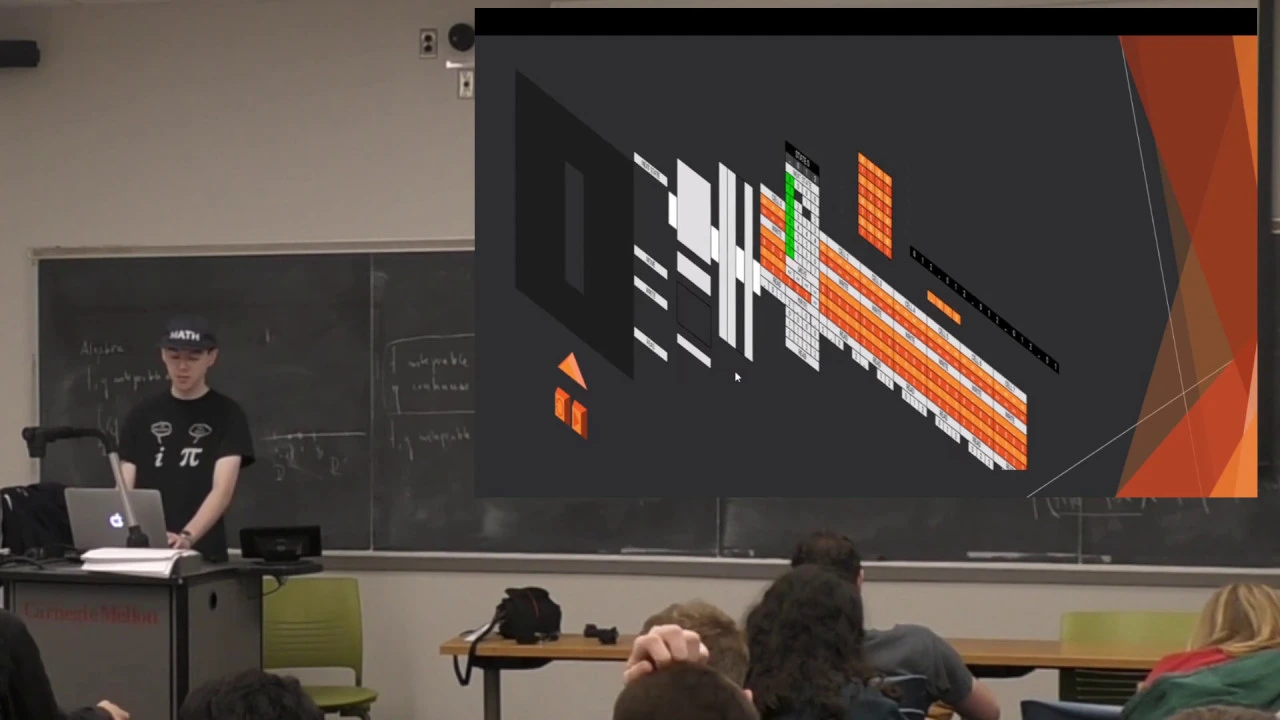
In the design of the PowerPoint Turing Machine tape, this logic is inverted for physical interaction. Instead of making the selected bit visible, the active bit is turned transparent (invisible) while unselected bits remain opaque. This creates an optical "aperture" or cutout: - The tape slides across a static background containing detector zones. - The cutout exposes only the single underlying detector matching the active memory state. - Because only the exposed zone can be clicked through the hole, the machine eliminates the need for separate interactive buttons on every individual tape cell.

---

[16:56](https://www.youtube.com/watch?v=_3loq22TxSc&t=1016s) Architecture of the PowerPoint Turing Machine

Wildenhain presents the full, expanded architecture of the PowerPoint Turing Machine. The machine is assembled out of standard PowerPoint elements operating as an integrated mechanical computer:

```mermaid flowchart LR accTitle: Turing Machine Execution Loop accDescr: Flowchart of the execution stages enforced by blocking rectangles.

subgraph Hardware["Tape & Sensor Mechanism"] Tape["Memory Cells (Tape)"] Motion["Motion Paths (Left / Right)"] Sensors["Background Detector Holes"] Tape <--> Sensors Tape --> Motion end

subgraph Cycle["Instruction Cycle (Blocked Sequence)"] R["1. Read Data"] --> W["2. Write Data"] W --> M["3. Move Head"] M --> S["4. Transition State"] S --> R end

Hardware <--> Cycle ```

- **Tape Mechanism:** Composed of vertically stacked memory cells that translate horizontally across the slide using motion path animations. - **Optical Read/Write Detectors:** Cutout holes positioned directly behind the tape that expose interactive surfaces only where a cell contains an active bit. - **Instruction Sequencing Blockers:** Large transparent or opaque shapes that appear and disappear sequentially. These force the Turing cycle to strictly follow four discrete stages: Read $\rightarrow$ Write $\rightarrow$ Move $\rightarrow$ State Transition. - **Punch Card Transition Table:** A visual matrix of control instructions that defines state transitions and data writes for every machine state.

Because the sequence blockers shield every interactive element except the single valid target for the current processing stage, the user does not need to make any choices while clicking. Wildenhain notes that if you set up an automated mouse macro to click randomly across the slide, the presentation will execute its computation completely autonomously.

---

[18:07](https://www.youtube.com/watch?v=_3loq22TxSc&t=1087s) Live Execution: The Palindrome Recognizer

To demonstrate computational completeness, Wildenhain loads a complex Turing machine program designed to recognize binary palindromes. The demo begins with setting the input string directly onto the tape cells: setting bits creates transparent cutouts revealing orange background markers underneath. He configures an example input (such as $1001$) and initiates the machine cycle.

As the presentation advances, the stage blockers govern each computational step: 1. The read detector samples the leftmost character through the tape window. 2. The state changes to record the observed bit ($1$). 3. The tape fires a motion path animation to translate across the slide to find the corresponding bit at the end of the string. 4. The machine verifies that the final bit matches the stored bit, erases it, and shifts direction to repeat the process on the inner substring.

Watching the mechanical-like motion paths shift the tape back and forth, Wildenhain jokes, “you could argue that it's very intuitive because you get to see all the steps of the computation happening.” As the final bit is erased and the machine halts upon recognizing the complete palindrome, he marvels at the medium, remarking that rather than using PowerPoint just to present static slides about Turing machines, people should simply run the Turing machines inside PowerPoint itself.

[20:35](https://www.youtube.com/watch?v=_3loq22TxSc&t=1235s) Turing Machine Q&A: Quines, Compilers, and PowerPoint CPUs

An audience member opens the question-and-answer period by asking Tom Wildenhain if he has written a quine yet. Wildenhain chuckles at the thought, noting how agonizing that endeavor would be. He reflects on what that would even entail: to build a true quine, the PowerPoint Turing machine would have to output the binary representation of its own `.pptx` presentation file, which strikes him as the most reasonable interpretation. That would demand an enormous amount of tape memory, though in theory, running on an empty tape could produce the PowerPoint file as output. He also remarks on backwards compatibility, pointing out that his Turing machine works on versions all the way back to PowerPoint 2007. An audience member muses about emulating PowerPoint 2013 inside PowerPoint 2007, which Wildenhain notes would be significantly more difficult, particularly because rendering a visual display inside the Turing machine would require constructing a grid of tiny colored rectangles that toggle on and off. That would effectively require building an entire graphics adapter mechanism directly out of the Turing tape logic to drive a very low-resolution screen.

Another student asks whether someone could write a compiler that targets Microsoft PowerPoint. Wildenhain confirms that people have tackled related projects: someone had shared a link about attempting to build a dedicated compiler targeting PowerPoint presentations, but abandoned it because of the extreme complexity. Instead, that developer constructed a PowerPoint CPU:

> “Instead if they made a PowerPoint CPU where they can take it already like compiled assembly code and then they can have a—use the PowerPoint to do these calculations or they're like there's some like Python code which like inserts all the data into the PowerPoint then has it like add the numbers together and then reads the data back out of the PowerPoint...”

The external Python script orchestrates the input/output cycle, letting PowerPoint execute the underlying instructions and arithmetic before reading back the results.

```mermaid flowchart LR accTitle: PowerPoint CPU Workflow accDescr: Diagram illustrating how an external Python script interacts with PowerPoint to execute assembly code. subgraph Host ["External Environment"] A["Assembly Code"] --> B["Python Driver"] B -->|"Read outputs"| E["Result"] end subgraph Presentation ["PowerPoint CPU"] C["PowerPoint Slide State"] D["Slide Computation / Addition"] C --> D end B -->|"Inject data / instructions"| C D -->|"Updated slide state"| B ```

---

[22:56](https://www.youtube.com/watch?v=_3loq22TxSc&t=1376s) Exploiting the Morph Transition and Shape Interpolation

Wildenhain shifts gears away from Turing machines to explore unintended feature interactions across the software. He explains that PowerPoint perfectly illustrates the emergence of bizarre behavior when combining features that engineers never envisioned being used together. To demonstrate, he turns to PowerPoint's relatively modern Morph transition, which calculates an edit-distance heuristic between elements across two consecutive slides and smoothly animates the differences. Testing edge cases quickly reveals how that heuristic behaves:

> “So looks at the two slides, tries to find this sort of like edit distance between them, and then figures out what element to move, say, like transition one slide into the other.”

When two shapes sit on the first slide and one sits on the second, PowerPoint animates toward the closer object. If the color of the target shape changes, it adjusts the mapping based on combined visual attributes; changing colors again can cause it to snap back to the first object because its internal similarity metric now prefers that match. However, replacing the shapes entirely with a different geometry, such as transitioning a rectangle into a circle, breaks the effect—PowerPoint simply cross-fades rather than morphing the boundaries.

PowerPoint will only automatically interpolate between shapes if they share the exact same shape type. Wildenhain demonstrates that stretching or distorting a circle preserves the Morph animation seamlessly. He then inserts a star shape, which features a distinctive yellow control point that alters the depth and sharpness of its points. When he duplicates the star on the next slide and drastically adjusts its yellow handle, Morph interpolates the inner vertices cleanly.

- PowerPoint uses an internal heuristic akin to edit distance, factoring in position and color similarity to pair objects between slides. - Morph refuses to morph across disparate standard primitives (e.g., circle to rectangle) and falls back to a standard fade. - Adjusting shape geometry via yellow control handles still preserves Morph interpolation because the underlying object type remains identical.

---

[25:47](https://www.youtube.com/watch?v=_3loq22TxSc&t=1547s) Hacking Freeform Geometry and Texture Warping

The discovery that Morph animates internal vertex coordinates leads Wildenhain to test freeform shapes. If PowerPoint checks whether two objects share the same type before enabling point interpolation, then two wildly different hand-drawn freeform shapes should technically morph into one another. He jokes that any sensible programmer assigned to build the Morph transition would have explicitly disallowed freeform interpolation:

> “Now if you were like a sensible programmer given this task what you'd probably say is, okay, these freeform shapes can never interpolate between each other, like who's tasked with making freeform shapes interpolate between each other? We need—nobody needs it, but it's also like very difficult to make, but it's in there, so that's kind of interesting.”

Against expectations, PowerPoint executes a smooth, fluid mesh warp between the two arbitrary freeform silhouettes. Pushing the engine further, Wildenhain applies a bitmap picture fill to the freeform shape. When morphed across slides, PowerPoint does not merely reposition the boundary vertices—it computes an interior 2D texture warp across the entire interior surface so the image deforms along with the contour.

This unlocks a clever workaround to the earlier limitation where basic shapes refused to morph into each other. PowerPoint includes shape Boolean tools (Union, Combine, Fragment, Intersect, Subtract). By taking a standard circle or square and merging it with an overlapping shape, PowerPoint converts the resulting object into an arbitrary freeform polygon:

```mermaid flowchart TD accTitle: Freeform Morphing Bypass accDescr: Flow showing how unioning basic primitives forces PowerPoint to treat them as freeforms for morphing. subgraph Primitives ["Basic Shapes"] A["Circle / Rectangle"] B["Overlapping Shape"] end subgraph Boolean ["Shape Operations"] C["Merge / Union"] end subgraph Result ["Morph Pipeline"] D["Converted Freeform Shape"] E["Smooth Vertex & Texture Morph"] end A --> C B --> C C --> D D --> E ```

Once two completely different standard primitives are forced into freeform shapes through a union operation, the Morph transition can smoothly blend between them.

---

[28:21](https://www.youtube.com/watch?v=_3loq22TxSc&t=1701s) Character-Level Morphing and Hidden-Text Anchors

Wildenhain next examines how the Morph transition handles text. When text is embedded inside a shape and the shape changes across slides, the text initially just fades out. If identical text exists on both slides, PowerPoint will interpolate their positions. Morph also provides advanced effect options allowing transitions to track by Objects, Words, or Characters. By switching the setting to Characters, PowerPoint animates individual letters flying across the slide to reconstruct the words on the subsequent slide.

Wildenhain then reveals an ingenious trick for steering PowerPoint's object matching. When multiple similar shapes exist on a slide—such as multiple circles—Morph defaults to pairing them based on spatial proximity, which may not match what the designer wants. To force a shape on slide one to morph into an arbitrary shape on slide two regardless of distance:

1. Type a matching character string (such as the letter "X") into both target shapes to force the transition engine to prioritize them as a text match. 2. Remove the visual appearance of the label by setting the Text Fill to "No Fill" and Text Outline to "No Outline". 3. Because the text still exists in the object model, the transition engine treats the two shapes as an identical character match, smoothly morphing them across the screen while the anchor text remains completely invisible.

> “As long as it's the same exact text, now it's going to be forced to interpolate that instead because it has to—it has to have a text match.”

[31:19](https://www.youtube.com/watch?v=_3loq22TxSc&t=1879s) Vectorizing Text and Shape Merging in PowerPoint

Tom Wildenhain demonstrates unexpected capabilities in PowerPoint's shape operations by combining text boxes with native vector shapes. When a user selects two arbitrary shapes, PowerPoint can compute their union, generating a combined shape with editable vertex points. However, when taking a standard text box and computing a shape union with a circle, PowerPoint performs an unconventional operation: rather than merging the bounding rectangle with the circle, it outlines and traces the text characters themselves, converting the typography directly into vector shapes.

```mermaid flowchart LR accTitle: Text Vectorization Pipeline in PowerPoint accDescr: Process showing how text is converted into vector shapes or fragmented into isolated letters using shape operations. subgraph Input["Input Elements"] T["Text Box"] S["Vector Shape (Circle)"] end subgraph Operation["Shape Operations"] U["Shape Union"] F["Shape Fragment"] end subgraph Output["Output Geometry"] V["Vector Outlines of Text"] L["Individual Letter Shapes"] end

T --> U S --> U U --> V T --> F S --> F F --> L ```

By switching from union to the "Fragment" operation, PowerPoint cuts the text apart, turning each individual letter into its own distinct, manipulable vector object. When fragmented objects are altered, the Morph transition can distort and interpolate between them. Wildenhain notes that while vector design software like Illustrator is standard, PowerPoint functions as a surprisingly capable vector tool when someone needs to treat text as editable geometry rather than characters. Furthermore, animations created using these transitions can be rendered out using PowerPoint's built-in "Export to Video" functionality.

- Shape Union converts live typography into editable bezier paths rather than merging the text box frame. - Shape Fragment splits text strings into individually selectable, editable letter polygons. - Animations generated with vector manipulations can be exported directly via File > Export > Create a Video.

---

[33:44](https://www.youtube.com/watch?v=_3loq22TxSc&t=2024s) 3D Effects and Extracting Models from PowerPoint

Wildenhain turns to PowerPoint’s 3D rotation and bevel tools, which are often associated with dated presentation designs. Standard shape operations typically break when encountering 3D attributes—attempting to merge a 3D-styled shape will strip the effect and flatten it into 2D. However, applying the Morph transition to shapes with 3D effects prompts PowerPoint to calculate full three-dimensional spatial transformations, smoothly interpolating rotations and perspective shifts across slides.

```mermaid flowchart TD accTitle: Extracting 3D Models from PowerPoint Files accDescr: Step-by-step extraction workflow from PowerPoint's online catalog to raw GLB 3D asset files. A["Insert > 3D Models (Stock Catalog)"] --> B["Save presentation as.pptx"] B --> C["Rename file extension to.zip"] C --> D["Unzip archive and navigate to /ppt/media/"] D --> E["Extract model1.glb"] ```

Wildenhain shares his frustration with game development asset marketplaces: “I found it surprisingly difficult how like hard it is to get 3D assets... like all the assets are actually like really expensive and somewhat terrible.” He contrasts this with PowerPoint's built-in "Insert 3D Models" catalog, highlighting that the models available in Office 365 are remarkably high-resolution, complete with physically based materials and reflective lighting. Addressing the fact that the models appear trapped inside presentation files, he demonstrates an extraction hack: saving the presentation, changing the file extension from `.pptx` to `.zip`, unpacking the archive, and retrieving the embedded `model1.glb` file directly from the `/ppt/media/` directory. When an audience member raises licensing concerns, Wildenhain reasons: “I wouldn't be surprised that the licensing is pretty good because given that you're able to like include a PowerPoint presentation... I think that it probably has it set to be some type of royalty-free license.”

- Standard 2D shape merging strips 3D perspective, but the Morph transition supports full 3D spatial rotation. - PowerPoint packages stock models as standard binary glTF files (`.glb`) inside the Open Packaging Conventions (OPC) XML container. - Embedded media can be extracted without third-party converters simply by unpacking the PPTX archive.

---

[38:27](https://www.youtube.com/watch?v=_3loq22TxSc&t=2307s) Reverse Engineering Morph's Image Detection Algorithms

Investigating how Morph handles bitmap imagery, Wildenhain inserts an image, duplicates the slide, and crops the second instance to observe how the engine calculates the transition. Rather than crossfading between two static frames or stretching the bounding box, Morph performs a dynamic crop-and-zoom effect, focusing smoothly on the chosen sub-region. This behavior proves that PowerPoint tracks asset identities across slides to apply contextual transformations.

To test how PowerPoint verifies that two pictures are the same asset, Wildenhain conducts live experiments: - **Clipboard/Pipeline Ingestion**: Copying an image directly versus passing it through Microsoft Paint to strip internal metadata tags. - **Pixel-Based Differencing**: Testing whether PowerPoint executes an automated image hash or pixel-level image diff when asset references do not match. - **Scale and Dimension Thresholds**: Resizing an image by percentage steps (e.g., down to 70% or 99%) to locate the tolerance cutoff where Morph stops zooming and falls back to a standard crossfade.

When subtle modifications cause Morph to unexpectedly drop an object instead of animating it, Wildenhain reflects on the rabbit hole of testing office software: “All right, so you can see that you can spend a lot of time and waste a lot of time by a talk.” Additionally, he notes that PowerPoint’s shape merge tools can also be applied to images, allowing shapes to mask, subtract, and carve complex designs out of raster graphics. When asked if Morph can interpolate between two different 3D meshes, he clarifies that while PowerPoint will not morph arbitrary geometry topologies together, rotating and scaling the *same* 3D model across slides works reliably.

---

[45:05](https://www.youtube.com/watch?v=_3loq22TxSc&t=2705s) Slide Zoom Loops and Visual Recursion

Wildenhain explores the "Zoom" feature (specifically Slide Zoom and Summary Zoom), which lets users drag entire slides onto another slide canvas to embed live, interactive preview thumbnails. Because these embedded slide thumbnails dynamically reflect the contents of the target slides, he tests what happens when a slide contains a thumbnail link referencing itself or forming a cyclic dependency loop between slides.

```mermaid flowchart LR accTitle: Slide Zoom Dependency Loop accDescr: Circular dependency created by embedding slide thumbnails inside one another to test recursion. S1["Slide 1 (Summary Canvas)"] -->|"Embeds thumbnail of"| S2["Slide 2 (Target Slide)"] S2 -->|"Embeds thumbnail of"| S1 ```

He observes the instinct of an engineer anticipating edge cases: “The first thing you think to yourself, which is like if you're a software developer who has to make this thing, you're like, okay, but what about cyclic dependencies, right? We don't want cyclic dependencies.” PowerPoint guards against execution crashes by rendering static preview snapshots rather than recalculating an infinite visual recursion loop at runtime. Combining these nested slide zoom objects enables retro recursive visual corridors, though Wildenhain points out an aesthetic hurdle: embedded slide previews default to rendering with an opaque white slide background, setting up the need to isolate or strip slide backdrops.

[46:52](https://www.youtube.com/watch?v=_3loq22TxSc&t=2812s) Slide Zoom Fractals and Recursive Thumbnail Propagation

Tom Wildenhain demonstrates how PowerPoint's built-in slide zoom feature can be exploited to generate complex fractal patterns directly on a slide. When a slide thumbnail is embedded inside itself or linked across slides, PowerPoint recursively updates the preview images, though the software enforces an internal limit on how many recursive passes it will execute before stopping. To force PowerPoint to re-render deeper iterations, a user must actively trigger an edit to prompt the thumbnail pipeline to redraw. Tom observes how the application tries to manage the visual transition during presentation mode: “And it decides to retain a copy of the slide that you came from as the background just to make it look more in fact I guess you know those with our fractals.” Because the thumbnail was configured with a transparent background, PowerPoint preserves visual artifacts around the perimeter from the originating slide, creating layered borders as the zoom animation dives inward.

```mermaid flowchart TD accTitle: PowerPoint Recursive Slide Zoom Flow accDescr: Cycle of slide thumbnails re-rendering nested previews until hitting recursion limits.

subgraph RenderLoop ["Thumbnail Recursion Loop"] A["Slide with Thumbnail"] -->|"Point to self or partner slide"| B["PowerPoint Renders Preview"] B -->|"Nested preview update"| C["Recursive Thumbnail Propagation"] C -->|"Internal limit reached"| D["Halt Re-rendering"] D -.->|"Manual slide edit"| B end D --> E["Interactive Zoom Presentation"] ```

- When clicking on an active thumbnail during a slideshow, PowerPoint executes a smooth zoom animation into the target slide. - Setting slide thumbnails to transparent causes PowerPoint to retain visual elements of the parent slide behind the thumbnail border, creating overlapping visual artifacts.

[48:20](https://www.youtube.com/watch?v=_3loq22TxSc&t=2900s) Dragon Fractals and 2.5D Shading Tricks

Moving beyond simple triangular recursions, Tom shows how to construct a dragon fractal using only two slide thumbnails positioned with specific geometric transformations. By dropping a simple blue square into the composition and letting the zoom thumbnails repeatedly replicate and rotate, the nested images converge toward the fractal's fixed points. Although the geometry remains strictly two-dimensional, Tom explains that the visual appearance gains perceived depth through styling tricks: “This is just a 2D fractal still, it's just that by placing the objects offset it's gonna look like a step to it.” By applying built-in glow effects and subtle spatial offsets across the thumbnail boundaries, the flat self-similar pattern takes on the appearance of an illuminated, stepped 3D relief before the effect is stripped away to show the raw shapes underneath.

- A dragon fractal is produced using as few as two linked thumbnail objects that continually replicate and map onto each other's visual space. - Subtle drop shadows, glow effects, and spatial offsets make flat vector shapes appear layered like a three-dimensional staircase.

[49:40](https://www.youtube.com/watch?v=_3loq22TxSc&t=2980s) PowerPoint Designer and AI Slide Layouts

To wrap up the lecture, Tom pivots from esoteric programming hacks to an official, production feature added to modern PowerPoint: PowerPoint Designer. He jokes that learning about an intended presentation utility might be anticlimactic compared to turning slides into a Turing machine: “Now this is actually used for making presentations, so you'll find it nearly as interesting as these other features.” He demonstrates typing unstructured bullet points onto a blank canvas—such as typing words like fire or microwave—and shows how PowerPoint dynamically parses the text and suggests professionally styled layouts. Tom remarks on its ability to automatically map text concepts to relevant iconography: “It doesn't actually figure it out, like on 'fire' microwave, the concept of bullet points, which I was pretty impressed by, and will give you suggestions actually.” The lecture concludes with the audience laughing and applauding the full range of unintended computation and practical quirks uncovered inside the presentation software.

## Notable quotes > [00:06](https://www.youtube.com/watch?v=_3loq22TxSc&t=6s) And whenever you have a lot of features, they can interact with each other in different ways, and that gives you a lot of edge cases, and those edge cases often have very interesting behaviors in PowerPoint. — Tom Wildenhain

## Mentioned Tom Wildenhain, Carnegie Mellon University, Microsoft PowerPoint, Microsoft Excel, Microsoft Paint, Notepad, Windows XP, Vim, Portal, Python, Adobe Illustrator, Office 365

## Video description Recording of a guest lecture I gave for the Esoteric Programming Languages course at CMU.

Original PowerPoint Turing Machine video: https://youtu.be/sdkxWqsk17c

PowerPoint CPU: https://devpost.com/software/ppcc

[Source](https://www.youtube.com/watch?v=_3loq22TxSc)

中文简报

Wildenhain将微软PowerPoint打造成图灵完备机器 PowerPoint的动画触发器和分层形状遮罩可充当光学内存寄存器,使演示文稿无需外部代码即可在单张幻灯片上执行通用计算。 在本次演讲中,Tom Wildenhain通过将微软PowerPoint视作一种深奥的编程环境,探索了该办公工具意想不到的计算潜能。他逐步演示了如何将PowerPoint配置为集成开发环境(IDE)、把幻灯片超链接建模为确定性有限状态自动机(DFA),并利用单击动画与光学镂空结构构建出一个能够运行二进制回文识别器的全功能图灵机。此外,他还深入探讨了诸多非预期的功能交互,展示了文本矢量化、从归档文件中提取3D资产,以及利用“平滑”(Morph)切换效果实现复杂的顶点变形,最后以递归幻灯片缩放分形进行收尾。 PowerPoint无需外部代码或宏即可实现图灵完备,通过分层幻灯片元素、单击触发器和动作路径动画完成计算。 (9:46) 基本的幻灯片间超链接网络可直接映射为确定性有限自动机(DFA),但存储多位状态需要指数级的幻灯片数量($2^n$)。 (3:32) 通过使用形状联合操作先将标准图元转换为任意多边形,可以迫使PowerPoint的“平滑”切换效果平滑变形任意形状和纹理。 (25:47) 保存为`.pptx`文件的PowerPoint演示文稿属于标准zip归档文件,其中嵌入的高分辨率3D模型可直接在`/ppt/media/`目录下提取为`.glb`文件。 (33:44)

Reading summary

Tom Wildenhain demonstrates that Microsoft PowerPoint's extensive and overlapping feature set enables it to function as a standalone application runtime, a Turing-complete computer, and a capable graphics engine through emergent, unintended edge cases. Emulating Automata and Standalone Applications (2:25) By configuring specific playback settings, PowerPoint presentations can be transformed into standalone interactive applications. Wildenhain disables automatic slide advancement, switches slideshow delivery to 'Browsed at a kiosk' mode to strip default navigation toolbars, adds a dedicated shape linked to 'End Show', and saves the file in the '.ppsx' PowerPoint Show format. This setup suppresses stray clicks and scroll wheel skips, forcing user interaction entirely through designated hyperlinks. At a theoretical level, internally hyperlinked slides function identically to a Deterministic Finite Automaton (DFA), where slides represent states and clickable elements represent input symbols. Wildenhain illustrates this with a four-digit keypad accepting the code '7131', which requires only 9 slides to track digit progression (0 through 4) alongside binary error states. However, slide-level DFAs face an exponential state explosion bottleneck: storing n bits of memory requires 2^n slides, meaning even 10 bits of data would demand 1,024 manually linked slides. Trigger Animations and the Turing Machine Architecture (16:56) To bypass the slide-explosion limit, Wildenhain implements single-slide event-driven programming using on-click trigger animations. To control execution, developers must rename objects in the Selection Pane and handle PowerPoint's initialization quirks—such as prepending an instant disappear effect to ensure elements intended to start hidden do not default to visible. Independent multi-bit memory modules can then be constructed by duplicating grouped trigger buttons and indicator shapes, which PowerPoint automatically remaps internally. Wildenhain scales this mechanism into a fully operational Turing machine. The tape consists of vertically stacked memory cells moving along horizontal motion paths, using transparent optical cutouts to expose only the detector hole matching the active state. Transparent and opaque sequence-blocking shapes cycle through four discrete computational stages: Read, Write, Move, and State Transition. Because blockers shield all invalid targets, automated random clicking drives autonomous computation. Wildenhain proves computational completeness by executing a binary palindrome recognizer on strings like '1001', and references community extensions including a PowerPoint CPU coordinated via external Python scripts. Morph Transition Heuristics and Vector Shape Operations (22:56) PowerPoint's modern Morph transition interpolates elements across slides using an internal similarity heuristic based on position and color. While Morph natively refuses to blend between different basic primitives, Wildenhain discovers that performing Boolean operations—such as Union, Combine, or Fragment—converts primitives into freeform polygons. Once converted, PowerPoint executes smooth mesh warps between disparate silhouettes and calculates full interior 2D texture warps across bitmap fills. This geometry pipeline extends to typography. Uniting a native vector shape with a text box outlines the characters into editable bezier vector paths, while the Fragment tool splits text into standalone letter shapes that can be animated and exported via PowerPoint's native video exporter. To bypass proximity-based matching errors when morphing between identical objects, Wildenhain types matching anchor characters into target shapes and removes their visual outline and fill, forcing Morph to pair them according to text identity rather than screen position. Asset Extraction and Recursive Slide Zoom Fractals (33:44) PowerPoint also handles complex 3D transformations, smoothly interpolating spatial rotations and perspective shifts across slides. Wildenhain notes that the high-resolution, physically based models available in Office 365's asset catalog can be extracted directly without third-party converters: renaming a '.pptx' file to a '.zip' archive reveals the Open Packaging Conventions directory structure, allowing developers to pull raw '.glb' assets directly from '/ppt/media/'. Additionally, embedding slides inside one another via the Slide Zoom feature creates visual dependency loops. PowerPoint prevents system crashes by capping recursive thumbnail passes, allowing users to build self-similar fractal patterns, such as dragon fractals constructed from two rotating, linked thumbnails. Applying transparent backgrounds, drop shadows, and subtle spatial offsets creates stepped, multi-layered visual depth, requiring manual slide edits only when deeper thumbnail redraws are needed. Wildenhain concludes that examining PowerPoint through the lens of esoteric programming reveals an unexpected level of computational depth within standard office software. The program's edge cases turn an often-derided presentation utility into an environment capable of autonomous computation, asset extraction, and procedural graphics.

精炼阅读摘要

卡耐基梅隆大学讲师Tom Wildenhain展示了如何通过挖掘Microsoft PowerPoint中重叠功能与边缘交互,将这款演示软件改造为无需外部脚本即可运行的图灵完备计算环境与图形开发工具。 从超链接有穷状态机到独立运行应用 (3:32) 在最基础的逻辑层面上,PowerPoint内部的幻灯片超链接在理论上完全等价于确定型有穷状态机(DFA)。Wildenhain演示了一个基于CMU课程代码7131的四位数字键盘,通过跟踪已输入的数字位数(0至4)以及是否发生错误这两个状态变量,仅用9张幻灯片即可处理全部4位数字组合。单纯依赖幻灯片间跳转来实现逻辑会遇到状态爆炸问题:存储n位内存需要2的n次方张幻灯片,模拟仅10比特RAM就需要1024张幻灯片,因而无法单靠超链接构建复杂程序。 为了消除幻灯片放映时的外部干扰并呈现原生桌面应用的操作质感,开发者可以通过内置选项完全屏蔽默认播放机制:取消勾选切换标签下的“单击鼠标时”与“每隔”换页复选框以锁定画面,启用展台浏览模式(Kiosk Mode)以隐去底部导航栏并忽略鼠标滚轮输入,并通过设置动作按钮链接至“结束放映”提供专用退出通道。将演示文稿另存为PowerPoint放映文件(.ppsx)后,双击即可直接全屏执行,视觉体验接近独立编译的应用软件。 触发器动画与单幻灯片图灵机架构 (9:46) 克服状态爆炸的关键在于利用PowerPoint的单击触发器动画在单张幻灯片内维护状态。触发器动画本质上扮演了事件驱动监听器的角色,配合“与上一动画同时”的设置,一次点击即可并发触发多个视觉与逻辑状态转换。针对重叠元素,通过在选择窗格中重命名图层并在底层放置可交互对象、顶层覆盖不可交互图形的方式,可以模拟变量变化与门禁条件。PowerPoint按自上而下的线性顺序读取动画窗格来决定元素的初始可见性,如果某对象首个动画是进入效果,系统会将其初始化为隐藏,开发者可通过在序列最顶端显式插入瞬间消失动画来纠正初始化错误。 利用这一事件机制,Wildenhain构建了一台完整的PowerPoint图灵机。纸带由垂直堆叠的内存单元组成,通过动作路径动画实现左右平移。纸带底层设置了光学检测孔,将选中的比特位置设为透明孔洞,未选中位保持不透明,从而仅露出当前激活状态下底层的探测区域。带有定时顺序的透明遮罩块作为“执行阻断器”,强制运算循环按照“读取数据、写入数据、移动磁头、状态转移”四个离散步骤严格执行,使用户或随机鼠标点击宏无需自主判断即可驱动图灵机全自动运行。Wildenhain现场演示了该机器成功执行回文检验程序(如验证输入1001)。 逆向平滑切换算法与几何自由变形 (22:56) 现代PowerPoint的平滑(Morph)切换利用了类似编辑距离的内部启发式算法,根据图元的位置与颜色相似度在前后幻灯片间平滑插值。对于圆形和矩形等异构基础图形,系统默认放弃变形并退化为淡入淡出;然而,只要对象属于相同类型(例如利用星形的黄色控制柄调整顶点曲度),Morph即可完美插值。由于PowerPoint并未限制自由多边形之间的顶点计算,绘制出外观迥异的任意自由形状依然能触发平滑变形,软件甚至会计算内部二维纹理扭曲,使位图填充随着轮廓同步变形。 开发者可以利用布尔运算绕过基础形状无法平滑过渡的限制:将标准形状与另一个重叠形状执行“联合”操作,系统会将其强制转换为自由多边形,进而实现任意几何图形之间的平滑变形。在文本变形方面,切换至按字符平滑设置可以让字母在幻灯片之间重组;若要强制指定空间位置不匹配的图形相互变形,可在两端图形内键入相同的占位文本(如字符“X”),并将文本填充和轮廓均设为无颜色,底层引擎便会优先根据不可见的字符匹配建立形变对应关系。 矢量化提取与缩放定位的视觉递归 (31:19) PowerPoint的图形布尔运算同样适用于排版和多媒体资产处理。将文本框与矢量形状执行联合操作,软件会自动将文字外框描边转换为可编辑控制顶点的贝塞尔矢量路径;使用“拆分”命令则能将文本切碎为完全独立的单字多边形。对于内置的高分辨率3D模型,Morph能够在三维空间中平滑插值旋转与透视变换,用户更可直接将.pptx文件后缀修改为.zip并解压,从/ppt/media/目录下无损提取出标准的二进制glTF(.glb)三维模型文件。 利用幻灯片缩放定位(Slide Zoom)功能,将幻灯片缩略图嵌套至其自身或彼此交叉引用,可以构建复杂的视觉分形结构,例如仅需两个带几何变换的缩略图即可生成龙形分形。为防止无限依赖崩溃,PowerPoint内部设有递归重绘深度上限,需要触发手动编辑以推动更深层级的缩略图流水线重新渲染;若缩略图开启透明背景,父级幻灯片的边界伪影会随着缩放层层保留,结合投影与发光特效,可在平面图层上产生类似阶梯状浮雕的2.5D纵深感。 Wildenhain的探索表明,办公软件中高度重叠的功能组件和边界条件能够衍生出图灵完备的计算模型与精细的图形操作流水线;但他也指出,受限于显示子系统与庞大的纸带开销,在PowerPoint内构建输出自身文件的真实Quine或高性能编译器仍面临极其繁重的工程复杂度。

Detailed notes — zh

## Background 该视频由 Tom Wildenhain 于 2019 年 10 月 29 日发布在 YouTube 平台上。视频记录了他在卡内基梅隆大学(CMU)深奥编程语言(Esoteric Programming Languages)课程上进行的一场客座讲座,主要探讨在 PowerPoint 中进行非正统编程的技术细节,并展示了他构建的 PowerPoint 图灵机与相关实验项目。 ## TL;DR 讲座首先展示了如何将 PowerPoint 配置为一个趁手的 IDE,并利用超链接和展台模式构建出等价于确定有限状态自动机(DFA)的无闪退独立应用。随后,主讲人深入剖析了基于单击触发动画的事件驱动状态管理与物理遮挡技巧,进而现场演示了一台由纯 PPT 动画驱动、仅靠随机无脑点击即可正确判定回文字符串的图灵机。最后,内容拓展至一系列令人啼笑皆非的边缘黑科技,包括逆向平滑(Morph)切换的几何与像素插值机制、从 PPTX 压缩包中提取 3D GLB 资产,以及通过幻灯片缩放链接构建出无限递归的德罗斯特效应分形几何。 ## Atmosphere & style 整场讲座充满了极客式的幽默、自嘲与对反常识计算的纯粹狂热,台下 CMU 学生的笑声与惊叹此起彼伏。主讲人以极其一本正经的技术严谨态度去拆解和重塑一个办公软件的底层缺陷,在“毫无用处”与“叹为观止”之间自如切换。观看过程就像在围观一场脑洞大开的高智商技术脱口秀,既能感受到对软件边界极限压榨的硬核快感,又沉浸在充满反差萌的欢快学院氛围中。 ## Bulletin - [03:32](https://www.youtube.com/watch?v=_3loq22TxSc&t=212s) 基于超链接的 PowerPoint 演示文稿计算能力等价于确定有限状态自动机(DFA),但受限于状态爆炸,模拟 N 位内存需要指数级幻灯片数量(Bits = log2(Slides))。 - [16:56](https://www.youtube.com/watch?v=_3loq22TxSc&t=1016s) 利用原生“单击触发动画”与动态矩形遮罩,Tom Wildenhain 成功在单张幻灯片内构建出图灵机,证明了 PowerPoint 具备图灵完备性。 - [35:05](https://www.youtube.com/watch?v=_3loq22TxSc&t=2105s) 现代 .pptx 格式本质为 ZIP 压缩包,解压后可直接从 ppt/media 目录中提取出微软在线图库附带的高质量通用 GLB 3D 模型资产。 - [46:52](https://www.youtube.com/watch?v=_3loq22TxSc&t=2812s) 利用幻灯片缩放(Slide Zoom)的自引用特性,可以在 PPT 中触发带有迭代渲染上限的递归渲染循环,仅凭两个微小缩略图便能生成复杂的龙形分形。 ## Key takeaways - [00:06](https://www.youtube.com/watch?v=_3loq22TxSc&t=6s) PowerPoint 庞大的功能交叉带来了大量未定义边缘情况(意外特性),这些非预期交互行为成为在其内部进行极客编程的核心土壤。 - [02:25](https://www.youtube.com/watch?v=_3loq22TxSc&t=145s) 通过自定义快速访问工具栏、关闭网格自动吸附,并将撤销步数调高至上限,可将 PowerPoint 配置为高效的低代码编程 IDE。 - [03:32](https://www.youtube.com/watch?v=_3loq22TxSc&t=212s) 超链接构成了确定的状态转移,四位门禁密码锁(如 7131)通过进度与错误标志的状态压缩,仅需 9 张幻灯片即可完成完备模拟。 - [06:01](https://www.youtube.com/watch?v=_3loq22TxSc&t=361s) 结合取消常规鼠标翻页、开启全屏展台模式(Kiosk Mode)以及另存为 .ppsx 放映文件,可彻底移除演示痕迹,将文稿伪装为独立桌面应用。 - [09:46](https://www.youtube.com/watch?v=_3loq22TxSc&t=586s) 状态保护(Guard Condition)可通过物理图层遮挡实现:用不可交互的顶层伪元素拦截点击,达成先决条件后使其“消失”以暴露真实触发器。 - [14:09](https://www.youtube.com/watch?v=_3loq22TxSc&t=849s) PowerPoint 幻灯片加载时根据动画窗格自上而下的首个动作推断初始可见性,在非线性交互设计中需插入即时“消失”指令来修正开局状态。 - [14:09](https://www.youtube.com/watch?v=_3loq22TxSc&t=849s) 图灵机纸带采用“单一透明位”的反向孔位设计作为遮罩,整条纸带由“动作路径”平移驱动,对齐后方的检测器执行读写交互。 - [16:56](https://www.youtube.com/watch?v=_3loq22TxSc&t=1016s) 图灵机的执行循环(读、写、移、跳)由动态遮罩矩形严格物理锁定,外界无需逻辑决策,依靠宏脚本随机点击屏幕即可自动推进运算。 - [20:35](https://www.youtube.com/watch?v=_3loq22TxSc&t=1235s) 开源项目 PPCC 构建了“PowerPoint CPU”,利用 Python 脚本充当总线向 PPT 写入汇编数据,借由幻灯片触发布局完成算术计算后再读回结果。 - [24:34](https://www.youtube.com/watch?v=_3loq22TxSc&t=1474s) 变体切换(Morph)依据编辑距离与启发式算法在几何形体间插值,通过“形状合并”将标准形状降级为任意多边形可强制激活异形插值。 - [28:28](https://www.youtube.com/watch?v=_3loq22TxSc&t=1708s) 在不同图元内键入相同字母并将文字设为无填充、无轮廓,可将不可见的幽灵字符充当变体匹配的唯一锚点 ID,实现精准形变锁定。 - [31:19](https://www.youtube.com/watch?v=_3loq22TxSc&t=1879s) 对文本框与图形执行“形状联合”或“拆分”可将活字字形直接矢量化为原生闭合多边形,打破排版引擎限制并支持导出 60 帧动画资产。 - [35:05](https://www.youtube.com/watch?v=_3loq22TxSc&t=2105s) PPT 解压后在 ppt/media/ 目录下可直接获取免版税的完整 PBR 材质 GLB 三维文件,使其成为可供 Unity 等游戏引擎白嫖的高质量素材库。 - [45:05](https://www.youtube.com/watch?v=_3loq22TxSc&t=2705s) 幻灯片缩放(Slide Zoom)包含自身时会形成德罗斯特效应,利用透明背景残留与不动点迭代机制,可在单页内直接生成龙形几何分形。 ## Detailed walkthrough ### [00:06](https://www.youtube.com/watch?v=_3loq22TxSc&t=6s) 讲座缘起与在 PowerPoint 中编程的两大理由 主讲人 Tom Wildenhain 在卡内基梅隆大学(CMU)的一门深奥编程语言(Esoteric Programming Languages)课程中开始这场客座讲座。伴随着台下的掌声,他坦言这堂课虽然是关于在 PowerPoint 中编程,但他希望大家不仅能学到一些有趣的事物,还能接触到真正有用的东西,以及“完全没用”的那类知识。讲座的整体路线规划清晰:首先从 PowerPoint 编程的基本原理讲起,接着深入探讨如何在 PowerPoint 中实现一台图灵机(Turing Machine),期间他还顺便问了台下有多少人学过 CMU 的理论计算机科学经典课程“15-251”,最后再展示一些利用 PowerPoint 的特性来展示优秀编程原理的精妙案例。 面对大家心中最核心的疑问——“为什么会有人想要在 PowerPoint 里面编程?”,Tom Wildenhain 给出了两个切身理由: 1. **童年软硬件环境的限制**:他在小学四年级时开始捣鼓这些,当时使用的电脑运行的是 Windows XP 系统,里面安装的软件非常有限,基本上只有 Microsoft Office 套件,外加画图(Paint)和记事本(Notepad)。如果你想在那样的环境下尝试编程,记事本和画图根本指望不上,于是唯一的选择就落在了 Excel 或 PowerPoint 上,而 PowerPoint 成了他的最爱。 2. **海量特性相互作用引发的“意外特性”(Accidental Features)**:PowerPoint 内部塞满了大量功能,当众多功能交织在一起时,就会产生五花八门的边缘情况(edge cases)。在普通软件开发中,一旦出现边缘情况,开发者的做法通常是直接限制用户、禁止操作;但微软的 PowerPoint 不一样,遇到边缘情况时往往会发生极其神奇且意想不到的交互行为。“So that means there are a lot of accidental features and that is very useful for PowerPoint programming.”(这意味着存在大量的意外特性,而这对于 PowerPoint 编程来说非常有用。) 此外,Tom 调侃了 PowerPoint 面临的社会偏见。曾有一项研究指出,在演讲中使用 PowerPoint 甚至比不用还要糟糕,它会让演讲质量直线下降。Tom 由此得出歪理:既然电脑里装了这个软件却不该用它做演示,那理所当然应该把它拿来做别的事情,比如做 PowerPoint 编程。他同时警示,正因为功能太强大,烂 PPT 往往源于功能的胡乱拼凑,比如“绝对不要把文字盖在图片上”,以及“绝对不要滥用随机动画”。 --- ### [02:25](https://www.youtube.com/watch?v=_3loq22TxSc&t=145s) 搭建专属的 PowerPoint IDE 要进行严肃的编程,第一步必须是将 PowerPoint 配置为一个趁手的集成开发环境(IDE)。Tom 开玩笑说配置这个 IDE 比配置 Vim 还要简单得多,这从侧面说明了不少问题。配置的核心细节包括: - **自定义快速访问工具栏(Quick Access Toolbar)**:由于编程过程中需要频繁调用许多深层菜单的功能,将这些功能加入顶部的快速访问工具栏至关重要。只要在任何选项或工具上右键单击,选择“添加到快速访问工具栏”即可。 - **大幅增加最大撤销次数(Undo limit)**:在 PowerPoint 的“选项” -> “高级”(Advanced)设置中,默认的撤销步数只有区区 20 步。Tom 直言 20 步对于真正的编程来说根本微不足道,必须手动将其调高到上限(如 150 步)。 - **关闭对象贴靠网格(Snap to Grid)**:在 PPT 中添加形状和元素时,系统默认会自动让对象相互吸附对齐。右键进入网格设置可以开启或关闭这一行为。Tom 个人更倾向于绝大多数时候关闭吸附,以防图形自动跳到非预期的位置,破坏精密排布。 ```mermaid flowchart TD accTitle: PowerPoint IDE 配置流程 accDescr: 展示将 PowerPoint 配置为编程 IDE 的三个关键优化步骤 subgraph IDE_Setup ["配置 PowerPoint IDE"] A["自定义快速访问工具栏<br/>(常用功能一键直达)"] B["修改高级选项<br/>(默认 20 步撤销调至最大上限)"] C["调整网格吸附设置<br/>(关闭自动对齐防位移)"] end ``` --- ### [03:32](https://www.youtube.com/watch?v=_3loq22TxSc&t=212s) 超链接、有限状态机与防盗门禁模拟 配置好环境后,首要任务是向幻灯片中注入逻辑计算能力。最直观的逻辑载体是**超链接(Hyperlinks)**。在任意元素上点击右键添加链接,将其目标指向“本文档中的位置”,就能在点击图形时跳转到指定幻灯片。这种点击跳转构建起了一套具有确定行为的计算模型。 在形式化理论中,带超链接的幻灯片系统其计算能力完全等价于一个**确定有限状态自动机(DFA, Deterministic Finite Automaton)**。每一张幻灯片对应 DFA 中的一个状态(State),页面上的超链接按钮则对应接收输入符号后的状态转移路径(State Transitions)。Tom 在屏幕上演示了一个识别特定字符串模式的 DFA(例如接受以相同字符开头并结尾的字符串),点击不同的字符按钮,幻灯片就会跳向对应状态,直到达到接受状态或拒绝状态。理论上,任何仅需有限内存(Finite Memory)的问题都可以用超链接 PPT 解决。 为了展示其实际应用,Tom 演示了一个四位密码门禁锁(Keypad): - **密码规则与演示**:正确密码设为 `7131`(致敬 CMU 计算机科学楼 Gates-Hillman Center 的 7131 房间)。用户输入数字,若输入正确系统接受,错误则拒绝。 - **状态压缩与幻灯片数量**:台下观众猜测模拟这个四位密码机可能需要很多张幻灯片,但 Tom 指出实际上只需要 **9 张幻灯片**。其设计原理在于内存优化:系统不需要记住用户具体按了哪几个数字,只需要记录“当前已经输入了几个数字”(长度 0 到 4 共 5 种进度)以及“在此之前是否有按错任何一位数字”(布尔标志位)。两相组合,再加上初始状态,总共只需 9 个状态即可完备表达。 --- ### [06:01](https://www.youtube.com/watch?v=_3loq22TxSc&t=361s) 消除演示痕迹:将幻灯片伪装为独立应用程序 用纯超链接模拟 DFA 存在严重缺陷:它本质上仍是一个演示文稿,底部带有烦人的播放控制浮动工具栏,而且只要用户不小心随手点击了空白处或滑动了鼠标滚轮,就会直接翻页,破坏了状态机的转移路径。为了让它成为一个行为真实的桌面软件,Tom 演示了一整套将其“应用程序化”的技巧: 1. **禁用常规翻页触发**:在“切换”(Transitions)选项卡的“换片方式”中,系统提供了“单击鼠标时”和“在一定时间后”两个选项。有趣的是,微软在这里使用的是复选框(Checkboxes)而非单选按钮(Radio buttons),“Now it's kind of interesting that there these are checkboxes and not radio buttons because it means that you can uncheck them so we can just get here now you click play we can't jump between slides anymore.”(这很有意思,它们是复选框而不是单选框,这意味着你可以全部取消勾选;取消后点击播放,我们再也没法随手翻页了。)用户被完全限制只能通过超链接跳转。 2. **启用信息亭展台模式(Kiosk Mode)**:即使禁用了点击翻页,底部的幻灯片工具栏依然存在。微软为商店交互展示屏提供了一个专门功能:在“幻灯片放映”设置中选择“在展台浏览 (全屏幕)”(Browsed at a kiosk (full screen))。开启后,底部的控制条彻底消失,滚轮滚动完全失效,除了预设的交互按钮外没有任何外部翻页途径。 3. **另存为 PowerPoint 放映文件(`.ppsx`)**:保存为常规的 `.pptx` 文件打开时仍会进入编辑界面。如果另存为 `.ppsx`(PowerPoint Show)格式,双击文件便会直接全屏启动运行,外观与体验与原生桌面可执行程序别无二致。 4. **制作内置退出系统**:展台模式下用户无法通过常规界面退出。解决方法是通过“插入” -> “动作”(Action / Insert Function),将一个图形对象的动作设置为“超链接到:结束放映”(End Show)。至此,一个包含进入、交互逻辑、防止误触且能正常退出的完整“应用级”程序便构建完成。 --- ### [09:02](https://www.youtube.com/watch?v=_3loq22TxSc&t=542s) 超链接模型的物理极限与突破思路 尽管利用超链接和展台模式能够打造出看似正规的应用,但从计算理论的角度来看,这种模式的计算能力面临着严重的维度灾难(Scaling Bottleneck): - **内存与幻灯片数量呈对数关系**:如果想要使用幻灯片状态来模拟计算机内存(例如模拟 $N$ 位 RAM),幻灯片能模拟的内存位数相对于总幻灯片数是呈对数关系的($\text{Bits} = \log_2(\text{Slides})$)。 - **状态爆炸问题**:如果要在系统中存储仅 10 位的内存数据,就需要准备 $2^{10} = 1024$ 张独立的幻灯片;如果要模拟稍微复杂一点的现代计算,所需的幻灯片数量将是不可承受的天文数字。 单纯依赖幻灯片页面间的跳转无法胜任更复杂的计算任务。面对“我们能否做得更好、进行更复杂计算”的疑问,Tom 给出了肯定的回答,并抛出了打破该局限的核心钥匙:PowerPoint 中支持**基于点击的动画(On-Click Animations)**机制,而这正是迈向图灵完备的关键转折点。 ### [09:46](https://www.youtube.com/watch?v=_3loq22TxSc&t=586s) 基于“单击触发”动画的状态管理与 Portal 关卡演示 Tom Wildenhain 转向演示文件,开始讲解 PowerPoint 中的“单击触发(on-click)动画”。他将这种机制比作事件驱动编程(event-driven programming):动画只有在特定元素被点击时才会触发,并借此改变当前幻灯片的状态。为了具象化展示,他打开了一个以经典游戏《传送门》(Portal)为主题的关卡示例:玩家的目标是让角色走到出口门处。最初,如果点击出口门,角色就会消失并显示通关判定。然而,在 PowerPoint 动画窗格里绑定触发器时,所有元素都被命名为“Picture 2”、“Picture 4”、“Picture 5”等毫无意义的默认名称。Tom 由此调侃道:“这给我们上了 PowerPoint 编程中非常重要的一课,那就是你必须给代码写注释。”(“so this teaches is a very important lesson in PowerPoint programming which is that you have to comment your code”)他在选择窗格(Selection Pane)中将对象重命名为“Door”等具有可读性的名称,并将动画的触发器绑定到门上。为了让角色消失与通关矢量图同时发生,他把第二个动画的触发方式从“单击时”改为“与上一动画同时”(With Previous)。 紧接着,Tom 指出在真正的《传送门》游戏里,门不会一开始就开着,玩家必须先踩中按钮才能开门。这就引出了一个核心的计算机科学概念:如何在 PowerPoint 中做状态管理(State Management)。他向台下提问,如何做到只有在先点击按钮之后门才能被交互。有听众提出可以用多张幻灯片跳转,但 Tom 强调他们要完全限制在单张幻灯片内、仅靠单击动画来实现。另一位听众准确说出了方案:先放一个无法交互的门,当点击按钮后,让原本不能交互的门消失,同时让可交互的新门“出现”(Appear)。Tom 采纳了这个思路,通过层叠覆盖与显隐动画实现了门的状态切换。 随后,Tom 将逻辑进一步推向《传送门》的真实玩法——玩家不能直接用肉身压着按钮然后穿过门,必须先把加权方块(Companion Cube)捡起来压在按钮上。捡起方块的行为本质上就是一个布尔状态(Boolean State:持有着方块,或没有方块)。Tom 在舞台上复制了按钮对象,把不可点击的按钮覆盖在上方;只有当玩家点击方块(拾取方块、方块在手上出现)、且不可交互的假按钮消失后,可交互的真按钮才被暴露在鼠标之下。玩家点击真按钮,方块便落定在按钮上,出口大门随之打开。 ```mermaid flowchart TD accTitle: PowerPoint 传送门状态机 accDescr: 展示玩家拾取方块、压下按钮并打开大门的交互状态迁移流程。 subgraph Step1["拾取状态"] S1["场景方块(可见)"] -->|"点击拾取"| S2["手上持方块(出现)"] S1 -->|"同时消失"| S3["不可交互按钮(消失)"] end subgraph Step2["触发状态"] S3 -->|"暴露底层"| S4["可交互按钮(被点击)"] S4 -->|"放置方块"| S5["按钮上落下方块(出现)"] end subgraph Step3["出口状态"] S5 -->|"联动触发"| S6["出口大门开启(可点击)"] S6 -->|"点击穿过"| S7["角色通关消失"] end ``` - 在 PowerPoint 编程中,打开“选择窗格”(Selection Pane)为几何形状与图片赋予有意义的变量名,等同于编写代码时的命名规范与代码注释。 - 组合动作的同步执行依赖“与上一动画同时”(With Previous)配置,以此消除操作之间的延迟。 - 状态保护(Guard condition)的本质是物理层面的遮挡:不可交互的假元素覆盖在真元素之上,拦截并屏蔽鼠标事件,待先决条件满足后使其“消失”(Disappear),暴露出底层的真实触发器。 --- ### [14:09](https://www.youtube.com/watch?v=_3loq22TxSc&t=849s) PowerPoint 动画求值机制与多位内存模拟 在调试方块落下的动画时,屏幕上出现了一个意料之外的显示 Bug,Tom 借此深入剖析了 PowerPoint 底层是如何解析幻灯片初始状态的。在 PowerPoint 中,一张幻灯片刚加载时某个元素的初始状态(到底该在屏幕上显示,还是该处于隐藏状态)在规范层面是“欠定义”(under-specified)的。Tom 揭示了 PowerPoint 的内部逻辑:软件会沿着动画窗格从上到下做线性扫描(linearly scan),寻找该对象经历的第一个动作;如果第一个动作是“消失”,PowerPoint 就推断该元素在开局时应该可见;如果第一个动作是“出现”,它就会推断该元素在开局时应该处于隐藏状态。对于普通幻灯片演示这套逻辑运行良好,但当面对基于点击触发(on-click)的非线性交互动画时,PowerPoint 依然盲目按照动画窗格里的绝对顺序去判定初始状态。因为此时方块的“消失”动画碰巧排在“出现”之前,导致原本应该在后续才落下的方块在幻灯片一开始就赫然出现在按钮上。为了修复这一机制缺陷,Tom 手动给该元素最前面插入了一个立即触发的“消失”指令,强行将它的开局状态纠正为隐藏。 在攻克了布尔标志位后,Tom 进一步探讨如何模拟多位内存(Multi-bit Memory)或者一组 RAM 单元。演示幻灯片展示了一组按钮与排布好的圆形:每一个状态按钮被按下时,都会让其他所有圆形消失,只让代表当前状态的那一个圆形显示出来。更令人惊叹的是模块化复用机制:如果整体复制这一整组按钮与指示圆,PowerPoint 能够自动解析对象之间的相对依赖关系(dependencies),直接生成一个全新的、完全独立运作的内存模块;相反,如果单单只复制圆圈而不带触发按钮,PowerPoint 就会因为找不到交互目标而直接把动画一股脑丢到窗格顶端。 Tom 说明,这一多位内存设计正是他的“PowerPoint 图灵机”(PowerPoint Turing Machine)纸带模块的基石。在图灵机纸带中,每个存储单元的逻辑反其道而行之:不是让被激活的位亮起,而是让被选中的位变成“唯一透明/消失”的洞。这样一来,整条纸带在移动到特定的检测器(Detector)前方时,外部只会暴露出那个穿透的空洞,点击操作就会精准命中空洞背后的对应动作,从而避免为纸带上的每一个单元格都设计一套复杂的独立交互按钮。 - PowerPoint 幻灯片加载机制:通过从上至下扫描动画窗格(Animation Pane)中对象的首个动画类别(消失 vs 出现)来推断其初始可见性(Initial Visibility)。 - 模块复用特性:连同触发源(Trigger)与动画目标一同框选复制时,PowerPoint 能自动维护并隔离相对引用,快速派生出独立的寄存器模块。 - 纸带内存穿孔设计:利用“单一透明位”充当掩码遮罩(Masking),使下层的检测元件仅在特定孔位接收点击事件。 --- ### [16:56](https://www.youtube.com/watch?v=_3loq22TxSc&t=1016s) PowerPoint 图灵机实机演示:回文判定与自动化点击 在介绍完基础部件后,Tom 展示了 PowerPoint 图灵机的展开全景(Expanded View)。整台机器的物理架构高度精妙: 1. **纸带(Tape)**:由竖向堆叠的多位内存单元组成,每个单元配备带有动作路径(Motion Path)动画的左右移动箭头,点击后整条纸带会平移一个格位。 2. **检测器(Detectors)**:位于纸带后方的感应区,严格对齐纸带上的穿孔位置,分别负责读取纸带上的符号数据以及当前控制器所在的状态。 3. **阻塞矩形(Blockers)**:一系列用于强制步骤严格串行化的动态矩形,确保图灵机以“读(Read)→ 写(Write)→ 移动纸带(Move)→ 状态跃迁(Next State)”的严格顺序执行。 4. **穿孔卡片指令区(Punch Cards)**:机器的硬编码程序表,定义了每个状态下遇到不同输入时应该执行的操作。 Tom 在现场运行了一个检验偶数长度回文字符串(Palindrome)的图灵机程序。他在纸带上通过点击使特定色块消失、透出下方的橙色背景,以此输入了测试序列 `1 0 0 1`。运行过程中,阻塞矩形层叠翻飞,把除了当前合法步骤之外的所有区域遮蔽得严严实实。Tom 解释道,虽然整个运行过程需要观众或操作者不断点击鼠标推进,但点击者根本不需要做任何脑力思考或精准寻路:“我点击推进时根本不需要做任何决策,因为除了唯一的交互区域外,其他所有地方都被挡住了;如果你写个宏在屏幕上随机乱点,它也能完全正常地自动运行下去。” 现场目睹着图灵机读入首位的 `1`、向右移动扫描到末尾、比对末位是否同为 `1`、将匹配的字符依次擦除并回退,整套机械式运算完全在纯原生的 PPT 动画中自洽流转。Tom 幽默地自嘲道:“你可以看出这绝不是最高效的编程语言,但你完全可以反驳说它极其直观,因为你能亲眼目睹运算过程中的每一个步骤。我真不知道为什么其他人用 PPT 讲图灵机时,不直接用 PPT 做一台图灵机,这看起来顺理成章多了。”随着最后的字符被清除,图灵机识别出字符串已经走到尽头,停机判定接受回文。Tom 指出,那些在背后随着运算不断出现和消失的大面积单色矩形,就是驱动图灵机指令步进与状态转移的核心时钟约束机制。 ```mermaid flowchart LR accTitle: 图灵机指令四步循环 accDescr: 图灵机每轮状态转移中受矩形遮罩强制约束的四个执行阶段。 subgraph ExecCycle["单步执行循环 (由遮罩依次放行)"] direction LR R["1. 读数据 (Read)"] --> W["2. 写数据 (Write)"] W --> M["3. 纸带位移 (Move)"] M --> S["4. 状态跃迁 (Next State)"] S --> R end ``` - 该图灵机通过 Microsoft PowerPoint 的原生“动作路径”(Motion Path)动画驱动纸带整体平移,实现读写头的相对移动。 - 执行流程被严格限制为死循环阶段:读取数据、写入数据、移动纸带、跳入下一状态。 - “随机点击即可推进”(Random clicking execution):由于遮罩矩形严格封锁了所有非法点击域,外界只需提供单纯的动能(任意位置的鼠标点击或随机按键宏),系统即可依确定性有限状态机(DFA)逻辑自动推进计算。 ### [20:35](https://www.youtube.com/watch?v=_3loq22TxSc&t=1235s) 观众问答:自产生程序(Quine)、旧版兼容与 PowerPoint CPU 在展示完图灵机如何识别空白列与状态转移后,Tom Wildenhain 开放现场观众提问。一位学生半开玩笑地询问他是否写过“PowerPoint 版 Quine”(即能够输出自身源代码的自产生程序)。Tom 直言那会是极其痛苦的工程:“I know that would be, you know, painful thing so sure, what it would look like, I guess you'd have to have it output the binary code for the PowerPoint file, that seems like the most reasonable thing to do.” 他指出,在理论上这是完全可行的:只需给图灵机配置海量内存,让它在接收空输入时自动打印出整个 PPTX 文件的二进制数据。 谈及跨版本兼容性,Tom 补充说明这套机制在老旧的 PowerPoint 2007 上也能正常运行。如果想把一台机器内嵌进另一台机器(例如在 PowerPoint 2007 内部再运行一个 PowerPoint 2013),难度将成倍提升;另一个严重瓶颈是“屏幕显示器”的缺失。若想实现真正的可视化输出,就必须在图灵机上挂载一个极其原始的“显卡适配器”——通过触发一系列宏小的彩色矩形出现和消失来充当像素点,其物理分辨率将会奇低无比。 针对“能否写一个编译器将普通高级语言编译为 PowerPoint”的问题,Tom 提到社区里确实有人做过尝试。该开发者原本雄心勃勃打算做一个直接生成 PPT 逻辑的编译器,但后来发现工作量过于庞大,转而采取了一种折中方案——开发了一套“PowerPoint CPU”(即开源项目 PPCC)。这套架构的工作流极其精妙且黑色幽默: ```mermaid flowchart LR accTitle: PowerPoint CPU 架构数据流 accDescr: 展示 Python 胶水代码如何将已编译的汇编指令写入 PowerPoint 并读取计算结果。 subgraph Host["宿主环境"] A["已编译的汇编代码"] --> B["Python 驱动脚本"] end subgraph PPT["PowerPoint 运行时"] C["填入数据与指令"] --> D["幻灯片逻辑计算"] end B -->|"插入数据"| C D -->|"读取结果"| B ``` - 该方案不直接编译出纯幻灯片独立应用,而是用 Python 脚本扮演总线角色,将汇编运算所需的数据填入 PowerPoint 中。 - 利用 PowerPoint 幻灯片的触发布局完成算术加法等底层运算后,Python 脚本再把结果读取出来,接着分发下一条指令。 --- ### [22:50](https://www.youtube.com/watch?v=_3loq22TxSc&t=1370s) 变体转换(Morph)的插值机制与距离启发式算法 进入下一个环节,Tom 关掉了图灵机课件,开始分享在日常 PowerPoint 使用中鲜为人知、充满极客趣味的边缘黑科技。他指出:“PowerPoint really demonstrates this principle of combining like features that are not meant to be combined and getting interesting results.” 其中最具代表性的就是较新版本引入的平滑切换效果——“变体(Morph)”。变体转换的本质是在两张相邻幻灯片之间执行插值(Interpolation)。PowerPoint 会自动计算前后元素之间的编辑距离(Edit Distance),并根据启发式规则决定把上一页的哪个元素形变为下一页的特定对象。 Tom 现场演示了当匹配存在歧义时软件的判定机制。在第一张幻灯片放置两个图形,第二张只放一个图形,PowerPoint 默认会选择距离最近的图形进行位移和变形。当 Tom 改变其中一个图形的颜色时,启发式权重发生偏转,软件放弃了物理距离较近的元素,转而优先选择与下一页颜色相匹配的图形;而一旦再次微调两者的色阶,编辑距离的得分平衡被打破,动画轨迹又生硬地弹回到了原本的几何近邻上。 --- ### [24:34](https://www.youtube.com/watch?v=_3loq22TxSc&t=1474s) 突破形状限制:从星形控制点到任意多边形(Freeform) 当 Tom 尝试直接用一个圆形去“变体”过渡到一个矩形时,由于二者底层元数据类型不同,PowerPoint 彻底放弃了插值计算,仅仅执行了极其索然无味的普通淡入淡出。Tom 调侃道:“This happens with PowerPoint where you try something and then there's a little bit of disappointment, but then you try something else, some way of forcing it to do what you want to do, and then something interesting happens.” 为了证明 PowerPoint 具备几何插值的能力,Tom 做了一系列对照实验: - **同类形状拉伸**:两个圆形即便拉伸为长宽比迥异的椭圆,变体转换也能完美进行平滑过渡。 - **黄色调节手柄(Control Point)**:在页面中插入一个多角星形,拖动其黄色的顶点手柄改变尖锐度;在下一页改变星星的胖瘦,PPT 成功对这些内部控制点计算了精准的形变插值。 - **任意多边形(Freeform Shape)测试**:既然同类型形状能插值,那画两个拓扑结构完全不同的涂鸦“任意多边形”会怎样?对于普通程序员而言,让两个任意贝塞尔曲线路径平滑过渡极难实现且极少有人会用,但微软的工程师居然真的把这套复杂的曲面变形和内部顶点插值代码塞进了 PowerPoint 核心。 - **图片纹理填充(Picture Fill)**:更惊人的是,如果将一个任意多边形的填充设置为图片,PPT 在变形时不仅要计算外轮廓(Perimeter)的位移,还会启动内部坐标扭曲(Warp Transformation),把内部图像像素也对应插值过渡。 ```mermaid flowchart TD accTitle: 强制异形几何体进行 Morph 插值 accDescr: 展示将圆形与矩形通过布尔并集转化为任意多边形,从而骗过 PowerPoint 触发插值渲染的流程。 subgraph Prep["图形预处理"] C["标准圆形"] -->|"覆盖并合并"| F1["任意多边形 (Freeform)"] R["标准矩形"] -->|"覆盖并合并"| F2["任意多边形 (Freeform)"] end subgraph Morph["变体渲染引擎"] F1 -->|"类型匹配一致"| M["顶点与内部贴图插值"] F2 -->|"类型匹配一致"| M end ``` 利用这一隐藏特性,Tom 演示了一个破解“圆形变矩形无法插值”的精妙 Hack:只需利用 PowerPoint 的“形状合并(Merge Shapes / Union)”功能,把一个看不见的微小几何体与圆融合成并集,圆的底层类型就会强制退化为“任意多边形”;对矩形进行同样处理后,两张幻灯片中的对象在底层类型上就完全统一了,原本不可逾越的异形变体动画就此被强制激活。 --- ### [28:28](https://www.youtube.com/watch?v=_3loq22TxSc&t=1708s) 文本形态转换与隐形字符强制匹配锚点 随后,Tom 探讨了文字元素与变体动画的联动逻辑。如果在一个矩形内输入文字,再让它过渡到带有文字的圆形,软件会因为对象类型冲突再次回退至淡入淡出效果;文字本身不仅有排版引擎管辖,还深度绑定在宿主图形上。 在变体转换的“效果选项”中,微软提供了三种插值粒度: 1. **对象(Objects)**:按整体图元匹配。 2. **单词(Words)**:按分词进行空间重排。 3. **字符(Characters)**:拆分到每一个字素,让字母在屏幕上漫天飞舞拼凑成新文本。 针对“对象”模式下颜色或位置容易误匹配的问题,Tom 演示了如何用隐藏文本给图形安装“唯一标识符(ID)”: 假设页面上有多个绿圆和一个红圆,软件默认会将第一页的图形错误地插值到绿圆上;但若在第一页的待变体圆形内部键入一个英文字母 `X`,并在第二页的目标红圆上也键入完全相同的 `X`,变体算法在计算编辑距离时就会被内容一致性强行锁定,强行把这两个原本不相关的形状绑定在一起过渡。 为了不破坏幻灯片的视觉排版,Tom 现场演示了一个极客感十足的技巧:在文字格式面板中,将文字填充设为“无填充(No fill)”,文本轮廓设为“无轮廓(No outline)”。这样一来,字符 `X` 在屏幕上变成了肉眼完全不可见的“幽灵锚点”,但底层的变体匹配引擎依然会将其判定为高优先级的完全一致对象,从而达成任意图元之间精准受控的形变动画。 ### [31:19](https://www.youtube.com/watch?v=_3loq22TxSc&t=1879s) 文本形状联合与拆分:将字体转化为矢量几何体 当在 PowerPoint 中选中一个包含文字的文本框和一个圆形并执行“形状联合”(Shape Union)时,直觉上软件可能会将文本框的矩形边界直接与圆形融合成一个笨拙的组合多边形。然而,PowerPoint 展现出令人惊讶的高级行为:它会沿着文字字形的轮廓进行精确矢量描边,将活字排版直接栅格化/矢量化为原生的多边形路径,从而摆脱了纯文本字符属性的限制。 ```mermaid flowchart TD accTitle: PowerPoint 文本矢量化与形状拆分流程 accDescr: 展示将文本框与形状结合后,如何通过联合与拆分工具将其转换为独立几何对象 subgraph Input["输入对象"] T["文本框(字符文本)"] S["基本几何形状(如圆形)"] end subgraph Operation["合并形状操作"] U["形状联合 (Union)"] F["形状拆分 (Fragment)"] end subgraph Output["矢量输出结果"] V["文字轮廓矢量化路径"] P["各字母与笔画变成独立矢量对象"] end T --> U S --> U U --> V T --> F S --> F F --> P ``` 如果改用“形状拆分”(Shape Fragment),PowerPoint 甚至能把字母按封闭路径切割成独立的零件。这意味着字母内部的空心部分或单个字母都能成为自由变换的独立形状,既能单独填充渐变,也能配合平滑(Morph)切换产生复杂的形变过渡。演讲者指出,结合 PowerPoint 导出 60 帧视频(Export to Video)的功能,任何人都可以直接在演示软件里完成矢量动画补间,并导出成视频资产供外部项目调用。 - 形状联合不会保留文本的打字光标与字体依赖,而是直接将其固化为由控制顶点构成的闭合多边形曲线。 - 拆分工具能够将一整行文本解构成单个笔画与字母块,便于制作爆炸、破碎或字符级重组效果。 - 演讲者感叹道:“I don't know why these features are implemented, which I definitely comment... like where I can have text I want to treat it as a native shape and not as if it's like actual characters, so you use PowerPoint to do that.” --- ### [33:44](https://www.youtube.com/watch?v=_3loq22TxSc&t=2024s) 3D 旋转补间与平滑切换的维度突破 PowerPoint 内部配备了一套年代感十足的 3D 效果系统(例如形状倾斜、斜角挤出与深度旋转)。这些 3D 效果通常无法与其他复杂矢量工具很好地兼容,例如若试图将带有 3D 挤出效果的形状与平面形状执行布尔合并,软件通常会直接抹掉其三维信息,将其退化为扁平多边形再做计算。 然而,一旦将这套 3D 属性置于平滑(Morph)切换的舞台上,结果便截然不同。只要两张幻灯片上的对象保持对应关系并设置了不同的 3D 空间倾角与透视参数,平滑切换就会在幻灯片之间执行真正的连续 3D 旋转变换。演讲者向观众演示了这种立体的旋转过渡,并调侃这让用户在某些简单场景下甚至可以省去使用 Blender 或专业三维建模工具来渲染单轴旋转动画的步骤。 --- ### [35:05](https://www.youtube.com/watch?v=_3loq22TxSc&t=2105s) 最强三维素材库:从 PPTX 压缩包中提取 GLB 模型 在各类游戏与交互开发项目中,寻找优质且免费的 3D 资产向来十分棘手。像 Unity Asset Store 这类商城充斥着动辄数十美元的高价资产,而所谓的“免费榜单”里往往塞满了粗糙的模型或根本不是 3D 的二维平面图标。但鲜为人知的是,PowerPoint 自身的“插入 3D 模型”(Insert 3D Models)在线图库却收录了大量精细的 PBR 材质模型,甚至附带了细腻的表面光泽与微弱环境反射。 ```mermaid flowchart LR accTitle: 从 PPTX 文件提取 3D GLB 资产的流程 accDescr: 展示在 PowerPoint 中插入模型后,通过解压文件提取底层 GLB 文件的完整链路 A["PowerPoint 插入在线 3D 模型"] --> B["保存为.pptx 演示文稿"] B --> C["将后缀更改为.zip 并解压"] C --> D["进入 ppt/media/ 目录"] D --> E["获取 model.glb 资产"] E --> F["直接导入 Unity 或三维引擎"] ``` 然而,这些优质模型被保存在封闭的幻灯片文件内部。演讲者现场演示了解析黑客技巧:现代 Office 的 `.pptx` 文件本质上就是一个标准的 ZIP 压缩归档包。只需将文件另存,解压该归档结构后导航至内部的 `ppt/media/` 文件夹,便能赫然发现名为 `model.glb` 的通用三维格式文件。由于 GLB 是工业界广泛通用的二进制 glTF 封装格式,开发者可以直接将其拖入 Unity、Unreal Engine 或三维建模软件中使用。台下学生随即提问此类资产的版权许可问题,演讲者分析认为,鉴于微软允许用户将这些模型直接置入商业演示文稿中对外公开发布,其授权大概率属于无版税(Royalty-free)的使用范畴。 - 演讲者惊叹于微软内置模型和实时光照渲染器的表现,它能对极为普通的日常物体呈现出惊人的材质质感与高分辨率多边形细节。 - 提取出的文件是未经破坏的标准 GLB 格式,能完整保留几何体、UV 贴图与材质贴图通道。 - 针对现成商城的匮乏与微软图库的对比,演讲者断言:“...apparently PowerPoint is a better asset store than most other things.” --- ### [38:24](https://www.youtube.com/watch?v=_3loq22TxSc&t=2304s) 探秘平滑切换的底层图像比对机制 当在两张连续的幻灯片中放置同一张位图,但分别对其施加不同的裁剪框与缩放比例时,平滑切换并不会粗暴地将两张不同尺寸的矩形图片进行半透明交叉淡入淡出(Crossfade),而是展现出极其平滑的运镜效果——自动在图像内部实现类似镜头推拉摇移(Pan & Zoom)的裁剪过渡。 这引发了演讲者与台下观众对 PowerPoint 底层实现逻辑的逆向探索:软件究竟是通过文件内部的资源引用指针(Asset ID)来判断它们为同一张图片,还是在后台运行某种基于像素的图像相似度对比算法? ```mermaid flowchart TD accTitle: PowerPoint 图像平滑判定测试逻辑 accDescr: 展示测试 PowerPoint 如何判断两张图片是否执行平滑推拉运镜的决策分支 I["幻灯片中存在两张裁剪图像"] --> Q{"是否为同一文件或尺寸相同?"} Q -->|"直接复制 / 尺寸严格一致"| M["执行高级平滑运镜 (Crop & Zoom)"] Q -->|"另存后粘贴 / 尺寸缩放到 99%"| C{"底层比对结果"} C -->|"特征或尺寸测试失败"| F["放弃几何关联:直接抹除旧对象或单纯淡出"] ``` 为了寻找答案,演讲者现场开展了对照实验: 1. **源图复制对比**:直接在两张幻灯片间复制粘贴并修改裁剪框,平滑切换完美呈现镜头缩放与位移。 2. **外部转存测试**:将图像粘贴进画图(MS Paint)重新导入,以打碎文件元数据引用。 3. **分辨率微调测试**:当将其中一张图像强制缩放至 99% 或 70% 时,原本流畅的平滑运镜骤然中断——PowerPoint 无法识别这两幅图属于同一源对象,转而直接在切换中将原图彻底删除或粗暴淡出,完全丧失了空间对应感。 实验表明,PowerPoint 的配对机制十分苛刻,一旦跨幻灯片图像的底层尺寸或像素比对稍有偏差,其自动对齐算法便会判定失败。演讲者笑着自嘲:“...you can see that you can spend a lot of time and waste a lot of time by trying to figure this out.” --- ### [43:01](https://www.youtube.com/watch?v=_3loq22TxSc&t=2581s) 图像布尔运算与同源 3D 模型姿态补间 不仅基础几何形状支持布尔运算,PowerPoint 的“合并形状”工具同样适用于位图图像。当同时选中一张位图和一个矢量多边形时,利用“相交”(Intersect)或“剪切”(Subtract)可以直接将位图镂空成极其复杂的异形轮廓。这一机制使用户无需依赖 Photoshop 等外部修图软件,便能在幻灯片中快速制作出个性化的几何蒙版与排版设计。 随后观众提问:平滑过渡能否作用于完全不同的两个 3D 模型之间?演讲者指出,PowerPoint 并不具备在两套完全不同的三维网格(Mesh)拓扑结构之间进行多边形变形插值的高阶能力;但如果这两张幻灯片放置的是同一个 3D 资产,仅调整了观察视角、空间朝向、距离与投影位置,平滑切换就会渲染出流畅的三维转动与姿态演变,其插值平滑程度令人称奇。 --- ### [45:05](https://www.youtube.com/watch?v=_3loq22TxSc&t=2705s) 幻灯片缩放链接与递归死循环实验 演讲者转向了 PowerPoint 另一项交互功能——“摘要幻灯片”(Summary Slide / Slide Zoom)。通常情况下,该功能允许演示者将其他幻灯片的缩略图直接拖拽到一张总览页面上,并在放映时点击缩略图平滑穿梭跳转至目标页,形成类似非线性叙事的概览视图。 程序员的第一直觉往往是去挑战系统的极限边界:“如果让一张幻灯片包含它自己的缩放链接,会发生什么?”在常规软件架构中,这类循环依赖(Cyclic Dependencies)通常会被编译器或运行时严格禁止,以防止无限嵌套导致的栈溢出崩溃。 ```mermaid flowchart TD accTitle: 幻灯片缩放自身引发的递归循环 accDescr: 展示将幻灯片自身缩略图拖拽入自身所形成的德罗斯特视觉镜像反馈 S["当前幻灯片"] -->|"拖入缩略图链接"| Z1["包含自身的缩放视图 1"] Z1 --> Z2["深层嵌套视图 2"] Z2 --> Z3["无穷递归镜像 (德罗斯特效应)"] ``` 但 PowerPoint 并未抛出异常或死机崩溃,而是默默地对这一操作进行安全截断处理:它在画面中央构建出一个经典的德罗斯特效应(Droste effect)无穷镜像递归隧道。唯一令人略感扫兴的瑕疵在于,由于每个嵌套缩略图默认自带一个不透明的白色矩形幻灯片底色,层层嵌套的视觉深度最终被这层底白切断,引出了如何进一步去除幻灯片背景的讨论。 ### [46:52](https://www.youtube.com/watch?v=_3loq22TxSc&t=2812s) 利用幻灯片缩放与递归缩略图构建分形 Tom Wildenhain 向观众展示了如何利用 PowerPoint 内置的幻灯片缩放(Slide Zoom)和缩略图机制来渲染几何分形。当幻灯片中插入了指向自身的缩略图链接时,软件会陷入一种有趣的循环渲染状态:它检测到页面改动后会尝试更新缩略图预览,而缩略图的更新又意味着页面本身发生了变化,从而触发连续不断的层层刷新。Tom 解释说,PowerPoint 内部其实对这种递归传播设定了上限次数,因此有时候需要手动触发编辑来让它重新跑一遍。观众在演示文稿中点击缩略图时,会触发平滑的缩放动画,将视角直接拉入下一层缩略图中。 针对缩放过程中边缘出现的视觉重叠,Tom 指出这是因为缩略图被设置成了透明背景。PowerPoint 为了让缩放动画显得自然过渡,会刻意保留来源幻灯片的一份副本作为底层背景。正如 Tom Wildenhain 所解释的那样:“它决定保留你刚刚离开的那张幻灯片的副本来作为背景,我想大概只是为了让过渡看起来更有质感,结果这就成了我们做分形的效果。” ```mermaid flowchart TD accTitle: PowerPoint缩略图递归渲染流程 accDescr: 展示幻灯片中的缩略图如何通过层层自我引用和渲染上限生成分形图案 subgraph RecurseLoop ["递归更新机制"] A["幻灯片包含自我引用的缩略图"] --> B["检测到页面内容发生变更"] B --> C["重新渲染缩略图预览"] C --> D{"达到内置渲染次数上限?"} D -- "否" --> B D -- "是" --> E["渲染停止 / 等待用户编辑触发"] end subgraph VisualEffect ["视图呈现与交互"] E --> F["点击缩略图触发平滑缩放动画"] F --> G["透明背景保留前级幻灯片残影形成分形层次"] end ``` ### [48:20](https://www.youtube.com/watch?v=_3loq22TxSc&t=2900s) 龙形分形与伪 3D 发光质感 随后 Tom 展示了更为复杂的龙形分形(Dragon Fractal)。令人惊讶的是,这个结构在页面底层仅仅依赖了两个微小的缩略图。通过这两个缩略图将蓝色的方块逐层向下传播投射,由于系统存在固定的不动点(Fixed Points),不断迭代的图案最终收敛并拼凑出了标志性的龙形曲线。 Tom 进一步解析了这个图形在视觉上的立体错觉。虽然本质上它依然是一个纯粹的 2D 平面分形,但只要巧妙地将对象进行错位偏移,肉眼看起来就会产生一种台阶般的层次感和深度感。不仅如此,他还在边缘添加了发光特效(Glow Effect),使整体画面呈现出一种荧光般的微光质感。Tom 现场演示了将发光特效关闭后的对比效果,展示这些图形渲染技巧如何让原本死板的幻灯片图形变成分形艺术品。 - **极简基础结构**:整张复杂的龙形分形仅仅由幻灯片上的两个缩略图作为初始种子生成。 - **空间层次错觉**:通过在 2D 坐标上偏移图形位置,再叠加 PowerPoint 形状的发光样式,营造出伪 3D 浮雕的景深外观。 ### [49:40](https://www.youtube.com/watch?v=_3loq22TxSc&t=2980s) 回归正轨:PowerPoint 自动设计器与尾声 在展示完一系列令人匪夷所思的硬核“编程”与黑科技后,Tom 转向了一个真正的 PowerPoint 正式功能——设计灵感(PowerPoint Designer / 自动幻灯片设计)。他半开玩笑地对台下的学生们自嘲道:“现在我们要看的是一个货真价实的演示文稿功能,这可比按 F5 还要正经,也就是让 PowerPoint 自动为你设计幻灯片;但这毕竟是用来老老实实做 PPT 的,所以你们肯定会觉得它完全不如前面那些功能有意思。” Tom 随后在页面上随手敲入了几行无序的项目符号列表(Bullet Points)。PowerPoint 的设计灵感引擎迅速在侧边栏给出了多种版式建议。更令人惊叹的是它的自然语言概念识别能力:当 Tom 输入微波炉等词汇时,设计器直接提取出了文本的语义,并自动匹配给出了相关的微波炉矢量图标和对应版面。对于这个原本用来方便普通人做商业汇报的 AI 功能,Tom 坦言自己其实对其智能化程度相当有印象,正如 Tom Wildenhain 赞叹道:“它实际上能领会微波炉的概念,并为项目符号匹配图标,对此我还是挺刮目相看的,而且它会直接给你给出各种设计建议。”在演示完这项实用功能的巧妙细节后,讲座在欢快的音乐与现场学生热烈的掌声中圆满落幕。 ## Notable quotes > [22:50](https://www.youtube.com/watch?v=_3loq22TxSc&t=1370s) PowerPoint really demonstrates this principle of combining like features that are not meant to be combined and getting interesting results. — Tom Wildenhain > [00:06](https://www.youtube.com/watch?v=_3loq22TxSc&t=6s) So that means there are a lot of accidental features and that is very useful for PowerPoint programming. — Tom Wildenhain > [24:34](https://www.youtube.com/watch?v=_3loq22TxSc&t=1474s) This happens with PowerPoint where you try something and then there's a little bit of disappointment, but then you try something else, some way of forcing it to do what you want to do, and then something interesting happens. — Tom Wildenhain > [09:46](https://www.youtube.com/watch?v=_3loq22TxSc&t=586s) so this teaches is a very important lesson in PowerPoint programming which is that you have to comment your code — Tom Wildenhain > [35:05](https://www.youtube.com/watch?v=_3loq22TxSc&t=2105s) apparently PowerPoint is a better asset store than most other things. — Tom Wildenhain ## Mentioned Tom Wildenhain, Carnegie Mellon University, PowerPoint, Microsoft Office, Windows XP, Portal, Companion Cube, PPCC, Python, GLB, glTF, Unity, Unreal Engine, Blender, Photoshop ## Video description Recording of a guest lecture I gave for the Esoteric Programming Languages course at CMU. Original PowerPoint Turing Machine video: https://youtu.be/sdkxWqsk17c PowerPoint CPU: https://devpost.com/software/ppcc [Source](https://www.youtube.com/watch?v=_3loq22TxSc)

Source quotes

[22:50] Tom Wildenhain: PowerPoint really demonstrates this principle of combining like features that are not meant to be combined and getting interesting results. [0:06] Tom Wildenhain: So that means there are a lot of accidental features and that is very useful for PowerPoint programming. [24:34] Tom Wildenhain: This happens with PowerPoint where you try something and then there's a little bit of disappointment, but then you try something else, some way of forcing it to do what you want to do, and then something interesting happens. [9:46] Tom Wildenhain: so this teaches is a very important lesson in PowerPoint programming which is that you have to comment your code [35:05] Tom Wildenhain: apparently PowerPoint is a better asset store than most other things.

Source quotes

[0:06] Tom Wildenhain: And whenever you have a lot of features, they can interact with each other in different ways, and that gives you a lot of edge cases, and those edge cases often have very interesting behaviors in PowerPoint.

Original transcript

[0:06] [Applause] [0:11] we should eat on the PowerPoint but [0:14] hopefully them as much there is you will [0:16] learn something interesting and I think [0:17] you'll probably learn some stuff that is [0:19] actually useful as well as the type of [0:20] stuff that is not at all useful and a [0:23] beginning I'm gonna just go over some [0:25] basic PowerPoint programming principles [0:27] and then I'll go over some of those [0:30] stuff like how you can actually get [0:31] Turing machine and PowerPoint a quick [0:33] question here how many people have taken [0:35] to 51 and then after that I'll go over [0:45] some like grants opportunity of [0:46] powerpoints to talk some programming but [0:49] it demonstrates the principles of cool [0:55] so your first question might be like why [0:56] would you even try and program in [0:58] PowerPoint and for me I have two reasons [1:02] to be forgiving in PowerPoint so the [1:03] first reason was that I got into this in [1:05] fourth grade and I was working on a [1:07] computer [1:08] that was running Windows XP and only had [1:10] a very limited set of programs so I'm [1:12] like Microsoft Office suite and then [1:14] like paint and no pad if you're trying [1:16] to do some type of programming you can't [1:18] really program to be no powder paint so [1:19] you have to use like PowerPoint or Excel [1:21] and PowerPoint was my it's my favorite [1:23] place the other reason is that [1:25] PowerPoint actually has a ton of [1:26] features and whenever you have a lot of [1:28] features they can interact with each [1:29] other in different ways and that gives [1:31] you a lot of edge cases and those edge [1:33] cases often have very interesting [1:34] behaviors in PowerPoint I'm like in [1:36] those software where if you have an edge [1:38] case you just like make sure that that [1:39] user can't do it in PowerPoint [1:41] then something very interesting happens [1:42] so that means there are a lot of [1:43] accidental features and that is very [1:45] useful for PowerPoint programming now [1:48] before we talk about carpentry we have [1:51] to acknowledge the fact that there is [1:52] some stigma associated PowerPoint [1:53] apparently there was some study which [1:55] said that PowerPoint is worse than use [1:57] those four presentations makes [1:58] presentations worse which it just shows [2:01] that if you have the software in [2:02] computer and you're not going to use it [2:03] for presentations that you should be [2:05] using it for something else maybe karma [2:06] perfect all right so also there's a very [2:10] bad PowerPoint presentations so because [2:12] number one has so many features you can [2:14] combine them in very powerful ways so do [2:15] not put text on top of images and do not [2:18] usually think it was innovations random [2:23] alright anyway so now we're going to get [2:25] into the actual programming part so the [2:27] first thing you want to do is set up [2:28] your PowerPoint IDE which is easier than [2:30] fit which I think it says a lot about [2:31] them so the first thing that you want to [2:34] do is you want to notice that PowerPoint [2:36] has a quick access toolbar at the top so [2:38] this is gonna be very important for [2:39] PowerPoint programming because there a [2:41] lot of features that you want to access [2:42] quickly and you can just take any option [2:44] you can right-click on it you can add it [2:45] to the tool so if I might have this [2:47] little thing I just have another thing [2:50] which is very important is that whatever [2:51] you go into options in the Advanced [2:55] section the maximum number of undo spy [2:58] defaults white people have sets of 20 [2:59] and menu changes any because 20 is like [3:02] way to keep on new staff to do real [3:04] programming and then yeah so then some [3:08] other stuff which you want to worry [3:09] about is any grid settings so whenever [3:11] you're adding stuff in PowerPoint [3:14] by default the objects are gonna like [3:17] Snap to each other and if you like [3:19] right-click you can go to the grid [3:20] settings and you can either turn that on [3:22] or off so you can like gonna on [3:25] personally I like to keep it off a lot [3:27] of the time [3:28] so they don't like the optics going [3:29] where I don't want to be so once you've [3:32] done that now you can actually like you [3:35] want to insert some type of like logic [3:37] into your presentation so how are you [3:38] going to get it like any type of logic [3:40] at all so the first thing that we can [3:42] turn to is paper links so if we just [3:45] right click on something we can add a [3:46] link and we can play inside of this [3:49] document and we can right so now we have [3:56] a very basic sort of setup here we can [4:00] quick takes us to the slide and then you [4:02] can go over here quick and that takes it [4:04] to this slide [4:05] so this is this is very useful this [4:07] actually gives us a lot of [4:08] sophistication so we can create like all [4:10] kinds of quizzes and stuff and in fact [4:12] there's a formal way that we [4:14] characterize the computational power of [4:16] this which is a faux finite state [4:18] automata the computing power of a [4:21] PowerPoint with hyperlinks is actually [4:22] the exact same computing car as if [4:24] you're a goal of DFA so we can actually [4:27] use the PowerPoint as a pretty good [4:30] demonstration of what a DFA is so if [4:32] you're not familiar identify any it's [4:34] like sort of like a flowchart setup [4:35] where you have a start state which I [4:37] guess I've dropped mark here and then [4:39] you can enter in some sequence of [4:40] characters so in this case it's going to [4:42] likely step [4:43] sequence that starts and ends with the [4:46] same character and then we can just just [4:48] be like and input and it's gonna accept [4:50] that sequence or you can like go back to [4:52] the beginning and it's a different so [4:57] using this we can like compute anything [4:59] that only requires us to store a finite [5:01] amount of memory so you can do some some [5:03] interesting interactive stuff with this [5:05] so if you want to do like the keypad so [5:07] here we come like enter in some [5:08] four-digit code informs you and nothing [5:12] direct the correct code that's why MIDI [5:14] is seven 131 that's four GPI so that's [5:18] correct and you can actually enter any [5:19] code into this thing it will accept it [5:21] or reject it so then we have a guess on [5:23] companies like to you for this finite [5:27] number that's good you can call me but [5:29] say I'm planning over the length or [5:31] magnitude seems like you might be a lot [5:38] but you only need nine because the only [5:40] things you remembering are how many [5:41] digits have been entered and whether any [5:43] of those digits are incorrect right so [5:44] that's gonna give you your mouth before [5:46] you can enter and whether it's correct [5:48] or incorrect and then we also this [5:50] starts like that's how you get a nine so [5:53] that's that's that's kind of neat that [5:55] we could do this without too many slides [5:56] and that's because there's not very much [5:59] memory involved there are some [6:01] limitations to this though it's not like [6:02] a real application because we're using a [6:06] slideshow editor you have this annoying [6:08] thing at the bottom and any time you [6:09] like click or scroll you like jump [6:11] between slides so this doesn't work for [6:13] like an actual application to most [6:15] applications when you click or scroll we [6:17] don't go through all of their possible [6:18] state sets so it's one basic problem so [6:23] that real quick we don't go to the next [6:25] slide automatically we go to you the [6:27] transitions tab here and it says [6:29] advanced slide and there's a check [6:30] come on Mouse book and a checkbox for [6:32] and after a certain period of time now [6:34] it's kind of interesting that there [6:35] these are checkboxes and not radio [6:37] buttons because it means that you can [6:39] uncheck them so we can just get here now [6:44] you click play we can't jump between [6:45] slides anymore [6:46] wonderful you have to use the hyperlinks [6:47] all right now you still have this [6:48] annoying toolbar at the bottom now that [6:50] makes sense [6:50] it's a slideshow editor so of course it [6:52] has like a slideshow toolbar now would [6:55] we expect Microsoft to like add a [6:56] feature that lets us turn our PowerPoint [6:58] into an application well let's see [7:00] so if you go over here in slide show [7:01] view as legend sub and there's this [7:03] thing called browse that a kiosk full [7:04] screen well what's a kiosk a kiosk would [7:06] be like you go to like some store it has [7:07] like some interactive display so [7:09] apparently Microsoft has a special bow [7:10] would predict you're going to use [7:11] PowerPoint to make your interactive [7:13] display at your store and if you set it [7:14] to that then we can now notice that the [7:17] toolbar is gone if we scroll we do not [7:19] jump between slides and in fact the only [7:20] thing that works is the safety so now we [7:23] have something that works a little bit [7:24] more like an application now if we save [7:27] this presentation and who's this keep [7:31] that so we open this it's going to open [7:33] like a PowerPoint which is what we [7:35] expect because it's happening but if [7:36] you're gonna send this to someone and [7:38] you want to think it's an application [7:39] this doesn't really work so well so it [7:42] would be nice if PowerPoint had a way [7:43] that we'd actually save this I in some [7:46] in some way that would launch [7:49] automatically like an actual executable [7:51] so if we change the file type there is [7:55] actually a special file type to this so [7:58] you say that as a Hartman show doggy PSX [8:01] instead of the etx then you just jump to [8:04] the application [8:05] don't look it looks fairly similar to [8:10] the actual application still one slight [8:13] if user experience problem is that I it [8:16] does not have a way to exit the [8:18] application [8:19] so that's not a problem you can just you [8:21] know I insert index and do we have the [8:25] ability for our PowerPoint to tell [8:28] itself to exit [8:33] important to have and I could go to to [8:38] insert and go to insert and then insert [8:42] function and we can set those to [8:44] hyperlink to pin show those relaxation [8:49] and now the exit button great so now we [8:51] have something that looks like an [8:52] application behaves like an application [8:54] you can exit you can enter and you can't [8:56] go completely crazy so that gives us the [8:59] sort of basics of art like PowerPoint [9:02] environment now we want to talk about [9:05] sort of theoretically how powerful this [9:08] computation is so you can go back to [9:11] here [9:13] so there are supplementation's right so [9:17] how many memory State like how many [9:18] memory cells can we simulate it worked [9:20] like simulating so many bits of RAM or [9:22] whatever the issue is that the number of [9:25] bits of memory we can stimulate is [9:26] logarithmic with respect to them the [9:28] number of slides so we actually need [9:30] like a ton of slide and to simulate like [9:32] 10 bits of memory we need like two to [9:34] the ten minutes lines so is there like [9:38] some way that you can do better that we [9:39] can do more complicated calculations the [9:42] answer is yes and the key thing is that [9:44] carbon has on-click animations and those [9:46] on-click animations they're sort of like [9:48] event-driven programming are going to [9:51] only trigger whenever you click on them [9:52] and they will change the state of the [9:54] slide so if we go over to our playground [9:57] file so we're gonna do a little demo so [10:01] this is portal things as I'm a portal so [10:03] if you want to make a little game here [10:06] you have to city portal your goal would [10:08] is to get the character to the exit so [10:10] we can make it so that if you click on [10:12] the exit this character is going to [10:15] disappear and this vector [10:18] to do it here and we can set that see [10:23] how they trigger on click of one of [10:25] these items [10:25] so that's how we can actually suppose to [10:28] be triggering on so that I know there is [10:30] a little bit of problem here which is [10:31] that all the items have very useless [10:33] names pictures cute picture for picture [10:35] 5 so this teaches is a very important [10:37] lesson empowerment programming which is [10:39] that you have to comment your code so if [10:41] we open up the selection pane here you [10:42] can see a list of all the objects and [10:44] you can set this to be doors and now [10:47] again it's like these and we can tell [10:50] them to have a trigger door so now if we [10:55] brought this presentation and actually [10:56] before you do this patience ft / 80 so [11:02] now we can pick on the door and if I the [11:04] spirits and we play again and videos not [11:06] exactly what we want with pretty close [11:08] and if you want to fix this we can just [11:10] change this one so that instead of it [11:12] being set to be more quick we can set it [11:15] to be with previous and now whenever you [11:17] click on the door [11:18] those two animations happen at the same [11:19] time okay so in portal you can't [11:23] actually go through the door though [11:24] until you open the door so we might want [11:26] to make it so that you have to like [11:27] click on the button to open the door [11:28] before you get through the door and this [11:30] is a demonstration of how you do state [11:32] management so does anyone ID on my you [11:35] this may be so that the door can be [11:36] interacted if you click on button first [11:41] yes [11:43] okay yes that would work but we want to [11:51] do this just with on like animations [11:53] it's make another picture of the door [11:56] which disappears when you click it and [11:58] then the one who checked it quick yeah [12:00] yeah exactly [12:01] yep so I'm actually not to boarding it [12:04] this year I'm and you could use the same [12:06] thing usually operated eyes which is [12:08] what I'm gonna do which is I'm gonna [12:09] make this appear so we make this door [12:11] here and then we'll make that have a [12:13] trigger so if we were ever here except [12:16] this to be and then you will have to [12:20] store we have a trigger great the door [12:29] opens can go cross if we run that again [12:31] so now we cannot quite here until you [12:34] click on button and then just to take [12:36] this one step further [12:36] I mean portal you guys have to pick up [12:38] the cube before and put them on the [12:40] button before you can actually go [12:41] through the door you can't just like [12:42] shuffle button yourself because then so [12:48] we can have this cube and we can make it [12:50] so that we can actually pick this up and [12:51] this is a good example again a state [12:52] management because picking up the cube [12:55] it's so like a boolean like I did how to [12:56] keep what you don't so we can make it to [12:58] that we're gonna add and effects that [13:01] this is going just here and then we'll [13:04] have this appear and you don't have to [13:07] happen whenever you click on [13:15] [Music] [13:17] and when this happens we cannot use the [13:20] same strategy where once you have the [13:22] cube we want the button to become [13:24] interactive so we can just copy this how [13:26] the second one this one is not gonna be [13:28] interactive and then just make just [13:30] disappear at the same time I think you [13:33] miss book John and you want me to be [13:36] right on top of each other so you can [13:37] not use the alignment tools if you [13:38] wanted to actually release one [13:39] PowerPoint forbidden things say exactly [13:41] where you want to be so right so if I'm [13:46] it's not interactive we can pick this up [13:48] is interactive and go across and what we [13:52] might want to happen is this cube is [13:55] gonna actually don't watch the button [13:56] can ever be put on the button so you [13:58] want this to clear here and then we also [14:00] want this guy to you [14:09] so now you notice that something [14:11] interesting happened and this is one of [14:14] those cases where you kind of think [14:16] about how PowerPoint is actually [14:17] programmed like how its resolving some [14:19] of the stuff that you've setup because [14:20] it's actually a little bit under [14:21] specified when you set up a slide with [14:23] animations what the starting state [14:25] should be because every element can [14:27] either start on the slide or or start [14:29] off the slide and what Harper does is it [14:32] just scans the animation tamed linearly [14:33] and checks to see if the first thing the [14:35] item does is disappear or here if the [14:37] person a doesn't disappear it starts on [14:39] the slide if the first thing it does is [14:40] appear then start off the slide which [14:42] makes sense if these are not on clicked [14:43] animations but it does the same thing [14:45] for on click animations it just looks at [14:47] the arbitrary orders of a generation so [14:49] in this particular case both of these [14:51] disappear before they appear so they [14:53] both start on the slide we don't [14:55] actually want this one to start on the [14:56] slides we go to animations we can set [14:58] this to disappear and we can achieve [15:00] that immediately so that is so the basic [15:15] state management now you might wonder [15:18] like how we can simulate like [15:21] multiplicity memory like if we want to [15:22] actually set it up like this or a gram [15:26] of limbs [15:27] and this actually isn't too difficult so [15:30] we can have this live demonstration [15:31] where each of this each of these buttons [15:34] so in comedies each of these buttons is [15:38] going to change what state were in [15:40] by making all of the circles disappear [15:42] except for the one that's indicated and [15:45] what's really cool is that if we copy [15:48] all of these then our codes can actually [15:50] figure out the dependencies between [15:52] these and you'll get two separate [15:55] modules that both operate independently [15:58] which is different from if you say just [16:00] copy like the circles then it's it [16:03] doesn't have the quick targets so it's [16:04] just going to throw those animations [16:05] right there at the top but if you copy [16:06] them with always one group and it's [16:09] going to properly [16:10] and I would consider late multiple bits [16:13] of memory so this is actually a very [16:16] important part for the carpenter machine [16:18] because we need have a tape and these [16:20] are actually the memory modules from the [16:22] PowerPoint Turing machine tape so in [16:24] this clip these buttons and the way that [16:26] these work is instead of having the bit [16:29] that's sex video on its visible we have [16:32] that the only one that invisible that [16:33] way to take candy in front of a sort of [16:36] like detector and the only click on the [16:39] things that is exposed and we don't have [16:41] to have like separate interactive [16:43] buttons on every single I takes off cool [16:47] so if any questions by the way so far [16:51] great so now we can look at the actual [16:56] PowerPoint turing machine and how it [16:57] works [16:57] so this is what it looks like if you in [17:00] expanded view so we have four tape here [17:02] which is just a bunch of these memory [17:03] cells stacked on top of each other then [17:05] it also has the memory cells have these [17:08] arrows to move them so whenever you [17:10] click on this it tells the tape to move [17:11] over and that's using a motion path [17:14] animation and then we have the set of [17:19] these detectors back here so this is for [17:21] actually reading from the tape and this [17:23] is gonna like correspond directly to [17:25] where that hole is and then this is for [17:27] reading what state to go into then it [17:30] has these blockers which ensure that the [17:33] instructions happen in the correct order [17:35] Bitola state just happen in the correct [17:36] order so like the first stage is reading [17:37] then we're going to have to like write [17:39] the data and then we have to move in [17:41] like pictures that were in the right [17:42] state and that's gonna be controlled by [17:44] this and then this is going to determine [17:46] which which piece of data was read from [17:50] the tape so we can actually open [17:54] now this is gonna get a little bit slow [17:57] possibly because it has a lot of stuff [17:59] so let's go all right this is a binary [18:07] actually let's go that's a little more [18:10] interesting so it's gonna recognize [18:14] columns feet in length so we start by [18:16] actually selling the data on the tape [18:17] and we just you know put here and that's [18:19] taking something disappear so this [18:21] orange thing is showing through and it's [18:23] the thing that just could actually leave [18:24] that data that we can until the take to [18:26] move over so we need you like 1 0 0 and [18:37] told us there huh so now it has those [18:41] rectangles to make sure that those [18:42] things in the correct order so it's [18:43] gonna start with the lead that it's [18:44] gonna do the right then hotel to move [18:46] and then hotel to go to the next state [18:48] and I go to click to keep advancing this [18:51] but I'm not to make any decisions when [18:52] I'm clicking because everything's [18:54] blocked except for one interactive zone [18:56] so if you set up like a macro that just [18:57] clicks around this like randomly which [18:59] you can do pretty successfully then it [19:00] will just advance automatically [19:03] okay so this is a pretty basic Turing [19:07] machine program where we are kind of [19:09] picking up the first bit and then [19:11] checking it against the last one and do [19:12] we mean that and then we just kind of do [19:14] that repeatedly right so we now realize [19:16] that we've reached the end of the string [19:17] and we can check to make sure this is a [19:20] 1 which is a 1 so we're happy to me just [19:22] erase that moving on you can see that [19:26] this is not like the most efficient [19:28] programming language but you could argue [19:30] that it's very intuitive because you get [19:32] to see all the stuffs the consolation [19:34] happening yeah I'm not sure why then [19:39] other people use powerpoints to present [19:41] on Turing machines they'll just use [19:42] powerpoints like machines it seems like [19:44] that would be right so this is the last [19:50] part Phenom erase this there and then it [19:56] realizes that it's reached the end at [19:57] this point [20:04] right right so like it's a cool yeah so [20:08] that does the carpentry machine and like [20:10] if you wants to see the different stages [20:11] of the calculation generated for your [20:13] like picking for it here these would be [20:18] perfect angles are gonna like appear and [20:21] disappear as we actually go through the [20:23] evaluation I think so that's forcing [20:25] that step there and then it's programs [20:30] using these punch cards these are the [20:31] actual instructions and that tells it [20:33] what to do on every single state so the [20:35] whole indicates what it should do [20:37] basically Gaeta batteries so I it reads [20:40] like a blank that you would be blank [20:42] column yeah so are there any questions [20:47] on this [20:48] yep have you read the coin yet I know [20:51] that would be no painful thing so sure [20:55] why you would look like I guess you'd [20:58] have to have it I'll put the binary code [21:00] for the PowerPoint file that seems like [21:02] the most reasonable thing to do and yeah [21:05] you could do that you need it to have a [21:07] lot of memory but I theoretically you [21:09] could make it so that if you run on an [21:10] empty input it's gonna output yeah so [21:21] that is basically how I know I get a lot [21:29] though but it does seem like a good way [21:32] to like a fee of power from 2007 which [21:34] this works by weight on versions all the [21:36] way back to 2007 and you want to have [21:37] that power [21:38] in 2013 in Harbin that carpet 2007 that [21:42] so they're gonna be slightly heard of it [21:44] important hi yeah that would be slightly [21:46] harder the other problem is that you [21:48] need to have a visual display and making [21:50] a visual display we mean you have to [21:51] have a bunch of tiny colored rectangles [21:52] that appear and disappear [21:53] it'd be kind of interesting because you [21:54] need to have like an actual kind of [21:56] little graphics adapter like coming out [21:58] of the Turing machine where like [21:59] whatever you hit certain funds that [22:00] makes the rectangle again disappear you [22:02] can do it it would be very low [22:03] resolution screen and if any other [22:06] questions [22:07] cool yeah could you write a program to [22:11] compile to Microsoft to compile as a [22:14] PowerPoint yes who's good if someone who [22:17] tried to do this someone like a link [22:20] from someone saying that they were [22:21] trying to make a compiler that we [22:23] compiled into powerpoints they decided [22:25] not to because it was too hard but [22:27] instead if they made a PowerPoint CPU [22:29] where they can take it already like [22:31] compiled by simply code and then they [22:33] can have a I use the PowerPoint to do [22:35] this calculations or they're like [22:36] there's no like icon code which like [22:38] inserts all the data into the PowerPoint [22:40] then has it like add the numbers [22:41] together and then reach the data back [22:43] out of the PowerPoint and that doesn't [22:44] make instructions I like that so [22:45] thankful yeah [22:47] any more questions because if not I will [22:50] go over some other PowerPoint tricks [22:52] which are quite interesting cool yeah so [22:56] some other fun PowerPoint things that [22:58] you can do so Carmen really demonstrates [23:02] this principle of combined combining [23:05] like features that are not going to be [23:07] combined and getting the interesting [23:08] results [23:09] so one thing [23:11] these and I definitely closed the Turing [23:13] machine [23:24] okay so one really good example of this [23:28] is PowerPoint has a in each transition [23:32] which is relatively new for transition [23:34] and what it does is it interpolates [23:36] between two slides so looks at the two [23:38] spies tries to find this sort of like [23:39] edit distance between them and then [23:41] figures out what element to move say [23:43] like transition one slide it to the [23:45] other but this gives you a commission [23:47] questions like if we have two elements [23:50] on this slide and one element on this [23:51] slide [23:52] then what does PowerPoint do with that [23:54] like okay it moves it to the closer item [23:56] but like what if the color of this item [23:59] is different like its PowerPoint going [24:01] to have a problem with that I just read [24:04] it to the other item okay that's fine it [24:06] evaded that but if we change this color [24:08] as well like what's gonna do now it's [24:11] gonna move back to this like sort of [24:13] like meta distance calculation right so [24:16] it's actually closer to this one now the [24:18] Edit distance is such that it prefers to [24:20] go to this item okay so that's like kind [24:21] of fun but like what if we just get rid [24:24] of both items and we get it like a [24:26] circle what's it gonna do in this case [24:34] but this happens with PowerPoint where [24:37] you try something and then there's a [24:38] little bit of disappointment but then [24:39] you try something else some way of [24:41] forcing it to do what you want to do and [24:43] then something interesting happens so [24:45] let's add something like let's see [24:47] what's a good example we can go to [24:48] anistar so you can add the star and so [24:52] the key thing is it looks like Cartman [24:53] will only interpolate between two shapes [24:55] if they're the same shape and actually [24:57] just to demonstrate this if we have like [24:59] a another circle here and we actually [25:02] stretch it and stuff [25:03] in this case powerpoints going to [25:07] actually be happy to interpolate time [25:09] all right so now I got the start and the [25:13] interesting thing about the star that [25:14] has this this yellow control point so we [25:16] can change the shape [25:18] and that's gonna be interesting like as [25:19] powerfully gonna properly interpolate [25:20] between those two different shapes let's [25:23] see yes so it's available but it's gonna [25:29] actually do that interpolation for us [25:30] all right so that's interesting because [25:32] it means that powerpoints really just [25:33] checking to see if the authors to the [25:35] same type that I put the same type [25:36] interpolates between them and apparently [25:37] it has the ability to at least do some [25:39] level of interpolation involving these [25:41] these yellow control points or the [25:44] package itself so there's this item a [25:47] shape in PowerPoint which is this [25:49] freeform shape so if we got a freeform [25:51] shape right then we can add like another [25:55] freeform shape that looks entirely [25:56] different [25:58] now it's technically though both of [26:01] reform shapes right so theoretically [26:03] PowerPoint on set interplay between both [26:05] of them right now if you were like a [26:07] sensible programmer given this task what [26:09] you'd probably say is okay these form [26:11] shapes can never interplay between each [26:13] other like was tasked with making it [26:28] more shapes interplay between each other [26:30] we need nobody music but it's also like [26:32] very difficult to make but it's in there [26:34] so that's kind of interesting some other [26:36] interesting things that we can try so [26:38] this is not going to look great but we [26:40] can do it so here we have like image in [26:44] PowerPoint we can format this shape you [26:46] can tell it's fill to be a picture fill [26:49] it now of course Chris always looks [26:51] terrible but anyway the other thing [26:53] about this is that how is it going to [26:55] interpolate between these two items [26:56] because now it has to intercalate not [26:59] just the perimeter but it also has like [27:01] all this texture inside and it's [27:03] actually going to just do some kind of [27:05] work trance [27:05] nation actually works like close the [27:08] inside so if everyone has to develop [27:10] this thing dick just have to interpolate [27:12] the perimeter it has to be perfectly all [27:14] of the interior points just in case [27:15] there's like an image that has the [27:16] texture so that's that's kind of funny [27:19] so what are some other things well now [27:21] that we have this knowledge that we can [27:23] take freeform shapes and we can [27:24] interpolate between them what happens is [27:26] if we just have some like non-refundable [27:28] food but carpet has to be a very useful [27:32] feature of taking shapes and merging [27:34] them sprites if you just have these two [27:35] shapes and we tell them to purge now [27:39] what's a good shake is this you renovate [27:40] this can't be a sorry can't be a square [27:42] so it's probably a preformed object [27:43] right so what's that to question [27:51] initially which is if we just go back to [27:52] the beginning and now we're thinking you [27:54] suppose ATM news if you just go back to [27:56] the beginning here where we have this [27:57] circle of this rectangle if we really [27:59] want these to interplay between each [28:00] other exactly simple we just Union it [28:02] with something that's already completely [28:04] on top of it and I'm going to scream you [28:05] miss with something that's already put [28:07] me on top of it and now theoretically [28:09] they're both to Bernie into freeform [28:11] shapes so what happens so what are some [28:21] other things that we can do here [28:22] how could we like combine the features [28:24] that probably we're not meant to be find [28:28] so here's some text so what happens how [28:31] does this thing work with text so it we [28:34] have text it's in this case in this case [28:40] it just disappears so that I mean this [28:41] makes sense because first of all this [28:43] text is actually part of a rectangle [28:44] itself so these are the different types [28:46] of objects [28:47] a rectangle it's a circle if we have [28:49] this circle and we put text on that I [28:51] mean but we'd really expect it to do if [28:53] anything is interpolate between the two [28:55] circles not those the text content that [28:57] would be kind of weird if it did that [28:59] yes and I'm aware that that's a terrible [29:02] design choice color anyway so in this [29:04] case it just fades between men which is [29:06] disappointing if we or if we have it [29:09] just have different style text okay so [29:12] if the text is exactly the same and it [29:15] will interpolate between them and [29:17] actually we go to the fourth transition [29:18] effect options it has object stories and [29:20] characters so actually if we set this to [29:23] say characters and I'm continuously now [29:27] it's gonna actually interpolate my [29:28] character by character basis so it's a [29:34] [Music] [29:38] v8 so so that's that's nice you'll learn [29:53] something actually one thing that's [29:54] really useful about this is if we set [29:56] this back to objects and we have say any [29:59] circles and if we really want like this [30:03] circle [30:04] this one's feet red right so in this [30:07] case you can get rid of the text on all [30:09] of these so in this case it's going to [30:15] interpolate right it's going use a good [30:17] one if we wanted to use the red one [30:19] instead what do we do well we just like [30:21] put at least text like an X on this [30:24] on this as long as it's the same exact [30:26] tag now it's going to be forced to [30:28] interpret that instead because it has to [30:30] have a sex match so if we want to we [30:33] just think these these text ties [30:35] invisible by going to text bill no film [30:37] because you can change the belt on the [30:39] outline of the text and there's no [30:41] reason why it has to have either fill [30:42] and outline you just say no don't film [30:44] the outline but I have visible text and [30:46] then you can just do that over here as [30:49] well I mean you can't see it anyway that [30:50] will prevent it from becoming visible [30:52] whenever it so student waiting and if [30:54] you work and I would say between them [30:56] and you now know that these two objects [30:58] you actually have them interplay between [30:59] those two things because in this [31:01] particular mode it has to enter pretty [31:03] stuff with doing stuff with the same [31:04] text all right so what are some other [31:07] random things we do well we can insert [31:09] some more text and we can ask yourself a [31:14] question which is what happens if we [31:19] take this what happens if we take this [31:22] text with text box here and we stay do a [31:26] shape union with some of the shape I [31:30] suppose to do the circle right so what [31:32] is the union of these two things so we [31:33] already know that if we take two random [31:35] shapes we can select them and then they [31:37] can tell to compute the union writing [31:38] that gives us this new combined shape [31:40] that if we like look at the points [31:42] that's made up of you know that's like [31:44] you're some compliant version but what's [31:46] going to happen if we compute the union [31:49] of these two things [31:50] so like the reasonable thing to happen [31:52] here is that you get a union of a circle [31:54] and rectangle right that would be the [31:55] boring thing but if PowerPoint is able [31:58] to figure out but that's not really what [32:00] you want here and something very [32:01] different happens which is that it [32:04] actually ends up tracing the text so you [32:09] haven't heard of the text into a face [32:10] version itself but it's very useful [32:12] because it means leave [32:13] for the taxes you all have a ton of [32:15] stuff that is someone's enemy design [32:20] because of something else which we [32:22] learned so if we do this if you take [32:24] this x-ray and then you can grab these [32:31] we can use a different thing fragment [32:34] but it's gonna actually cut me text into [32:37] pieces so now each letter is its own [32:39] separate object so what happens if we [32:44] add a little frequent objects well now [32:53] that three per month it's gonna actually [32:55] destroyed itself into that letter a [32:57] bunch of these things [33:10] I don't know buy these features or [33:12] implement which I definitely comment [33:19] like where I can have text I want to [33:21] treat it as additive shape and not as if [33:23] it's like actual characters so you use [33:25] powerpoints do that coincidentally if [33:28] you're doing it in the 60-ton and you [33:30] want to export these about PowerPoint [33:32] does have an exports of video feature so [33:34] you can use these if you want to get [33:36] this like interpolation effect so you [33:37] can just [33:38] video and then use it what everything [33:40] you want so what are there some other [33:43] interesting things we can do with this [33:44] let's see so another feature which [33:48] PowerPoint has is the video effects so [33:52] you might be familiar with these is the [33:55] very dated looking implementations to [34:01] make them more exciting now we can take [34:05] these mini effects and actually convert [34:07] a piece to the objects as well right now [34:15] this is a little bit the 3d effects are [34:21] normally they don't play nice with a lot [34:24] of other things because they're fairly [34:26] complicated so you just like if you take [34:27] this object of the 3d effect on it and [34:29] you try to like merge it with this [34:30] object it's going to just treat it as if [34:33] it does not have a 3d effect and then [34:35] it's invert them so you know it kind of [34:37] works but frequently these don't work [34:39] well with other features but what [34:41] happens if we apply moves to them oh so [34:45] it actually does a 3d transformation on [34:47] that so this could be useful if you want [34:48] to have something like the rotating [34:50] thing right so you could use blender or [34:52] whatever three software you're supposed [34:54] to use yes you are planning to like make [34:58] this do some kind of crazy video tation [35:01] yep okay so I'm interesting also [35:05] speaking of 3d stuff as anyone like [35:08] trying to get a 3d asset for something [35:09] like for any type of project I'll share [35:11] people [35:12] some people yes so I found it [35:14] surprisingly difficult how like hard it [35:18] is to get 3d assets like if you try to [35:21] get 3d assets we can just go to like uni [35:24] assets or so if you want to like get [35:31] some asset for something so like all the [35:40] assets are actually like really [35:41] expensive and somewhat terrible I need [35:43] something I'm good at but those are the [35:44] tough ones and the descendants only had [35:46] free assets like these aren't even [35:47] taking right this is like 50 fish icons [35:49] or whatever so like getting into the 3d [35:51] concepts the stuff is actually [35:52] surprisingly hard like getting to the [35:54] off census is pretty easy probably cause [35:55] two guests are way easier to make than [35:57] 3d assets but if your this PowerPoint [35:59] has this insert says 3d models so if you [36:01] insert 3d models we can now search for [36:05] model and we get a lot of 3d models [36:08] they're all significantly better than [36:10] the ones in the unity asset store that's [36:12] kind of funny so if you want 3d assets [36:17] for your project you probably should not [36:19] get immunity immunity now set store or [36:20] any other asset store because I don't [36:22] make like pretty expensive [36:23] you just go to PowerPoint and then go to [36:25] a density models and you can get high [36:27] resolution 3d modeling that is not cute [36:29] very surprised with the quality these [36:30] models because it actually has like [36:34] everything I'm also like surprised at [36:36] the quality of the plankton renderer [36:38] because it also might capture [36:40] reflections on paper mundane objects and [36:43] stuff now there is one problem [36:45] it's a PowerPoint file and not a 3d file [36:47] right so we say in this PowerPoint file [36:49] somewhere let's just say that I saw 3d [36:54] ready sitting out this is a PowerPoint [36:56] file over here now you might know that [37:00] [Music] [37:18] [Music] [37:21] [Applause] [37:33] PowerPoint media and oh there's [37:36] something called model the GLB this is [37:38] actually a file in community but if you [37:58] want to do in public for 3d out of [38:00] Pediatrics link apparently carved was a [38:02] better asset store most other things [38:03] yeah [38:05] I do not know that's a good good good [38:07] question you try to look at that however [38:09] I wouldn't be surprised that the [38:11] licensing is pretty good because given [38:12] that your ad also like include a [38:13] PowerPoint presentation [38:15] most of the like I think that it [38:16] probably have it set to be some type of [38:17] royalty-free license but a monster or [38:19] not she's Bobby Jack yeah so let's see [38:24] what are some other random experiments [38:27] anything wrong so going back to a North [38:29] transition that's very fun I'd if we [38:31] answered like an image like what happens [38:33] if we give this image and then not great [38:42] because [38:49] and then [38:55] so the question is if we promise image [38:58] then what happens whenever we decided to [39:00] work between it so we go to transitions [39:03] isn't this more so this is like [39:05] interesting because what I would [39:08] probably expected to do is reshape the [39:10] rectangle into the other rectangle while [39:12] doing a cross state between them because [39:13] that's what it does for textures on [39:15] other objects but it's actually gonna do [39:17] a crop so it actually does a sort of [39:19] like crop and zoom effect which could be [39:21] very useful if you want to let me zoom [39:22] in on some type of detail and honestly [39:24] exactly how this works because it has to [39:26] know that this image is the same image [39:28] as the other image I asked to deliver a [39:30] position but it must be knowing that [39:33] people point to the same image asset so [39:35] it decides to just see yeah you know I'd [39:41] like to copy to copy the same image that [39:44] is a good question the best way to test [39:47] that would probably be to take one image [39:49] and put it straight into PowerPoint and [39:52] take the other one and paste at your [39:53] paint so as we just take this and we in [39:57] I'm not sure if our plans gonna do some [39:59] like like detection to see if these are [40:01] actually the same image so this is [40:03] actually the exact same size now yeah so [40:09] you can discover a lot about how [40:11] PowerPoint whoops inside by doing [40:13] something severe to educate things [40:14] because we can like figure out what the [40:16] internal representation of these images [40:18] probably works [40:22] [Music] [40:30] all right this requires more [40:33] investigation why this guy knowledgeable [40:51] pixel-based image dip to figure out how [40:53] that line the two images that i yeah it [41:01] looks like it's actually somehow a [41:03] pixel-based image what happens if you [41:04] decide it like if you tell it to do like [41:06] some kind of resize to something like [41:08] seventy pixel there's any percent right [41:11] so now this is going to this should be [41:16] right we force it to could be pixel [41:18] without whole completely different so in [41:24] that case fine that's just the same [41:35] like image comparison algorithm like [41:38] that sadly some ways summation I have [41:39] right now [41:45] [Music] [41:48] yeah one thing is that we did but once [41:50] it's like that 99 should be third then [41:53] it might be because it just knows yeah [41:56] may be able to across state now if it's [41:59] actually different dimensions that's my [42:02] guess okay well that's not what I was [42:08] expecting because I mean crossfade but [42:14] it got rid of this object entirely like [42:15] I was thinking it might slide it over [42:17] and crossfade but that means what this [42:18] is somehow failed it's like comparison [42:21] to test whatever that is what it's like [42:22] one long alright so you can see that you [42:25] can spend a lot of time and waste a lot [42:26] of time by a to talk [42:30] okay okay other fun things that you can [42:51] do is [43:01] if we have like image so the cool thing [43:06] about the merge tool is that you think [43:08] it will only work for shapes but it [43:10] actually works so you can use PowerPoint [43:55] for pretty specific designs oh yeah cool [44:00] any more English parents what about [44:04] between 3d objects between 3d objects so [44:08] I I definitely would be shocked if it [44:12] interpolated the International does not [44:14] do that but I'm pretty sure like to [44:16] think it to be to the initiative in here [44:17] but if you if you do between two or [44:20] three objects that are the same object [44:21] then it actually does a very good job of [44:24] it so if we this takes more than others [44:29] these feedback loops are actually like [44:31] very large like I was again surprised by [44:34] like like you and I this [44:40] [Music] [44:54] [Applause] [45:05] is slicing so if you have PowerPoint [45:11] presentation and you want to make a [45:12] summary slide you can do that solicitors [45:14] like this is they slide all about [45:16] rectangles and this is a slide all about [45:18] circles and then this is our summary [45:20] slide we can drag a copy the slide onto [45:23] this oh yes good you might think the [45:48] right question what did you then make a [45:50] copy of that yeah the first thing you [45:54] picked yourself which is like if you're [45:55] a software developer it smells like make [45:56] this thing you're like okay but don't [45:59] stick with dependencies ready we don't [46:01] secret dependencies and so what happens [46:22] [Music] [46:24] that's nice that's what he doesn't have [46:26] a personally all right so the Commission [46:29] is to make some some cool retro [46:30] religions yes what yes we can [46:42] all right this is looking pretty good [46:44] there is a problem though which is that [46:46] it has this white background because [46:47] it's a slide which is something that we [46:49] didn't expect [46:50] if only there is some way to get rid of [46:52] that oh there's a way to get rid of them [46:54] so yeah there's a built-in option so we [47:22] have to wait for it to do the population [47:24] I because it's just like doing this over [47:26] and over again it realizes that I love [47:28] this like change have to read like [47:29] review this is these thumbnails and it [47:31] just keeps doing that now you're doing [47:33] edit though to tell it to like do it [47:34] again because it does have a live on how [47:35] many times it will it will do that and [47:40] mention that's less than 2 so this is [47:42] going to be out so this one so we can [47:46] click here and actually do the zoom [47:50] animation because that's what it does [47:51] whenever you click on the thumbnail know [47:53] for some reason it also decides to keep [47:54] you know there's stuff around the edges [47:56] here and that's because we chose to make [47:58] the thumbnail have a transparent [47:59] background and it decides to retain a [48:01] copy of the slide that you came from as [48:03] the background just to make it look more [48:05] in fact I guess you know those with our [48:08] crackers [48:20] we can also do like a dragon fractal so [48:23] it's likely only to to get thumbnails [48:27] here just cover this race I'm gonna [48:30] propagate that blue square down on all [48:31] the thumbnails you can see there there [48:32] are only two thumbnails here but now [48:34] it's gonna keep on propagating and there [48:36] are a few fixed points of this and that [48:37] actually gives you that this is just a [49:10] 2d fractal still it's just that by [49:12] placing the objects offset it's gonna [49:14] look like a step to it you can use glow [49:16] effects so that's what the screen is [49:17] from is that an edited will effect to [49:19] both of these gauges so if we take that [49:21] full effect off [49:40] what we're gonna casting which is an [49:43] actual presentation feature which is [49:44] sicker than if I was going to press five [49:47] which is you can have PowerPoint [49:49] automatically design your slides for you [49:51] now this is actually this is actually [49:53] used for making presentations so you'll [49:55] find the Delia's interesting as these [49:56] other features [50:26] just like some bullet points so what it [50:36] doesn't actually figured out Mike on [50:37] fire microwave the concept of bullet [50:40] points which I was pretty impressed by [50:42] and will give you suggestions actually [51:00] is [51:09] [Music] [51:13] [Applause]