Intro to C on Windows - Day 1
Molly Rocket
AI-assisted summary of Intro to C on Windows - Day 1 — original source. Check the original for full context.
Source published:
Key ideas
- Casey Muratori initiates the Handmade Hero project to document the end-to-end development of a complete game written from scratch in C on Windows. (0:02)
- Setting up native C development on Windows typically requires Microsoft Visual Studio Express or Community to obtain the full MSVC compiler and linker toolchain. (2:23)
- Windows maintains a strict architectural split between console applications and graphical windowed software, requiring an explicit choice during project setup. (5:00)
- The compilation pipeline relies on cl.exe to produce intermediate object files and link.exe to resolve external symbols into the final executable. (25:45)
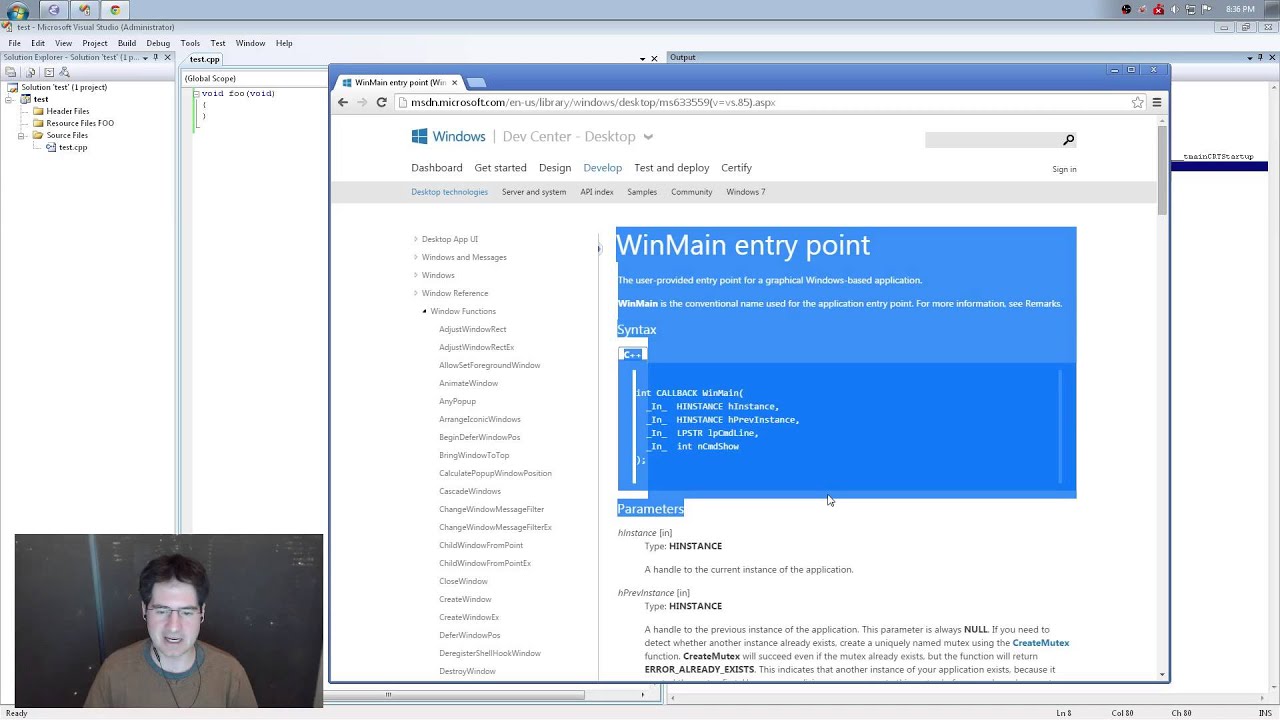
- Graphical Windows applications use WinMain as their default user entry point, accepting OS handles, command lines, and display parameters defined in windows.h. (35:36)
Detailed notes
## Background Published on YouTube by Molly Rocket on November 13, 2014, this video kicks off the introductory C programming on Windows series for the Handmade Hero project. According to the description, the stream introduces viewers to C on Windows by covering how to acquire a compiler through Visual Studio, set up an empty Win32 project, compile and debug code, and understand the WinMain entry point and basic function calls.
## TL;DR Host Casey Muratori prepares viewers for building a complete game from scratch in C by establishing the core fundamentals of compiling and running native code on Windows. After navigating Visual Studio to configure an empty Win32 project with a blank C++ source file, he demystifies the multi-stage build pipeline, contrasting compiler syntax errors against unresolved linker externals. He then breaks down the WinMain entry point signature, explaining how Windows headers, calling conventions, and legacy Hungarian notation operate under the hood. The stream concludes by defining and invoking a custom function that outputs diagnostic text to the Visual Studio debug pane using OutputDebugString.
## Atmosphere & style The presentation has an unhurried, transparent, and conversational tone, blending meticulous architectural explanations with dry, irreverent humor targeting corporate software bloat and archaic Microsoft conventions. Muratori speaks as an experienced systems programmer who prefers stripping away unnecessary IDE scaffolding to expose raw text and hardware mechanics. Watching the stream feels like an intimate, behind-the-scenes apprenticeship, where technical patience for beginners is balanced with an honest critique of operating system quirks.
## Bulletin - [00:02](https://www.youtube.com/watch?v=F3ntGDm6hOs&t=2s) Casey Muratori initiates the Handmade Hero project to document the end-to-end development of a complete game written from scratch in C on Windows. - [02:23](https://www.youtube.com/watch?v=F3ntGDm6hOs&t=143s) Setting up native C development on Windows typically requires Microsoft Visual Studio Express or Community to obtain the full MSVC compiler and linker toolchain. - [05:00](https://www.youtube.com/watch?v=F3ntGDm6hOs&t=300s) Windows maintains a strict architectural split between console applications and graphical windowed software, requiring an explicit choice during project setup. - [25:45](https://www.youtube.com/watch?v=F3ntGDm6hOs&t=1545s) The compilation pipeline relies on cl.exe to produce intermediate object files and link.exe to resolve external symbols into the final executable. - [35:36](https://www.youtube.com/watch?v=F3ntGDm6hOs&t=2136s) Graphical Windows applications use WinMain as their default user entry point, accepting OS handles, command lines, and display parameters defined in windows.h.
## Key takeaways - [00:02](https://www.youtube.com/watch?v=F3ntGDm6hOs&t=2s) Handmade Hero is designed to create a complete, playable game from scratch in C while streaming and documenting every line of code without external dependencies. - [02:23](https://www.youtube.com/watch?v=F3ntGDm6hOs&t=143s) Unlike Linux environments where toolchain setup is straightforward, Windows development typically relies on Microsoft Visual Studio Express or Community to provide the complete native C/C++ compiler toolchain. - [05:00](https://www.youtube.com/watch?v=F3ntGDm6hOs&t=300s) Windows uniquely enforces an upfront subsystem choice between console-based applications and graphical Win32 projects at creation time. - [07:56](https://www.youtube.com/watch?v=F3ntGDm6hOs&t=476s) Visual Studio organizes source trees using 'solutions' and 'projects', though an empty Win32 project strips unnecessary enterprise scaffolding for custom engine development. - [10:03](https://www.youtube.com/watch?v=F3ntGDm6hOs&t=603s) C and C++ development fundamentally revolves around plain, unadorned text files that compilers parse directly into machine instructions. - [13:57](https://www.youtube.com/watch?v=F3ntGDm6hOs&t=837s) Build configurations like Debug and Release dictate whether the compiler includes diagnostic symbols and asserts or optimizes machine code for performance. - [16:57](https://www.youtube.com/watch?v=F3ntGDm6hOs&t=1017s) Modern compilers utilize multithreading across hardware CPU cores and logical hyper-threads to compile independent source files concurrently. - [25:45](https://www.youtube.com/watch?v=F3ntGDm6hOs&t=1545s) The build pipeline separates compilation of source files into intermediate object (.obj) files from the final linking phase that stitches them into an executable (.exe). - [30:58](https://www.youtube.com/watch?v=F3ntGDm6hOs&t=1858s) Linker errors like unresolved external symbols occur when required function signatures lack an actual definition across compiled units or libraries. - [32:18](https://www.youtube.com/watch?v=F3ntGDm6hOs&t=1938s) The Windows OS loader reads binary executable headers to locate the entry point address written by the linker before transferring control to the application. - [35:36](https://www.youtube.com/watch?v=F3ntGDm6hOs&t=2136s) WinMain serves as the standard entry point for graphical Win32 applications, requiring four specific parameters passed by the operating system. - [41:25](https://www.youtube.com/watch?v=F3ntGDm6hOs&t=2485s) Hungarian notation prefixes like 'H' for handles and 'LP' for long pointers are legacy 16-bit Windows conventions that harm modern code readability. - [44:43](https://www.youtube.com/watch?v=F3ntGDm6hOs&t=2683s) Directional SAL annotations from MSDN documentation (such as _In_ and _Out_) should be removed from source implementations to avoid compiler confusion. - [46:18](https://www.youtube.com/watch?v=F3ntGDm6hOs&t=2778s) Calling OutputDebugString sends text directly from the application process to the development environment's debug output pane. - [50:23](https://www.youtube.com/watch?v=F3ntGDm6hOs&t=3023s) C functions require matching declarations and definitions, enforcing return types, parameter contracts, and statement semicolons. - [57:24](https://www.youtube.com/watch?v=F3ntGDm6hOs&t=3444s) The CALLBACK macro specifies a low-level binary calling convention ensuring the OS and application agree on stack and register management. - [59:24](https://www.youtube.com/watch?v=F3ntGDm6hOs&t=3564s) Graphical applications still receive shell execution arguments through lpCmdLine, passed via shortcut properties or command-line launches. - [01:04:05](https://www.youtube.com/watch?v=F3ntGDm6hOs&t=3845s) Missing identifier errors halt the compiler immediately, whereas forward declarations allow compilation to proceed until the linker checks for definitions. - [01:07:30](https://www.youtube.com/watch?v=F3ntGDm6hOs&t=4050s) The preprocessor directive #include <windows.h> literally injects a massive cascade of operating system declarations and types into the compilation translation unit.
## Detailed walkthrough ### [00:02](https://www.youtube.com/watch?v=F3ntGDm6hOs&t=2s) Project Announcement and Stream Objectives
Casey Muratori introduces the stream as a preparatory run before starting an ambitious programming project on Monday: coding a complete game from scratch in C. He acknowledges that tackling an entire game live on stream might seem ill-advised, but he has decided to commit to it. His goal is to produce an end-to-end, live-recorded documentation of every single step required to build a playable game from the ground up, whether anyone tunes in early on or only notices once the project is well underway.
Before launching into the main project, he wants to test the streaming infrastructure to uncover any computer reliability quirks beforehand. He uses these preliminary streams productively by teaching basic C programming on a PC. As Muratori explains, “If anyone wants to follow along as I program the game in C and go through all the explanations of why I'm writing the game code that way, I won't be wanting to stop and explain little things like what is the question mark operator or how does the stack work or something like that unless that's exactly relevant topic at the time.” These introductory videos will be archived as a primer for absolute beginners so they can build enough familiarity to follow the game's development.
[02:23](https://www.youtube.com/watch?v=F3ntGDm6hOs&t=143s) Finding a C Compiler on Windows
To start programming in C on a modern PC, a developer needs a C compiler. On Linux, setting up a toolchain is straightforward, but Windows presents an annoying barrier because standalone command-line tooling like LLVM cannot handle the complete build process on Windows out of the box. Consequently, beginners must obtain Microsoft Visual Studio Express (or Visual Studio Community), which provides Microsoft's professional C/C++ compilation environment for free.
Muratori navigates Microsoft’s download portal, pointing out the bloated ecosystem of distractions presented to users:
```mermaid flowchart TD accTitle: Microsoft Visual Studio Offerings accDescr: Diagram illustrating the unwanted software options versus the required Visual Studio version for C/C++ development.
subgraph Unwanted["Unwanted Offerings"] TFS["Team Foundation Server"] WEB["Express for Web (ASP.NET)"] end
subgraph Target["Selected Package"] VS["Express 2013 for Windows Desktop / Community"] end
DOWNLOAD["Microsoft Download Page"] --> TFS DOWNLOAD --> WEB DOWNLOAD --> VS VS --> CPP["C/C++ Compiler & IDE"] ```
He mocks tools like Team Foundation Server, observing, “Since you're just someone who's trying to program C at home, you probably don't have a team, or if you do, they probably don't have a foundation, or don't want their foundation to be comprised primarily of something from Microsoft anyway.” He directs viewers specifically toward Express for Windows Desktop (or Community) rather than Express for Web, which is aimed at ASP.NET development. Downloading the software requires navigating a Microsoft account login, identity provider screens, and system reboots.
- **Recommended Tool:** Microsoft Visual Studio Express 2013 for Windows Desktop (or the later Visual Studio Community edition). - **Target Language Support:** Provides the necessary MSVC toolchain to compile native C and C++ code. - **Prerequisites:** Requires a Microsoft account login and usually a full PC reboot post-installation.
[05:00](https://www.youtube.com/watch?v=F3ntGDm6hOs&t=300s) Creating a Win32 Project in Visual Studio
Because restarting his machine would interrupt the live broadcast, Muratori demonstrates the environment using Visual Studio 2008, which is already installed on his system. He notes that the interface will show recent files from his day job—mentioning he cannot open any proprietary files from *The Witness*—before creating a fresh project by selecting **File > New > Project**.
The project creation dialog displays an overwhelming array of templates, including.NET components and legacy MFC (Microsoft Foundation Classes) libraries. For raw C/C++ development, only two options matter: a **Win32 Console Application** and a **Win32 Project**. Muratori highlights an architectural quirk dating back to the earliest versions of Windows: the operating system strictly segregates console-driven programs from standard graphical windowed applications. Unlike macOS or Linux, where a single executable can interact seamlessly with terminal standard streams and window managers, Windows forces a developer to pick one subsystem up front. Because game development revolves around windows and graphical rendering, he selects **Win32 Project**. In the application wizard that follows, he checks the **Empty project** checkbox to discard pre-generated scaffolding, leaving a clean workspace with no unwanted boilerplate.
[07:56](https://www.youtube.com/watch?v=F3ntGDm6hOs&t=476s) The Solution Explorer and Adding a Source File
Inside Visual Studio, the primary view for managing code is the **Solution Explorer**, which can be toggled via **View > Solution Explorer** if accidentally closed. Muratori critiques Microsoft's terminology, noting that what every programmer naturally considers a project directory or file manager is instead called a "solution":
> “Solution was just something that they started calling a project at some point, and so really a solution is just their word for a thing that you are going to build—it's like a basically a list of things that need to get built and how they're going to build them and so instead of having an intuitive name like Files Explorer, Project Explorer, it's called Solution Explorer.”
The Solution Explorer displays a hierarchical tree of virtual folders and filters. Rather than relying on Microsoft's default organizational filters, developers can create, delete, or rename them as desired. To begin writing real code, the compiler needs a concrete source file. Muratori ignores the dozens of specialized file options in the **Add New Item** dialog (such as SQL scripts or class diagrams) and creates a plain C++ source file (`test.cpp`). This opens a blank text buffer ready for writing C code.
[10:03](https://www.youtube.com/watch?v=F3ntGDm6hOs&t=603s) C and C++ as Raw Text Files
Casey Muratori points out that while computing hardware has leaped forward, the foundational workflow of C programming has remained remarkably static. C++ emerged in the early 1980s, and C traces its lineage a full decade earlier, yet the core interaction model is unchanged: developers edit plain, unadorned text files. Unlike a rich document created in Microsoft Word, a source code file carries no hidden styling, annotations, or metadata—it is simply raw text that will eventually be interpreted and translated by development tools.
To illustrate how the Visual Studio editor tracks edits, Casey types arbitrary text into the newly created file. A yellow vertical bar immediately appears along the left margin next to the modified lines, indicating uncommitted changes made since the file was opened. An asterisk also attaches to the file name on the document tab, signaling an unsaved state. Once he saves the file—either via the menu or by pressing `Ctrl+S`—the asterisk disappears, and the indicator bar flips to green, meaning those modifications are now preserved on disk.
Casey summarizes the fundamental nature of the craft: > “Basically just understand that nothing we're going to do is going to be anything other than entering text into a computer.”
- **C & C++ lineage:** C++ originated in the early 1980s; C originated roughly a decade before that. - **Visual Studio editor margin indicators:** - *Yellow bar:* Modified line not yet saved to disk. - *Green bar:* Modified line saved to disk since the session began. - *Asterisk (`*`) on tab:* Active file has unsaved changes.
---
[12:14](https://www.youtube.com/watch?v=F3ntGDm6hOs&t=734s) Building the Solution and the Output Window
When it is time to turn source text into a functioning program, the user invokes the **Build Solution** command. If the Output window is not already visible, Visual Studio pops it open automatically to stream the results of the build process. The log begins by declaring the target: `Build started: Project: test`. Casey explains that the solution container (`test`) holds an active default project (also named `test`), displayed in bold text in the Solution Explorer.
```mermaid flowchart TD accTitle: Solution and Project Hierarchy accDescr: Visual Studio organizes source files inside projects, which reside within a solution.
subgraph SolutionScope["Solution: test"] subgraph ProjectScope["Default Startup Project: test (bold)"] File1["test.cpp (Raw text source)"] end end ```
Casey highlights that Visual Studio permits stacking multiple projects within a single solution, with settings like *Set as StartUp Project* dictating execution order. While enterprise applications often rely on complex multi-project structures, he dismisses that overhead for indie game development, noting: > “Most of that is not really necessary when you're doing development unless you start developing a very large and complex project, but if you're just building a game by yourself it's not like you'll need to ever do anything like that.”
He mentions that as the series progresses, he will show how to build projects directly without leaning on Visual Studio’s heavy project management UI.
---
[13:57](https://www.youtube.com/watch?v=F3ntGDm6hOs&t=837s) Build Configurations and the Meaning of Compilation
The build log reports a configuration line specifying `Debug Win32`. Casey explains that a build configuration instructs the toolchain on how to process the source code and what environment to target. A developer might produce a 32-bit (`Win32`) binary or a 64-bit (`x64`) binary, depending on the targeted operating system. Furthermore, configurations govern internal build settings: a `Debug` build incorporates extra diagnostic code, asserts, and internal developer tools or game editors, whereas a `Release` (or `Retail`) build strips out diagnostics and applies optimizations for end-user distribution.
The next phase listed in the log is compilation. While people casually toss around the term "compilation," Casey clarifies that it fundamentally means translating data from one format into another. In software, a compiler parses human-readable text, interprets its semantic intent, and converts it into native instructions—such as x86 or x64 machine code—that a real CPU can execute directly rather than dealing with abstract high-level notions. The compiler processes the project's single source file, `test.cpp`, as the first major stage of producing a standalone `.exe` executable.
Casey defines the compiler's primary job: > “The compilation step is basically in charge of doing the majority of the work to translate our text file from something humans read into something that a CPU can read.”
---
[16:57](https://www.youtube.com/watch?v=F3ntGDm6hOs&t=1017s) Hardware Concurrency: CPUs, Cores, and Hyper-Threading
Observing the build output, Casey notes a small number prefix followed by a greater-than symbol (e.g., `1>`) alongside each log entry. While largely irrelevant to day-to-day coding, it represents the worker thread processing the file. To illustrate why modern compilers parallelize work this way, Casey presses `Ctrl+Shift+Esc` to open Windows Task Manager and points to the CPU Usage History graphs, showing a large grid of activity monitors.
```mermaid flowchart TD accTitle: CPU Hierarchy from Physical Socket to Hyper-Thread accDescr: Diagram showing how a physical CPU socket breaks down into cores and logical hyper-threads.
subgraph Socket["Physical CPU (Silicon Chip & Heatsink)"] subgraph Core0["Core 0"] T0["Logical Processor / Hyper-thread 0"] T1["Logical Processor / Hyper-thread 1"] end subgraph Core1["Core 1"] T2["Logical Processor / Hyper-thread 2"] T3["Logical Processor / Hyper-thread 3"] end subgraph CoreN["Core N..."] TN["Additional Hyper-threads..."] end end ```
He takes a detour into modern processor architecture to define what those graphs actually represent:
1. **Physical Processors:** The physical silicon chips seated in motherboard sockets beneath heatsinks. Most desktop consumers have a single physical CPU, whereas enterprise servers may hold two, four, or dozens of separate physical processors. 2. **Cores:** Individual execution engines fabricated inside a single physical CPU chip. A modern chip commonly integrates four, eight, or more cores. Each core acts like a self-contained legacy CPU, equipped with its own arithmetic logic units, registers, and pathways to communicate across the system bus and memory. 3. **Hyper-Threads (Logical Processors):** An architectural design where a single physical core duplicates architectural state to present itself to the operating system as multiple logical execution units. Even though the underlying core execution hardware runs instructions from one stream at any given slice of time, it maintains the context of multiple threads concurrently to eliminate switching latencies.
Casey reflects on the utility of Task Manager's shortcut: > “If I basically just use the hotkey—one of my favorite hotkeys, Control+Shift+Escape to bring up the Task Manager—you will notice that this machine has a lot of processors.”
[20:39](https://www.youtube.com/watch?v=F3ntGDm6hOs&t=1239s) CPU Cores, Hyper-Threading, and Compiler Parallelism
A physical CPU core is responsible for actively executing an application's instructions, but modern processor architectures often maintain multiple execution states on a single core. Similar to how an operating system taskbar switches among multiple running tasks, a physical core can hold distinct hardware thread states. Although it executes instructions from only one thread at any given instant, it can rapidly switch between preserved states. The operating system surfaces these hardware threads as individual logical processors. Looking at the Task Manager on his development machine, Casey Muratori inspects the hardware topology, observing that it contains dual Intel Xeon processors (identifying them as Xeon W5580 CPUs) with several logical units per socket, showing real-time utilization graphs for each thread.
Compilers take advantage of these multi-core and multi-threaded setups to accelerate build times. Because processing large codebases can be noticeably slow, modern compilers routinely spawn multiple worker threads to compile source files across several logical execution units simultaneously. Casey highlights a small sequence indicator printed in the build window, noting that it reflects the compilation worker or job instance responsible for printing that specific build message. Because this initial test project contains only a single source file, the build system invokes only one worker thread instead of launching an entire parallel build across all available logical cores.
[24:18](https://www.youtube.com/watch?v=F3ntGDm6hOs&t=1458s) Compiler Errors and Build Logs
Attempting to compile the project with initial placeholder text immediately triggers a compilation error. Casey explains that a compiler error fundamentally means the compiler tried to read the provided text file according to the grammar of the programming language, but “it did not like what it found.” Double-clicking the error notification in the IDE navigates directly to the offending line of code where the parser stalled out. Once the compiler encounters fatal issues or exceeds an internal error threshold, it aborts the process, reporting zero succeeded files, one failed file, and zero skipped files.
Visual Studio also writes an HTML build log to disk detailing the full output of the build run. While Casey notes that these logs can serve administrative or automated remote build tracking workflows, he dismisses them for day-to-day interactive debugging:
> “It also saves a build log for you, which are pretty useless most of the time...”
[25:45](https://www.youtube.com/watch?v=F3ntGDm6hOs&t=1545s) The Resource Compiler and the Linking Stage
To advance past basic syntax errors, Casey types the minimal valid C++ code necessary for the compiler to process the file cleanly. Upon rebuilding, the compiler processes `test.cpp` without complaints and transitions into the next build phases. The build pipeline invokes the Microsoft Resource Compiler (`rc.exe`) because the default project template created a `.rc` resource file. Casey clarifies that despite its grand name, a resource compiler is not meant to package complex game assets, but rather to bundle OS-level shell metadata—such as embedding the application icon into the final executable so that Windows Explorer can display it.
```mermaid flowchart TD accTitle: C and C++ Build Pipeline Stages accDescr: Flowchart illustrating how source and resource files are processed by compilers into intermediate files, then combined by the linker into an executable.
subgraph Inputs["Source Inputs"] CPP["test.cpp"] RC["Project.rc"] end
subgraph Compilers["Compilation Stage"] CL["C/C++ Compiler (cl.exe)"] RCC["Resource Compiler (rc.exe)"] end
subgraph Intermediate["Intermediate Artifacts"] OBJ["test.obj"] RES["Project.res"] end
subgraph FinalStage["Linking Stage"] LINK["Linker (link.exe)"] EXE["Target Executable (.exe)"] end
CPP --> CL RC --> RCC CL --> OBJ RCC --> RES OBJ --> LINK RES --> LINK LINK --> EXE ```
Once the resource compiler finishes, the build system enters the linking stage (`link.exe`), which Casey breaks down in detail:
- **Intermediate Object Generation**: Rather than translating text files directly into an executable, the compiler compiles each separate source file into an intermediate object file containing mostly raw machine code alongside unresolved cross-file symbols. - **Incremental Builds**: Intermediate files only need rebuilding when their specific underlying source file changes; unchanged files (such as a hypothetical `foo.cpp` or `bar.cpp`) are skipped to reduce compilation times. - **Symbol Resolution**: Because the compiler only examines one source file at a time, it cannot resolve symbols, function calls, or shared data structures defined in external translation units. - **Linker Aggregation**: The linker collects all intermediate object files and compiled resources, matches external references across files, and packages everything into an executable `.exe` binary. - **Opaque Linker Errors**: Unlike the compiler, which pinpoints the exact line number of a syntax error, the Visual Studio linker produces notoriously cryptic messages that list only the unresolved symbol and the enclosing function where the reference occurred.
While discussing the shipping of finished binaries, Casey reflects on the historical simplicity of software distribution:
> “Now when I say which you can then ship, that was the good old days; there's a lot of reasons why you can't actually just do that, thanks to Microsoft and their tireless pursuit of making building applications complicated...”
[30:58](https://www.youtube.com/watch?v=F3ntGDm6hOs&t=1858s) Understanding Linker Errors and Unresolved Externals
Looking at the build output in Visual Studio, Casey Muratori points out the error message: `unresolved external symbol _WinMain@16 referenced in function __tmainCRTStartup`. The compiler marks this as a fatal error, reporting that one unresolved external was encountered. Casey explains that an external symbol is simply an identifier that is external to the translation unit where it is being referenced. When `test.cpp` compiles, it produces an object file. If the linker examines the references inside that object file and cannot find an actual implementation or definition in any other compiled unit or library, it cannot complete the link.
```mermaid flowchart TD accTitle: Linker failure on missing WinMain accDescr: Shows the compilation unit producing an object file with an unresolved external symbol, which causes the linker to fail. subgraph Compilation["Compilation Unit"] A["test.cpp"] -->|"Compile"| B["test.obj"] end subgraph Linking["Linker Resolution"] B -->|"Requires WinMain"| C{"Search Libraries & Units"} C -->|"Not found"| D["Error: LNK2019 Unresolved External _WinMain@16"] end ```
The linker output indicates two errors, though it fundamentally stems from a single failure to resolve `WinMain`. Linker errors are usually straightforward to decipher because they indicate specifically which symbol is missing. Because the linker cannot determine where the execution should begin or what function to invoke, the build halts.
- The error message specifically targets `_WinMain@16`, referenced by the C runtime startup code `__tmainCRTStartup`. - An "external" refers to any symbol declared or required outside the immediate compilation unit. - Visual Studio reports two errors for this failure, but the secondary error is just an artifact of the primary unresolved symbol.
[32:18](https://www.youtube.com/watch?v=F3ntGDm6hOs&t=1938s) How Windows Loads and Executes Programs
When an executable runs, the operating system and the user program interact through a structured handoff. The computer's processor is executing Windows itself, and Windows must be told how to begin running the new code. The user's code and Windows were never compiled or linked together into a single monolithic binary. Casey points out that the linking process in any application is never truly complete unless one is writing the entire operating system kernel:
> “The linking process, even though it seems like we're going to finish it here in a minute, is never actually really finished in an executable, unless what you're building is the whole operating system.”
Even if someone were building a kernel from scratch, the hardware BIOS must still know how to locate, load, and jump into the kernel code on disk.
Under an operating system like Windows, an executable file (an `.exe`) is a specific binary format on disk, structured much like a bitmap or any other structured asset. The OS loader opens the file, reads its metadata headers, loads the relevant segments into memory, performs relocations and setup work, and determines the precise memory address where execution should begin. The entry point address written into that executable header is placed there by the linker. By default, the linker searches the object files for a standard, predefined symbol name to use as that entry point. While linker settings can be reconfigured to designate an arbitrary entry point name, standard Windows development relies on the default entry function.
[35:36](https://www.youtube.com/watch?v=F3ntGDm6hOs&t=2136s) WinMain, MSDN Documentation, and Visual Studio Build Settings
Casey introduces `WinMain` as the standard entry point function for graphical Windows applications. Rather than memorizing every API detail, Casey stresses the habit of consulting the official documentation on Microsoft Developer Network (MSDN), which is the primary reference manual for platform-specific C programming on Windows:
> “I always am looking things up on MSDN, which if you type WinMain into your Google search box, you will get the first hit as this site called msdn.microsoft.com, which we are going to be using a lot as we learn to program C in Windows.”
On the MSDN reference page, the documentation presents a formal function prototype showing how `WinMain` must be declared and the parameters it expects when the operating system launches the process. Casey reassures beginners that feeling overwhelmed by Windows terminology is completely normal. The series will deliberately revisit and unpack complex topics rather than rushing past them.
Casey copies the prototype into `test.cpp` and triggers a build using the keyboard shortcut `F7`. During this step, Casey notes that Visual Studio automatically saves unsaved dirty buffers (indicated by lines transitioning from yellow to green in the editor margin) before building. This behavior is managed under **Tools → Options → Projects and Solutions → Build and Run**, where the option "Before building: Save all changes" is enabled by default.
[39:17](https://www.youtube.com/watch?v=F3ntGDm6hOs&t=2357s) Win32 Types and the Low-Level C Approach
Attempting to compile the raw `WinMain` prototype immediately causes the compiler to output several errors because the specialized Windows types are not recognized by plain C++. To make these definitions available, the source code must include the core Windows header (`windows.h`).
The `WinMain` signature relies heavily on Windows-specific type definitions such as `HINSTANCE`, `LPSTR`, and `int`:
```mermaid flowchart LR accTitle: WinMain entry point parameters accDescr: Displays the standard WinMain parameters expected by the Windows operating system loader. subgraph WinMainSignature["WinMain Parameters"] A["HINSTANCE hInstance"] B["HINSTANCE hPrevInstance"] C["LPSTR lpCmdLine"] D["int nShowCmd"] end WinMainSignature -->|"Entry Point"| E["Process Execution"] ```
Casey highlights that high-level programming languages (such as C#) hide and abstract away these underlying operating system details, whereas writing low-level C requires interacting with them directly:
> “Even an experienced C programmer who's never programmed in Windows before would not know what LPSTR meant, so it is not the fact that I haven't explained what this definition is or how any of this stuff in this file works that is why you don't understand it if you're a beginner.”
- `WinMain` takes four parameters: an instance handle `hInstance`, a legacy instance handle `hPrevInstance`, a command-line pointer `lpCmdLine`, and a display flag `nShowCmd`. - Strange Win32 type monikers such as `LPSTR` ("Long Pointer to String") stem from legacy Windows architectural conventions rather than standard C syntax. - Bypassing heavy frameworks and wrappers to interact directly with the Win32 API gives developers complete control over how their software communicates with the operating system.
[41:25](https://www.youtube.com/watch?v=F3ntGDm6hOs&t=2485s) Hungarian Notation and Windows Type Prefixes
The parameters of `WinMain` look like total gobbledygook to anyone who hasn't previously written Windows software, because they are entirely made-up identifiers invented by Microsoft to refer to specific operating system concepts. While terms like `Instance` (an instance of a running program), `PrevInstance` (previous instance), `CmdLine` (command line), and `Str` (a string of characters) are recognizable, the cryptic prefixes like `H` and `LP` are deeply confusing. Casey Muratori explains that these prefixes are artifacts of Hungarian notation, an antiquated convention named after its creator—believed to be Charles Simonyi—who was Hungarian. The concept behind Hungarian notation was that every variable or type name should be prefixed with characters indicating its underlying type or purpose.
In this scheme, `P` stood for pointer, and `L` meant "long"—a leftover from the old 16-bit Windows days referring to a far pointer pointing to memory outside a program's default data segment. The prefix `H` designates a "handle," an opaque reference used to identify operating system resources when communicating with Windows. Muratori expresses strong distaste for the practice: “Cannot emphasize enough please don't do this is a terrible idea.” While modern programmers might still see mild variations, such as prefixing member variables with `m_` in object-oriented programming or using `p` for pointers, the strict system of prefixes merely harms readability. Knowing the history helps in deciphering archaic Windows APIs, but it is not a convention developers should adopt in their own code.
- `HINSTANCE` / `hInstance`: Handle to an instance of a running program. - `hPrevInstance`: Handle to a previous instance (vestigial from 16-bit cooperative multitasking). - `LPSTR` / `lpCmdLine`: Long Pointer to a String containing the command line. - Charles Simonyi is credited with introducing Hungarian notation at Microsoft.
---
[44:43](https://www.youtube.com/watch?v=F3ntGDm6hOs&t=2683s) MSDN Annotations and Sal Macros (`_In_`, `_In_opt_`)
Beyond Hungarian notation, code copied directly from Microsoft documentation often features annotations such as `_In_`, `_In_opt_`, or `_Out_`. These annotations are not standard C code designed for compilation; rather, they serve documentation systems and tools like the MIDL (Microsoft Interface Definition Language) compiler, which generates files for COM, OLE (Object Linking and Embedding), and other Windows subsystems. These directional annotations indicate whether a parameter passes data into the operating system (`_In_`) or returns data back out to the caller (`_Out_`).
Because these annotations belong in header files or documentation rather than in user function definitions, Muratori strips them out of the `WinMain` parameter list. Leaving them in source definitions can cause compilation issues. Once the directional macros are removed, the source code compiles cleanly, producing a functional executable.
```mermaid flowchart LR accTitle: WinMain Parameter Flow Annotations accDescr: Diagram showing how _In_ and _Out_ annotations indicate data flow direction between the application and Windows. subgraph App["Application Code"] direction TB Caller["Caller / WinMain"] end subgraph OS["Windows Subsystem"] direction TB API["OS API / Runtime"] end
Caller -->|"_In_ (data sent to OS)"| API API -->|"_Out_ (data returned to caller)"| Caller ```
---
[46:18](https://www.youtube.com/watch?v=F3ntGDm6hOs&t=2778s) Running the Executable and Debug Output with `OutputDebugString`
With a clean build, the executable can be run directly from Visual Studio via the `Debug -> Start Debugging` menu. Running the program at this stage appears to do nothing visible because it lacks any windowing or execution logic; the operating system simply loads the process, loads dependent modules, and immediately terminates it upon returning from `WinMain`. The debugger's output pane confirms this sequence, displaying internal startup and DLL loading messages.
```c OutputDebugString("This is a test\n"); ```
To make the program do something tangible, Muratori inserts a call to `OutputDebugString`. Re-running the application confirms that the custom text string prints directly to the Visual Studio debug output window. Muratori jokes about the milestone: “If you can print something out of the debug window, how much more work could it even be to make a game?” Although rendering a complete game requires far more effort, getting an application to compile, execute, and communicate through the debugger marks the foundational first step of Windows development.
---
[48:26](https://www.youtube.com/watch?v=F3ntGDm6hOs&t=2906s) Function Definitions and Function Calls in C
Having established a working entry point, Muratori breaks down the fundamental mechanics of a function definition in C. A function is a reusable unit of execution that bundles statements together so they can be executed from anywhere in a program without duplicating logic. “Basically what a function is is it's something, it's sort of a reusable piece of our program,” Muratori notes. “It's very very difficult if you were to sit down and write the entire program in one function, that would be really really difficult to do.”
To demonstrate function flow, he creates a function named `foo` and moves the `OutputDebugString` line inside it:
```c void foo(void) { OutputDebugString("This is a test\n"); } ```
When running the program with the code simply sitting inside `foo`, nothing prints to the debug window because the function has only been defined, not invoked. Adding an explicit call—`foo();`—inside `WinMain` causes the execution flow to jump into `foo`, execute `OutputDebugString`, and return, restoring the debug message in the output pane.
---
[50:23](https://www.youtube.com/watch?v=F3ntGDm6hOs&t=3023s) Anatomy of a C Function: Return Types and Parameters (`void`)
Every function declaration in C specifies how it interfaces with the caller through its return type and its argument list. The declaration begins with the return type, placed immediately before the function name, which defines what value the function sends back upon completion. In the case of `void foo(void)`, the first `void` keyword signifies that the function returns nothing to the caller: “The `void` in front of `foo` just says this function produces no value for its caller, it does not actually return anything to the person who called it.”
The second `void`, enclosed within the parentheses following the function name, governs the parameter list. It dictates what inputs the function expects from the caller to perform its work. Specifying `void` inside the argument parentheses indicates that the function takes no arguments whatsoever. Because `OutputDebugString` within `foo` simply writes a hardcoded string literal, `foo` requires no input parameters to do its job. Visual Studio also provides editor UI features, such as plus and minus collapse toggles, allowing developers to visually fold function bodies when navigating large source files.
[52:13](https://www.youtube.com/watch?v=F3ntGDm6hOs&t=3133s) Function Prototypes, Bodies, and Comment Syntax
Every function in C is structured into two primary components: the function prototype (or signature) and the function body. The prototype defines the interface and calling circumstances of the function, declaring what arguments it accepts and what kind of value it returns to its caller. Directly following the prototype is the function body, enclosed in curly braces (`{ }`), which contains the actual code executed whenever the function is invoked. Before delving deeper into the code within the body, Casey notes the presence of comments. Comments allow a programmer to leave notes to themselves that have nothing to do with compiled machine code, providing insight into thought processes without affecting execution.
C and C++ offer two distinct styles of comments. The first style, inherited from classic C and reminiscent of HTML comment blocks, uses slash-star syntax (`/*... */`). The compiler treats everything following `/*` as an ignored comment until it encounters the matching `*/`, allowing notes to span across multiple lines. The second style (`//`), introduced in C++, instructs the compiler to ignore everything from the double slashes up to the literal end of the line. As Casey observes regarding the end-of-line style: “And that's just a sweet way to cut down on some typing, it means you didn't have to type one of these at the end.” While not fundamentally changing what you can express, single-line comments offer a quick convenience when writing notes.
- `/*... */`: Traditional multi-line block comment that ignores all enclosed text across lines until closed. - `//`: C++ single-line comment that ignores all characters from the slashes to the end of the text line. - Prototype: Specifies the name, parameter list, and return type of a function. - Body: The code enclosed within curly braces `{}` that runs sequentially upon invocation.
[53:44](https://www.youtube.com/watch?v=F3ntGDm6hOs&t=3224s) Invoking Functions and String Literals
Inside the custom function’s body, execution is straightforward because it simply delegates to another function called `OutputDebugStringA`. Calling a function follows a syntax mirror to its prototype: the name of the function followed by parentheses containing the arguments being passed. While the custom function takes no parameters (marked as `void`), `OutputDebugStringA` expects a string. In C, a basic string literal is created simply by enclosing text inside double quotation marks (`"..."`), which packages the enclosed characters together and passes them to the target function to be displayed in the development environment's debug output window.
`OutputDebugStringA` acts as an operating system service provided by Windows, relaying diagnostic text straight to the debugger's output panel. While Casey notes that deep-dive Windows debugging internals will be deferred until the fundamentals of C are firmly established, this call demonstrates the simplest mechanism for getting feedback out of a running Win32 application.
```mermaid flowchart TD accTitle: Function Call Flow to OutputDebugStringA accDescr: Diagram showing a custom function passing a string literal to the Windows OutputDebugStringA API. subgraph CustomFunction["Custom Function Body"] A["Caller Invokes Function"] --> B["Evaluate string: '...'"] B --> C["Call OutputDebugStringA(...)"] end subgraph Win32["Windows OS Subsystem"] C --> D["Output to Debugger Window"] end ```
[55:30](https://www.youtube.com/watch?v=F3ntGDm6hOs&t=3330s) Semicolons, Statements, and Whitespace Rules
Every logical line of executable code in C ends with a semicolon (`;`), creating what the language defines as a statement. Casey remarks on the syntactic necessity of the semicolon with some skepticism about its actual utility in modern language design, noting: “It is a relatively useless piece of syntax.” While languages like Python derive meaning from line endings and indentation, C and C++ largely treat line breaks and whitespace as interchangeable formatting tools intended solely for human readability. A single logical statement can span multiple physical lines of text, or multiple statements can sit on one line, provided each ends with a semicolon.
The only scenario where whitespace alters compiler behavior is when it breaks apart an identifier or token. Indenting code inside braces helps the programmer visualize nesting, but the compiler ignores those spaces entirely. However, inserting whitespace into the middle of a token—such as writing `output debug string a` instead of `OutputDebugStringA`—forces the compiler to see separate unfamiliar names, immediately triggering a compilation error because it can no longer resolve what the symbol means.
- **Statement Terminator**: The semicolon tells the compiler that a logical instruction has concluded. - **Whitespace Agnosticism**: Spaces, tabs, and newlines do not alter program logic outside of string literals. - **Token Integrity**: Whitespace must never split identifiers, keywords, or composite operators.
[57:24](https://www.youtube.com/watch?v=F3ntGDm6hOs&t=3444s) Decoding the WinMain Signature and Calling Conventions
Moving from the simple custom function down to the entry point invoked by the operating system reveals a much more decorated signature: `int CALLBACK WinMain(...)`. The very first keyword, `int`, establishes the return type, indicating that upon exiting, the function will return a signed integer—a whole number such as `-5` or `12`—back to the operating system caller. The second token, `CALLBACK`, is not a native C language keyword but a preprocessor macro defined within `windows.h`. It expands to specialized compiler decorations governing calling conventions.
Because Windows system binaries and user applications are compiled separately by different tools at different times, both sides must agree on low-level binary protocols—such as how arguments are placed on the stack or in registers, and who is responsible for cleaning up the stack frame upon return. The `CALLBACK` macro provides this contract. As Casey emphasizes: “It is a function that must adhere to a special convention because since Windows was not compiled as part of our program and our program is not compiled as part of Windows, they will have to agree on how functions are called.”
```mermaid flowchart LR accTitle: Anatomy of the WinMain Declaration accDescr: Breakdown of the components of the WinMain function signature including return type, calling convention macro, function name, and parameter list. subgraph WinMainSignature["WinMain Signature Anatomy"] RT["int\n(Return Type)"] CC["CALLBACK\n(Calling Convention Macro)"] FN["WinMain\n(Entry Point Name)"] PL["(HINSTANCE, HINSTANCE, LPSTR, int)\n(Parameter List)"] RT --- CC --- FN --- PL end ```
[59:24](https://www.youtube.com/watch?v=F3ntGDm6hOs&t=3564s) WinMain Parameters: Instances and Command Lines
The parameter list for `WinMain` supplies four inputs passed directly from the operating system when the program boots up. The first parameter, `hInstance`, represents a handle to the application instance itself. This handle acts as a token identifying the program’s executable image loaded into memory, which can be passed back to Windows APIs when requesting process-specific resources or debugging services. Casey points out that modern Win32 development rarely needs to track `hInstance` manually since it can be queried dynamically. The second parameter, `hPrevInstance`, is a pure artifact of legacy 16-bit Windows multitasking architecture: “`hPrevInstance` you can completely ignore, it's a legacy thing; you will never need it in game programming.”
The third parameter, `lpCmdLine`, passes the execution arguments as a string. Even though the project is configured as a non-console Win32 graphical application rather than a console tool, it still receives command line text. To illustrate, Casey opens the Windows Command Prompt (`cmd.exe`) via Accessories to demonstrate launching applications like Notepad with extra string arguments. He explains that even regular desktop shortcuts and graphical shell launches pass target parameters through this mechanism, meaning graphical games and utilities still rely on `lpCmdLine` to read startup options, file paths, and launch flags.
- `HINSTANCE hInstance`: Base memory address handle representing the running executable instance within the OS. - `HINSTANCE hPrevInstance`: Obsolete 16-bit Windows holdover that is always passed as `NULL` in 32-bit and 64-bit Windows. - `LPSTR lpCmdLine`: A pointer to a character string containing any command-line arguments provided when launching the executable. - Command Line Accessibility: GUI programs receive command-line strings just like console programs, often supplied via shell shortcuts or launcher configurations.
[01:02:17](https://www.youtube.com/watch?v=F3ntGDm6hOs&t=3737s) WinMain Startup Parameters: lpCmdLine and nCmdShow
The parameters provided to the `WinMain` entry point correspond to how an application is launched within the Windows shell. Even when software is not run directly from a console, shortcuts in Windows have a "Target" property that allows command-line parameters to be appended after the executable path. Consequently, software that an end user would never run from an actual shell command line can still receive and process command-line arguments via the `lpCmdLine` string.
```mermaid flowchart TD accTitle: WinMain Startup Parameters accDescr: Diagram showing how OS shortcut properties map to WinMain parameters. subgraph ShortcutProperties["Windows Shortcut / OS Shell"] TargetField["Target: app.exe [args]"] RunState["Run State: Normal / Min / Max"] end subgraph WinMainArgs["WinMain Parameters"] CmdLine["lpCmdLine (Command line string)"] CmdShow["nCmdShow (Integer window state flag)"] end TargetField --> CmdLine RunState --> CmdShow ```
The final parameter, `nCmdShow`, represents how the window should initially display. Shortcut properties retain legacy options to specify whether an application launches minimized, maximized, or in a normal window state. Windows translates these configurations into an integer value passed directly into `nCmdShow`. While these parameters will be explored in greater detail later, they are fed into `WinMain` alongside the instance handles, leading directly into the execution of the main function body.
- The "Target" line in Windows shortcut properties passes trailing arguments directly to `lpCmdLine`. - `nCmdShow` provides an integer code representing window display states such as normal, minimized, or maximized.
[01:04:05](https://www.youtube.com/watch?v=F3ntGDm6hOs&t=3845s) Compiler Errors vs. Linker Errors and Forward Declarations
Calling a function that has been deleted or omitted produces a compilation error rather than a linker error. In C and C++, the compiler enforces strict ordering: “One of the reasons that that happens is because C and C++ are languages in which you are never allowed to use something which has not been defined yet.” While older C rules were somewhat looser, modern C++ strictly forbids referencing an unknown identifier. Without a prior declaration or definition, compilation halts with an identifier not found error before the linking phase is ever reached.
```mermaid flowchart LR accTitle: Compilation vs Linker Error Resolution accDescr: Contrasting full function definition, forward declaration to linker, and missing identifiers. subgraph CompilationPhase["Compilation Step"] Unknown["No Declaration"] -->|"Compile Error"| Fail["Identifier Not Found"] Decl["Forward Declaration (Signature;)"] -->|"Generates Call Stub"| Obj["Object File + Unresolved Symbol"] end subgraph LinkPhase["Linking Step"] Obj -->|"Search symbols"| Linker{"Find Definition?"} Linker -->|No| LinkFail["Link Error: Unresolved External"] Linker -->|Yes| Bin["Final Executable"] end ```
To invoke a function whose full definition is not yet present, the language provides forward declarations. Functions consist of two distinct elements: 1. **The Declaration (Prototype):** The return type, name, and argument types followed by a terminating semicolon (`;`), omitting the body. 2. **The Definition:** The complete prototype accompanied by the code block enclosed in braces (`{... }`).
Providing just the forward declaration gives the compiler the function's signature—what arguments it requires and what type it returns—allowing it to generate the call site code. The compiler then leaves a marker instructing the linker to resolve the function's final address once it locates the definition across all object files. If that definition is absent during linking, the unresolved symbol manifests as a link error rather than a compiler error.
[01:07:30](https://www.youtube.com/watch?v=F3ntGDm6hOs&t=4050s) Header Files, `#include <windows.h>`, and Translation Units
In Visual Studio, syntax highlighting colors language keywords blue—built-in elements such as `int`, `return`, and control structures that are universally standard across every compliant C compiler. Identifiers that do not highlight blue (such as `CALLBACK`, `HINSTANCE`, or the Win32 API functions) are not language keywords; they must be imported from external headers.
```mermaid flowchart TD accTitle: Preprocessor Include Hierarchy accDescr: Illustrates how an include directive recursively embeds operating system headers into the source file. SourceFile["test.cpp"] --> Preprocessor["#include <windows.h>"] subgraph WindowsHeaders["Windows SDK Headers"] WinH["windows.h"] SubH1["windef.h"] SubH2["winbase.h"] SubH3["wingdi.h"] WinH --> SubH1 WinH --> SubH2 WinH --> SubH3 end Preprocessor --> WindowsHeaders WindowsHeaders --> ExpandedSource["Expanded Translation Unit (Massive text stream)"] ```
The preprocessor directive `#include <windows.h>` acts as a literal file paste instruction. It locates the requested header file and injects its entire contents directly into the source file at that position. Although forward slashes (`/`) or backslashes (`\`) can specify paths, forward slashes remain the preferred cross-platform standard for include paths. Examining `windows.h` reveals that it is not merely a single definitions file, but a massive cascade of nested `#include` statements importing operating system definitions, macros, and API signatures. This sprawling chain transforms a concise twelve-line source file into an extensive translation unit containing all the types required to compile a Win32 application.
- Keywords turn blue in the Visual Studio editor and belong strictly to the core C/C++ language. - Windows-specific types (`HINSTANCE`, `LPSTR`, etc.) and macros are defined entirely inside platform header files. - The preprocessor replaces the `#include` line with the complete text of the referenced file, recursing through every sub-header.
[01:11:01](https://www.youtube.com/watch?v=F3ntGDm6hOs&t=4261s) Day 1 Conclusion and Upcoming Topics
With a complete, compiling Win32 project assembled, Day 1 concludes by setting up the architectural exploration planned for the next session. The upcoming stream will dig beneath the surface of the working code to examine the assembly instructions emitted by the compiler, trace the internal mechanics of the linker, examine the role of the C Runtime Library (CRT), and address why `WinMain` is not actually the true starting point of the application execution despite being designated as the program's main entry function.
> “And we're going to look at why I said WinMain was actually a little bit of a of a misdirection, why it's not really the entry point for your program even though I said it was going to be.”
The primary broadcast finishes here as the host cuts the main recording to transition into an unrecorded, interactive Q&A session with the live stream audience.
## Notable quotes > [01:04:05](https://www.youtube.com/watch?v=F3ntGDm6hOs&t=3845s) C and C++ are languages in which you are never allowed to use something which has not been defined yet. — Casey Muratori
> [13:57](https://www.youtube.com/watch?v=F3ntGDm6hOs&t=837s) The compilation step is basically in charge of doing the majority of the work to translate our text file from something humans read into something that a CPU can read. — Casey Muratori
> [32:18](https://www.youtube.com/watch?v=F3ntGDm6hOs&t=1938s) The linking process, even though it seems like we're going to finish it here in a minute, is never actually really finished in an executable, unless what you're building is the whole operating system. — Casey Muratori
> [10:03](https://www.youtube.com/watch?v=F3ntGDm6hOs&t=603s) Basically just understand that nothing we're going to do is going to be anything other than entering text into a computer. — Casey Muratori
## Mentioned Casey Muratori, Handmade Hero, Molly Rocket, Microsoft, Microsoft Visual Studio, Microsoft Visual Studio Express, Visual Studio Community, Visual Studio 2008, Team Foundation Server, ASP.NET, The Witness, MFC, Intel Xeon, Intel Xeon W5580, Windows Task Manager, Microsoft Developer Network, Charles Simonyi, MIDL, COM, OLE, C Runtime Library
## Video description Day 1 of the introduction to C programming on Windows series from Handmade Hero. See http://handmadehero.org for details.
1. Getting up to speed with C programming on Windows 2. Getting a C compiler via Microsoft Visual Studio Express: 2.1. Caveat: In the next video, we suggest you to get Visual Studio Community instead of Visual Studio Express, you can get Visual Studio Community here: http://www.visualstudio.com/ 3. Creating a “Win32 Project” 4. Adding a C++ file: test.cpp 5. Compiling and Debugging project 6. WinMain entry point function 7. Creating and calling a function
[Source](https://www.youtube.com/watch?v=F3ntGDm6hOs)