Microsoft Unveils VS Code Agents Window to Run Multi-Repo AI Tasks
Visual Studio Code
Delegating tasks across concurrent autonomous agents causes developer burnout and excessive token costs unless workspaces consolidate orchestration and route execution steps to cheaper models.
AI-assisted summary of The New Agents Window in VS Code | LIVE169 — original source. Check the original for full context.
Source published:
Key ideas
- VS Code introduced the Agents Window, a native multi-workspace control center designed to reduce the mental overhead of running autonomous agents across disparate repositories, branches, and worktrees. (1:02)
- The Agents Window integrates with VS Code Dev Tunnels, allowing developers to orchestrate and monitor agent tasks on remote home or cloud machines directly from a single interface. (3:05)
- To counteract notification fatigue from concurrent agents, custom hooks such as 'speak summary' can feed completion payloads directly into system speech synthesizers to vocalize what was accomplished. (4:27)
- VS Code's new Auto model routing dynamically delegates implementation turns to the best-suited model with an integrated 10% discount, pairing well with frontier models reserved for high-level planning. (7:31)
Detailed notes
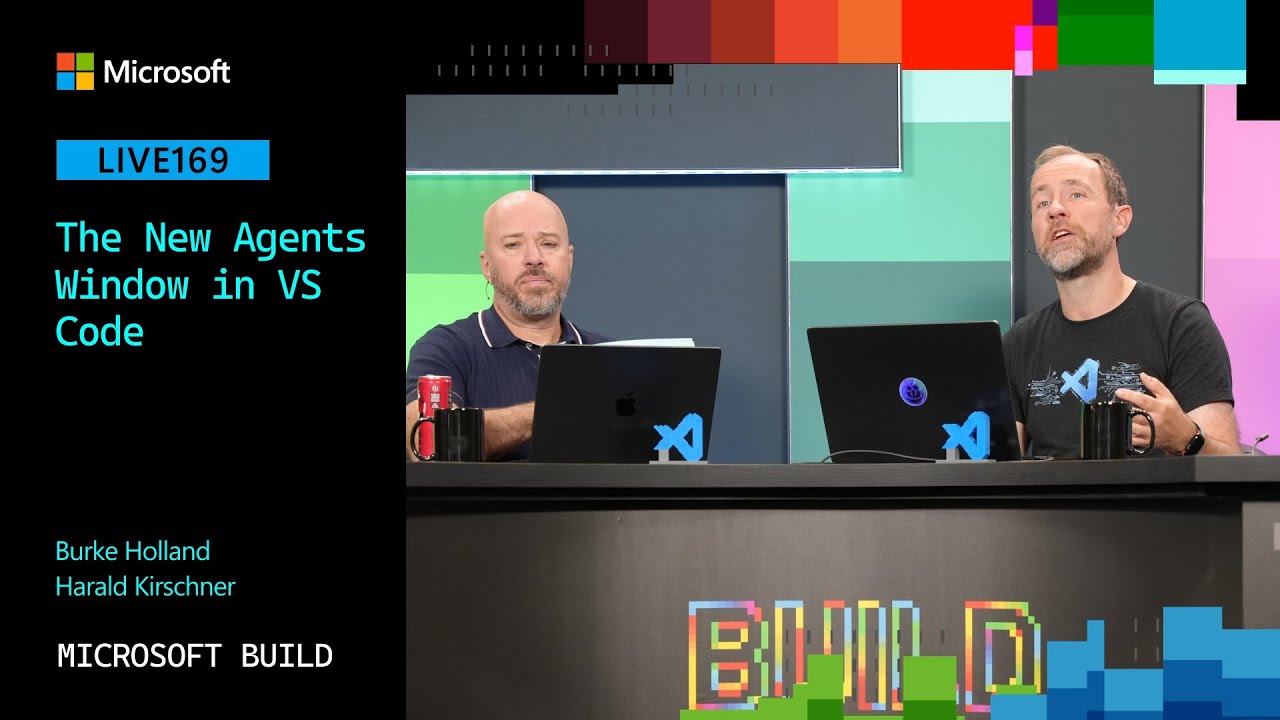
## Background Published on June 5, 2026, by Visual Studio Code on YouTube, this Microsoft Build 2026 broadcast session (LIVE169) features Burke Holland and VS Code product manager Harald Kirschner. According to the page description, the session explores the new Agents window, token optimization efforts across recent releases, and best practices for maximizing agent session efficiency.
## TL;DR In this broadcast segment, Harald Kirschner demonstrates the newly introduced Agents Window in Visual Studio Code, a unified multi-workspace interface designed to eliminate the context-switching overhead of tracking multiple autonomous agents. Kirschner explains how the tool integrates with remote environments like VS Code Dev Tunnels and inherits personal extensions, themes, and Git configurations across worktrees and repositories. He also shares personal workflow customizations, such as an audio hook that speaks task completion summaries aloud to prevent burnout, and explains cost-saving strategies like using large frontier models for initial planning alongside VS Code's Auto model routing for efficient execution.
## Atmosphere & style The presentation is brisk, casual, and distinctly technical, driven by the easygoing, banter-heavy rapport between Burke Holland and Harald Kirschner. Operating on a live conference broadcast stage, the mood feels pragmatic and developer-focused rather than polished corporate marketing, complete with self-deprecating jokes about internal job titles and relatable retail analogies like Kohl's savings receipts. Watching the session feels like listening in on two experienced colleagues sharing practical battle-tested hacks, balancing enthusiasm for autonomous agent workflows with frank discussions about mental fatigue and token costs.
## Bulletin - [01:02](https://www.youtube.com/watch?v=oB-AA6312EA&t=62s) VS Code introduced the Agents Window, a native multi-workspace control center designed to reduce the mental overhead of running autonomous agents across disparate repositories, branches, and worktrees. - [03:05](https://www.youtube.com/watch?v=oB-AA6312EA&t=185s) The Agents Window integrates with VS Code Dev Tunnels, allowing developers to orchestrate and monitor agent tasks on remote home or cloud machines directly from a single interface. - [04:27](https://www.youtube.com/watch?v=oB-AA6312EA&t=267s) To counteract notification fatigue from concurrent agents, custom hooks such as 'speak summary' can feed completion payloads directly into system speech synthesizers to vocalize what was accomplished. - [07:31](https://www.youtube.com/watch?v=oB-AA6312EA&t=451s) VS Code's new Auto model routing dynamically delegates implementation turns to the best-suited model with an integrated 10% discount, pairing well with frontier models reserved for high-level planning.
## Key takeaways - [00:00](https://www.youtube.com/watch?v=oB-AA6312EA&t=0s) Every new member of the VS Code team—regardless of whether they join as a PM, advocate, or technical writer—is required to write code and build an extension as their first task. - [01:02](https://www.youtube.com/watch?v=oB-AA6312EA&t=62s) The Agents Window provides a dedicated form factor built directly atop native VS Code rather than acting as a disconnected standalone tool. - [01:19](https://www.youtube.com/watch?v=oB-AA6312EA&t=79s) Traditional single-editor window workflows cause severe context switching and mental burnout once developers delegate tasks to multiple autonomous agents. - [02:21](https://www.youtube.com/watch?v=oB-AA6312EA&t=141s) The Agents Window preserves familiar user customizations out of the box, including themes, extensions, and Git configurations. - [03:05](https://www.youtube.com/watch?v=oB-AA6312EA&t=185s) VS Code Dev Tunnels enable instant remote workspace access by running 'code tunnel' on any host machine without complex networking or port forwarding. - [04:27](https://www.youtube.com/watch?v=oB-AA6312EA&t=267s) Managing parallel agent notifications is a major UX challenge, as generic audio chimes fail to communicate which project or task finished. - [06:00](https://www.youtube.com/watch?v=oB-AA6312EA&t=360s) Autonomous CLI agents trigger a 'task_complete' tool upon finishing, returning a structured summary that contrasts the initial prompt with the delivered output. - [06:00](https://www.youtube.com/watch?v=oB-AA6312EA&t=360s) Using local speech synthesis to announce finished agent summaries eliminates the need to alt-tab across windows to inspect status updates. - [07:31](https://www.youtube.com/watch?v=oB-AA6312EA&t=451s) A recommended cost-optimization workflow is to reserve larger frontier models for initial planning while delegating step-by-step execution to Auto model routing. - [07:31](https://www.youtube.com/watch?v=oB-AA6312EA&t=451s) VS Code's Auto model option dynamically evaluates task complexity per turn and offers an automatic 10% discount on execution tokens. - [07:31](https://www.youtube.com/watch?v=oB-AA6312EA&t=451s) Providing clear retroactive telemetry showing token cost savings compared to expensive frontier models would significantly improve user visibility into agent efficiency.
## Detailed walkthrough ### [00:00](https://www.youtube.com/watch?v=oB-AA6312EA&t=0s) Team Culture and the Technical PM Role in VS Code
Harald Kirschner joins Burke Holland on stage, prompting Burke to joke that virtually the entire Visual Studio Code team has taken over the broadcast stage throughout the day, name-dropping colleagues Courtney, Joanna, Josh, and Tyler. When Burke asks about Harald's role, Harald notes that his title in Slack is listed humorously as "PM-ish." He explains that the product manager role on the team has always been non-traditional and fluid: “VS Code has always been very technical on the PM side, as we saw with Courtney landing PRs.”
Harald reveals a core engineering expectation within the group: regardless of whether someone joins as a PM, an advocate, or a documentation writer, the very first task assigned is to write code and build an extension for VS Code. Harald recalls building one when he started five years earlier, and he has gone on to author over ten extensions since then.
[01:02](https://www.youtube.com/watch?v=oB-AA6312EA&t=62s) Introduction to the New Agents Window
Burke transitions to the core topic, clarifying whether the feature is called the "Agent Sessions Window" or the "Agents Window." Harald clarifies that while "Sessions" was used during initial naming, it is officially called the **Agents Window**. He explains the fundamental divergence between traditional coding and modern agent workflows. In the classic VS Code editor, developers work directly in code mode, hopping between source files to establish and retain a mental model of their codebase.
```mermaid flowchart TD accTitle: Agents Window Multi-Workspace Architecture accDescr: Diagram illustrating how the Agents Window aggregates multiple workspaces, dev tunnels, and agent sessions in a unified hub.
subgraph Sources["Workspaces & Environments"] Local["Local Git Worktrees"] Remote["Remote Repositories / GitHub"] Tunnel["VS Code Dev Tunnels (Home Desktop)"] end
subgraph Hub["VS Code Agents Window"] Orch["Unified Multi-Workspace Control Center"] Ext["Inherited VS Code Extensions, Themes & Git Settings"] end
subgraph Sessions["Active Agent Sessions"] S1["Session: VS Code Docs"] S2["Session: Open-Source PRs (e.g., HNRC)"] S3["Autonomous CLI Agent Harnesses"] end
Local --> Orch Remote --> Orch Tunnel --> Orch Orch --- Ext Orch --> S1 Orch --> S2 Orch --> S3 ```
However, as developers begin delegating work to autonomous agents across several different projects or git worktrees, the conventional single-editor layout breaks down. Jumping across multiple VS Code editor windows to monitor progress creates heavy mental overhead and destroys context. The Agents Window solves this by providing a unified multi-workspace view:
> “Once you start working with agents, even across multiple projects, there's a lot of overhead and switching between VS Code windows and regaining context.”
- **Native Architecture**: It is not a completely detached application, but a dedicated form-factor layer sitting directly on top of the native VS Code application. - **Unified Surface**: It allows running multiple agents across distinct repositories, pull requests, worktrees, and remote machines all in one central dashboard. - **Workflow Interoperability**: While currently accessible directly from VS Code via "Open in Agents," the team previously tested a standalone app variant and intends to allow launching it independently. - **Familiar Foundation**: The window preserves a user's themes, language extensions, and Git configurations out of the box.
[03:05](https://www.youtube.com/watch?v=oB-AA6312EA&t=185s) Remote Agent Orchestration via Dev Tunnels
When launching a new agent session, the user selects the destination workspace and the agent harness. These target workspaces are not restricted to local drives; they can target GitHub repositories or remote machines. Harald shares that he relies heavily on this for his day-to-day workflow, regularly targeting a remote desktop at home using VS Code Dev Tunnels.
Burke emphasizes that Dev Tunnels remain one of the most underrated features of the entire Visual Studio Code ecosystem: “It's like the most slept on feature of Visual Studio Code.” With dev tunnels, a user can simply run the command `code tunnel` on any machine (or enable it through the settings gear menu), sign in via GitHub or Microsoft, and instantly generate a secure tunnel URL. This gives full browser-based or remote VS Code access into that host system without complex networking configurations. Harald keeps a tunnel persistently running on his home machine so he can dispatch agent tasks and supervise multi-repo open-source work directly within the single Agents Window interface.
[04:27](https://www.youtube.com/watch?v=oB-AA6312EA&t=267s) The Burden of Context Switching and Custom Audio Hooks
Harald displays his live interface containing collapsible sessions across various projects, including `VS Code docs` and `HNRC` (an open-source project focused on creating repository-level custom instructions). Burke points out a common pain point: with several agents running at once, generic notification chimes cause confusion because developers cannot tell which task just concluded. Harald notes that managing agent distraction is an ongoing research problem across UI design: “We see that in many of our user testing and even ourselves. It's just burns you out really, really hard.”
To solve the notification ambiguity without constantly alt-tabbing, Harald built a custom automation hook: - In VS Code's customization settings, he configured a hook called **`speak summary`**. - When an agent completes its job in an autonomous CLI workflow (which runs from start to finish without prompting for manual intervention), it triggers a completion tool called `task_complete`. - The completion payload includes a succinct written summary where the model reframes what was requested and what it actually delivered. - The hook feeds that textual summary into local macOS speech models (Siri voices). - Instead of an uninformative notification bell, the computer speaks aloud into the room: “I'm done and here's what I did.”
[07:31](https://www.youtube.com/watch?v=oB-AA6312EA&t=451s) Token Cost Optimizations and Automatic Model Routing
In the remaining minutes of the presentation, Harald touches on token economy and cost optimization efforts integrated into the platform. With new pricing tiers arriving, VS Code has added intelligent backend routing to minimize token consumption without degrading generation quality.
Harald highlights the distinction between autonomous task loops and the **Auto** model option: - **Planning vs. Implementation Strategy**: Harald's core recommendation for developers is to use larger, high-capability frontier models to generate the high-level plan, and then delegate execution to the Auto model: “Use the bigger model for planning and then use auto for implementation and that will look at like what you're trying to do and then route it to the best model.” - **Auto Model Routing**: VS Code's Auto model option dynamically evaluates task complexity per turn, automatically selecting models (including fast models like MAI Fast) and providing a built-in 10% discount on the task run. - **Potential Cost Savings Telemetry**: Burke suggests that VS Code should present a clear comparison showing exactly how many tokens were saved against running an expensive model like Claude 3.5 Sonnet / Opus end-to-end—humorously comparing it to receipts from retail store Kohl's that display how many dollars were saved at the register. Harald agrees this retroactive savings breakdown would be a valuable metric to display to users.
[09:27](https://www.youtube.com/watch?v=oB-AA6312EA&t=567s) Session Wrap-up and Next Segment
As the presentation concludes, the hosts wrap up the broadcast after addressing questions from the audience. Bringing the session to a close, Burke Holland signs off to send the livestream to a brief intermission before the upcoming programming begins, concluding: “All right, thank you for joining us. We will be right back.”
## Notable quotes > [01:02](https://www.youtube.com/watch?v=oB-AA6312EA&t=62s) Once you start working with agents, even across multiple projects, there's a lot of overhead and switching between VS Code windows and regaining context. — Harald Kirschner
> [07:31](https://www.youtube.com/watch?v=oB-AA6312EA&t=451s) Use the bigger model for planning and then use auto for implementation and that will look at like what you're trying to do and then route it to the best model. — Harald Kirschner
## Mentioned Burke Holland, Claude 3.5 Sonnet, Courtney, GitHub, Harald Kirschner, HNRC, Joanna, Josh, Kohl's, MAI Fast, Microsoft, Microsoft Build 2026, Opus, Siri, Tyler, Visual Studio Code, VS Code Dev Tunnels
## Video description Agent sessions are more powerful than ever and the VS Code team has been building the visibility and efficiency to match. Harald Kirschner walks through the new Agents window, the token optimization work shipping across recent releases, and how to get the most out of every session.
To learn more, please check out these resources: * https://aka.ms/VSCode/Agentswindow * https://aka.ms/VSCode/Learn * https://aka.ms/VSCode/TTCompression * https://code.visualstudio.com/learn
𝗦𝗽𝗲𝗮𝗸𝗲𝗿𝘀: * Harald Kirschner * Burke Holland
𝗦𝗲𝘀𝘀𝗶𝗼𝗻 𝗜𝗻𝗳𝗼𝗿𝗺𝗮𝘁𝗶𝗼𝗻: This is one of many sessions from the Microsoft Build 2026 event. View even more sessions on-demand and learn about Microsoft Build at https://build.microsoft.com
LIVE169 | English (US)
Broadcast Stage
#MSBuild
Chapters: 0:00 - Introduction with Harold from VS Code team 00:00:23 - Discussion about VS Code team roles and technical PM structure 00:01:02 - Introduction of new VS Code Agent Window feature 00:01:19 - Explanation of agent window purpose—managing multiple projects and agents 00:02:21 - Clarification that Agent Window is part of VS Code with multi-workspace support 00:03:05 - Demo setup and features like extensibility and Git settings 00:03:39 - Explanation of VS Code Dev Tunnels for remote access 00:04:27 - Agent sessions overview and user context switching challenges 00:06:00 - Customizations and hooks—speaking task summaries in VS Code 00:07:31 - Cost optimizations and new auto model routing for token savings
[Source](https://www.youtube.com/watch?v=oB-AA6312EA)