GitHub Unifies Copilot Agents Across Terminals, IDEs, and Slack
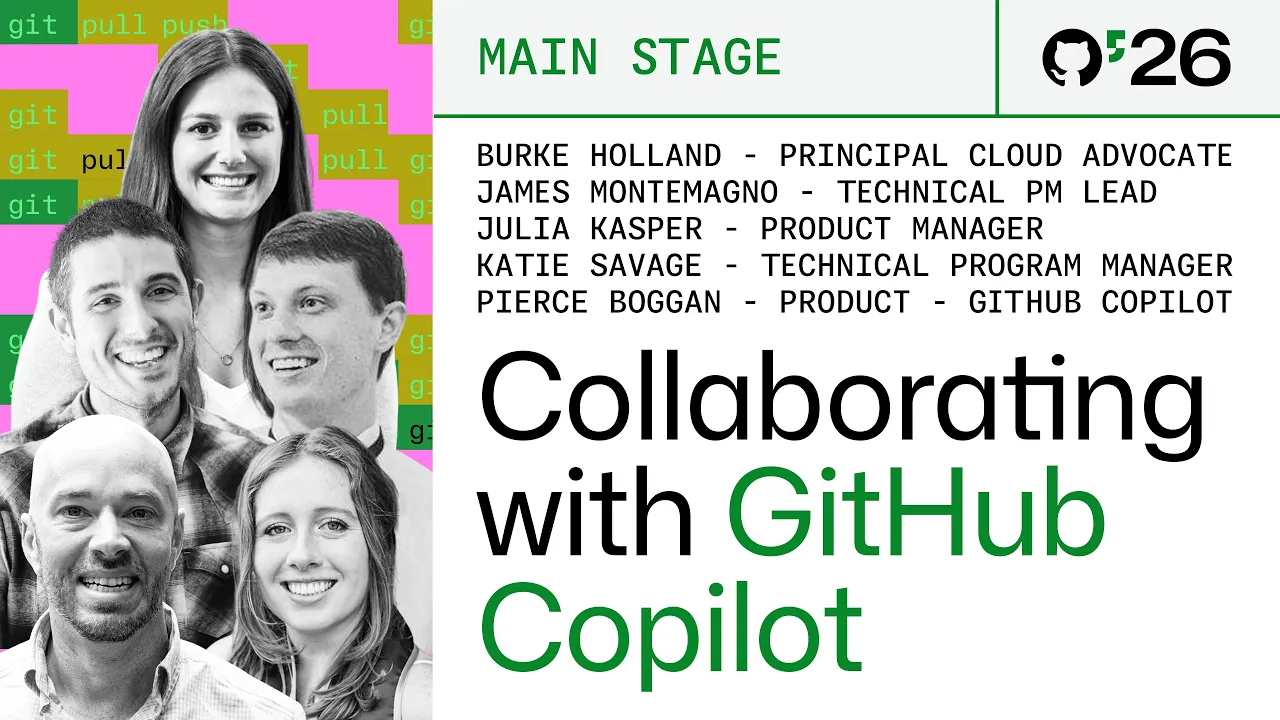
Work together, your way, with GitHub Copilot — GitHub

GitHub

Unifying the underlying agent harness across editors, terminals, and chat allows engineering teams to deploy autonomous AI agents across existing toolchains without forcing developers into a single interface.

AI-assisted summary of Work together, your way, with GitHub Copilot — original source. Check the original for full context.

Source published:

Key ideas

  • GitHub demonstrated a unified architecture across the Copilot desktop app, VS Code, CLI, mobile, web, and Slack, allowing distributed teams to collaborate on a single codebase using identical agent harnesses, models, and MCP servers without forced tooling conformity. (0:03)
  • The GitHub Copilot desktop app introduces zero-clone repository sessions via automated Git worktrees, alongside native computer-use capabilities that autonomously launch and functionally verify desktop binaries. (2:35)
  • VS Code added Copilot Fusion for dynamic model orchestration, inline image generation, and Model Compare, which runs identical prompts concurrently across multiple foundation models to evaluate and synthesize optimal code. (11:05)
  • Autonomous cloud sandboxes can now be spun up directly via mobile voice prompts or by mentioning @github in Slack threads, enabling code execution, diff inspection, and pull request generation without an active local IDE. (24:34)

Detailed notes

## Background Published by GitHub on YouTube on November 7, 2026, this GitHub Universe 2026 presentation features Pierce Boggan, Burke Holland, James Montemagno, Julia Kasper, and Katie Savage. According to the description, the session explores how engineering teams can tackle a shared software project with GitHub Copilot while preserving individual preferences across the Copilot desktop app, VS Code, CLI, mobile, and collaboration platforms.

## TL;DR Using a cross-platform desktop capture tool called Tiny Clips as their live project, five engineers demonstrate how GitHub Copilot's unified underlying platform connects radically different personal workflows. Burke Holland showcases zero-clone repository management and computer-use UI testing in the standalone Copilot app, before handing off the identical workspace context to Julia Kasper in VS Code to run Copilot Fusion and parallel Model Compare trials. Katie Savage highlights terminal-native execution using autonomous CLI worktrees and hands-free voice prompting, while James Montemagno commands remote cloud agent sandboxes directly from his mobile phone. Pierce Boggan closes the session by demonstrating how mentioning Copilot inside a Slack thread spins up ephemeral cloud environments with inline diff viewers, proving that modern AI-assisted development can bridge diverse tools without forcing conformity.

## Atmosphere & style The presentation carries an energetic, playful, and genuinely collaborative vibe, punctuated by easygoing on-stage banter and lighthearted teasing among teammates about task delegation. Rather than relying on dry theoretical slides, the team keeps the pace lively with rapid, live handoffs that show code, assets, and tasks fluidly jumping across operating systems, editors, terminals, and mobile devices. It feels both technically ambitious and pragmatic, emphasizing developer joy and personal workflow freedom over rigid corporate standardization.

## Bulletin - [00:03](https://www.youtube.com/watch?v=VJBTPepfWUI&t=3s) GitHub demonstrated a unified architecture across the Copilot desktop app, VS Code, CLI, mobile, web, and Slack, allowing distributed teams to collaborate on a single codebase using identical agent harnesses, models, and MCP servers without forced tooling conformity. - [02:35](https://www.youtube.com/watch?v=VJBTPepfWUI&t=155s) The GitHub Copilot desktop app introduces zero-clone repository sessions via automated Git worktrees, alongside native computer-use capabilities that autonomously launch and functionally verify desktop binaries. - [11:05](https://www.youtube.com/watch?v=VJBTPepfWUI&t=665s) VS Code added Copilot Fusion for dynamic model orchestration, inline image generation, and Model Compare, which runs identical prompts concurrently across multiple foundation models to evaluate and synthesize optimal code. - [24:34](https://www.youtube.com/watch?v=VJBTPepfWUI&t=1474s) Autonomous cloud sandboxes can now be spun up directly via mobile voice prompts or by mentioning @github in Slack threads, enabling code execution, diff inspection, and pull request generation without an active local IDE.

## Key takeaways - [00:03](https://www.youtube.com/watch?v=VJBTPepfWUI&t=3s) GitHub Copilot has transitioned from simple code completion to multi-agent parallel systems unified by a single shared platform harness across all environments. - [01:13](https://www.youtube.com/watch?v=VJBTPepfWUI&t=73s) To demonstrate multi-agent collaboration, the team built Tiny Clips, a cross-platform desktop screen capture application engineered across five distinct personal workflows. - [02:35](https://www.youtube.com/watch?v=VJBTPepfWUI&t=155s) The Copilot desktop app segments workflows into ad-hoc Chats, repo-scoped Sessions with automated Git worktrees, and multi-repository Projects. - [02:35](https://www.youtube.com/watch?v=VJBTPepfWUI&t=155s) Copilot's zero-clone workflow allows developers to collaborate on remote codebases instantly without manual cloning or local environment lock-in. - [06:05](https://www.youtube.com/watch?v=VJBTPepfWUI&t=365s) Agentic batching triages and resolves small fit-and-finish tasks concurrently across multiple repositories, consolidating changes into batched pull requests. - [06:05](https://www.youtube.com/watch?v=VJBTPepfWUI&t=365s) Native computer-use verification allows agents to boot compiled desktop builds, execute functional UI interactions, and upload visual proof directly back into chat. - [11:05](https://www.youtube.com/watch?v=VJBTPepfWUI&t=665s) Copilot Fusion combines GitHub Copilot Autos and Project Fusion to autonomously route tasks through the most suitable model path and critique pipeline. - [13:31](https://www.youtube.com/watch?v=VJBTPepfWUI&t=811s) The dedicated Agents Window in VS Code centralizes parallel background tasks, historical multi-repo logs, and runtime harness configurations inside the editor. - [16:04](https://www.youtube.com/watch?v=VJBTPepfWUI&t=964s) Model Compare dispatches an identical prompt across multiple foundation models concurrently, using an LLM judge to evaluate outputs and synthesize the best patterns into one implementation. - [18:36](https://www.youtube.com/watch?v=VJBTPepfWUI&t=1116s) The Copilot CLI provides identical MCP servers and session states to desktop tools, featuring Interactive, Plan, and Autopilot execution modes. - [22:36](https://www.youtube.com/watch?v=VJBTPepfWUI&t=1356s) CLI commands like `/ask` enable context-free querying, while `/diff` and shell handoffs maintain continuity with VS Code across identical Git worktrees. - [22:36](https://www.youtube.com/watch?v=VJBTPepfWUI&t=1356s) The `/pr auto` command instructs Copilot to draft a pull request and iterate through failing checks until the build passes, preserving human control over the final merge. - [24:34](https://www.youtube.com/watch?v=VJBTPepfWUI&t=1474s) GitHub Mobile allows developers to spin up cloud virtual machines, run shell commands, and generate multimedia promotional assets entirely via voice prompts. - [27:49](https://www.youtube.com/watch?v=VJBTPepfWUI&t=1669s) Cloud-based agent sessions synchronize in real time across mobile devices, `github.com/copilot`, and desktop applications. - [29:44](https://www.youtube.com/watch?v=VJBTPepfWUI&t=1784s) Mentioning `@github` in Slack channels provisions isolated cloud sandboxes that implement bug fixes and embed visual diff viewers directly into team chat threads. - [31:53](https://www.youtube.com/watch?v=VJBTPepfWUI&t=1913s) GitHub's design principle emphasizes developer choice, allowing team members to mix and match IDEs, terminals, browsers, mobile devices, and chat apps without fragmentation.

## Detailed walkthrough ### [00:03](https://www.youtube.com/watch?v=VJBTPepfWUI&t=3s) A Connected Platform: The Evolution of GitHub Copilot

Pierce Boggan from the GitHub Copilot product team opens the session by reflecting on how dramatically developer workflows have evolved. What began as simple single-line code completion has rapidly transformed into multi-agent systems executing tasks in parallel. Today, Copilot is designed as a single, continuous experience where developers can initiate a session in one environment, seamlessly transition it to another, and finish it wherever they prefer—sharing the exact same platform across VS Code, the command-line interface (CLI), and the standalone GitHub Copilot desktop app.

Addressing the audience, Pierce tackles the single most common inquiry the team receives: which surface of GitHub Copilot should a developer actually choose? Pierce Boggan admits, “The answer depends on you, and I know that's probably not the answer you wanted to hear, but to help answer that, we're going to take a look at each of the GitHub Copilot integrations today and hopefully help to clarify that for you.” Rather than forcing everyone into an identical setup, GitHub is constructing an underlying shared platform that remains identical everywhere—encompassing the agent harness, model selection, integrations, custom instructions, skills, and Model Context Protocol (MCP) servers.

```mermaid flowchart TD accTitle: GitHub Copilot Shared Platform Architecture accDescr: Diagram showing how shared models, MCP servers, and agent harnesses power multiple developer interfaces.

subgraph Core["Shared GitHub Copilot Platform"] Harness["Agent Harness & Custom Instructions"] Models["Multi-Model Access (Local & Cloud)"] MCPServers["Skills & MCP Servers"] end

subgraph Interfaces["Developer Entrypoints"] App["Copilot App"] Editor["VS Code & IDEs"] Terminal["Copilot CLI"] Collab["Mobile, Web & Slack"] end

Core --> App Core --> Editor Core --> Terminal Core --> Collab ```

[01:13](https://www.youtube.com/watch?v=VJBTPepfWUI&t=73s) Introducing Tiny Clips: Building Software Across Diverse Workflows

To ground the technology in reality rather than theoretical slides, Pierce introduces Tiny Clips, an actual screenshot capture and screen recording desktop utility the team built for both macOS and Windows. Demonstrating the application live, he selects a desktop region, marks it up with annotation arrows, and drops in expressive emojis, joking that no modern screen capture utility is complete without an abundance of emojis. Beyond basic still captures, Tiny Clips handles recording and trimming lightweight video clips to share quick updates across a distributed engineering team.

Building Tiny Clips served as the proving ground for how the GitHub team collaborates. Pierce invites his teammates—Burke Holland, Julia Kasper, Katie Savage, and James Montemagno—to demonstrate how five engineers collaborate on a single codebase while preserving their radically different work habits. As Pierce explains, some members of the team are strictly code-first, others operate entirely agent-first, and some prefer working outside traditional code editors altogether.

[02:35](https://www.youtube.com/watch?v=VJBTPepfWUI&t=155s) Burke Holland and the Copilot App: Chats, Sessions, and Projects

Burke Holland takes the stage on his Surface Laptop to demonstrate the GitHub Copilot desktop application. He explains that the app splits work into distinct modes visible along the left sidebar: Chats and Sessions. Chats are intended for ad-hoc, one-off interactions unattached to a specific repository or project directory. For example, Burke explains that he no longer installs or configures software manually on his personal machine; he delegates environment setup to local models like Qwen running directly on device, which he used to configure his Windows Subsystem for Linux (WSL) setup.

Sessions, by contrast, bind the agent directly to a designated folder or GitHub repository. Burke highlights the zero-clone workflow as his standout favorite capability: “And this is actually my favorite feature of the app, is that I don't have to clone anything anymore ever again.” A developer simply selects a remote repository and starts collaborating immediately. Under the hood, Copilot manages Git worktrees to guarantee total isolation, though developers retain the choice to work directly against the main branch, locally, in the cloud, or inside remote environments like WSL.

Burke then highlights a major capability: Copilot Projects. Projects allow developers to track multi-repository initiatives, background agent runs, and experimental side work. Pointing to active workspaces, Burke reveals he is currently using an agent to hack his conference badge, while another workspace continuously generates visual diorama assets for a game he is prototyping. For Tiny Clips, the project spans three separate repositories simultaneously, allowing the agent to reason across the entire ecosystem from a single unified prompt.

- **Chats**: Standalone agent sessions for system administration, configuration, and one-off scripts, often leveraging local on-device models. - **Sessions**: Directory- and repository-scoped workspaces with automated Git worktree isolation and zero-cloning requirements. - **Projects**: Multi-repository workspaces that persist context across projects, background operations, and asset libraries.

[06:05](https://www.youtube.com/watch?v=VJBTPepfWUI&t=365s) Agentic Batching, Computer Use, and Dynamic Canvases

Querying the Tiny Clips project using Claude Opus to triage open issues across all three repositories, Burke identifies several small "fit and finish" tickets, such as changing button text from "archive now" to title-cased "Archive Now." Instead of wasting human time on cosmetic fixes, he instructs Copilot to resolve all open fit-and-finish bugs. The system inspects the issue list, determines the appropriate number of concurrent agents, and batches related edits together into single pull requests rather than flooding the repository with single-character PRs.

```mermaid flowchart LR accTitle: Copilot Projects Agentic Issue Triage and Testing Loop accDescr: Flowchart illustrating how Copilot Projects triages issues, batches pull requests, and runs computer use testing.

subgraph Triage["Triage & Execution"] A["Scan Multi-Repo Issues"] --> B["Group Fit & Finish Tasks"] B --> C["Spawn Background Agents"] C --> D["Batch Pull Requests"] end

subgraph Validation["Verification"] D --> E["Locate Debug Build"] E --> F["Computer Use Agent"] F --> G["UI Functional Test"] G --> H["Visual Proof in Chat"] end ```

Burke explains that these automated workflows operate quietly in the background, monitored through the app's overview sidebar and library tab, where generated assets and progress reports accumulate. To prevent regressions, the team relies on an automated daily dogfooding routine powered by native "computer use." While browser testing tools like Playwright are standard for web development, native Windows applications traditionally required manual functional verification. Burke Holland emphasizes, “Now, the reason why this is powerful is because agents are only as good as what they can test.” Copilot locates the fresh debug binary, boots Tiny Clips, snaps a test screenshot, activates the zoom annotation tool, and posts visual proof back into the chat.

To conclude his flow, Burke brings up a custom team Canvas—dynamic, agent-generated UI built directly inside the Copilot app to provide tailored dashboards, task trackers, or specialized tools like inline SQLite editors. Looking at their team task board, Burke jokes about carrying the team's workload before reassigning a pending icon issue to his colleague Julia Kasper, knowing full well she avoids the standalone app in favor of her preferred editor.

[10:13](https://www.youtube.com/watch?v=VJBTPepfWUI&t=613s) Julia Kasper: Seamless Context Handoff into VS Code

Julia Kasper joins the presentation, laughing about Burke's habit of assigning her extra work. As a Product Manager on the GitHub Copilot team, she describes her developer identity as being firmly rooted in Visual Studio Code. Stepping up to her setup, Julia Kasper asserts, “This is my home and I think over 50 million developers worldwide would agree.” She underscores that developers should never feel coerced into adopting an unfamiliar interface simply to benefit from modern agentic capabilities.

Because GitHub Copilot operates on a unified multi-agent harness across every supported environment, transitioning between platforms introduces zero loss of continuity. To prove this seamless parity, Julia launches VS Code and directly accesses the exact same team canvas that Burke had just updated in the standalone Copilot desktop app, ready to tackle the icon assignment without re-establishing context or switching tools.

[11:05](https://www.youtube.com/watch?v=VJBTPepfWUI&t=665s) Blobby, Copilot Fusion, and Built-In Image Generation in VS Code

Julia Kasper continues the demonstration inside Visual Studio Code, starting off with a playful addition directly in the editor: an interactive companion named Blobby. Blobby can be toggled via the `/vscode` command, customized with different colors, and dressed up with unlocked achievements based on completed development tasks—such as a small golden crown. As Julia explains, “The VS Code team loves to have fun, and we love to bring this developer joy to your local machine.”

Turning to her work assignments from Burke Holland, Julia finds a new task requiring an application icon for Tiny Clips. Rather than deliberating over the long list of available language models, she selects GitHub Copilot Fusion. Model selection can easily become paralyzing, and Copilot Fusion solves this by combining GitHub Copilot Autos and Project Fusion into an automated orchestration layer that dynamically evaluates the prompt and executes across the most appropriate model path.

```mermaid flowchart LR accTitle: Copilot Fusion Orchestration Pipeline accDescr: Diagram showing how user prompt flows through Fusion orchestration to select a model critique path. subgraph Input ["User Interaction"] A["User Task / Prompt"] end subgraph FusionEngine ["Copilot Fusion"] B["Smart Orchestration<br>(Autos + Project Fusion)"] C["Critique Path Selection"] end subgraph Execution ["Model Execution"] D["GPT-6 Luna"] E["Native Image Endpoint"] end A --> B B --> C C --> D C --> E ```

Julia demonstrates the native image generation endpoint integrated directly into the chat interface without extra configuration or third-party extensions. By asking Copilot for an icon concept, the editor produces several candidate images. Julia notes that Fusion automatically routed the task through a critique path powered by GPT-6 Luna, leaving a complete audit trail of every model that participated in the run.

- **Blobby Customization**: Managed via `/vscode` command; supports colors and earned achievement cosmetics (like a crown). - **Copilot Fusion Concept**: Merges GitHub Copilot Autos with Project Fusion to eliminate manual model picking. - **Image Generation**: Native endpoint inside VS Code chat that accepts image creation requests inline. - **Model Traceability**: Users can inspect which models ran during a Fusion session (e.g., GPT-6 Luna on the critique path).

---

[13:31](https://www.youtube.com/watch?v=VJBTPepfWUI&t=811s) The Agents Window and Unified Customizations

While traditional in-editor chat works well for local coding close to the files, Julia highlights scenarios requiring a bird's-eye architectural view across several repositories and parallel background runs. To address this, VS Code introduces a dedicated, built-in Agents Window.

“This is built in to VS Code. You don't have to leave the editor we all love.”

Opening the Agents Window displays a central agent orchestration canvas detailing every active workspace, ongoing tasks, and historical session logs across multiple projects—including past workshop evaluation sessions alongside the current Tiny Clips repository. Developers can drop into any suspended or running session at any time to inspect state or supply user input.

Julia also highlights the new Customization tab in VS Code. It aggregates every workspace enhancement—plugins, visual canvases, and MCP (Model Context Protocol) servers—into a single configuration screen, eliminating fragmented settings menus. From this surface, she restores the shared team load canvas with a single click, keeping task distribution synchronized across the team.

---

[16:04](https://www.youtube.com/watch?v=VJBTPepfWUI&t=964s) Parallel Agent Execution and Model Compare

Julia shifts to her next assignment: implementing a scatter sound feature for the studio agent. In the Agents Window, developers can choose whether a task runs locally on their laptop or offloaded into the cloud, as well as select the underlying runtime harness or engine. Julia elects to run the task using the native GitHub Copilot harness.

To illustrate how to handle complex implementations, Julia showcases Model Compare. Unlike Copilot Fusion—which autonomously routes to a single optimal model path—Model Compare allows an engineer to issue an identical prompt simultaneously across two or more foundation models to evaluate competing implementation strategies.

```mermaid flowchart TD accTitle: Model Compare and Synthesis Architecture accDescr: Workflow showing one prompt distributed to multiple models, reviewed by an LLM judge, and synthesized. subgraph Prompting ["Prompt Distribution"] P["User Text Prompt"] --> M1["Model A Attempt"] P --> M2["Model B Attempt"] P --> M3["Model C Attempt"] end subgraph Evaluation ["Evaluation & Synthesis"] M1 --> J["LLM Judge Review"] M2 --> J M3 --> J J --> S["Synthesize Task<br>(Best Parts Merged)"] end ```

The Model Compare setup includes: 1. **Multi-Model Spawning**: Running the exact same prompt concurrently across three distinct models. 2. **LLM as a Judge**: A designated model evaluates the completed runs, scoring and declaring an overall winner based on the criteria. 3. **Synthesize Task**: An automated post-processing step that harvests the strongest code patterns from each attempt and merges them into a single consolidated implementation.

With the multi-attempt sound effect task and the icon generation processing in the background, Julia hands the presentation over to Katie Savage to demonstrate terminal-first workflows.

---

[18:36](https://www.youtube.com/watch?v=VJBTPepfWUI&t=1116s) GitHub Copilot CLI: Worktrees, Autopilot, and Hands-Free Voice Prompting

Katie Savage takes the stage to present the developer experience from inside the command line. While graphical editors suit many developers, Katie emphasizes terminal-centric workflows: “Julia loves code editors, but I love my terminal and I want to be able to access those same rich Copilot features and experiences where I'm at when I'm in my terminal.”

The GitHub Copilot CLI shares the exact same underlying harness, session states, and MCP server integrations as the Copilot desktop app and VS Code. Upon launch, Katie's terminal environment restores her active session context, system instructions, and external MCP servers. She opens her active session list in the left-hand terminal pane, reviewing the shared team load canvas to inspect her assigned issues.

```mermaid flowchart LR accTitle: Copilot CLI Mode Transitions accDescr: State machine of the three interaction modes in the GitHub Copilot CLI. Interactive["Interactive Mode<br>(Back-and-forth dialogue)"] Plan["Plan Mode<br>(Shift+Tab: Architectural planning)"] Autopilot["Autopilot Mode<br>(Shift+Tab: Autonomous execution)"]

Interactive -->|"Shift + Tab"| Plan Plan -->|"Shift + Tab"| Autopilot ```

Her task involves updating the Windows Screenshot editor to let users apply custom background images. Rather than modifying her active working branch directly, Katie taps `W` to automatically provision an isolated Git worktree linked directly to the issue. She then walks through the operational modes in the CLI: - **Interactive Mode**: Standard turn-by-turn conversational interaction with the AI. - **Plan Mode**: Entered via `Shift + Tab`; restricts Copilot to outlining architectures and implementation steps without touching files. - **Autopilot Mode**: Cycling once more into Autopilot empowers Copilot to independently generate files, execute terminal commands, and solve errors without prompting for manual confirmation.

Katie toggles `--allow-all` to grant Copilot unblocked autonomous execution rights, then runs `Ctrl + E` to show that sessions can instantly shift execution between local compute and cloud environments.

Freeing herself up while the worktree task runs, Katie jumps back to her primary session pane to file a new issue based on an earlier conversation with James Montemagno. By holding the `Spacebar`, she uses voice-to-text input to dictate the issue prompt: configuring the screenshot editor to default to the arrow tool instead of the move tool for the 2.0 release, and assigning the work directly to James. She kicks this off in Autopilot as well.

Finally, returning to her background worktree session, Katie invokes the `/ask` command to query the implementation status without polluting the session's prompt context:

“And the thing I love about slash ask is this is really just a one off question that I want to ask about this session, but I don't necessarily want this to be in the session history.”

[22:36](https://www.youtube.com/watch?v=VJBTPepfWUI&t=1356s) Reviewing CLI Sessions and Creating Pull Requests with Copilot

Continuing in the GitHub Copilot CLI, Katie Savage looks over the progress of her current task and realizes it still has some ground to cover. She decides to switch contexts by jumping back into her recently active sessions and reopening an earlier workspace where she was already tackling the same problem. To inspect the code modifications made by Copilot, she issues the `/diff` slash command. This opens a unified view displaying every modified file. From this interface, developers can drill into individual files and leave comments directly for Copilot to prompt further code tweaks.

If deeper editing is required, Katie shows that a simple shell command launches the entire context straight into VS Code. This handoff preserves continuity by opening directly within the exact same git worktree she was operating in within the terminal, maintaining her active sessions. As Katie explains: “So it's creating this really fluid back and forth experience for me to work across these tools, depending on what I need to do.”

Ready to finalize the work, Katie initiates the pull request flow using `/pr`. The CLI presents several pathways: creating a standard PR, creating a PR and instructing Copilot to drive it to green by fixing broken tests and addressing feedback before automatically merging, or a balanced middle ground. Katie opts for the middle route—allowing Copilot to generate the pull request and resolve issues until the build passes, while holding off on the merge so human teammates can review it first. She triggers this workflow with `/pr auto` and sends it off. Feeling accomplished for the day, she opens the team's workload canvas to check on everyone else's status and spots that James Montemagno still has a full queue, prompting her to invite him up to showcase his workflow.

- `/diff`: Launches an interactive file tree and change inspector where inline feedback comments can be passed directly back to Copilot. - VS Code Shell Integration: Seamlessly opens the current active git worktree into the desktop editor without losing terminal session history. - `/pr auto`: Commands Copilot to draft the pull request and iterate on checks until tests turn green, while leaving the final merge approval to human collaborators.

---

[24:34](https://www.youtube.com/watch?v=VJBTPepfWUI&t=1474s) James Montemagno: Copilot Cloud Sessions on GitHub Mobile

Taking the stage, James Montemagno professes his deep affection for traditional IDEs and developer tooling—emphasizing that he spends his days across Visual Studio, VS Code, Xcode, IntelliJ, and the terminal. However, because he does not always carry a laptop with him, he relies on his smartphone so his autonomous agents never have to idle. Holding up the standard GitHub mobile application, James dives into the `Tiny Clips` repository to triage issues and pull requests on the go. He opens an issue recently handed off by Katie, assigns it straight to an agent, and launches it into execution.

Behind the scenes, assigning an issue to an agent immediately spins up a live cloud session—the identical environment provisioned when working from desktop or browser interfaces. James explains that inspiration often strikes when he lacks the time to draft formal issues, so he taps the plus icon on the repository screen to select "New agent session." From there, he picks his target branch, selects Autopilot, chooses his preferred underlying model, and dictates his prompt via speech-to-text: “Okay, we need to update the screenshot settings on Windows. It's a hot mess right now. It is all over the place. We want to reorganize the settings, recategorize them together. Let's do that.”

```mermaid flowchart TD accTitle: GitHub Copilot Mobile and Cloud Session Lifecycle accDescr: Diagram illustrating how voice and issue triggers on GitHub mobile spawn remote cloud environments accessible across mobile, web, and desktop.

subgraph MobileInput["GitHub Mobile App"] A["Assign Issue or Tap '+'"] --> B["Dictate Prompt / Set Branch & Model"] end

subgraph CloudEnv["Isolated Cloud Session"] B --> C["Provision VM & Clone Repo"] C --> D["Headless Terminal & Autonomous Execution"] D --> E["Generate Code, Take Screenshots, Render Media"] end

subgraph CrossPlatform["Multi-Surface Access"] E --> F["Mobile: Review & Playback"] E --> G["Web: github.com/copilot"] E --> H["Desktop: GitHub Copilot App & VS Code"] end ```

Once submitted, a remote virtual environment is provisioned and clones the codebase. To prove that a complete development machine is running rather than a superficial mobile wrapper, James opens the session's action menu, taps on "Terminal," and executes `ls`, displaying the fully hydrated repository filesystem residing in the cloud. Navigating over to the Copilot tab, he browses all active and historical sessions, including an agent task from the day before where he asked Copilot to produce a promotional video for an upcoming release. The agent autonomously formulated questions, captured desktop screenshots inside its cloud environment, and compiled a complete promo video. James pulls up the video file, plays back the rendered footage directly via AirPlay on the stage screen, and shows that developers can inspect diffs and merge pull requests right from their phones. Reflecting on his travels, James jokes about building, testing, and shipping code while cruising at altitude on Alaska Airlines' complimentary in-flight Wi-Fi.

- Cloud-native terminal: Running standard shell commands like `ls` from the mobile interface confirms direct access to a dedicated cloud VM. - Multimodal generation: Copilot cloud sessions can run graphical tasks, capture screenshots, and assemble finished promotional video assets autonomously. - Real-time continuity: Sessions initialized via voice on mobile immediately surface under the user's account history on web and desktop clients.

---

[27:49](https://www.youtube.com/watch?v=VJBTPepfWUI&t=1669s) Moving Between github.com, Desktop App, and Local IDEs

James transitions to his desktop machine to demonstrate that cloud-based agent development is entirely agnostic of the device you are currently holding. Switching his display over, he navigates to `github.com/copilot`, where every active thread—including the Windows screenshot settings task he just dictated on his phone—appears live and synchronized. He inspects the work in flight, noting that the cloud agent has already begun writing changes and preparing a pull request. Users working inside a specific project can also open the repository's "Agents" tab to monitor every agent currently executing against that codebase, choose underlying models, or spin up new instances.

He then shifts directly into the dedicated GitHub Copilot desktop app. The exact same cloud session that originated on his smartphone and appeared in his browser manifests right inside the desktop client, marked with a cloud badge. Opening the promo video session, he finds the same generated media asset ready for local review. Summing up the architecture, James exclaims: “This is the power of having super powerful machines with you everywhere and everywhere at all times. It's how I work and build software every single day, either on my computer or on my phone, and seamlessly transition between all of my surfaces.” With the mobile-to-cloud cycle complete, James hands the session back to Pierce Boggan.

---

[29:44](https://www.youtube.com/watch?v=VJBTPepfWUI&t=1784s) Pierce Boggan: Running Copilot Cloud Sandboxes Directly Inside Slack

Taking the stage to wrap up the demonstration, Pierce Boggan reflects on how developer productivity extends beyond text editors and command-line terminals. While developers frequent tools like VS Code and the Copilot desktop client, significant parts of the workday are spent inside collaboration platforms like Slack and Microsoft Teams. Pierce pulls up the `Tiny Clips` Slack workspace, which is already integrated with GitHub to stream repository events, pull requests, and incoming bug reports.

He points out a common workplace scenario: colleagues raising complaints and posting feedback directly into communication channels. Scrolling through the messages, Pierce highlights a post from James venting about Windows analytics performance. Traditionally, handling this required manual copy-pasting of text, stack traces, and user context out of chat and into an editor. Instead, Pierce types `@github can you take this one?` directly beneath the complaint. This command immediately spins up an isolated cloud sandbox identical to the mobile and web runtime environments, converting the chat thread into an active collaborative coding channel.

```mermaid flowchart LR accTitle: Slack Collaborative Agent Workflow accDescr: Flow diagram showing how user feedback in a Slack channel spins up a cloud sandbox and posts visual diffs back into chat.

A["Teammate Feedback in Chat"] --> B["Mention @github in Thread"] B --> C["Spin up Cloud Sandbox"] C --> D["Agent Implements Fix"] D --> E["In-Chat Visual Diff Viewer & Screenshots"] E --> F["Team Reviews & Merges"] ```

To demonstrate the completed workflow, Pierce navigates to an earlier thread where he and James collaborated on introducing a light theme for the Tiny Clips website. Initiated with a simple `@github` call, Copilot worked through the task, captured before-and-after screenshots of the UI in both themes, and posted interactive visual artifacts directly into the Slack conversation. Highlighting the built-in diff inspector, Pierce remarks: “And of course, I can not only see the before and after screenshots here, but we got, we got a diff viewer in Slack in the year 2026. That's crazy.” This allows the entire team to discuss, critique, and approve code implementations directly where the conversation started without context fragmentation.

- In-thread agent invocation: Tagging `@github` inside Slack spawns an ephemeral remote sandbox that executes tasks based on chat context. - Embedded rich diff viewer: Code modifications and visual assets—such as side-by-side theme screenshots—are rendered directly within the chat feed. - Elimination of context switching: Code changes can be requested, reviewed, and iterated upon collaboratively without opening a traditional local workspace.

---

[31:53](https://www.youtube.com/watch?v=VJBTPepfWUI&t=1913s) Conclusion: Work Together, Your Way

Returning to his concluding slides, Pierce thanks Burke Holland, Katie Savage, James Montemagno, and Julia Kasper for demonstrating how an entire engineering team can collaborate on a single unified product while adopting vastly different surfaces and workflows. Whether developers prefer full-fledged desktop IDEs like VS Code, Visual Studio, IntelliJ, and Xcode, terminal environments powered by the CLI, browser and mobile sessions on `github.com` and the GitHub mobile app, the standalone GitHub desktop and Copilot apps, or chat integrations inside Slack, GitHub Copilot adapts to the individual's preferred environment.

Pierce calls the entire Tiny Clips team back onto the stage to a round of applause from the audience, summarizing the session's philosophy: developers should never be forced into a rigid, homogenous setup. Instead, Copilot bridges disparate tools, allowing teams to coordinate effortlessly across surfaces and build software together, their own way.

## Notable quotes > [06:05](https://www.youtube.com/watch?v=VJBTPepfWUI&t=365s) agents are only as good as what they can test. — Burke Holland

## Mentioned Pierce Boggan, Burke Holland, Julia Kasper, Katie Savage, James Montemagno, GitHub, Microsoft, GitHub Copilot, GitHub Copilot App, GitHub Copilot CLI, GitHub Copilot Fusion, Visual Studio Code, Visual Studio, JetBrains, IntelliJ, Xcode, Tiny Clips, Blobby, Model Context Protocol (MCP), Qwen, Claude Opus, GPT-6 Luna, Playwright, SQLite, Slack, Microsoft Teams, Windows Subsystem for Linux (WSL), Surface Laptop, Git worktrees

## Video description Your team might agree on what to build, but how to build it is another conversation. In this GitHub Universe 2026 session, join Pierce Boggan, Burke Holland, James Montemagno, Julia Kasper, and Katie Savage as they tackle a shared project with GitHub Copilot, bringing their favorite tools, models, and personal workflows. Working across the Copilot app, CLI, VS Code, and JetBrains, the team puts AI agents to work, carries context between tasks, and takes development beyond the editor while balancing speed, cost, and control. Follow the project from concept to working software to see how Copilot helps teams build together without forcing everyone into the same setup.

Speakers:

Burke Holland, Principal Cloud Advocate, Microsoft James Montemagno, Principal Technical PM Lead, Microsoft Julia Kasper, Product Manager, Microsoft Katie Savage, Technical Program Manager, Microsoft Pierce Boggan, Product - GitHub Copilot, GitHub

Watch more videos from GitHub Universe 2026: https://www.youtube.com/watch?v=AArI948SDz8&list=PLENrlACZ7mnU

— CHAPTERS —

00:00 Welcome Pierce Boggan: GitHub Copilot overview 01:13 Building tiny clips with GitHub Copilot 02:35 Burke Holland: GitHub Copilot app 10:13 Julia Kasper: Copilot in VS Code 18:36 Katie Savage: GitHub Copilot CLI 24:34 James Montemagno: Copilot mobile & web 29:44 Pierce Boggan: Copilot in Slack 31:53 Conclusion: work together, your way

#GitHubUniverse #GitHubCopilot #VSCode

Stay up-to-date on all things GitHub by connecting with us:

YouTube: https://gh.io/subgithub Blog: https://github.blog X: https://twitter.com/github LinkedIn: https://linkedin.com/company/github Insider newsletter: https://resources.github.com/newsletter/ Instagram: https://www.instagram.com/github TikTok: https://www.tiktok.com/@github

About GitHub It’s where over 180 million developers create, share, and ship the best code possible. It’s a place for anyone, from anywhere, to build anything—it’s where the world builds software. https://github.com

[Source](https://www.youtube.com/watch?v=VJBTPepfWUI)

Reading summary

GitHub Copilot has expanded from basic code completion into an underlying multi-agent platform designed to sustain a continuous session state across diverse interfaces, including standalone desktop apps, IDEs, terminals, mobile devices, and team messaging channels. Unified Platform Architecture Across Environments (0:03) According to product presenter Pierce Boggan, GitHub's strategy focuses on building an underlying shared architecture rather than forcing developers into a single interface. The platform shares the same agent harness, custom instructions, Model Context Protocol (MCP) servers, and model selections across all entry points. To demonstrate this interoperability, the team built Tiny Clips—a cross-platform screen recording and capture utility—allowing five engineers to collaborate on the same codebase using entirely different workflows. Repository Management and Agentic Automation in Desktop Apps (2:35) In the standalone Copilot desktop application, Burke Holland detailed how tasks are segmented into unattached Chats for one-off system configurations and repository-bound Sessions. The application utilizes a zero-clone workflow backed by automated Git worktrees, allowing engineers to work in isolated workspaces without manual local cloning. For broader initiatives, Copilot Projects enables multi-repository issue triaging. Using Claude Opus, the system can autonomously identify cosmetic tasks across repositories, batch related fixes into consolidated pull requests, and perform functional verification on compiled native binaries using computer-use agents. Visual Studio Code Integration and Model Orchestration (10:13) Demonstrating the editor workflow, Julia Kasper highlighted that the unified harness preserves full context when moving between tools, allowing VS Code to instantly pick up work initialized in the standalone app. VS Code incorporates an Agents Window for monitoring background tasks and multi-repo sessions, as well as native inline image generation endpoints. To simplify model selection, Copilot Fusion automatically routes tasks through critique pipelines—such as GPT-6 Luna—while the Model Compare capability allows users to prompt multiple models concurrently, score results with an LLM judge, and synthesize the strongest implementation patterns. Terminal Workflows and Autonomous Execution Modes (18:36) For command-line users, Katie Savage demonstrated the GitHub Copilot CLI, which mirrors the session history and MCP integrations of the graphical surfaces. The CLI features distinct operational states: Interactive Mode for standard back-and-forth prompts, Plan Mode for outlining architectures without touching files, and Autopilot Mode for autonomous file generation and execution. Developers can spawn isolated Git worktrees tied to specific issues, inspect staged modifications with /diff, run non-polluting background queries using /ask, and execute /pr auto to let the agent iterate on test fixes until pull requests pass CI. Asynchronous Cloud Sandboxes Across Mobile and Slack (24:34) Remote execution capabilities decouple agent operations from local developer machines. James Montemagno demonstrated triggering cloud VM sessions via speech-to-text and issue assignments inside the GitHub mobile app, which then synchronize automatically across web and desktop clients. Extending this headless execution to team communication, Pierce Boggan demonstrated calling the @github bot directly within Slack threads. This action provisions isolated cloud sandboxes that implement requested code changes, run automated tests, and post visual before-and-after artifacts along with an embedded diff viewer directly into the chat channel. GitHub positions its multi-surface platform as a solution for team heterogeneity, asserting that engineers can collaborate synchronously across disparate environments without losing context. However, the operational complexity relies heavily on continuous cloud infrastructure, automated agent testing fidelity, and dynamic model orchestration to keep cross-surface worktrees and repositories in sync.

Source quotes

[6:05] Burke Holland: agents are only as good as what they can test.

Original transcript

[0:03] Please welcome Pierce Boggan. [0:14] Hey everybody. I am Pierce from the GitHub Copilot product team with Copilot. [0:19] We've gone from completing lines of code to working with agents in parallel. [0:23] You saw a lot of that in the keynote earlier today. [0:26] And now Copilot is one connected experience. [0:29] Start a session anywhere. [0:31] Continue it anywhere. Finish it anywhere. [0:33] It's the same GitHub Copilot across VS Code, CLI and app. [0:40] So that leads me to the question we probably hear most here [0:43] on the GitHub Copilot team, which is which GitHub Copilot should I use? [0:48] The answer depends on you, [0:49] and I know that's probably not the answer you wanted to hear, [0:52] but to help answer that, [0:54] we're going to take a look at each of the GitHub Copilot integrations today [0:57] and hopefully help to clarify that for you. [1:00] What we're building is a shared GitHub Copilot platform. [1:03] That's the same no matter where you use it across the harness models, [1:08] integrations and your skills, instructions and MCP Servers. [1:12] Okay, so to make this real, we thought we'd show you how we work building tiny clips, [1:17] which is a screenshot and recording software we've been building [1:21] for Mac OS and windows. [1:24] Okay, so here we are. This is the Tiny Clips website. [1:27] This is a real app. You can actually get it from the Mac App Store [1:30] or from the Microsoft Store. [1:31] And I'm just going to do a quick demo here so I can come in here. [1:35] Of course, this is the best screenshot software on the market. [1:39] So it can come in. I can select a region. [1:41] Amazing. You know, I can annotate this thing. [1:45] Everybody loves arrows. [1:47] Your screen capture software is not complete without a ton of emojis. [1:50] So I'm going to go ahead and do that as well. [1:53] Of course, I'm not going to show this entirely off, but I can come in, [1:57] I can record videos, I can clip those videos, I can send little clips to my team. [2:01] Tiny clips, one might say, and show how we work. [2:04] Okay, let's go back to the slides. [2:06] So to show you kind of how we work on the GitHub Copilot team, [2:11] I thought I would bring the entire Tiny Clips team to GitHub Universe here for us. [2:17] And so we're going to show how we put Copilot to work. [2:21] I got Birk, Julia, Katie, and James and we're all working on tiny clips together. [2:26] And of course, we each have our own way of working, just like [2:28] you have your own way of working. [2:29] Some of us are code first, some are agent first, [2:32] and some of us don't use the editor at all. [2:34] So to kick things off, let me bring on Birk to show us how he's working [2:37] in the GitHub Copilot app. [2:39] Bring me on. Hey. [2:47] Hey, GitHub Universe. What's up everybody? [2:49] All right, this is the GitHub copilot app. [2:52] And if you've never seen the GitHub copilot app before, [2:57] there's sort of two different ways that you can work with this thing over here [3:00] on the left hand side, we've got chats and we have sessions. [3:05] So chats are essentially when you want to work with the AI, [3:08] but you're not in a project or a folder or a repository. [3:13] It's just kind of a one off. [3:14] It's like a good example of this would be something like right here. [3:18] So I don't actually install and configure software anymore on my machine. [3:22] Now the agent does all of that for me because that's the time we live in. [3:27] So a chat is perfect for that kind of work. [3:31] And in this case, you'll see [3:33] because I'm on this Surface Laptop Ultra here that I'm running Quinn 3.8 latest. [3:39] And so a lot of my chats I'm using Local models, [3:42] which is tons of fun for my local models people out there. [3:46] The other way that you can work with the GitHub Copilot app is [3:49] in something called sessions, [3:50] and sessions are when you are working in a particular folder or. [3:56] GitHub. Repo. And so for instance, if we wanted to add a project here. [4:00] Let's just add this one right here. [4:02] And this is actually my favorite feature of the app, [4:04] is that I don't have to clone anything anymore ever again. [4:07] You just pick the Repo and you start working. [4:10] It's the little things. [4:11] This one brings me delight every single time I use it. [4:16] Additionally, here in the GitHub Copilot app, we can work off of work trees, [4:22] which if you're not sure what a work tree is, [4:24] it actually doesn't matter because the copilot app handles all of that for you. [4:28] It just keeps your work isolated. [4:30] Or we can work on the main branch. [4:32] We can also work on this computer, or we could work in the cloud, [4:39] or we could work in different remote environments. [4:42] For instance, I have, as you saw, [4:44] WSL installed by Quinn running on this machine as well. [4:47] So we can work there. [4:50] Now, there's a third way to work with GitHub copilot that we announced this morning. [4:57] And that is copilot projects. [4:59] And you can see I've got several of them up here. [5:03] I mean, I'm hacking my badge right now. [5:05] This project is actually running. [5:06] Anybody who's hacked their badge, you've done it right. [5:09] Oh, I should see more hands than that. [5:11] It's so much fun. All you got to do is plug it in and tell the agent to do something. [5:14] It's awesome. And then I got some other projects here. [5:17] I've got this one. I'm working on a game. [5:19] And so it's building these dioramas for me as we go back and forth [5:22] and figure out what this game should look like. [5:25] And then, of course, we've got our Tiny Clips project. [5:28] Now tiny clips here. As you can see, I've been going back and forth with the agent, [5:34] but for this project, you can see there are three repositories that we work across [5:39] for this particular code base. [5:41] So what I want to do here is just ask and say what issues do what open issues, [5:48] what open issues do we have on this project? [5:54] Just ask our project here and I see what the agent says so we can triage [6:01] and see what work that we've got to take care of here. [6:05] And I'm using opus five five low, [6:07] but you can use whichever model you like in Copilot projects. [6:11] It's up to you. You have the choice of all of them right here. [6:14] We don't force you into one. [6:16] All right, so what do we have here? [6:19] We've got a bunch of issues, blah blah, blah. [6:21] You know what I what I see here though, are these right here, right here, [6:24] like these fit and finish issues. [6:27] So these, these fit and finish issues are the kind of thing [6:29] that are perfect for an agent, right? [6:31] Like archive now should be archived. [6:33] Now I'm not doing that. [6:34] So what we're going to do here is come and just say, great. [6:38] Take care of all of the fit and finish issues like this. [6:45] And we're going to let GitHub Copilot handle this problem. [6:49] Right? So we've got all these issues. We're going to let it figure [6:52] out how many agents it needs and how it wants to do this. [6:55] So you can see it's batching work. [6:57] And the reason why it's doing that is because you don't need [6:59] a pull request for change. [7:01] This letter to A from a lowercase to a capital. [7:04] If you have ten of those, [7:06] then just batch all those together and Copilot just automatically figures that out [7:09] and does that for you so that you don't have to do that. [7:13] Now, while this is working as it kicks these off, you can see we've got. [7:17] They're not. If you look here, let me let me back out of this for a second. [7:21] If you look here, they're not they're not just there like in the sidebar. [7:24] You'd expect to see them. Like, where are they? [7:26] So the idea of projects is that this stuff gets pushed to the background, [7:30] but you can get to it by clicking here and seeing what's working. [7:34] And then there's also an overview in this other sidebar. [7:37] We've got several sidebars open here. [7:39] And in the overview you can see the progress of all of your agents. [7:44] There's also the library. [7:45] And the library is really nice because as we build things, the agent creates assets. [7:50] We want to see those here. [7:51] So one of the things that we also do is we have an automation [7:55] and that automation dog foods the application every day to find issues [8:00] and open those before the users find them. [8:02] Now, how does this work? [8:03] It's a native windows application. [8:05] It works. Let me show you. [8:08] It works. Take a screenshot and apply the Zoom annotation and return here. [8:17] The reason why this works is because of something called computer use. [8:21] And computer use is also available in GitHub Copilot app. [8:25] If you haven't heard of this, it just allows the agent [8:27] to control your computer essentially the same way that you do. [8:30] Now, the reason why this is powerful is [8:33] because agents are only as good as what they can test. [8:36] If you use agents a lot, you know that this is true, [8:39] and unit tests often aren't enough. [8:42] What you need is for the thing to actually fire up the application [8:45] and walk through it and use it for the web. [8:47] We have things like playwright for that, [8:50] but for native applications we haven't had anything. [8:53] And so it's really up to you. In the past, the agent would say, hey, I'm done. [8:57] Can you please functionally test this and then you would do it. [9:00] But now the computer can actually go. [9:02] And in this case, you can see it's going to find the debug build. [9:05] And in a second here it will actually spin up tiny clips, take a screenshot, [9:09] test the annotation tool and then bring that screenshot back right here in the chat. [9:15] Now we work with a lot of agents right from our overview here. [9:20] These are all still running and we could check in on these. [9:22] Looks like we got some PRS coming in. We work with a lot of agents, [9:26] but we work with a lot of people too. [9:29] And so for our team, we have a custom canvas here. [9:33] So I'm going to bring that up. [9:35] And canvases are like custom UI that you get to build in the application [9:40] so that it looks the way that you want to. [9:41] So for instance, if you were working and you needed a, a SQLite editor, [9:45] but you didn't have one, you could just ask the agent to build one and boom, [9:48] the Copilot app now has that. [9:50] So this is ours. You can see I'm hard carrying here doing all the work. [9:55] So let's pick this one here about the icon. [9:58] I want to go ahead and assign this to Julia. [10:01] Julia's got some bandwidth, so we're going to do that. [10:04] Now, what's interesting about Julia is that Julia doesn't work like I do at all. [10:07] In fact, I don't think she even uses the Copilot app. [10:10] And to show you that. Julia. [10:13] Thank you. Burke. [10:18] Hi everyone. I love it when Burke assigns me new items, right? [10:21] We all love that. I'm Julia, [10:24] I'm a PM on the GitHub Copilot team and I live and breathe VS Code. [10:29] This is my home and I think over 50 million developers worldwide would agree. [10:35] But as we've learned before, [10:37] it is your choice and GitHub Copilot is here to support you no matter where you are. [10:44] In fact, GitHub Copilot and VS Code, we now have the same M agent harness everywhere. [10:50] We are here to support your day in and day out. [10:54] All right, let's kick it off where Burke has left and has. [10:58] He has left me some items. [10:59] Right. So I will open the same team canvas that he's previously seen [11:05] in the GitHub Copilot app. [11:07] Now here within VS code. [11:10] As you might have noticed, my cute little friend here, this is Blobby. [11:14] Hi everyone. You can easily turn it on and off with the slash VS Code command [11:22] and even more fun, you can customize Blobby by picking whatever color you want. [11:29] You can also now get certain achievements and [11:32] so we will unlock depending on your task. [11:34] So I'm going to give it a cute little crown here. [11:37] And the VS code team loves to have fun. [11:40] And we love to bring this developer join to your local machine. [11:44] So to bring just a little bit of developer joy here. [11:48] All right. Let's see what Burke has assigned me here. [11:52] It seems like this one is new, [11:55] so I'm supposed to create a new icon for our Tiny Clips app. [12:02] I will do this and maybe you have noticed that [12:06] in my session I have picked Copilot fusion. [12:10] I'm not sure how it is for you, [12:12] but from time to time I open the model picker and I'm a little bit overwhelmed. [12:16] What model to pick when for what task? [12:19] So with our latest announcements from earlier today, you can now pick Copilot fusion. [12:25] It picks and combines combines the best models for your task. [12:31] We are essentially bringing GitHub Copilot Autos [12:34] and Project Fusion together to create a new smart model orchestration system for you, [12:42] so you don't have to worry about what model to pick, when and how. [12:46] We will just do all of the heavy lifting for you. [12:50] So let me get back to my session here. [12:52] I want a new icon. What I'm going [12:54] to use here is our latest image generation end point. [12:59] This is already built in with the latest release in VS Code. [13:03] You don't have to do anything. [13:04] The only thing you have to do is you have to call out [13:08] and let the chat know you want some kind of image being generated, [13:12] so it will pick this up for you. [13:14] And as you can see here, this is right now creating some fun little icons for me. [13:20] I actually wanted a few different options to go through and see what we come up with. [13:25] This one is a little bit fun and fun and goofy. [13:27] So let's see what is the session or icon I want to pick up. [13:31] So right now I'm in the VS code editor window, [13:35] which is great if I want to stay very close to my code in my workspace, [13:41] but sometimes I want to zoom out. [13:44] I want a little bit more of an ancient or modern view, [13:48] maybe work across different repositories, [13:51] having multiple different sessions, working in parallel. [13:55] So this is where the agent's window comes into place. [13:59] This is built in to VS Code. [14:01] You don't have to leave the editor we all love. [14:04] So once you click this one, [14:06] it will immediately bring you to this more agent orchestration view. [14:10] And you can see all of the different repositories that you have up and running. [14:15] I previously had a workshop on eval, so I can still still see the sessions here, [14:20] but also our tiny clip and things like that. [14:24] And you can always, whenever you want to be more hands on, [14:28] you want to pick up the work whenever your agent is stopped or need some input, [14:32] you can always go in here [14:34] and you're able to see the same view that we've previously had in the editor window. [14:39] All right. And we talked about me picking fusion, [14:44] so I didn't have to worry about what is the model that it picked for my session. [14:48] It picked the critique path. [14:50] So it picked GPT six Luna. [14:52] You're always able after Fusion [14:55] or a fusion ran through [14:57] to see what are all of the different models that ran within your session. [15:01] All right. So what's the icon I want to pick? [15:04] I kind of like this fun little goofy guy. [15:06] So I'm going to pick option two. [15:09] And I want to start implementing this. [15:13] So while this is running we talked about running sessions in parallel. [15:18] Another thing I want to point out is our recent customization tab up there. [15:24] There's something the team has worked on [15:26] to bring all of the customizations that you can have within VS Code [15:31] into one single place. So all your plugins, the canvases, the MCP Servers, [15:36] all of these things that you have within your IDE, [15:40] everything lives in this one single place. [15:42] So let's say the canvas that I previously had open, I just want to open it from here. [15:48] You are able to open the canvas and boom! [15:50] Now the team load is back up again. [15:53] All right. So let's see, what is the other item or thing that I have to work on. [15:59] I think this one, I have the smart reduction session here and the studio agent. [16:04] All right. So another feature that I have to work [16:06] on is creating a scatter sound here. [16:12] So very similar to what we've seen previously in VS Code. [16:17] In the agents window, you can pick [16:19] and choose where you want to run your session on this laptop or in the cloud. [16:24] You're also able to, of course, [16:26] pick what is the harness you want to use? What is your engine? [16:30] You can pick and choose if you want to use a different engine. [16:34] I'm close to GitHub Copilot, so that's the harness I want to use. [16:39] So now that I want to implement the other feature here, [16:44] another thing I want to point out is our latest feature [16:48] which is called Model Compare. [16:51] GitHub Copilot fusion previously picked the right model depending on your task. [16:57] Maybe sometimes you want to spin up the exact same sessions with the same prompt, [17:03] but just have it running across different models. [17:06] So this is where compare Model comes in. You can select two or more models. [17:11] And in my case I want to do across all of the latest models. [17:16] You can configure a judge [17:18] which will once the sessions ran through re review the attempts [17:23] and will tell you what is the what is a winner? [17:26] Which session did what. [17:28] You can also potentially configure a synthesize M task which will. [17:34] After your sessions went through. [17:36] After you've done your LLM as a judge, [17:38] you can now combine the attempts [17:41] and figure out what are the best parts of these sessions, [17:43] and I would want to bring it all together. [17:46] So once you've configured all of this, you can. [17:49] You now only have to run three attempts. [17:52] This will spin up all of the different items here. [17:56] And as we've talked about, [17:57] this will spin up my three sessions all with the same text prompt, [18:01] but now it's using the three different models that we previously configured. [18:07] And as you can see, all of this is up here. [18:10] My open team canvas or my icon is still running. [18:15] I think I'm done for today. [18:17] I've worked on all of my different issues that I work has assigned me [18:21] to or were there before. [18:23] So with this being said, [18:24] let's welcome Katie up on stage [18:26] and she's going to show us how she works in the GitHub Copilot CLI. [18:30] Perfect. Thank you so much, Julia. [18:33] Yeah. [18:36] Julia loves code editors, [18:38] but I love my terminal and I want to be able [18:41] to access those same rich Copilot features and experiences where I'm at [18:45] when I'm in my terminal. [18:47] And the best way to do that is with the GitHub Copilot CLI. [18:50] And the CLI is powered by that same harness that Burke showed with the Copilot app [18:55] and Julia was showing in VS Code. [18:57] So here I am in the CLI. [18:59] I'm in this current session. [19:00] As you can see, it's loading up my instructions and MCP Servers. [19:04] And the first thing I want to do is ground myself into what me [19:06] and the team are up to today. [19:08] So I'm actually going to open up my recently active sessions, [19:11] this left hand pain here, [19:13] and I'm going to go into my open team load canvas pane [19:18] because I've already opened this up previously. [19:21] As soon as I'm in that session, you'll see it pop up. [19:24] I'm kind of slacking today. [19:25] I've only got one issue to take care of, [19:27] so I'm hoping I can knock that out right now with all of you. [19:31] So back in my recently active sessions, [19:33] I'm going to go back into session one where I just was, [19:37] and you'll see these nice tabs up here. [19:39] And I'm going to use these to navigate into the issues that are open [19:42] in this repository and involve me. [19:45] And what I'm going to do is open up the specific issue that was assigned [19:48] to me that I need to work on, and I'm going to take a closer look at it. [19:52] So it looks like what I need to do is enable users to add custom images [19:57] as backgrounds for their screenshots in the Windows Screenshot editor. [20:01] So before I dive in, I've got a couple options here I want to show you [20:05] so I could open this directly in this session's chat. [20:08] I could open it on github.com, or I could spin up a new session in Work Tree. [20:13] And that is what I'm going to do by hitting W. My work tree is already ready. [20:18] As you can see, it's referencing this issue here, [20:20] so it already kind of knows what I'm doing. [20:23] And before I get into prompting, there's a couple more things I need to tweak. [20:27] So I'm currently in interactive mode, [20:29] which lets me have this nice back and forth dialog with Copilot. [20:33] But if I shift tab, that'll put me into plan, that's great. [20:37] If I want to plan out a feature, but I'm not ready to implement. [20:40] But where I want to be today is autopilot, [20:43] because I want Copilot to autonomously handle this task so I can go off [20:47] and do some other things and come back and check in later. [20:50] The other thing that's pretty cool here is, [20:52] and it's actually giving me a little tip about this is if I control E, [20:56] I can show where this session is running. [20:58] So currently it's on my computer, [20:59] but I could switch that to the cloud if I wanted to. [21:03] All right. So now let's go ahead and tell Copilot to start working on this issue. [21:09] And I'm going to use allow all for this session to really keep it autonomous [21:13] so that I don't have to keep going in when it's asking me for things. [21:17] So now that this is working, let's shift gears and do something else. [21:22] I'm back into my recently active sessions. [21:24] I'm going to reopen that session one [21:26] because remember for that issue I spun up a new session. [21:30] And in here I'm going to open up a new issue based on a conversation that James [21:34] and I were having earlier about a feature that we need to add. [21:38] So I'm going to prompt Copilot with my voice by just holding the spacebar. [21:42] And I'm going to say open an issue for the 2.0 launch. [21:47] Users should be able to set a default tool when they open up the screenshot editor. [21:52] So right now it opens the move tool. [21:55] But for example, I might want it to be in the arrow tool. [21:59] And please assign this to James. [22:03] Like I said, I want to be done for the day after this. [22:04] So I'm just going to go ahead and do that. [22:06] And I'm going to once again put it into auto pilot. [22:09] So it just goes off and creates that for me. [22:12] All right. Now we've done that. [22:14] Let's go ahead and check in on this session that was working here. [22:18] And I want a status update on how this is going. [22:20] So I'm going to do slash ask and I'm going to say, [22:24] where are we with this implementation. [22:28] And the thing I love about slash ask is this is really just a one [22:31] off question that I want to ask about this session, [22:33] but I don't necessarily want this to be in the session history [22:36] and slash ask allows me to do that. [22:39] Okay. Looks like we've got a little ways to go here. [22:42] So what I'm going to do is go back to my recently active sessions. [22:46] I'm going to open up a session that I had earlier where [22:49] I was attacking this same issue. [22:52] And what I really need to do when I'm here is review what Copilot has done for me. [22:56] So I'm going to use the slash command slash diff to review those changes. [23:01] And that's going to open up this really nice view for me, [23:03] where I can see all of the files that have changes in them. [23:06] I can open any of them up. [23:08] I can do things like leave a comment for Copilot if I need it to tweak anything. [23:13] The other thing I can do is I can run a shell command to open this in VS code, [23:19] which might be nice if I really want to get further into that code. [23:23] A couple of cool things here. [23:24] It opens up directly in that same work tree that I was just in. [23:28] And you can see some of the sessions that I've been working on as well. [23:31] So it's creating this really fluid back [23:33] and forth experience for me to work across these tools, [23:36] depending on what I need to do. [23:38] Okay, let's really knock this thing out. [23:41] So I'm going to create the PR here with slash PR. [23:44] I've got a couple options already. [23:46] I can just create that PR I can create it. [23:49] I then have Copilot drive it to green by fixing any issues [23:53] or resolving any feedback, then merging it. [23:56] Or I can kind of do the in between. [23:58] I want Copilot to create this PR for me, drive it to green, [24:01] but I don't want to merge it yet because I want my team to check it out first. [24:04] So I'm going to use PR auto for that and send that off. [24:10] Phew. All right. I mean, I think that I'm pretty done for the day. [24:13] So I'm going to pop open our team load canvas and see how the team's doing. [24:19] And it looks like James still has quite a few things that he's working on. [24:25] So I'm going to have him come up here next to me [24:27] and start working on those in front of all of you [24:30] and showing you how he's using Copilot. [24:33] Awesome. Thank you. Oh, yeah. [24:35] Listen, [24:37] I love my code editors. [24:39] I love Visual Studio vs code. [24:42] I'm in Xcode. I'm in IntelliJ every single day. [24:45] I love the terminal. But for me, I don't always have my machine with me, [24:49] but I do have my phone, so I never want my agents to stop working. [24:54] This is just the GitHub mobile application. [24:56] You can download it. I hope you all have it. [24:58] To see all of your open source work and everything going on here. [25:02] I'm going to go into Tiny Clips, one of my favorites. [25:04] I can see all of the Issues, all the pull requests. [25:07] I can go into the issue here. [25:09] Here's this one that was just assigned to me. [25:12] Well, that one's the one that Burke did. [25:13] So here's the one that was assigned to me from Katie. [25:16] I can go in immediately. [25:17] I can assign it to an agent, pop it off, [25:19] and it's totally good to go so I can get to work on any issue from my phone. [25:24] And a cloud session will be created. [25:25] The same type of cloud session you can create from any of the different [25:28] services here, but I have ideas all the time. [25:31] I don't have time to create issues. I just want things to get done. [25:34] So I'm on my Repo here. [25:35] I'm going to hit the plus button. [25:37] I'm going to say new agent session here. [25:40] I'm able to connect to a live cloud session on my Repo. [25:43] Select my branch, select cloud, Autopilot, any model I want, [25:47] and all I need to do is talk to my phone. [25:50] Okay, we need to update the screenshot settings on windows. [25:54] It's a hot mess right now. [25:55] It is all over the place. [25:57] We want to reorganize the settings re categorize them together. [26:01] Let's do that. [26:02] So right here the text is processed and I can send it off. [26:06] This will create a brand new cloud session for me, [26:09] just like you saw from any of the surfaces. [26:12] And that machine will be provisioned, cloned, [26:14] all my Repo everything directly from my phone so much that if I hit this triple dot, [26:19] I can tap on terminal. Let me just type in LLS [26:22] to prove that I have my entire file system right there all in the cloud. [26:26] It's not on my phone now. [26:28] This is amazing. And that's getting to work. [26:30] If I head over to the copilot tab, I have all of my different sessions right here, [26:34] including the one that we just spun up. [26:36] I can get back to anything in real time. [26:39] In fact, earlier to yesterday, [26:41] I was working on a promo video for all the new features that we're working on. [26:45] By tapping on it, it's going to reconnect to that cloud session that we have, [26:50] hopefully To review the work that's been going on. [26:54] Fingers crossed. Perfect. [26:56] And all I did was I asked it to create a small promo video for me [26:59] for the upcoming release. [27:01] It asked me a few questions and took a bunch of screenshots for me, all in the cloud, [27:05] and it generated an entire promotional video for me. [27:09] In fact, I can review that video and then I can go ahead and play it back. [27:14] And it's on airplane. So it's going to be super zoomed in, which is great. [27:17] So we can actually review it, which is super duper cool to see right here. [27:22] And at any time I just flip back to the app, view the pull request, [27:25] merge the pull request, anything that I want to do. [27:28] I have all of my history right here. [27:30] The best part of this is that I can be doing this anywhere. [27:34] In fact, I've been building and shipping and deploying applications on that sweet, [27:38] sweet, free internet that Alaska Airlines has been giving us all recently, [27:41] which is great. So as I flew down to GitHub Universe, [27:45] I've been shipping and deploying things directly from my phone. [27:49] But then also if I do have my computer, I can pop it right up. [27:53] So let's head back to my desktop here. [27:54] Number four. Perfect. So right here we can see I am [27:58] on github.com/copilot. I have all of my different sessions right here, [28:03] including the one that we just created from my phone. [28:07] It can resume that and it looks like it's already making changes [28:10] and I can create the pull request. [28:12] I can go in directly from github.com, create a new session, [28:16] pick any of the different projects from right there. [28:19] If you're working on a specific Repo, just go directly into the agents tab, [28:24] and that's going to show you all of the agents currently [28:26] working directly on that repo. [28:29] And again, it's the same exact session. [28:31] You have the same capabilities right there. [28:33] Just hit cloud, all of your models, [28:37] everything phone.com. And the best part is that when I'm ready to jump into VS Code, [28:43] the CLI or the GitHub Copilot app, boom, I'm right here. [28:48] And in fact, whoa, I am here. [28:50] I can open that same exact session that I just created on my phone, [28:54] opened on.com directly in the Copilot app, and all of my projects are here. [29:00] You can see that little cloud icon when I tap on that one. [29:03] Boom, here it is. And here's that same exact video that we saw earlier. [29:07] Getting ready 100% generated directly in cloud environments, [29:11] managed for me on every single surface, no matter where I code. [29:16] This is the power of having super powerful machines with you everywhere [29:20] and everywhere at all times. [29:22] It's how I work and build software every single day, [29:25] either on my computer or on my phone, [29:28] and seamlessly transition between all of my surfaces. [29:31] So I absolutely love it. [29:32] And I know you will too. [29:34] So to show you how we work together as a team, let's head back to Pierce. [29:44] Okay, so that was fantastic. [29:46] It was super cool seeing how the entire Tiny Clips team works [29:50] and their surface of choice. [29:51] And of course, I spend a lot of my day in VS Code and CLI and the GitHub Copilot app. [29:56] But like many of you, I spend a lot of time in collaboration software like Slack [30:01] and teams as well. And so here we have our tiny clip Slack channel. [30:05] And of course we have GitHub wired up. [30:07] So stuff's firing in here as the teams getting to work. [30:10] And in addition to all the pull requests issues, [30:14] things like that flowing into the Slack channel, [30:16] we also have people jumping in and giving feedback on the Tiny Clips app, [30:20] who has complainers at their job [30:22] who like to complain about things in Slack and teams? [30:25] I know, I know, I have those coworkers, I love them to death, [30:27] and it looks like James been complaining about the analytics on windows here. [30:31] And so, you know, what I might have done in the past is I might have copy pasted this [30:36] into something like VS Code or the GitHub Copilot app. [30:39] But what would be really nice is if I could just fire off GitHub Copilot directly [30:44] in Slack based off this feedback. [30:45] So that's exactly what I'm going to do. [30:48] So I'm just going to say at GitHub, can you take this one? [30:51] And what's actually going to happen is that same cloud sandbox that James just showed [30:54] on mobile and web. One of those is getting spun up right now, [30:57] and we're actually going to create a collaborative coding channel directly here [31:00] in Slack where the team can jump in and build the solution together. [31:04] So let's jump into one that James and I were collaborating earlier on here. [31:08] And so if I scroll all the way up to the top, we said, okay, we need a light theme [31:11] for the Tiny Clips website. [31:12] Right now we're only dark theme. [31:14] And so all we had to do was at GitHub. [31:16] I jumped in this channel and started partying with James on the solution, [31:19] and it looks like we got some before and after images of the Tiny Clips website [31:24] and light theme and dark theme. [31:26] I love that, you know, if someone is complaining about something [31:29] or has feedback that we can just jump in [31:31] and build the solution together right here in Slack without having [31:34] to copy paste this context somewhere else. [31:36] And of course, I can not only see the before and after screenshots here, but we got, [31:41] we got a diff viewer in Slack in the year 2026. That's crazy. [31:44] So I can jump in, I can see the preview. [31:47] And of course, I can do all of this directly in Slack [31:50] with the new GitHub Copilot integration. [31:52] All right, let's jump back to the slides. [31:55] Okay, so you saw how our team puts. [31:58] GitHub Copilot to work. [31:59] Thank you to Burke, Katie James, [32:02] Julia for showing off how they work and their GitHub Copilot service of choice. [32:09] Of course, GitHub Copilot is available wherever you work, whether that's VSCode, [32:13] Visual Studio, IntelliJ, Xcode. [32:16] I'm getting tired of saying all the things web and mobile. [32:19] The new GitHub mobile app. [32:20] The new GitHub desktop app. [32:21] It is everywhere that you work, [32:23] and you should use whatever works for you and your team, [32:26] just like we do here at Tiny Clips. [32:28] And so with that, I'm going to bring out the Tiny Clips team. [32:32] Let's get them out here. [32:33] Round of applause for everybody on the Tiny Clips team. [32:40] We're super excited to see what you build next. [32:43] Happy coding. Universe.